


How to run a holiday return intake and restock queue
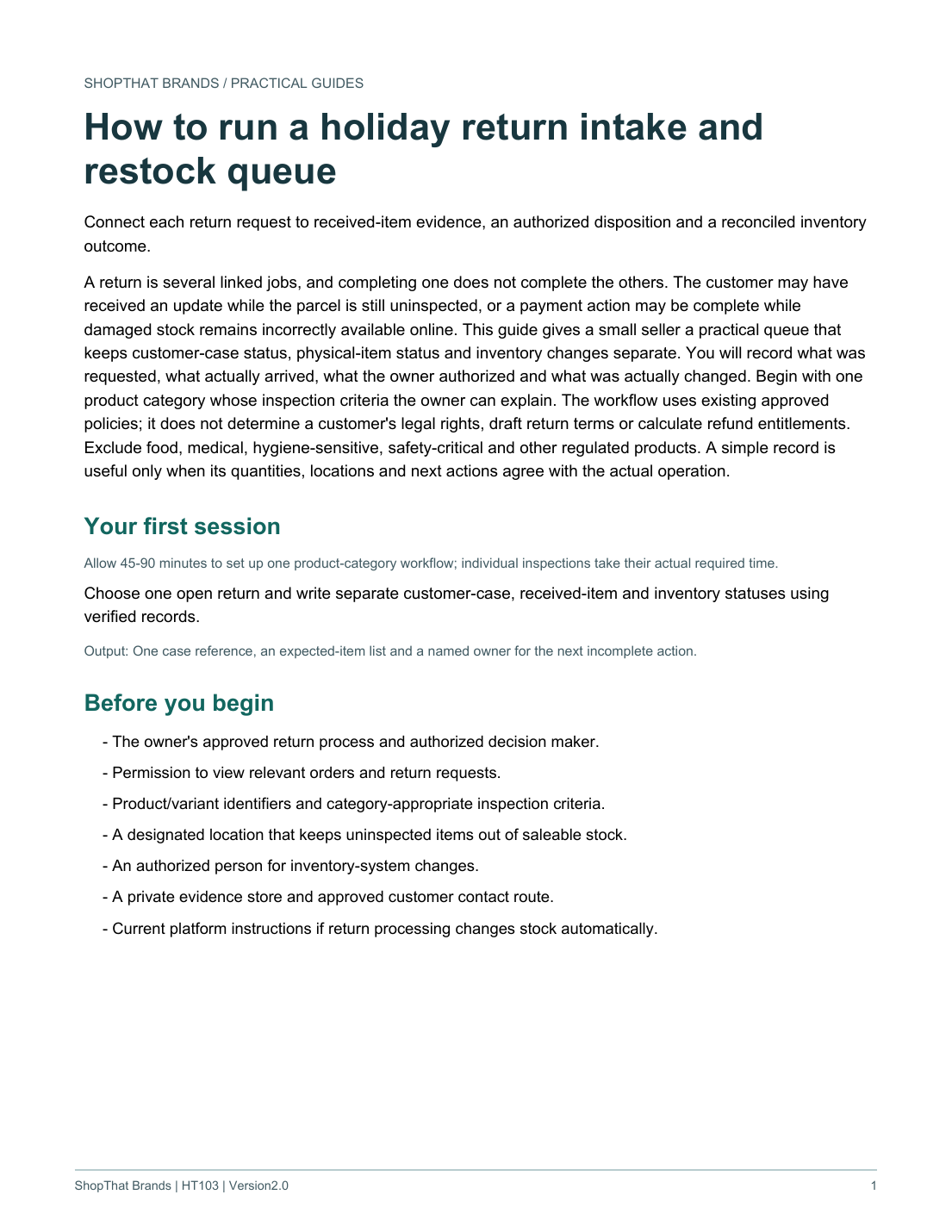
Holiday returns can leave a small shop with a satisfied customer and an unresolved stock problem. This guide helps you connect each request to the actual items received, an authorized disposition and a verified inventory result.
Eight explained steps separate customer, physical-item and inventory states. Build a request record, count the real parcel contents, inspect against the owner's criteria, obtain disposition decisions and check platform history before restocking. The fictional notebook example reconciles three received units into two saleable returns and one owner-assigned internal reference, with eight saleable units becoming ten through one verified adjustment.
Eight tools cover request intake, physical receipt, inspection findings, authorized disposition, stock/channel reconciliation, customer updates, the daily action queue and closure review. Each has task-specific instructions, field guidance and a coherent completed example. Troubleshooting addresses missing parcels, quantity differences, double restocks, mixed item conditions and customer cases closed while stock still waits in a bin.
Use with your existing approved return process and ordinary nonregulated products. The guide records owner decisions and action evidence; it does not draft return law, calculate entitlements or authorize refunds, repairs or resale of safety-sensitive goods. Current platform behavior should be checked before changing stock.
Included files: PDF guide, offline HTML guide, 8 distinct editable tools in HTML and TXT. Extract the ZIP before use. No paid software is required to read this guide or edit its supplied tools. Third-party services discussed may have their own costs. No XLSX, Canva, Notion or video files are included.
Text and template wording were generated with AI and reviewed for clarity and consistency.
License: Personal or internal business use only. You may edit the templates for that use; do not redistribute or resell the supplied files or templates.
HTML tools do not autosave. Use Save filled copy before closing to download and keep your completed entries.