
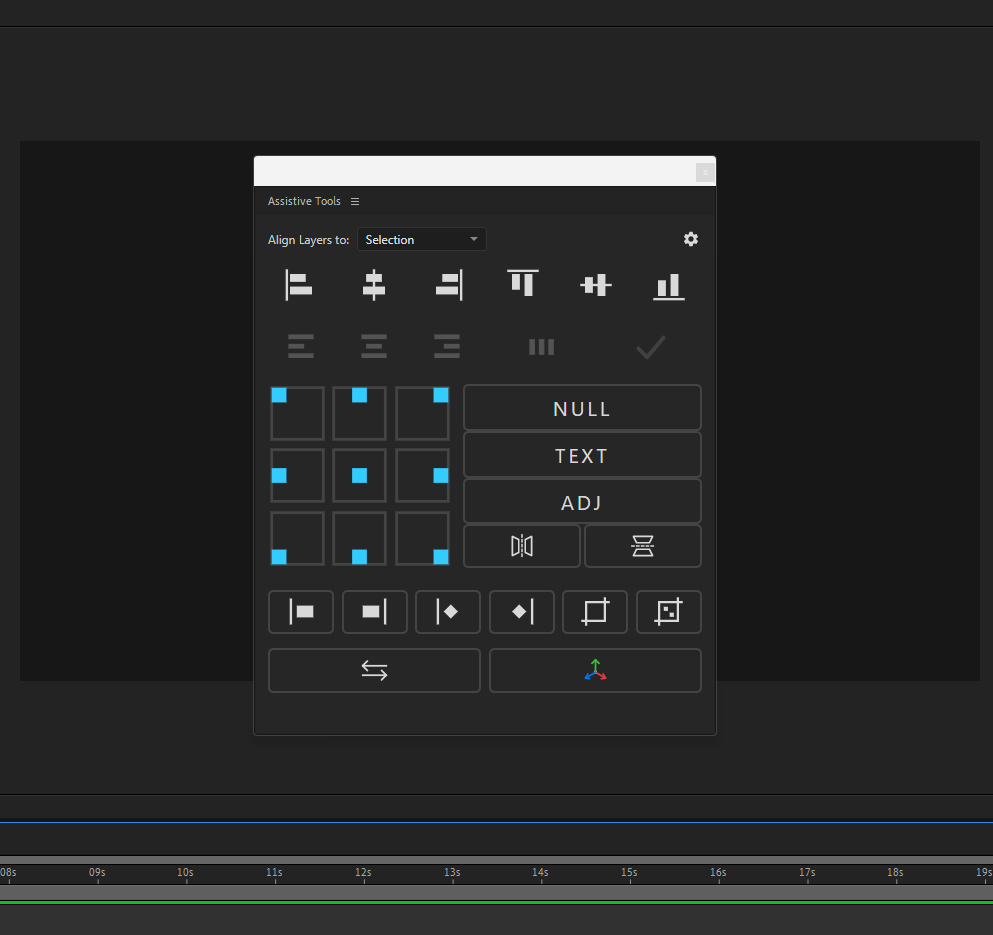
Assistive
On Sale
$2.00
Pay what you want:
(minimum $2.00)
$
After Effect 2019++
Full Preview
https://youtu.be/ITWr9X3BZpQ?si=pjzMQ_GI6J_NnsUn
1. Alignment Tools (Top Section)
Controls for precise layer positioning.
- Align To (Dropdown):
- Composition: Aligns layers relative to the Composition's edges/center.
- Selection: Aligns layers relative to the bounding box of the selected layers.
- Group: Moves the entire selection as a single unit without changing relative positions between layers.
- Align Left: Aligns selected layers to the left edge.
- Align Horizontal Center: Aligns selected layers to the horizontal center.
- Align Right: Aligns selected layers to the right edge.
- Align Top: Aligns selected layers to the top edge.
- Align Vertical Center: Aligns selected layers to the vertical center.
- Align Bottom: Aligns selected layers to the bottom edge.
2. Smart Text Tools (Second Row)
Advanced text manipulation features.
- Paragraph Left (Smart Fix): Sets text justification to Left without visually shifting the text layer's position (auto-compensates position).
- Paragraph Center (Smart Fix): Sets text justification to Center without visually shifting the text layer.
- Paragraph Right (Smart Fix): Sets text justification to Right without visually shifting the text layer.
- Split Character: Breaks a text layer into individual Shape Layers for each character.
- Split Word (CJK Support): Breaks a text layer into Shape Layers for each word. (Optimized for both English and CJK languages).
- Split Line: Breaks a text layer into Shape Layers for each line.
3. Transform & Creation (Middle Section)
Tools for Anchors, Controllers, and Presets.
- Anchor Point Grid (9 Buttons):
- Sets the layer's Anchor Point to one of 9 positions (Top-Left to Bottom-Right) without moving the layer in the composition.
- Null Controller (Icon 'NULL'):
- Creates a new Null Object centered exactly on the visual bounding box of the selected layers.
- Automatically parents the selected layers to this new Null.
- Add Text (Icon 'TEXT'):
- Creates a new Text Layer ("TEXT") perfectly centered in the composition.
- Wavy Horizontal (Left-Right Arrow):
- Applies the Horizontal.ffx preset to the selected layer. Includes safety features to preserve existing keyframes.
- Wavy Vertical (Up-Down Arrow):
- Applies the Vertical.ffx preset to the selected layer.
4. Timeline Utilities (Bottom Panel)
Tools for managing Time and Keyframes.
- Move In to CTI: Snaps the layer's In-Point to the Current Time Indicator (CTI).
- Move Out to CTI: Snaps the layer's Out-Point to the Current Time Indicator.
- Move Key Start (Left Diamond): Moves the first selected keyframe (and subsequent selected keys) so it starts at the CTI.
- Move Key End (Right Diamond): Moves the selection so the last selected keyframe ends at the CTI.
- Auto Crop & Precomp (Box Icon):
- Calculates the visual bounds of a layer (or mask), pre-composes it, and crops the new composition size to fit the content tightly.
5. Sequencer (Bottom Row)
Tools for creating staircase (offset) animations.
- Delay (Input): Defines the time offset in frames (e.g., 5 frames).
- Step (Input): Defines how many layers are grouped together (e.g., offset every 2 layers).
- Sequence Bottom-Up: Offsets layers starting from the bottom layer upwards.
- Sequence Random: Randomizes the start time of the selected layers.
- Sequence Top-Down: Offsets layers starting from the top layer downwards.
6. Info
- Info Icon (i): Opens the About Window, displaying the logo, features list, and a clickable link to the creator's profile.
Don't spread it around!
Please contact me if you find any bugs or have any suggestions.