
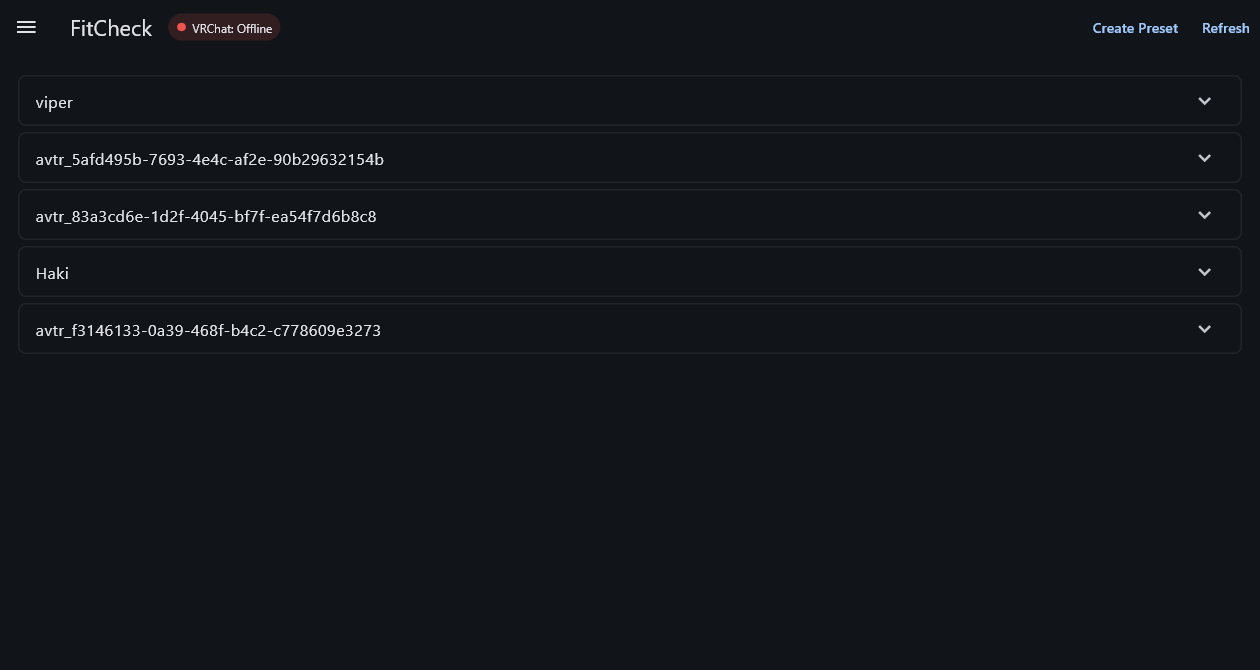
(VRChat) FitCheck - An avatar preset manager
Only purchase this if you're looking to support me !!! The program can be downloaded for free on the official github repository
FitCheck is a VRChat program that allows you to save the state of your avatar at any point in time, and then apply that preset back. It uses VRChat's OSC functionalities to work.
This allows you to quickly switch between toggles without having to navigate your radial menu. A concrete example would be to quickly change between two outfits on an avatar, or to re-apply all your toggles after accidentally resetting your avatar.
Features:
- Detects if VRChat is running
- Create an unlimited amount of presets for an unlimited amount of avatars
- Name, and rename your presets and avatars id's
- Share your presets (a bit advanced, but possible)
- Quickly switch into other avatars directly into a preset
Currently, the program only works for Windows 10/11. Support for Linux/MacOS may come if there is enough interest.
How to use
- Download the program and keep it somewhere safe.
- Open VRChat, and make sure OSC is enabled.
- Open the program. It will detect if VRChat is running or not.
- Click the "Create Preset" button to save your avatar state. You will be prompted for a name for the avatar, as well as the preset.
- Click on an avatar id/name to expand a list of available presets, with options to apply, rename and delete.
- Long-click on an avatar id/name to open a small menu that will allow you to rename the avatar. More features will be added to this menu.
- Click the hamburger icon in the top left to open a small menu with more options.
Sharing your presets
In the side menu, there is a button to open the location of presets. In those folders there are folders named after avatar Id's, and then files containing the avatar state stored in json. You may be able to share those files with someone else who owns the same avatar as you. If you do, make sure you place the preset file in the correct avatar folder. Also, you will need to open those files and edit the line that contains the original avatar id to replace it with a correct avatar ID that you own.
Known issues
- I've had reports during testing that some avatars have issues when applying a preset. Currently investigating, please leave some feedback if you are experiencing this. (I will likely contact you)
Terms of service
- Do not redistribute this program as your own.
- Do not redistribute, or claim the source code as your own.
- No refunds. At all. Purchasing a license does not grant you anything aside from the satisfaction that you're supporting this project and the updates to come in the future.
- Avoid sharing files if possible - Direct your friends to the Github repository linked at the top of this page.
This project is not affiliated, nor endorsed by VRChat.