
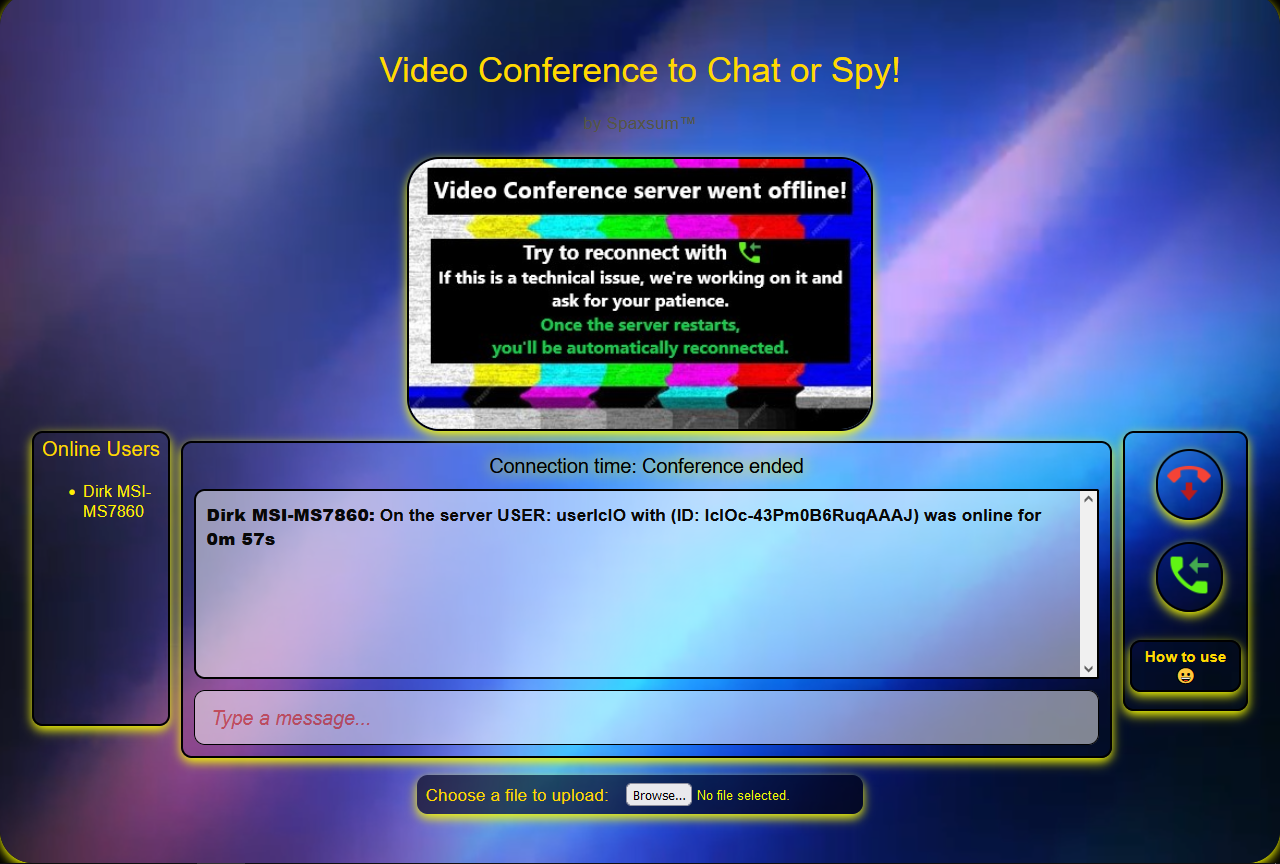





Video Conference
Video Conference to Chat or Spy – connect with your friends or family!
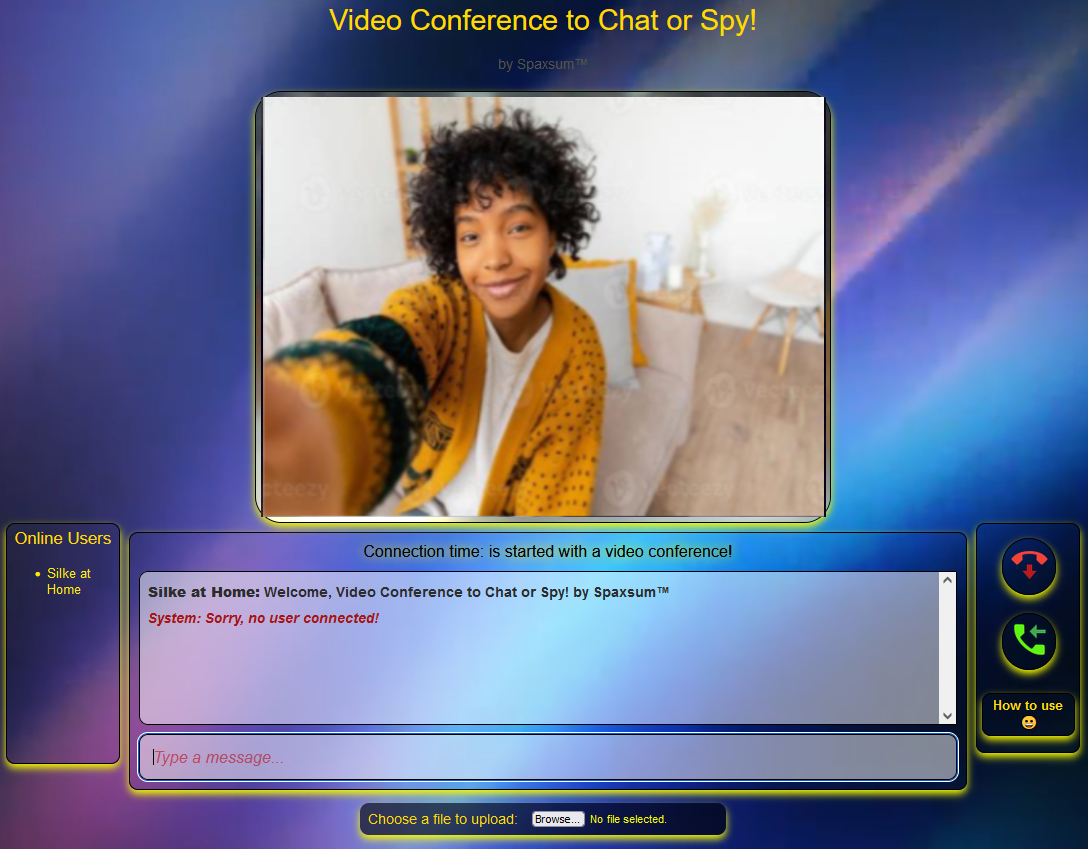
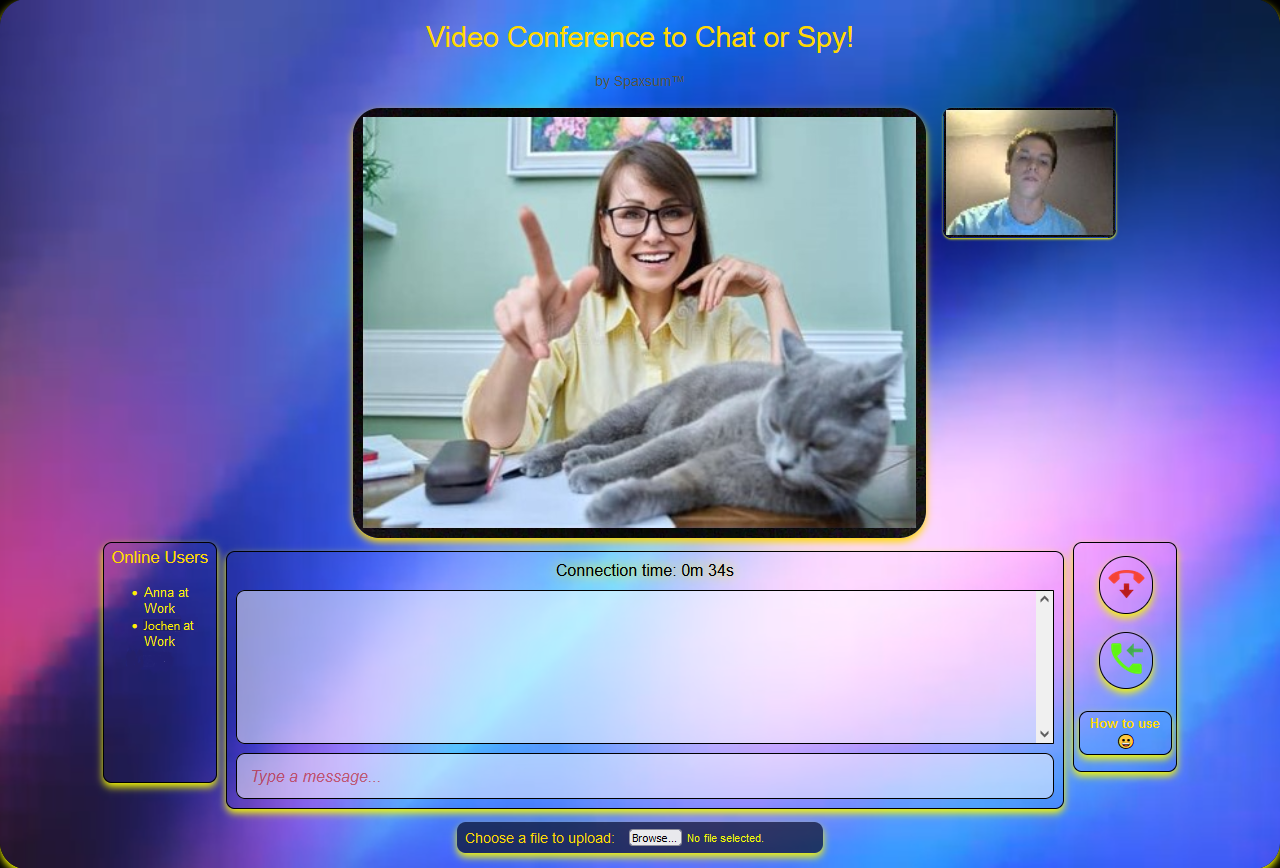
The Video Conference application is a real-time video conferencing tool that allows users to connect via video, chat, and file sharing. Originally built with Node.js, it now provides a compiled .exe experience for quick setup and use.
KEY FEATURES
• Real-time Video Conferencing: Connect with 2 to 20 users.
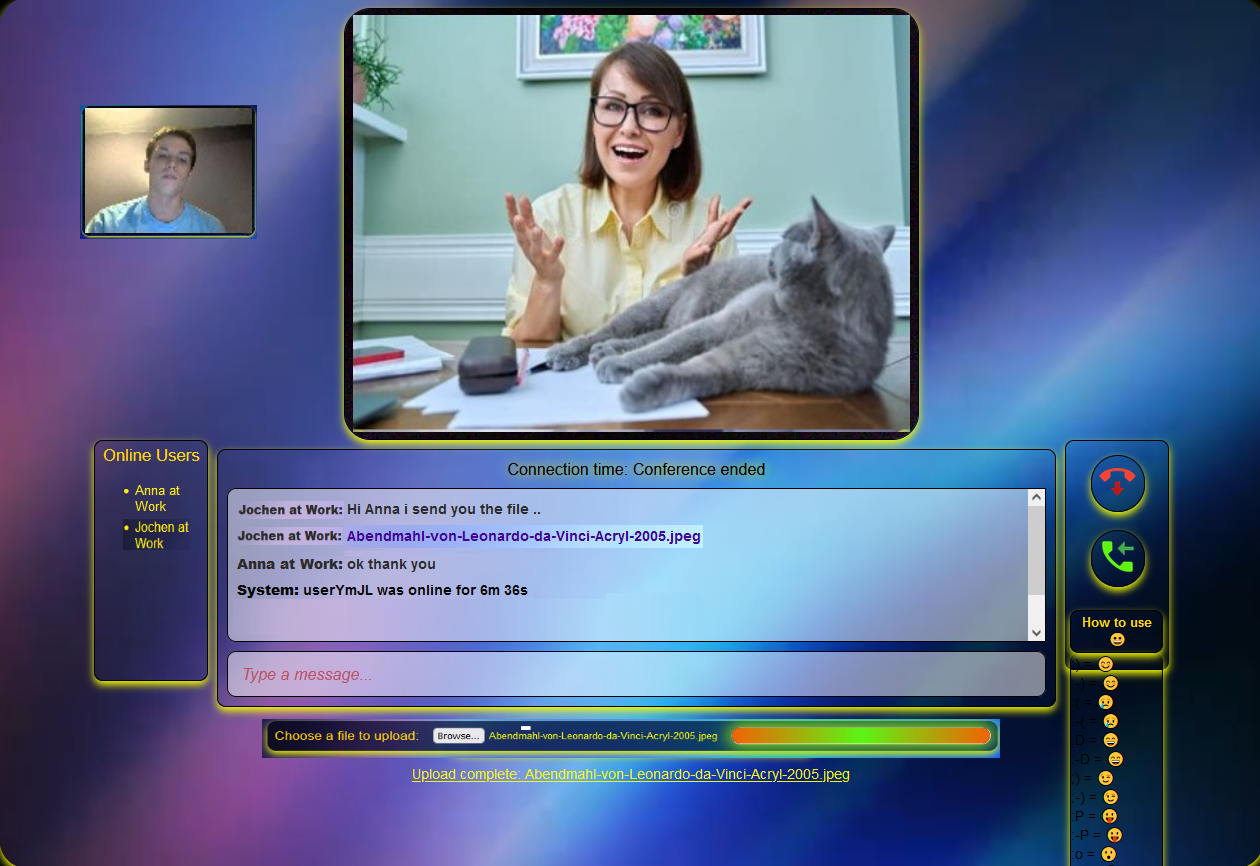
• Text Chat: Instant messaging with emoji support.
• File Sharing: Upload and share files with other participants.
• No Limits: No restrictions on connection time or file transfer size.
• User Management: Automatically assigns usernames and displays online users.
• Connection Setup: Automatic response and connection setup; useful for checking on elderly people or monitoring your home.
• Secure Connection: Uses HTTPS for secure communication.
• No Advertisements: No ads, no notifications, no registration – free forever.
VIDEO CONFERENCE PACKAGE INSTALLATION GUIDE
Step 1: Download the Video Conference Package
- Download the VideoConference.rar file from our official page:
https://onlyregistered.itch.io/
Step 2: Extract the Files
- Use a RAR extraction tool to unpack the downloaded file.
Step 3: Ensure Node.js is Installed
- Make sure Node.js is installed on your system.
Step 4: Manage Node.js Installation
- To install, fix, or uninstall Node.js, run: node_manager.bat
Step 5: Install the Program
- On your first run, start: Video Conference Installer.exe with administrator rights.
- If Node Manager did not start at the end of the installer, run: node_manager.exe
RUNNING THE PROGRAM
As Host:
1) Double-click the Video Conference Host icon (or use the Windows Start menu / desktop shortcut).
2) Enter your Local or VPN IP address and press Enter.
3) Your default browser will open and load the Video Conference interface.
As User:
1) Double-click the Video Conference User icon (or use the Windows Start menu / desktop shortcut).
2) Enter the Local or VPN IP address provided by the Host and press Enter.
3) Your default browser will open and connect you to the Host.
TROUBLESHOOTING
• Shortcut Launch: If you encounter issues when opening via a shortcut, close the program; it should exit without showing an error.
• Administrator Rights: If permissions block startup, open the installation directory:
C:\Program Files (x86)\Video Conference
Then set administrator rights (Run as Administrator) for:
- Video Conference Host.exe
- Video Conference User.exe
• Devices: Ensure your webcam and microphone are properly connected and accessible.
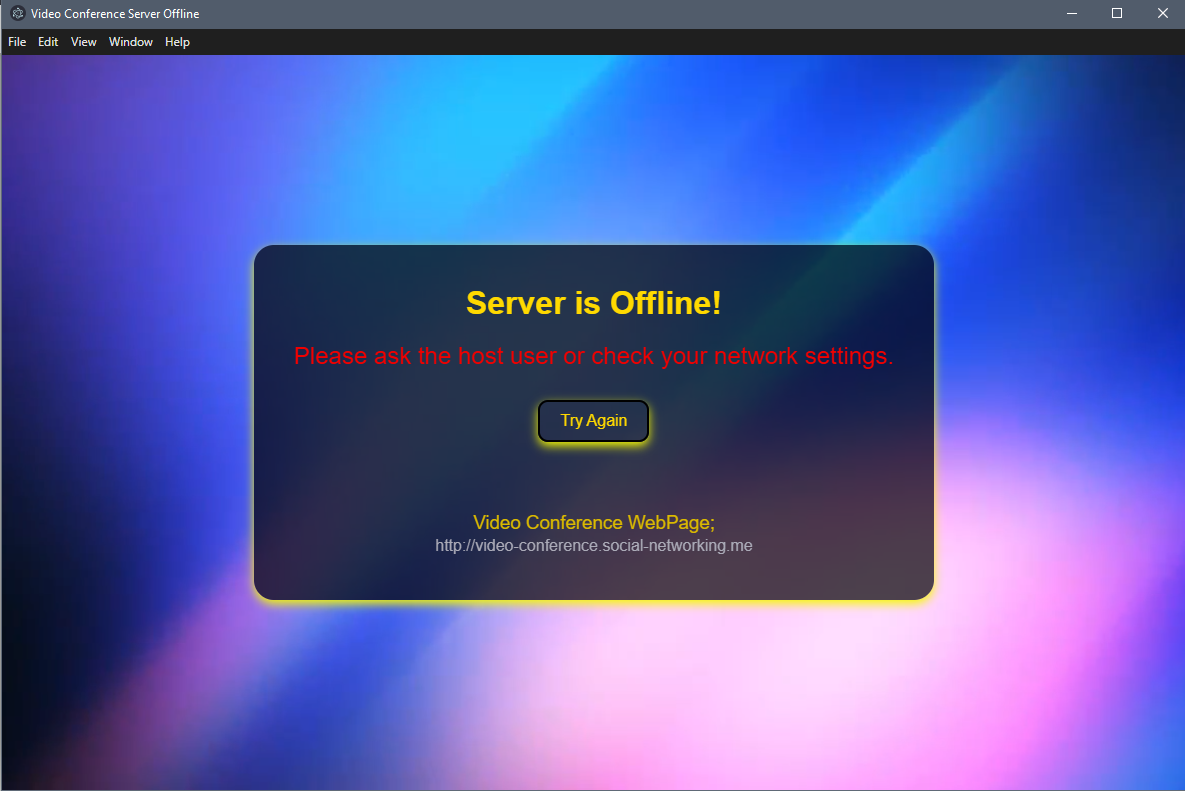
• Network: Check your network and firewall settings if you encounter connectivity issues.
• SSL: If you experience issues with SSL, verify that your certificate files are correctly configured.
FUTURE OF SOUND & AUDIO (Spaxsum™)
Spaxsum™ is building next-generation sound features to make conversations feel natural and immersive:
• Spatial Audio: Hear voices positioned as if participants are in a real room.
• Noise-Adaptive Clarity: Real-time suppression of background noise to keep speech crisp.
• Smart Voice Presence: Automatically emphasize active speakers for balanced group talk.
• 3D Audio Rooms: Move sound sources within a virtual space for depth and realism.
• Low-Latency Voice Pipeline: Optimized audio path (e.g., Opus) for smooth, low-delay calls.
• Echo Control & Beamforming: Reduce echo and enhance clarity across common devices.
• Device Handoff: Seamlessly switch microphones/headsets during a call.
• Per-User Audio Controls: Individual volume and mute states that persist per session.
DOWNLOAD & FEEDBACK
• Download Latest Version:
https://onlyregistered.itch.io/
• Send Feedback or Report Bugs:
https://onlyregistered.github.io/appfeedback/
LICENSE
This software is provided for free for personal and non-commercial use.
You may share the compiled application, but the source code is not available
for public use or redistribution. All rights reserved.
Spaxsum™ and all related marks are property of their respective owners.