

🔧 Post Processing Toggle Button for Unity
Quickly control your post-processing with a single button in Unity’s toolbar.
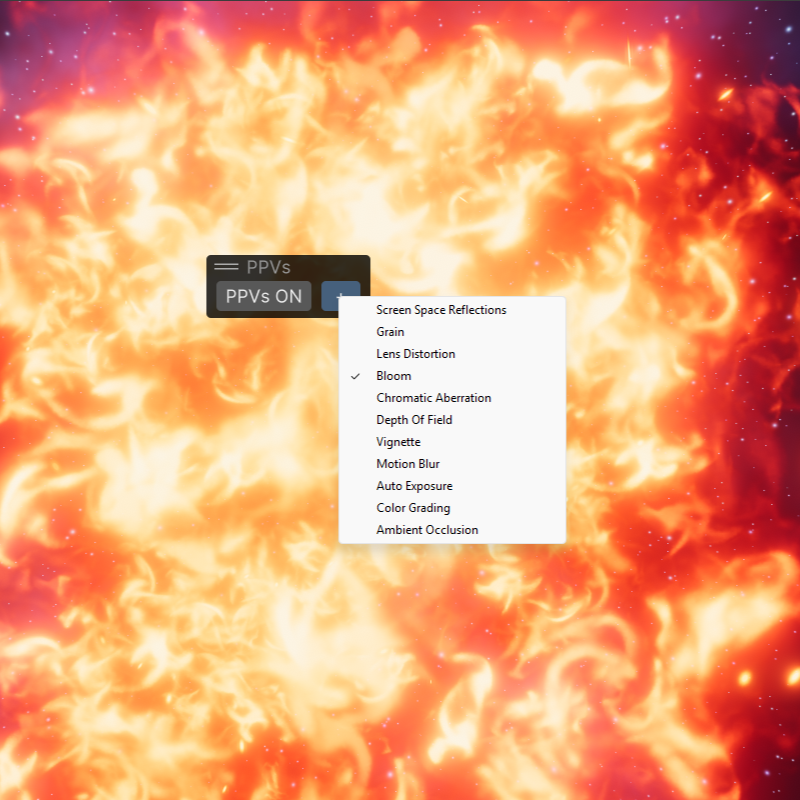
The CyberLuna Post FX Toolbar Toggle is a lightweight Unity Editor utility that adds a compact, one-click button directly to your Scene View toolbar for enabling and disabling all Built-in Post Processing Stack (v2) Volumes in your scene.
Designed for world creators, VFX artists, and performance-minded developers, this tool removes friction from iteration by letting you instantly compare with/without post — no digging through hierarchies, no selecting volumes, no inspector toggling.
⚡ Why this tool?
When building worlds, shaders, or lighting setups, you constantly need to ask:
- “Is this look coming from lighting — or post processing?”
- “How much is post processing really doing?”
- “What’s the baseline without effects?”
This tool gives you that answer in one click, right where you’re already working.
🔧 What you get
✔ A single native-feeling button in the Scene View toolbar
✔ One-click toggle for all PostProcessVolume components
✔ Works in Edit Mode (no Play Mode needed)
✔ Respects Undo
✔ Persists your ON/OFF state across sessions
✔ Safe with multi-scene setups
✔ Tiny footprint — no runtime impact
✔ Clean, readable Editor code you can modify
🎛️ How it behaves
Click the button once to:
- Disable every Post Process Volume in all loaded scenes
- Click again to restore them
- Instantly visualize the difference in your viewport
🛠️ Technical details
- Unity Built-in Render Pipeline
- Post Processing Stack v2
📦 Installation
- Import the Unity Package
- Enable the Post FX overlay (in the overlay manager)
- Dock it to the toolbar or place it wherever
- Click and enjoy <3
This tool is intended for private use only in your own projects.
✅ You can
- Use this tool in your personal Unity projects
- Use it for VRChat worlds, scenes, or tools you create yourself
❌ You can’t
- Redistribute this tool on its own
- Include it in packages you sell or share
- Re-upload it to other stores or repositories
- Share the script publicly as your own work
- Bundle it into downloadable assets for others