
Realistic FUR Brushes for CLIP STUDIO PAINT and Manga Studio
No PayPal required:
👉 Get it instantly HERE (card, Apple Pay, Google Pay)
💳 PayPal is still available above if preferred (Add to cart or Buy now button) ↑
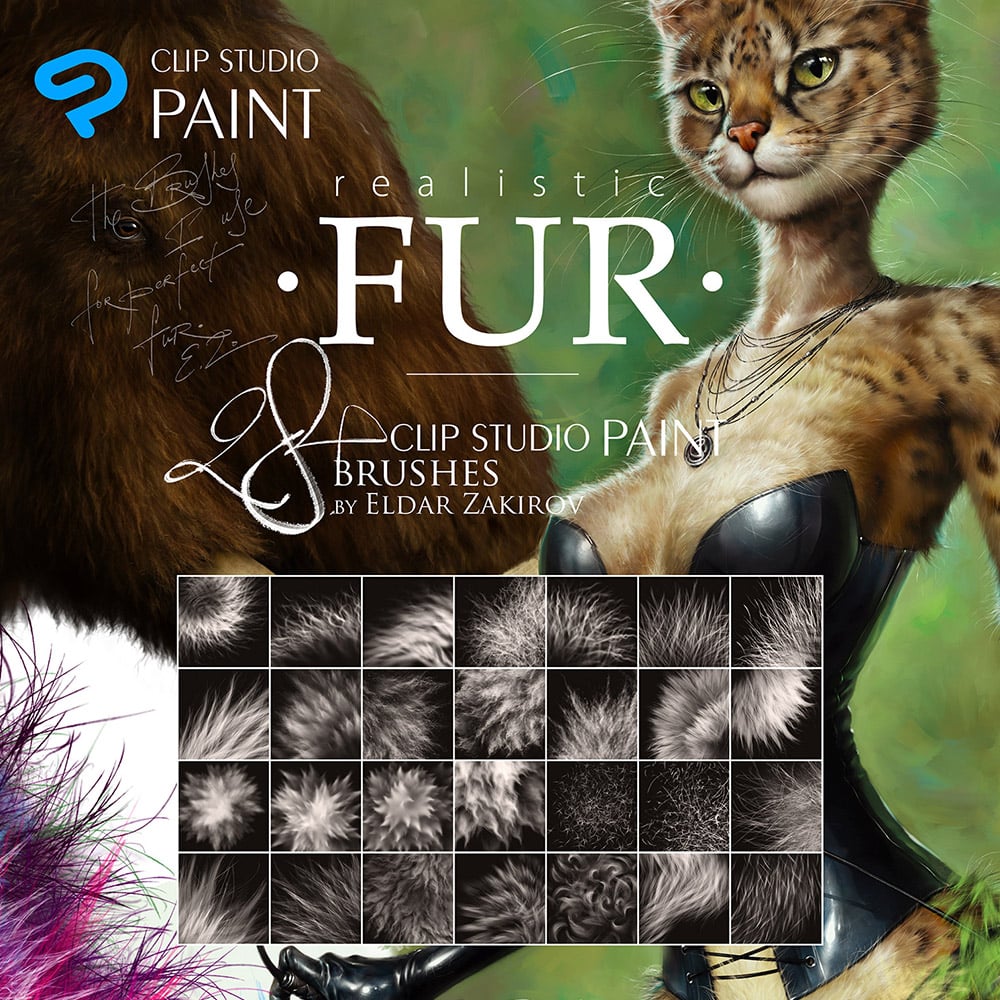
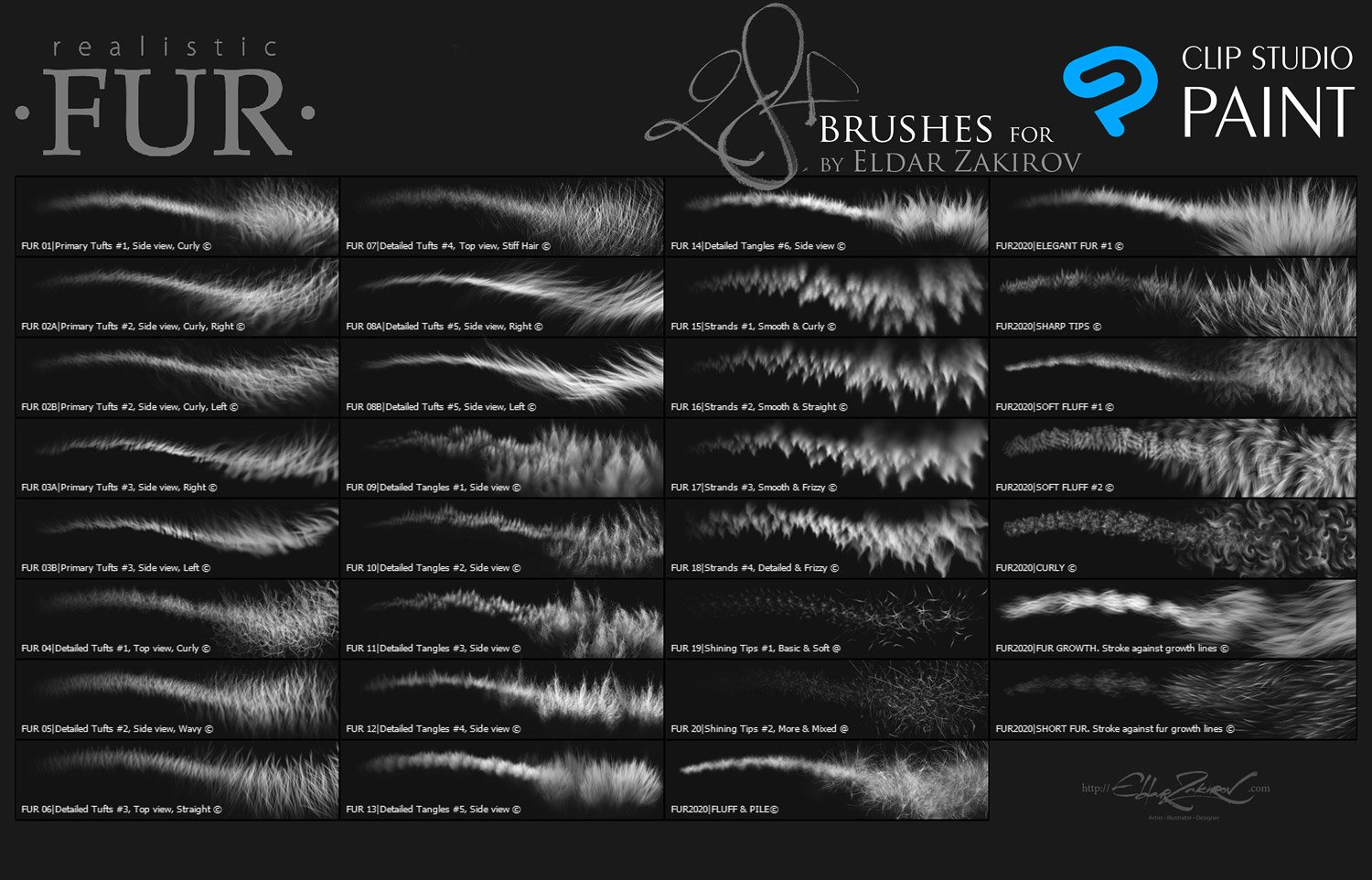
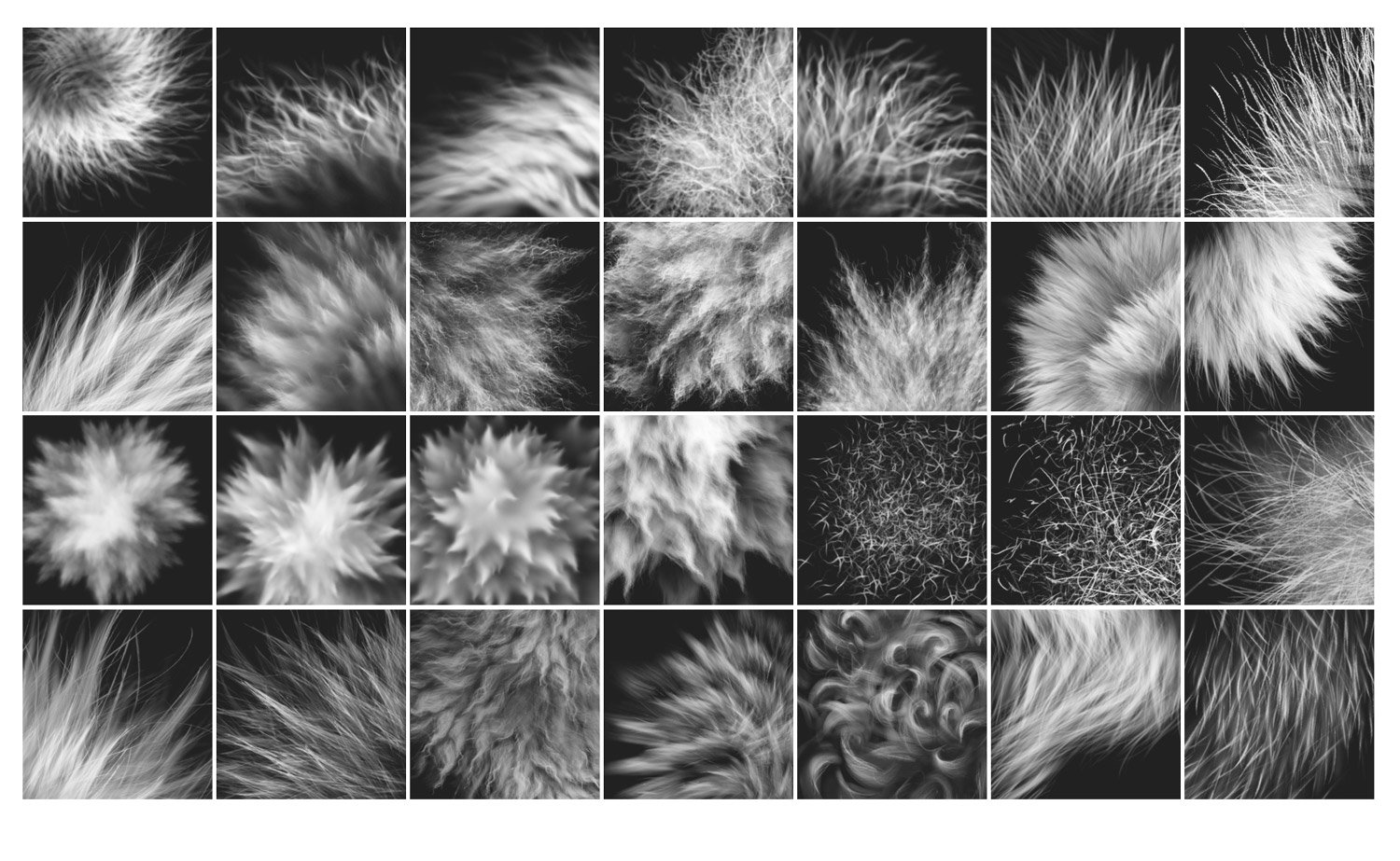
28+ Realistic FUR sub tools (brushes with settings)
for CLIP STUDIO PAINT and Manga Studio
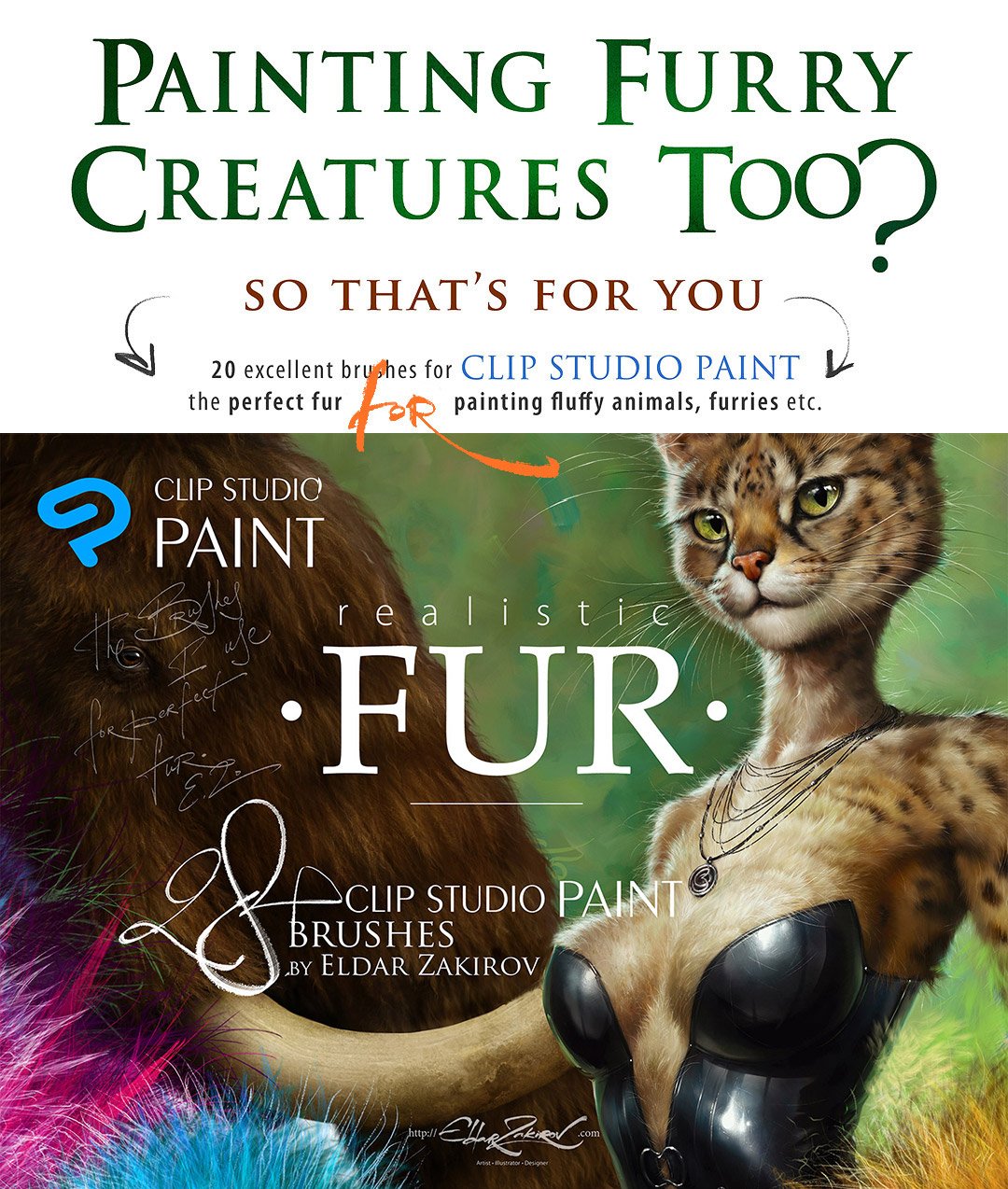
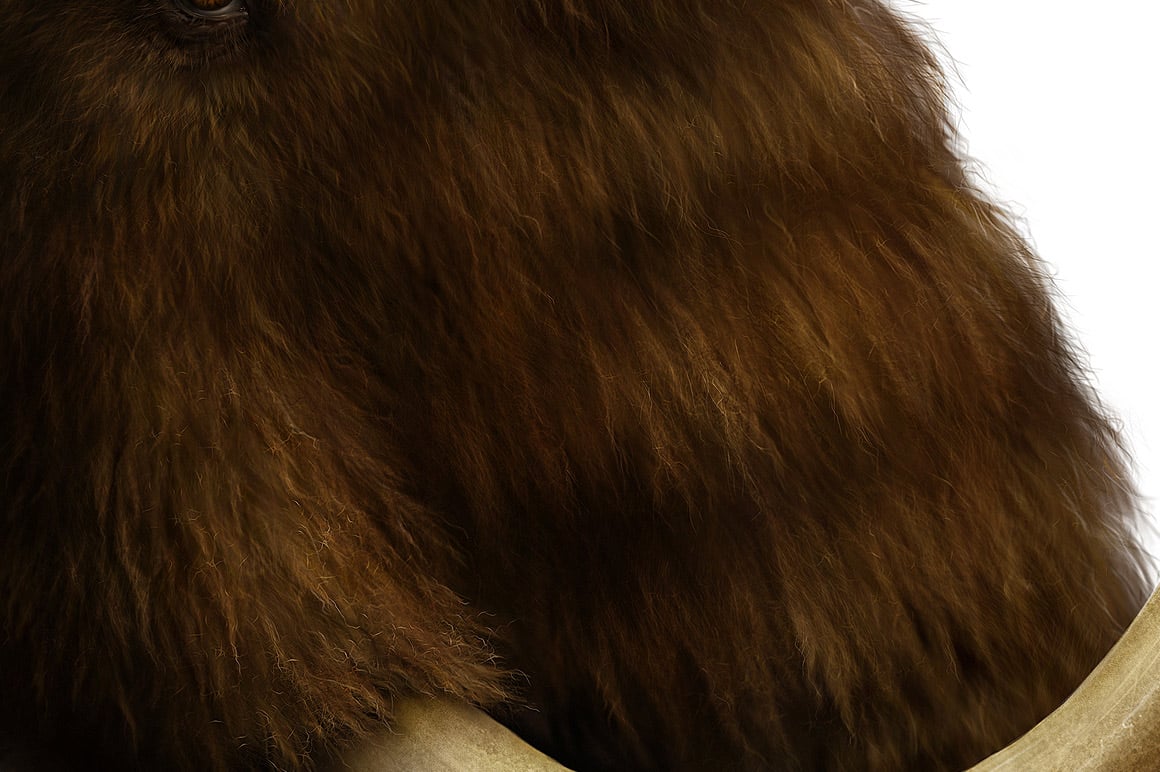
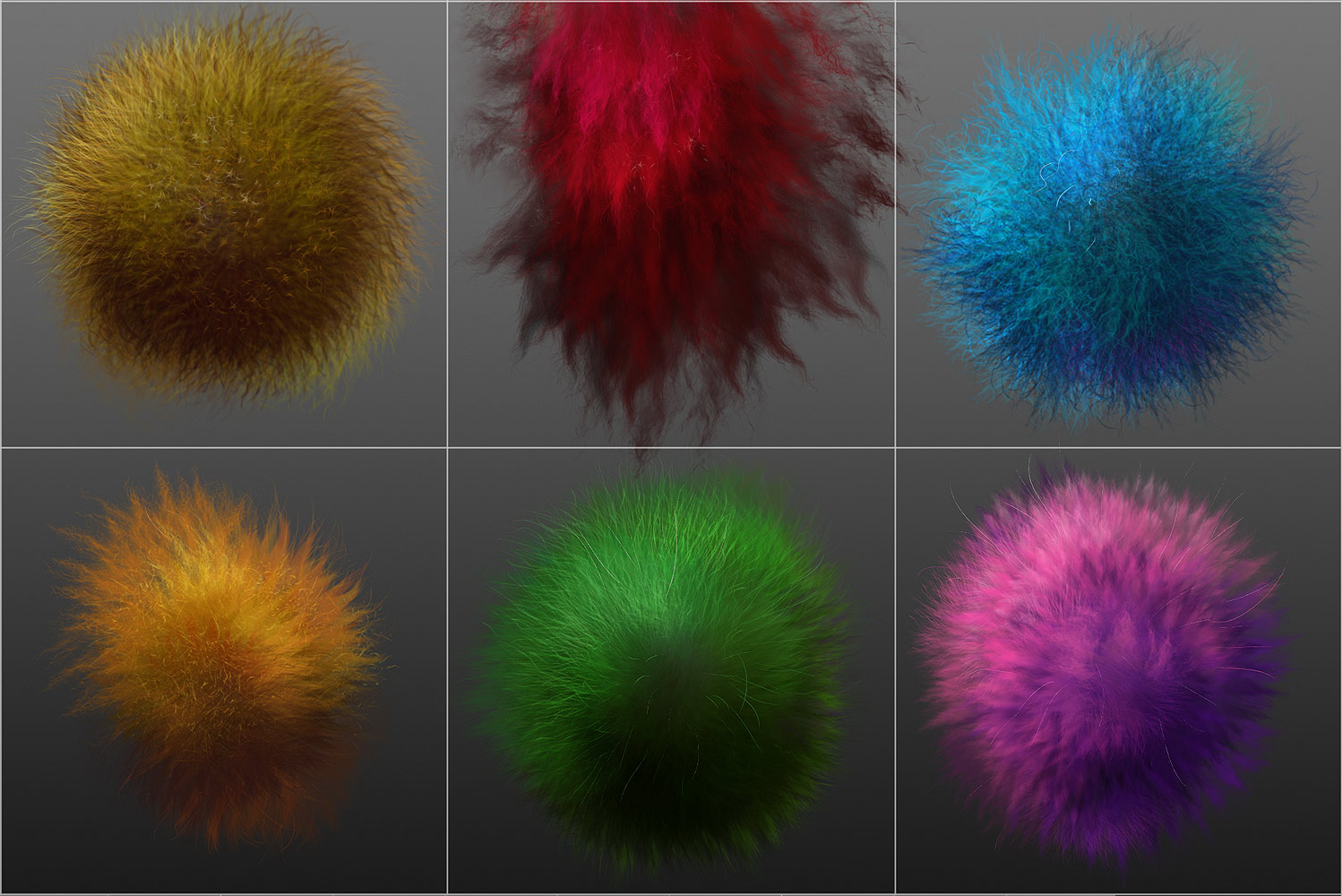
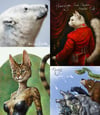
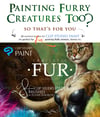
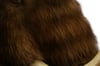
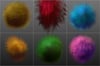
28+ realistic FUR brushes for CLIP STUDIO PAINT for painting fluffy animals, furries, etc. — for desktop and iPad versions
Brushes #2, 3, and 8 from these 28 brush sub-tools offer two options each for right and left-directional hair growth. So, in common, the Set contains 31 brush sub-tools
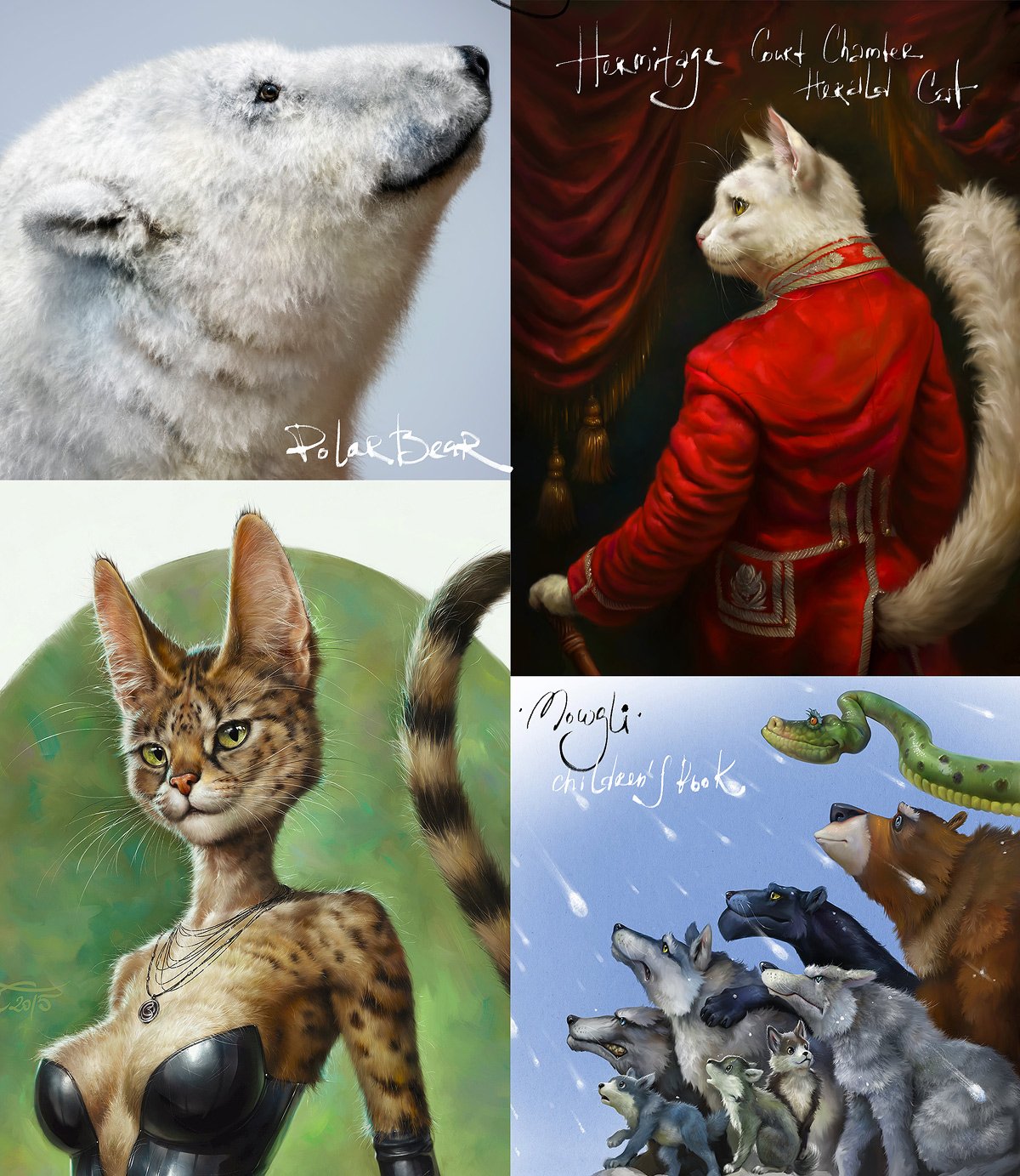
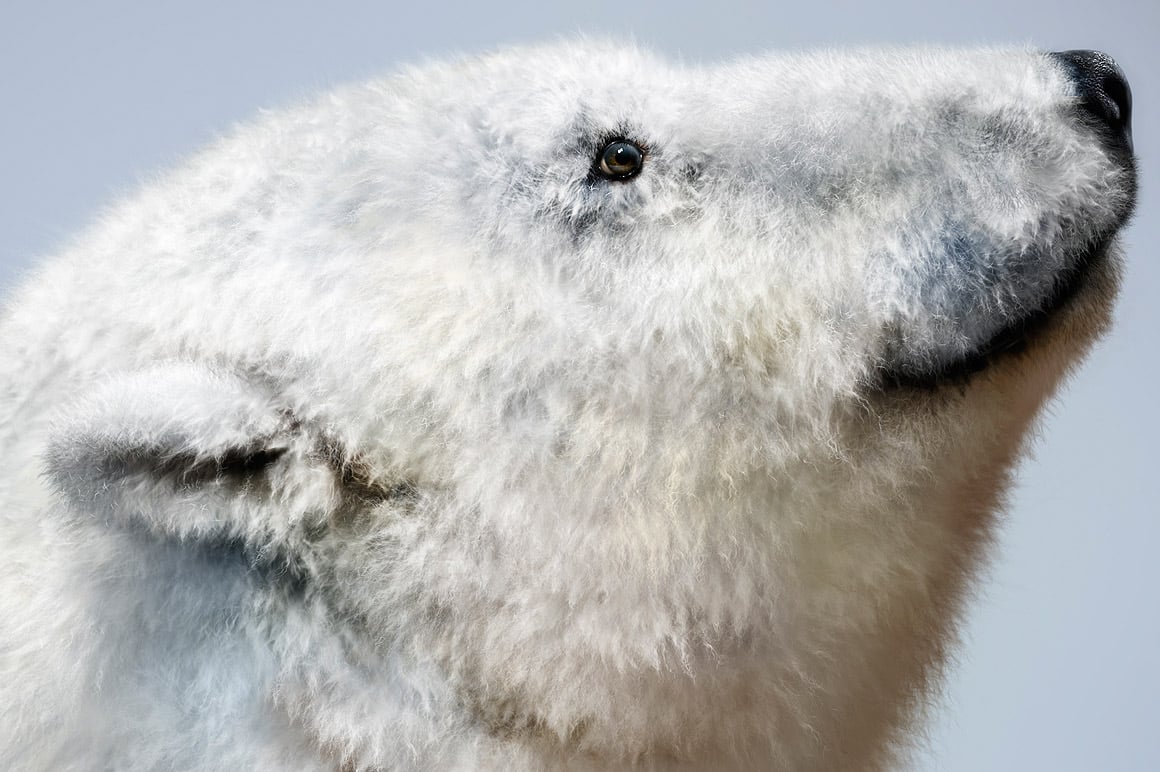
I've spent a considerable amount of time learning how to draw realistic fur. And I can be proud that I've reached this goal. To simplify matters, I initially created a series of brushes for myself and decided to share them with you and my friends. I'm sure you'll appreciate the assistance they bring to your workplace!
👇 See the demo VIDEO of HOW they work 👇
(The video was made with the Photoghop FUR brushes, but all the brushes are completely identical.):
You'll receive the ZIP archive with the following items:
- 31 SUT files (Clip Studio Paint sub-tool files) in a separate directory;
- PDF with tips and instructions on how to install the brushes into your software;
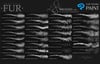
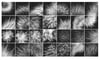
- JPG with the brushes table. Sometimes, it may be just convenient to have it on hand.
No PayPal required:
👉 Get it instantly HERE (card, Apple Pay, Google Pay)
💳 PayPal is still available above if preferred (Add to cart or Buy now button) ↑
■ Copyright, Terms, and License:
• Please note: there are versions of this brush set for several software products: Photoshop, Clip Studio Paint, Procreate, Affinity Photo / Designer. You’re looking through the CLIP STUDIO PAINT version page. Please be sure that you’re buying the right one. I don't accept returns, exchanges, or cancellations. But please contact me if you have any problems with your order.
• This product can be used in unlimited personal and commercial works.
• ! Cannot be resold, shared, or provided to third persons entirely or partially.
■ Some tips for using the brushes:
• As you know, painting and drawing have several basic shading techniques. I like this one as the most appropriate for me — I find it one of the most rational for painting the fur — to start coloring with a neutral, halftone local color, then shade it according to the volume and lighting, then add layers of the fur with colors a bit lighter than the underlying shading.
• Start with a general neutral local fur color with a darker tone, and paint the shape and shading with any brush or brushes that are more convenient to model such volumes.
• After, as usual, it may be necessary to make some areas deeper (darker) — for example, deep shaded areas among strands near their roots — or set some light and highlight accents in the lights.
• Try also experimenting with layer or brush blending modes, such as Soft Light, Screen, Multiply, etc.
• As in painting or drawing, I'd recommend proceeding from common, main shapes to partial ones and details: firstly, specify the main significant volume, lights, and darks, then put non-detailed fur strands using matching brushes, and then make the detailing with detailed fur brushes.
• In the end, I'd add some of the sharpest strands or hairs, maybe blur or darken some of the underlying strands, and light up some of the most visible and highlighted ones. Try to make some of them softer or sharper, darker or lighter in the finish or work, a kind of post-processing. Add some highlights. Use the "Shining Tips" brushes from the set. Regular textured thin brushes can draw the separated hair.
• Switch on "Lock sub tool do not save change" (see the picture below) for each brush preset (sub-tool) if you want to reset the brush after changing the settings, etc. I recommend turning it on, except when adjusting the brush.
• Each brush has a slight Color variability to make the fur more picturesque and realistic. It is linked to the pen pressure: the more pressure applied, the more the secondary color (from the backward, second square) randomly adds to the primary color.
■ How to install the brush set:
1. After downloading the file, unzip it (if this is an archive).
2. Start Clip Studio Paint.
3. Choose the brush tool you prefer.
4. Select all the .sut files and drag & drop them into the list of brushes. The brush presets (sub-tools) will start appearing in the list.
5. Enjoy! I'd advise you to switch on the "Lock sub tool do not save change" for each brush of the Set (see the tip and picture above).
The basic settings are already made, but you can set your brushes as you wish. In this case, turn this switch off.
6. Enjoy and create great work!
Release Notes
8 brand new brushes were added, the old brushes were improved, and minor bugs were fixed.