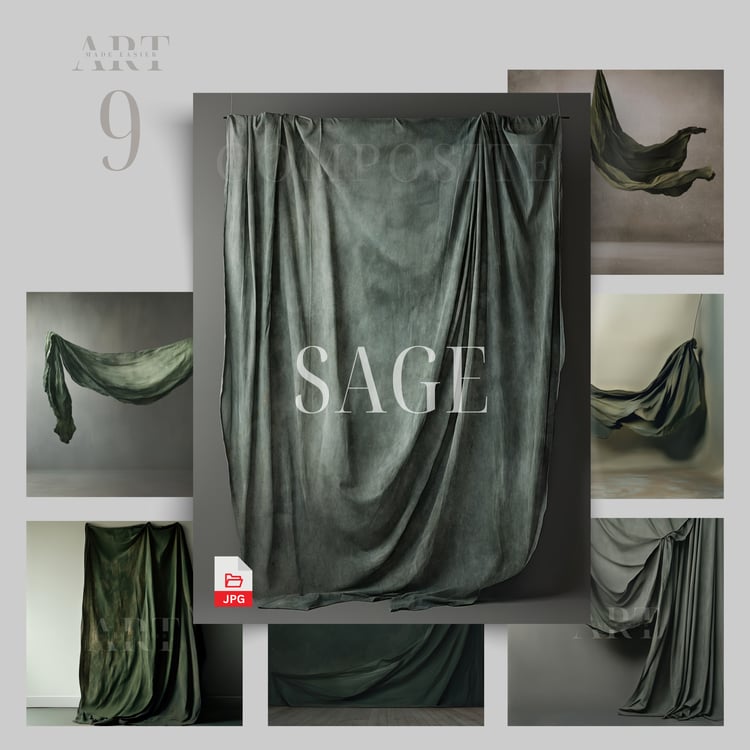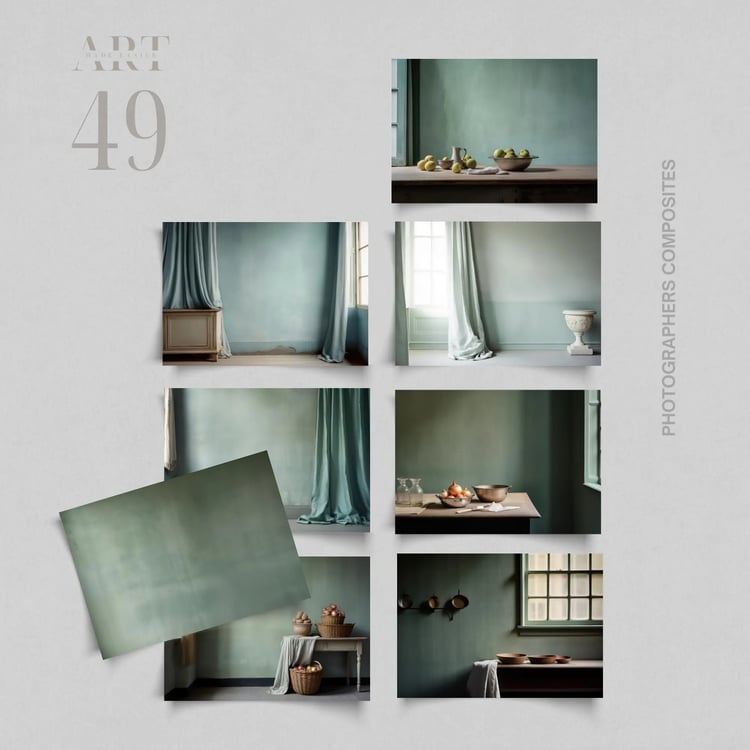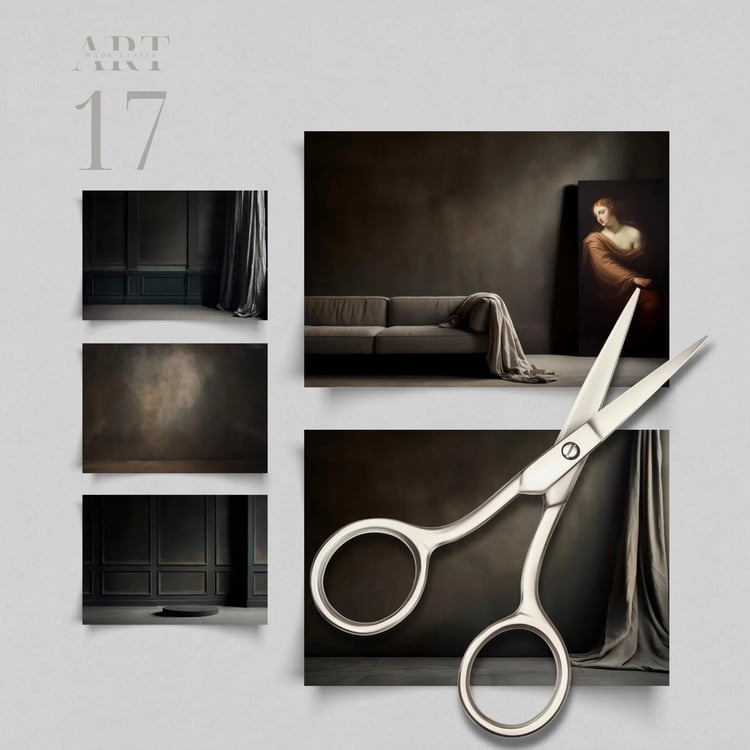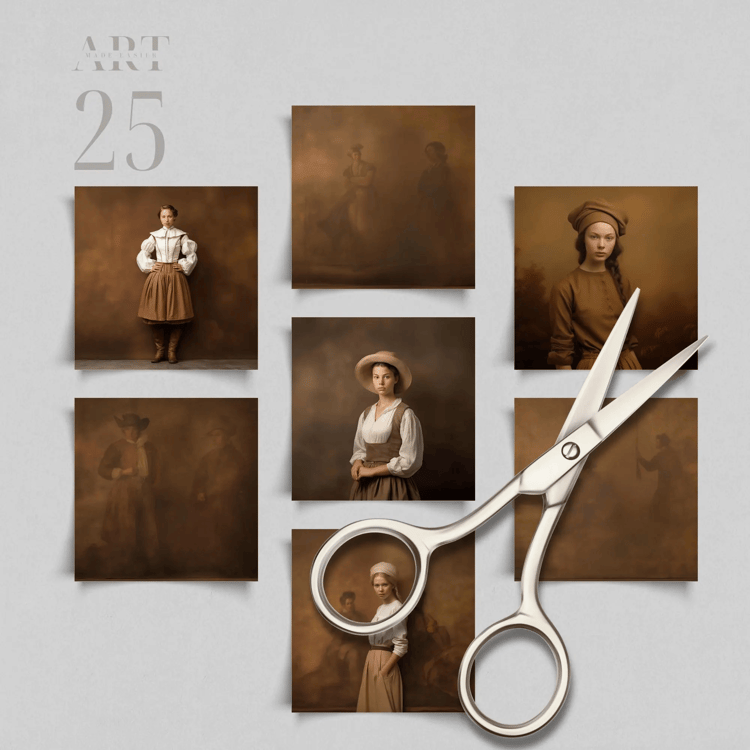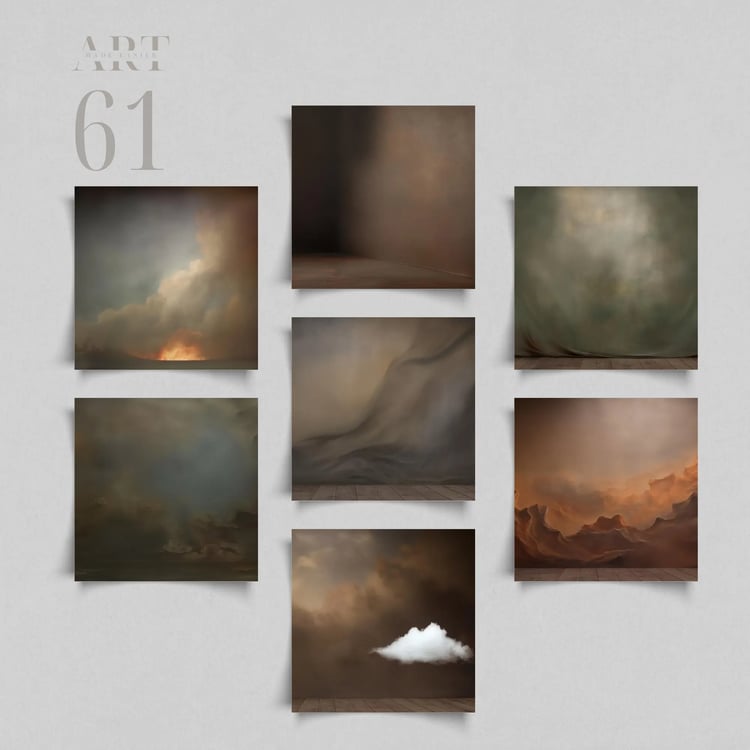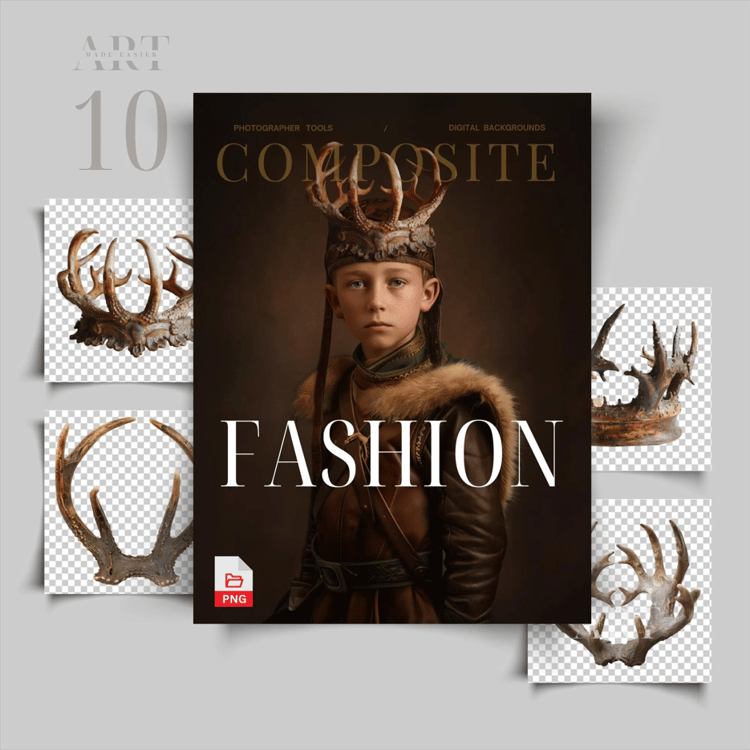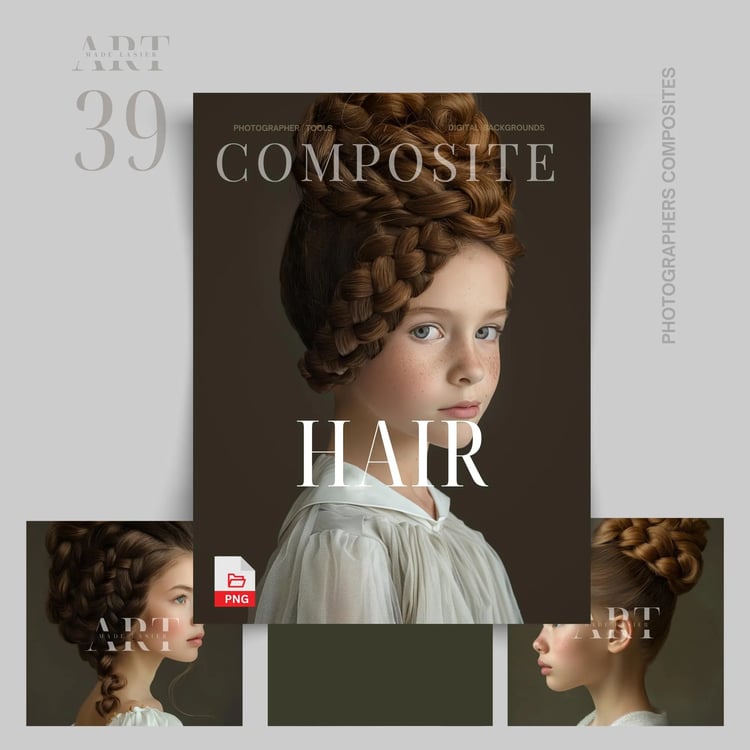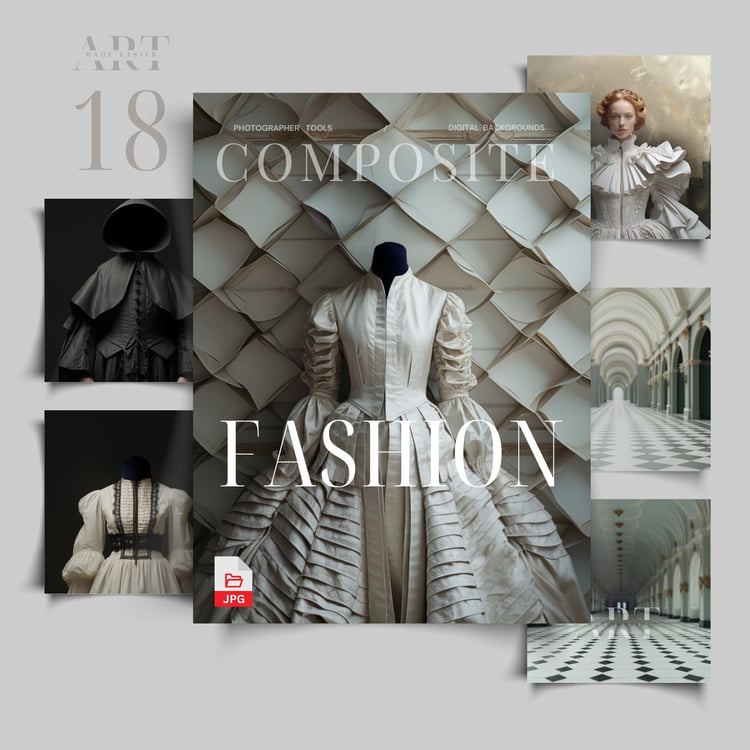

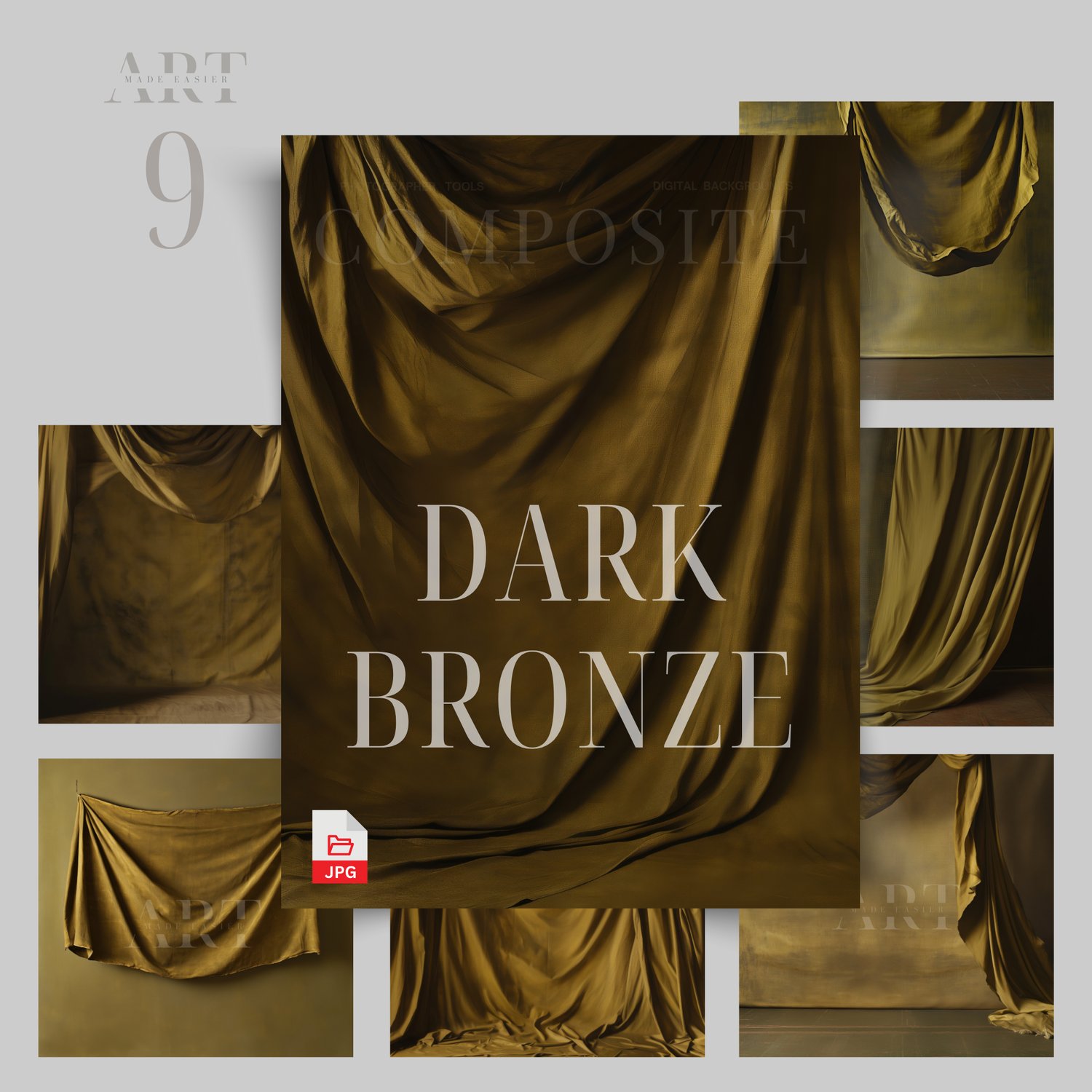
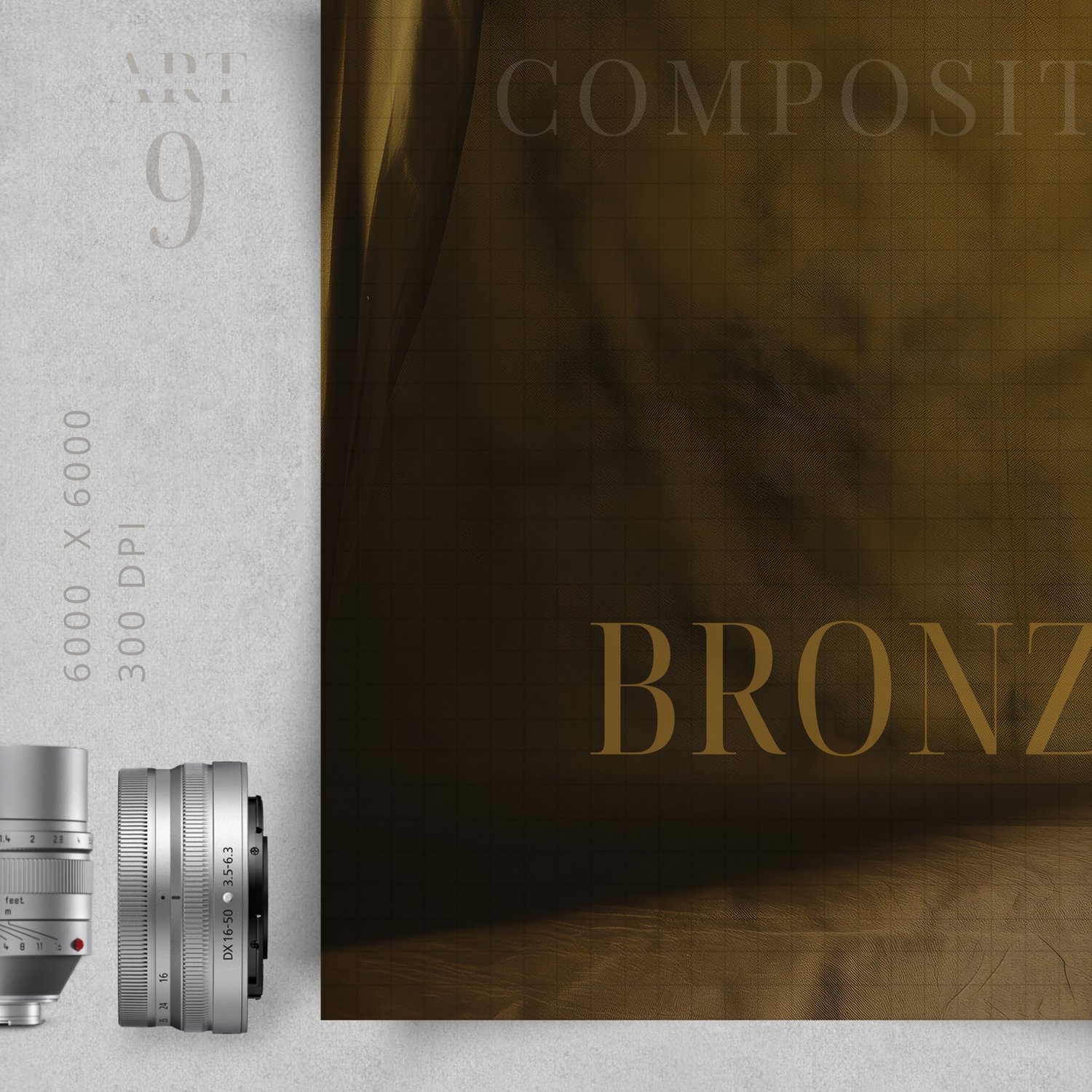
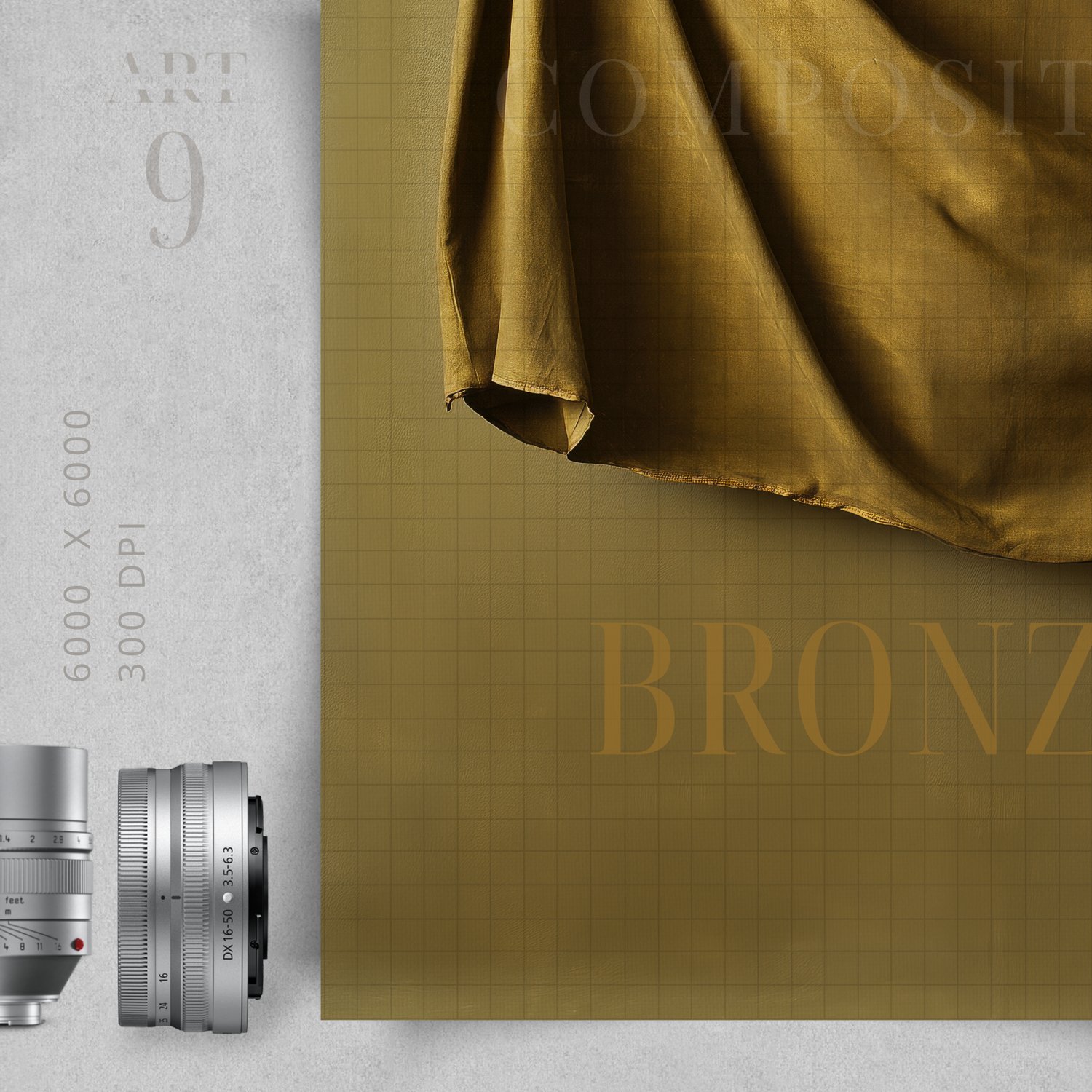
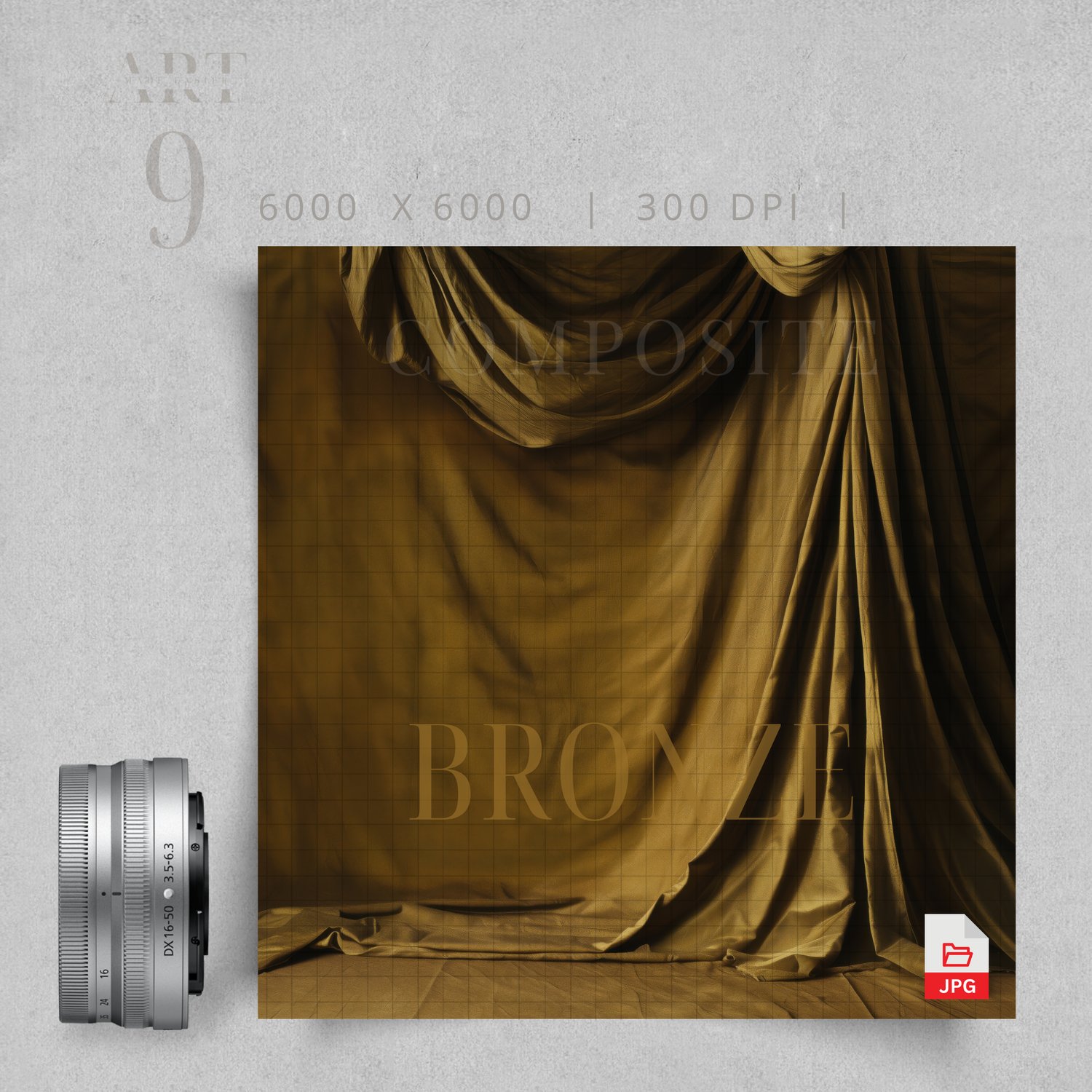
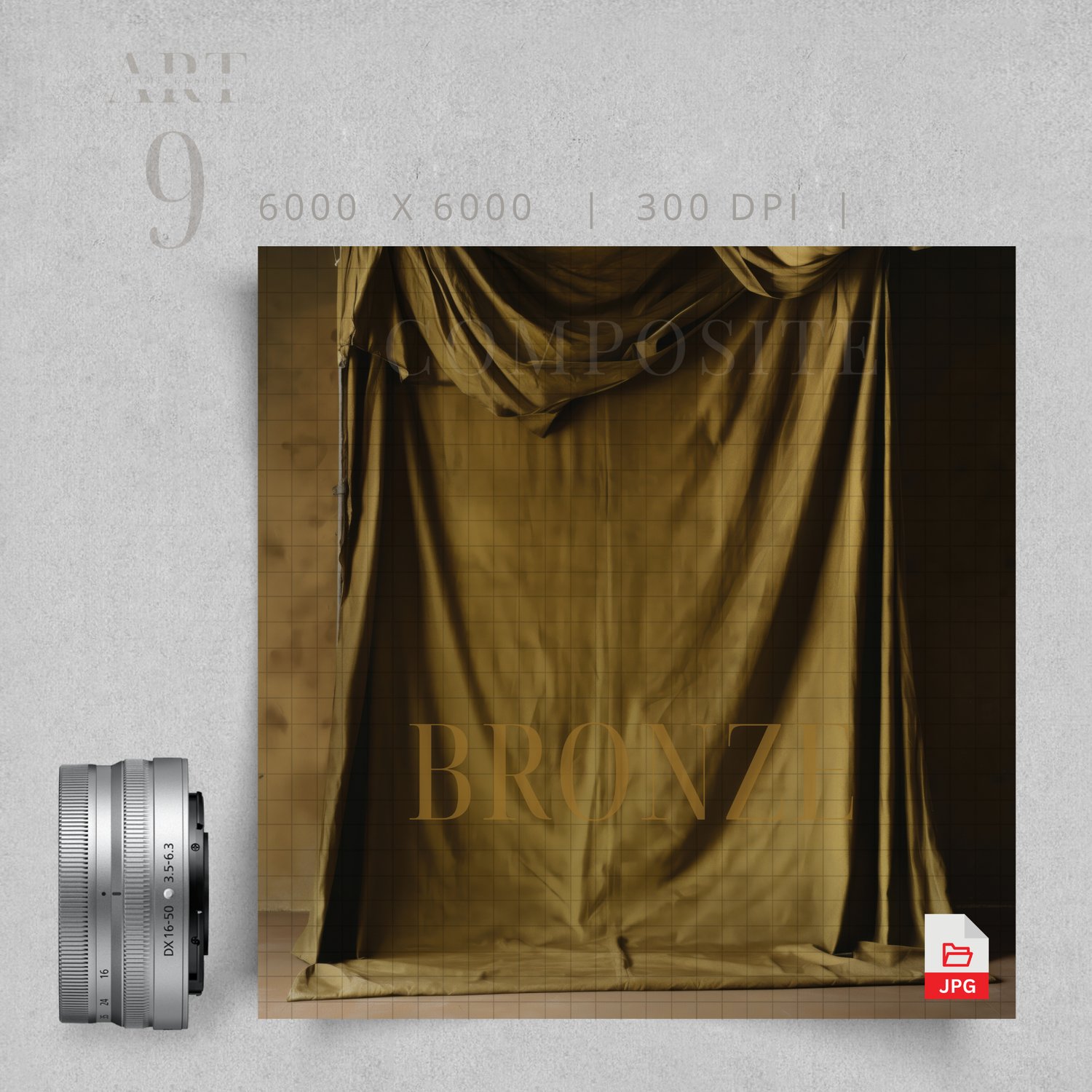
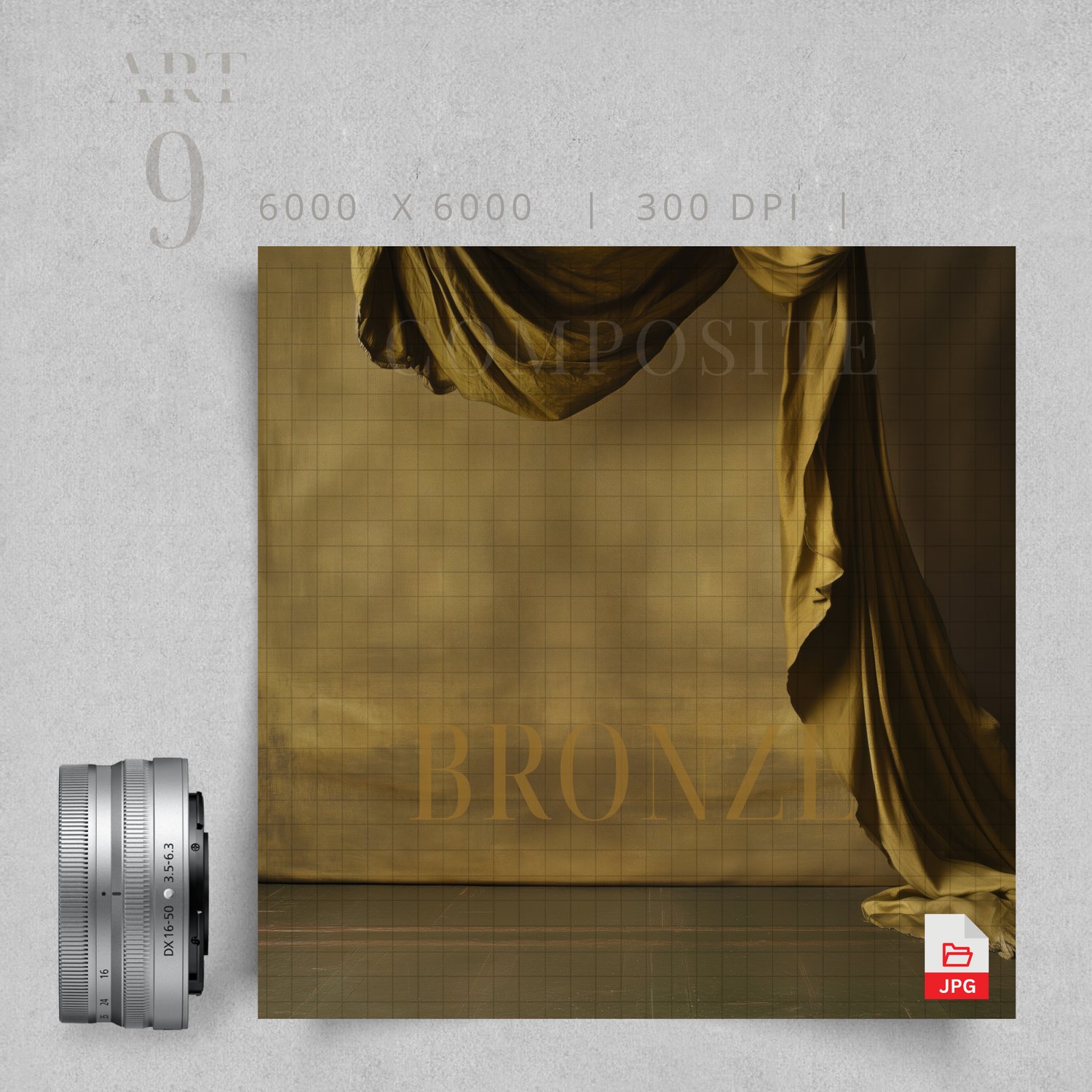
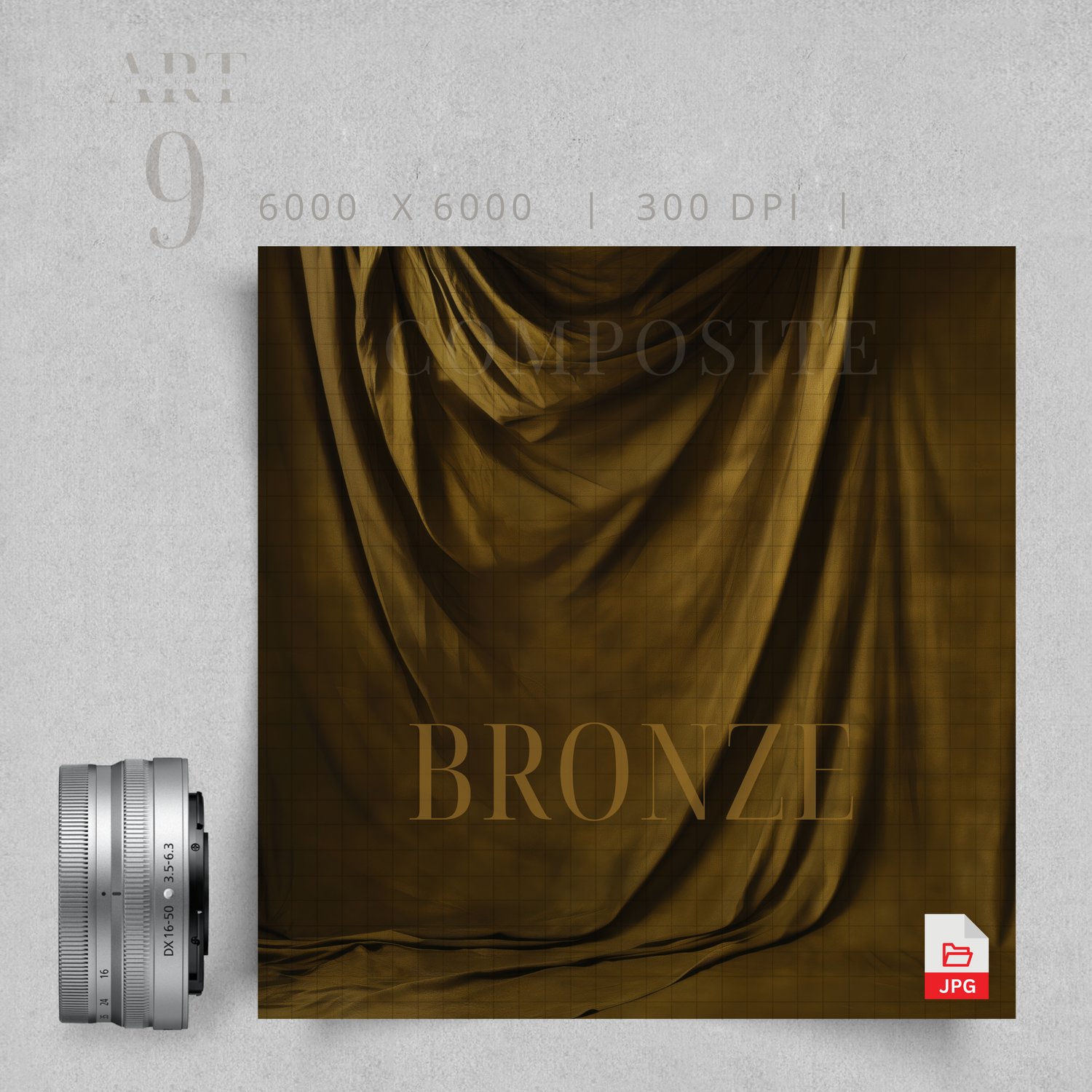
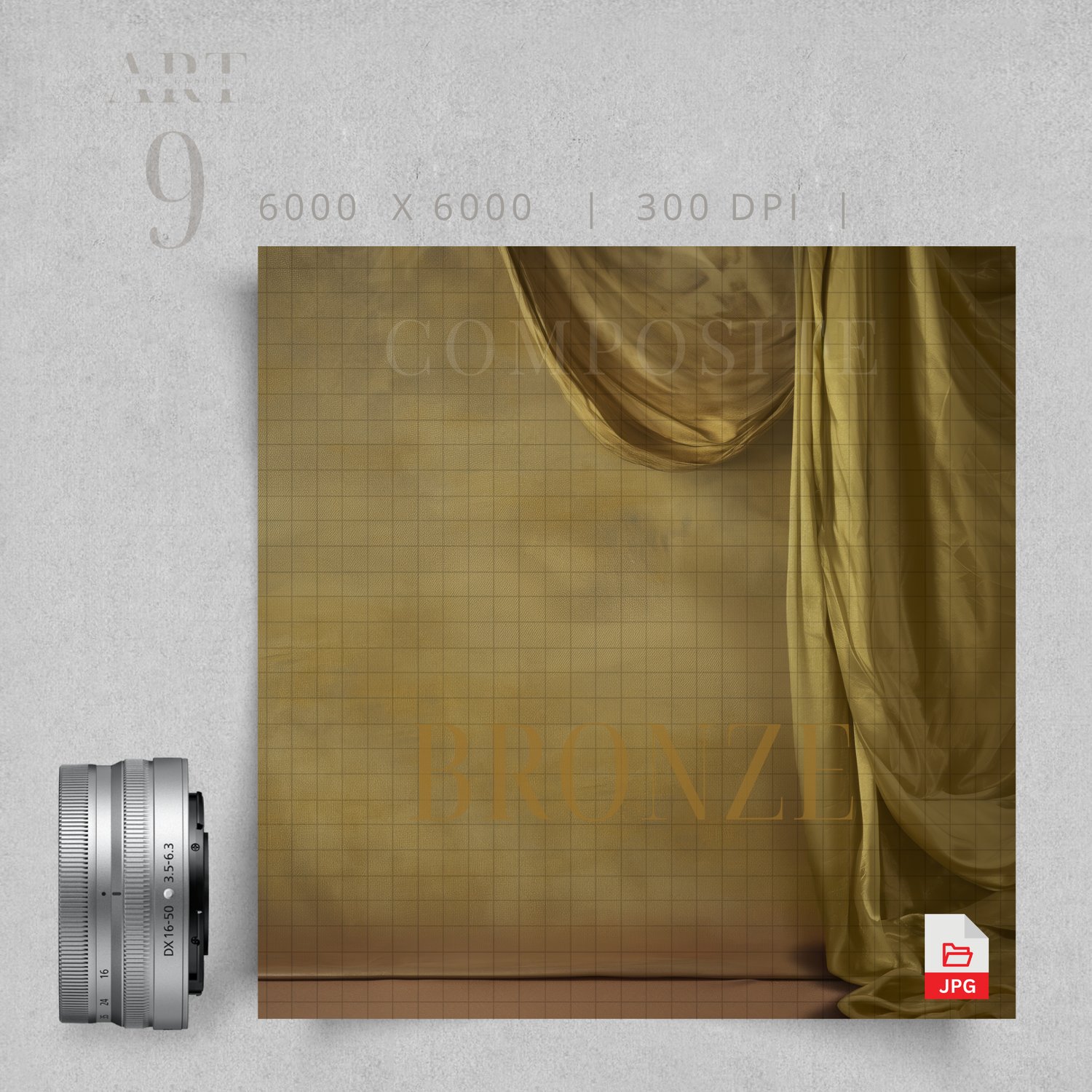
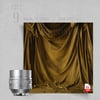





Dark Bronze Hanging Fabric Studio Backdrop, Texture Background, Fine art digital backdrop, Backdrop Bundle, Dark Yellow Moody Background
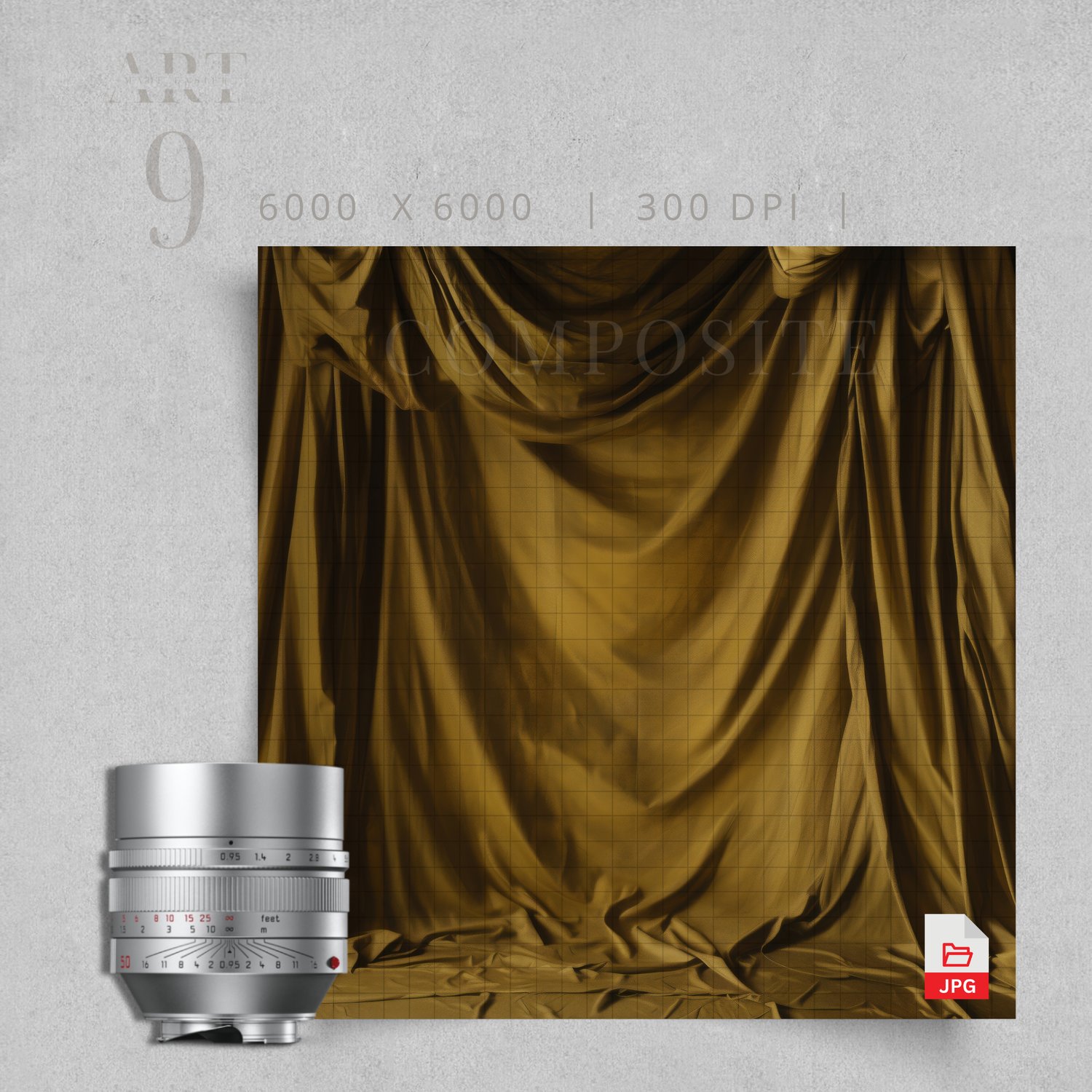
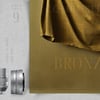
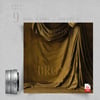
It includes 9 high-resolution digital backgrounds featuring a dark golden yellow toned, textured backdrop that appears gently draped from above, with a deeper, moodier background layered behind it. The result is a look that feels refined. This set is perfect for adding depth without overwhelming your subject. The styling is inspired from the Oliphant backdrops we see in Vogue magazine.
The tones lean into the rich golden tones with cinematic shadows, making these especially beautiful for maternity sessions, portrait photography, men's portraits and fine art composites. Pair this with the same tones, but lighter or darker, or work with greens in your wardrobe.
If you’re drawn to dark and moody tones, soft textures, and painterly-style photography backgrounds, this collection gives you a beautiful foundation to create something truly special.
- PLEASE NOTE - These photos were originally created with AI, and altered in photoshop. They are not as perfect as the photos we take with our high resolution cameras, but it can get us almost-the-way there to creating looks that would take time and money to create in a studio. Who has thousands of dollars and space for "variety" when digital backgrounds could do the heavy lifting for us. I do my best to minimize the imperfections that comes with AI, but they are there. You can create masterpieces working with digital assets, you just need the "YOU" touch. God bless and happy editing!
........................
How do I get my products?
The link to the products are contained in a PDF that you will download here on etsy. After opening it, simply click on the link and it will take you to the product to download.
........................
Returns?
Because this is a digital product, I do not accept returns. However, if there is an issue, please feel free to email me, and I can try to remedy it as quick as possible.
If you encounter any issues with your digital download, please contact me and I am more than happy to resolve any problems right away.
- Thank you! Meranda Devan
........................
Follow My Work
STUDIO Composites On Pinterest - https://bit.ly/3TkDKD0
PNG Composites on Pinterest - https://bit.ly/48Ff9gs
BLUE Composites on Pinterest - https://bit.ly/3uLxrPu
BROWN Composites On Pinterest - https://bit.ly/3V4xNuZ
GREEN Composites On Pinterest - https://bit.ly/3TjRX30
More Composites - Pinterest - https://bit.ly/3UZQd09
- Follow My Pinterest: https://bit.ly/artmadeeasiercomposites
- Follow My Facebook profile - https://bit.ly/artmadeeasierfacebook
- Follow My Pixabay - https://bit.ly/MerandaDevanPixabay
- Art Made Easier On Etsy - https://www.etsy.com/shop/Artmadeeasier
-------------------
Photoshop Tips For Photography Compositing
Here are some tips to making your subjects blend the best with your photography in Photoshop:
🎨 Generate Fill – Photoshop (Best Tool!)
● Use your Lasso Tool to select small areas around your subject, then click Generate Fill. This creates a smooth, seamless blend almost every time. You can skip manually creating shadows between your subject and background — AI handles it beautifully.
✂️ Background Removal Tools
PhotoRoom
● Great for quick background removal — even handles hair well.
https://www.photoroom.com/tools/background-remover
PicWish
● Pay per image using credits
● Returns high-resolution files
● Runs from your computer
🌗 Blending & Matching Your Composite
● Use Levels to darken your image and create a soft matte effect.
● Adjust highlights and blacks until your subject blends naturally.
● If light is coming from a certain direction, erase the adjustment where the light should hit.
🌫 Lower Opacity
● Slightly lower the opacity of your overlay to soften the blend.
● Duplicate your layer and paint back important details at full opacity. This avoids a “cutout” look.
📷 Camera Raw Adjustments
● Use Camera Raw to fine-tune highlights and shadows for a more natural blend.
📈 Curves Adjustment
● Use Curves to lighten or darken your subject. Clip the adjustment to your subject so it doesn’t affect the entire image.
🌫 Add a Matte Finish
● At the end, apply a slight matte effect to unify the entire image. This helps achieve a soft fine art look.
🎨 Color Balance
● Add a Color Balance Layer to match tones across your entire composite. This is one of the best ways to unify colors.
Thank you so much for supporting my shop — I truly appreciate you.
Have fun creating and editing!