


If you're still using a notes app to plan your channel, you're working three times harder than you need to — and leaving serious growth on the table.
Let me paint a picture that might feel familiar.
It's Sunday evening. You open a blank note to "plan content for the week." You write down four video ideas, feel vaguely productive, then close the app. By Wednesday, you've forgotten two of the ideas and can't find the note with the other two. You end up filming something off the top of your head and wonder why your channel feels scattered.
This is what happens when you use a generic tool for a specific job. Notes apps, Trello boards, Google Docs — they're fine for what they were built for. But YouTube content creation isn't a generic job. It's a pipeline with multiple stages, multiple assets, multiple metrics, and a feedback loop that most creators never close.
Notion is different — not because it's a better notes app, but because it's relational. Your ideas can connect to your scripts. Your scripts can connect to your publish schedule. Your published videos can connect to your performance data. When everything talks to each other, the system starts doing work for you.
THE PROBLEM
Why generic productivity tools don't fit YouTube workflows
The core mismatch is this: generic tools are built around tasks. YouTube content is built around assets moving through stages.
A video isn't a to-do item you check off. It starts as a vague idea, gets refined into a hook and outline, becomes a script, turns into raw footage, goes through editing, gets a thumbnail and title, gets published, and then — if you're tracking it right — feeds data back into future idea decisions.
That's at least six stages, with different information relevant at each one. A task manager can't represent that. A spreadsheet can, but it gets brittle fast. A notes app definitely can't.
The real cost
Most creators waste 4–6 hours per week on organizational friction alone — searching for old scripts, re-briefing editors, rediscovering ideas they already had, or manually updating multiple tools. That's a full production day lost every single week.
Notion's database system mirrors the way content actually works. Each video is a record — a living document that grows richer as it moves through your pipeline. Your databases can have relationships. Your dashboards can filter in real time. And critically, you can build all of this once and reuse it forever.
THE SYSTEM
The 5 core databases every creator needs
After experimenting with a dozen different configurations, I've landed on five databases that form a complete, connected system. Not four, not six — five. Here's what they are and why each one earns its place.
💡
DB 01
Idea Bank
A frictionless capture layer. Every idea goes here — no filters, no judgment. Linked to your Content Calendar when ideas get promoted.
📝
DB 02
Script Vault
Full scripts with version history. Each script entry links back to its Idea Bank source and forward to its published video.
📅
DB 03
Content Calendar
Your production schedule in board and calendar views. Status fields track: Idea → Scripted → Filmed → Editing → Scheduled → Live.
📊
DB 04
Performance Tracker
90-day rolling metrics per video. CTR, AVD, views, subs driven. Linked to calendar entries so data lives next to the production record.
🗂️
DB 05
Asset Library
Thumbnails, b-roll notes, music credits, graphic templates. Linked by video so you can reference past assets when producing similar content.
The fifth database — the Asset Library — is the one almost nobody has when they first set up a content system, and it's consistently the one that saves the most time after six months of use. When you're making your twelfth "morning routine" style video, being able to pull up what worked visually on the last three is worth more than you'd expect.
The system doesn't make you more creative. It makes sure your creativity doesn't get swallowed by logistics.
— something I had to learn the hard way
THE PIPELINE
Linking your idea → script → publish pipeline
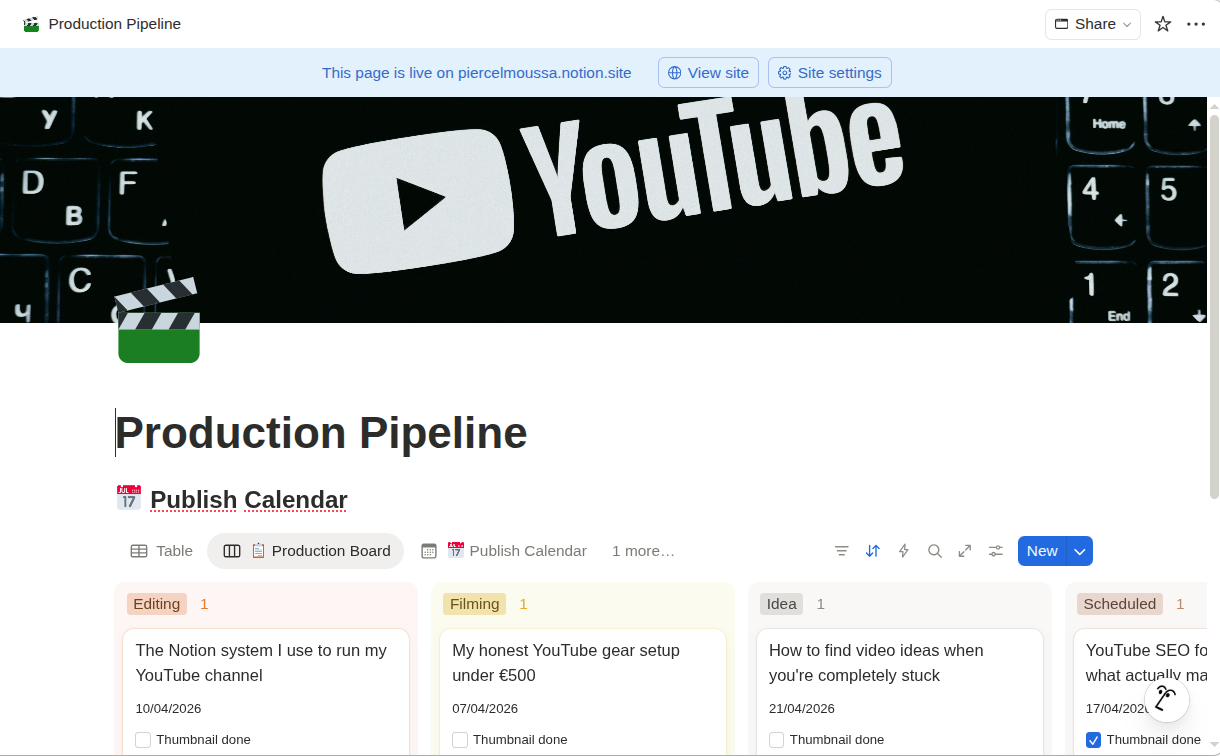
Five separate databases would just be five separate lists without the relationships. The power of this system is in how the databases talk to each other. Here's how the pipeline flows in practice.
01
Capture in the Idea Bank
Every idea goes in as a quick entry: working title, rough angle, and the "why now" context. This takes 30 seconds. The goal is zero friction — you want to capture before your brain moves on.
02
Promote to the Content Calendar
Once a week, you review the Idea Bank and drag the strongest concepts into the Calendar. At this point you assign a target publish date, a status of Scripting, and link it to the Idea Bank entry it came from.
03
Write in the Script Vault
Each Calendar entry has a linked Script Vault page. Click into it, write your script there. When it's done, update the Calendar status to Filmed. The script doesn't go anywhere — it stays linked, forever retrievable.
04
File assets as you produce During editing, drop your thumbnail file, b-roll notes, and any reference links into the linked Asset Library entry. Your editor (or future you) will thank you six months from now.
05
Publish and log metrics
Once the video goes live, update the status to Live, paste in the YouTube URL, and create a linked Performance Tracker entry. You'll populate this weekly for the first 28 days.
The whole flow is designed so that each step is a small act — never a big administrative session. Maintenance happens in 10-minute weekly reviews, not 2-hour monthly overhauls.
THE METRICS VIEW
The metrics view that shows what's actually working
Most creators look at YouTube Studio, feel overwhelmed by the data, and make gut-based decisions anyway. The Performance Tracker database changes this by stripping the metrics back to the six that actually matter for decision-making.
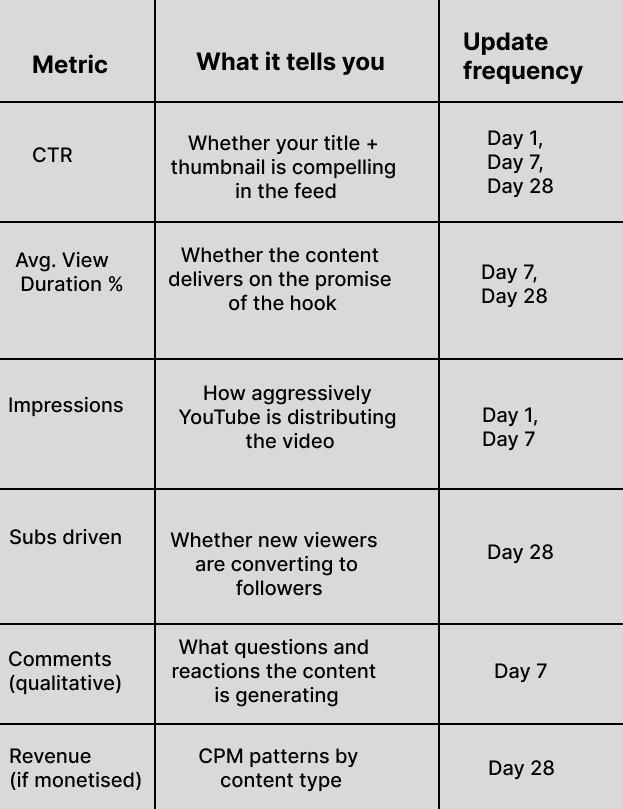
The insight this generates isn't from any single video — it's from the pattern across videos. After 12 entries in your Performance Tracker, you can filter by content type, by day of publish, by hook style. You'll start seeing things that no individual video's analytics page will ever show you.
One pattern I've seen repeatedly: Tutorials consistently outperform story-based videos in AVD%, but story-based videos drive 3x more subscriptions per view. Neither metric tells the whole story — but having both in one view lets you consciously balance your content mix rather than optimising blindly.
Comments ()