

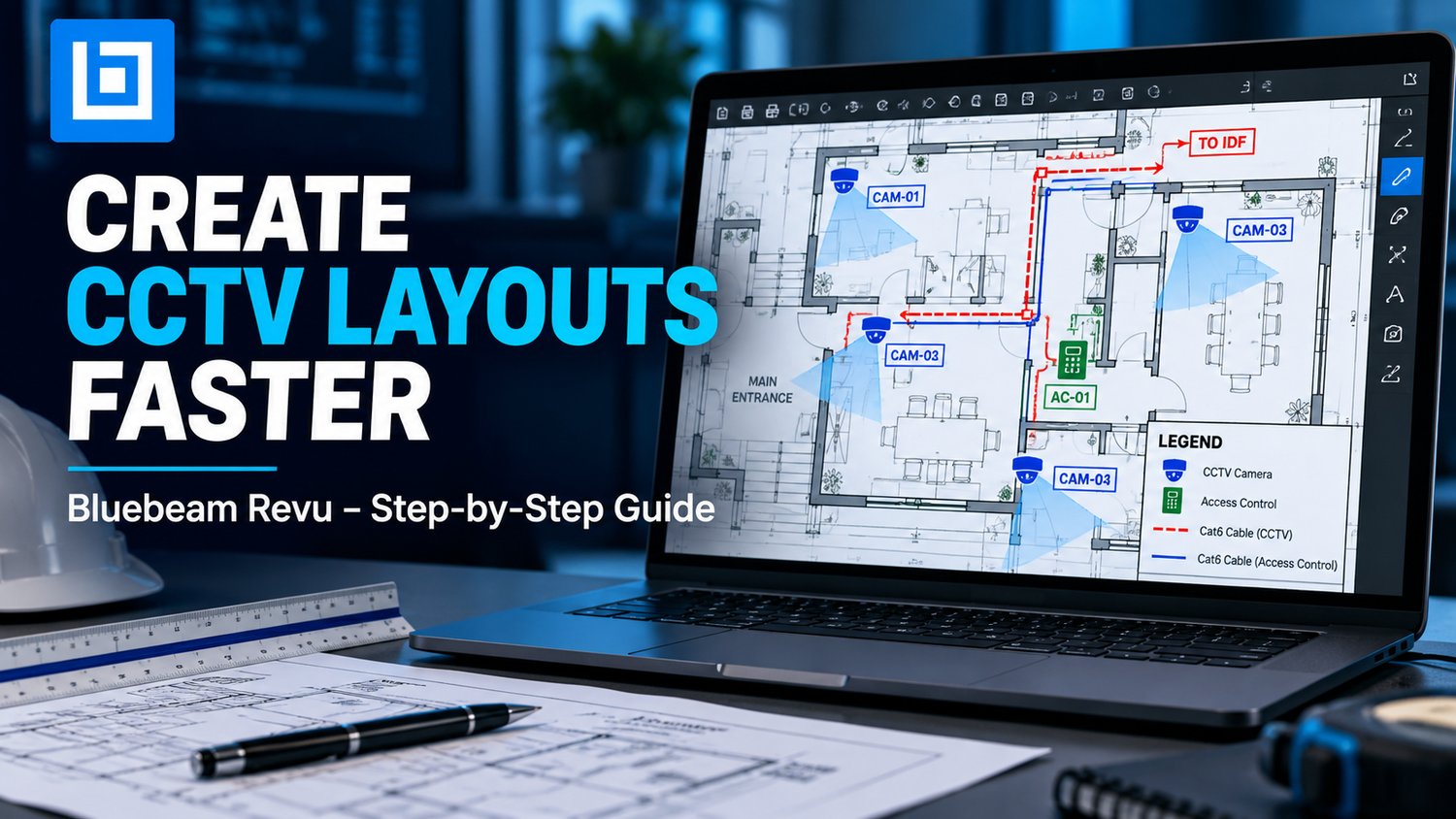
How to Create a CCTV Security Camera Layout in Bluebeam Revu
Creating a CCTV layout doesn't have to mean drawing every camera, cable route and device symbol from scratch.
If you're a security contractor, low-voltage technician or system designer, Bluebeam Revu can help you organize camera layouts, reuse technical symbols and produce clearer project documentation.
Here's a practical workflow to get started.
Step 1: Prepare Your Floor Plan
Open your building or site plan PDF in Bluebeam Revu.
Before adding cameras, check:
- Building entrances and exits
- Hallways, staircases and shared spaces
- Parking areas and outdoor perimeters
- Potential camera mounting locations
- Network equipment and cable routing areas
Verify the drawing scale if you intend to use measurement tools.
A clear starting plan makes the documentation easier to maintain.
Step 2: Identify Camera Locations
Review each area and determine where coverage is needed.
Common device types include:
- Fixed dome cameras for indoor areas
- Bullet cameras for selected outdoor locations
- PTZ cameras for applications requiring adjustable views
- Specialized cameras for locations with particular monitoring requirements
Consider mounting height, lighting, obstacles, field of view and network connectivity.
Important: Placing a camera symbol on a PDF does not verify actual camera coverage. Final coverage must be checked against the selected camera specifications and site conditions.
Step 3: Organize Your Bluebeam Tool Chest
Instead of recreating symbols for every project, use the Bluebeam Revu Tool Chest.
You can save frequently used camera and equipment markups in reusable tool sets.
For example, organize your tools into categories such as:
- CCTV cameras
- Access control
- Intrusion alarms
- Network and low-voltage equipment
This makes it easier to find and reuse consistent symbols across projects.
Step 4: Add Equipment Symbols
Place the relevant camera symbols on your drawing.
Assign a consistent identifier to each device, such as CAM-01, CAM-02 and CAM-03.
Where useful, include information such as:
- Camera identifier
- Camera type
- Mounting location
- Network or PoE requirements
- Installation notes
Keep symbol sizes and labeling conventions consistent.
Step 5: Document Cable Routes and Equipment
Identify proposed connections between cameras, network switches, NVRs and other system equipment.
Use separate markup styles or layers where appropriate to distinguish devices, cable pathways and installation notes.
Verify cable lengths, PoE budgets and network design separately. A drawing should support technical planning, not replace engineering checks.
Step 6: Review and Export Your Layout
Before issuing the drawing, check that:
- Device identifiers are unique
- Equipment symbols are consistent
- Important coverage areas have been reviewed
- Installation notes are readable
- The drawing revision is clearly identified
Save or export the final PDF according to your project documentation requirements.
Want to Skip Recreating Symbols?
If you regularly work with CCTV, access control, alarms or low-voltage documentation, reusable toolsets can simplify repetitive markup work.
The NEXORA Bluebeam Revu Low Voltage Toolset includes 96 ready-to-use tools designed for security and low-voltage documentation workflows.
Explore the toolkit:
You can also browse more professional and everyday digital tools:
Etsy: https://www.etsy.com/shop/nexoratoolworks
Payhip: https://payhip.com/nexoraworktools
Final Thoughts
A good CCTV layout should be clear, consistent and easy for installers and project teams to understand.
By combining a structured drawing workflow with reusable Bluebeam symbols, you can spend less time rebuilding repetitive markups and more time reviewing the details that matter.
*This article is an independen