
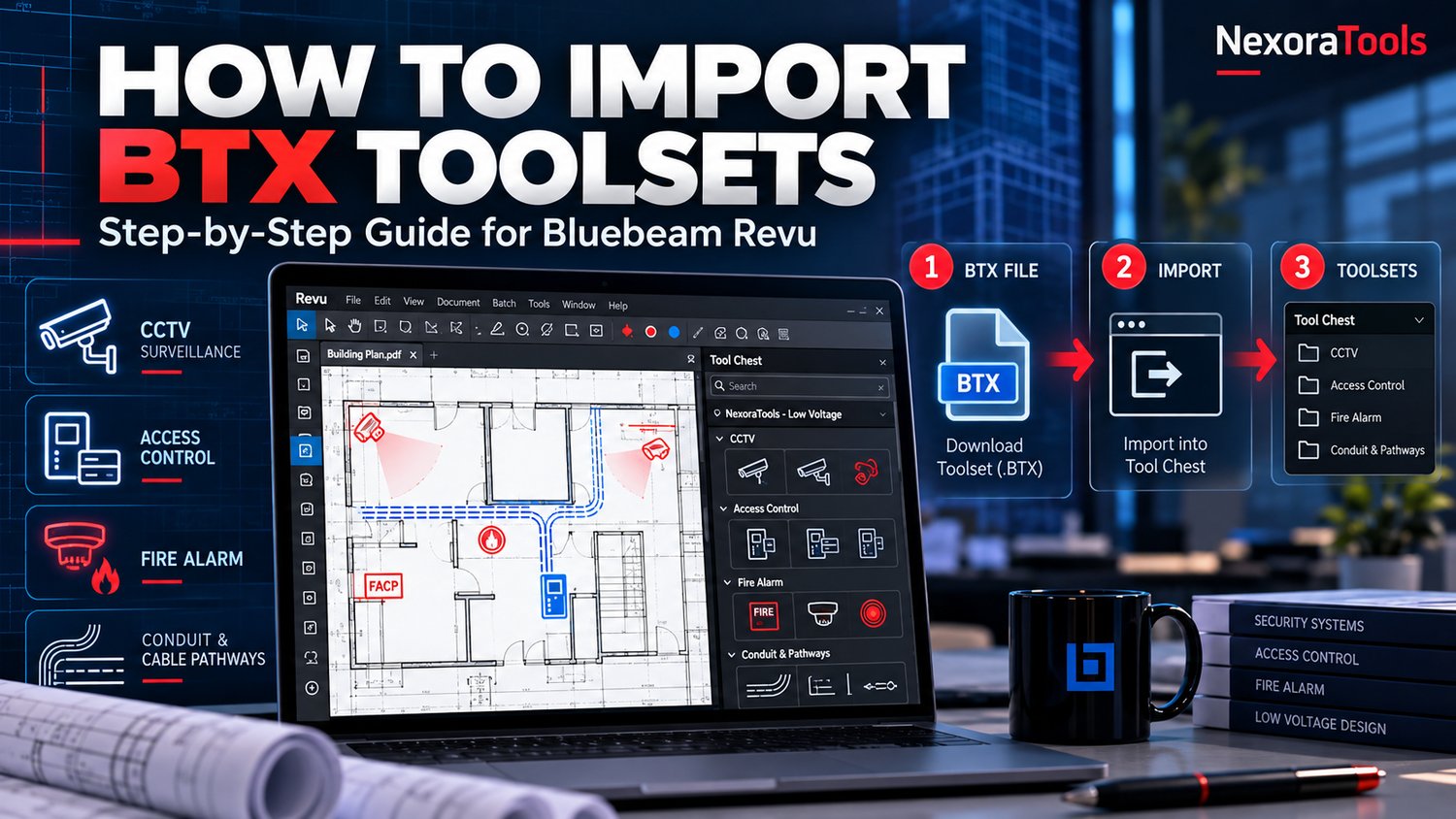
How to Import Bluebeam Revu Toolsets (.BTX): Step-by-Step Guide
Bluebeam Revu is widely used by construction professionals, estimators, designers, and contractors to review PDF drawings, create markups, and organize project documentation.
One of its most useful features is the Tool Chest, which allows you to save and reuse markup tools across multiple projects.
If you work with CCTV systems, access control, fire alarms, or low voltage installations, importing a ready-made BTX toolset can help you organize your symbols and reduce repetitive markup work.
In this guide, you'll learn how to import BTX files into Bluebeam Revu, organize your Tool Chest, troubleshoot common issues, and find professional toolsets for your projects.
What Is a BTX File in Bluebeam Revu?
A BTX file is a Bluebeam Revu toolset file used to share collections of reusable markup tools.
These tools can represent equipment, devices, symbols, and other objects frequently used on construction drawings.
For example, a low voltage contractor might use a BTX toolset containing:
- CCTV camera symbols
- Access control readers
- Door contacts and request-to-exit devices
- Network and data outlets
- Fire alarm device symbols
- Cable pathway and conduit markups
Instead of rebuilding the same symbols for every project, you can import a toolset and access its contents from the Tool Chest.
Step 1: Download and Extract Your BTX Toolset
Start by downloading the toolset package from your provider.
If the files arrive in a ZIP archive:
- Locate the downloaded ZIP file.
- Right-click the file.
- Select Extract All or use your preferred archive utility.
- Open the extracted folder.
- Locate the file ending in .btx.
Keep the extracted files in a clearly named folder, especially if your package contains multiple toolsets, SVG symbols, Excel spreadsheets, or documentation.
Tip: Before importing, make sure you are using an actual BTX file and not the original ZIP archive.
Step 2: Open Bluebeam Revu
Launch Bluebeam Revu on your computer.
You can open an existing PDF drawing or start with a blank PDF to test the imported tools.
Next, open the Tool Chest panel.
Depending on your Bluebeam Revu version and interface layout, you can usually access it through the side panel or the Tools menu.
The Tool Chest is where your saved markup tools and imported toolsets are organized.
Step 3: Import the BTX File
With the Tool Chest open:
- Open the Tool Chest menu.
- Select Manage Tool Sets.
- In the Manage Tool Sets dialog, choose Import.
- Browse to the folder containing your BTX file.
- Select the file and confirm the import.
- Close the management dialog when the import is complete.
Your imported toolset should now appear in the Tool Chest.
Note: The exact appearance of menu buttons can differ between Bluebeam Revu versions.
Step 4: Test Your Imported Symbols
After importing the toolset, open a PDF floor plan or test document.
Select one of your imported tools and place it on the drawing.
Check that:
- The symbol appears correctly.
- Its size is appropriate for the drawing.
- The markup can be selected and moved.
- The label and visual appearance are readable.
- Any relevant properties can be edited as needed.
Test several tools before using the complete set on a live project.
For equipment layouts, verify the drawing scale and any applicable measurement settings.
Step 5: Organize Your Tool Chest
A well-organized Tool Chest makes it easier to find the right tools when reviewing drawings.
Consider organizing your resources by system or discipline.
CCTV and Security
Keep camera symbols, recording equipment, and related security devices together.
Access Control
Organize card readers, door contacts, request-to-exit devices, and relevant door hardware.
Fire Alarm
Group detection devices, notification appliances, control equipment, and other related markup symbols.
Cable Pathways
Keep cable tray, conduit, junction box, and pathway tools in a dedicated set.
This structure can reduce confusion when working across multiple building systems.
Common BTX Import Problems and How to Fix Them
Problem 1: The BTX File Does Not Appear
Check that you extracted the ZIP archive correctly and are browsing the correct folder.
Make sure the file extension is .btx.
Problem 2: The Toolset Does Not Show in the Tool Chest
Open Manage Tool Sets again and verify that the toolset is available and enabled for display.
If necessary, repeat the import process.
Problem 3: Symbols Appear Too Large or Too Small
Check the markup properties, PDF scale, and tool placement settings.
A symbol created for one type of drawing may need adjustment when used on another.
Problem 4: The Imported Tools Do Not Behave as Expected
Review the markup properties and the tool's operating mode.
Bluebeam Revu supports different Tool Chest behaviors, including Drawing Mode and Properties Mode.
Depending on the tool, switching modes can affect how its appearance and properties are applied.
Problem 5: A Toolset Cannot Be Imported
Check that the file is a valid BTX toolset and that your installed Bluebeam Revu version supports the required features.
If the file came from a third-party provider, consult the included documentation or contact the seller.
Bluebeam Revu Tools for CCTV and Low Voltage Contractors
Professionals working with CCTV, access control, AV/data, and network systems often use repeatable symbols across many PDF drawings.
NexoraTools offers a digital toolkit with 96 Bluebeam Revu Low Voltage Tools, designed to support common security and low voltage markup workflows.
The toolkit covers several disciplines, including CCTV, access control, and AV/data.
Explore the 96 Bluebeam Low Voltage Tools
Fire Alarm Symbols for Bluebeam Revu
Fire alarm projects frequently involve repetitive device markups.
A categorized symbol library can help maintain consistent notation when reviewing fire alarm plans.
The 240 Fire Alarm Bluebeam Tools package provides reusable markup resources, including BTX toolsets and SVG files.
These resources are intended as drafting and documentation aids.
Explore the Fire Alarm Toolset
Always verify symbols, device specifications, project requirements, and compliance with applicable codes.
Cable Tray and Conduit Toolsets
Cable pathways are another important part of low voltage documentation.
The 150 Bluebeam Revu BTX Symbols toolkit is focused on cable trays, conduit, and related pathway equipment.
It also includes an Excel takeoff estimator to support project quantity tracking.
View Cable Pathway and Conduit Tools
Frequently Asked Questions
Can I import multiple BTX toolsets into Bluebeam Revu?
Yes. You can import and organize multiple compatible BTX toolsets within the Tool Chest.
Do I need to recreate my symbols for every project?
No. Once a compatible toolset is imported, its reusable tools can be available for future markup work.
Can I edit imported Bluebeam tools?
Many markup properties can be modified. The exact editing capabilities depend on the tool and Bluebeam Revu version.
Are BTX files the same as SVG files?
No.
BTX files are Bluebeam toolset files, while SVG files are scalable vector graphics.
They serve different purposes and should not be treated as interchangeable formats.
Can Bluebeam toolsets replace engineering design or code review?
No.
Toolsets can improve drawing organization and markup consistency, but they do not replace engineering judgment, professional design, or applicable regulatory requirements.
Conclusion
Importing BTX toolsets into Bluebeam Revu is a practical way to organize reusable markup symbols.
For contractors, estimators, system integrators, and technical teams, a properly configured Tool Chest can make PDF markup workflows easier to manage.
Whether you're working with CCTV layouts, access control systems, fire alarms, or cable pathways, organized digital tools can help you work more consistently.
Discover NexoraTools
Explore professional digital resources for low voltage and fire safety projects.
Browse All Bluebeam & Low Voltage Toolkits
Shop the Fire Safety & Low Voltage PRO Bundle
NexoraTools is an independent digital toolkit provider and is not affiliated with or endorsed by Bluebeam, Inc. Bluebeam and Revu are trademarks of their respective owners.