
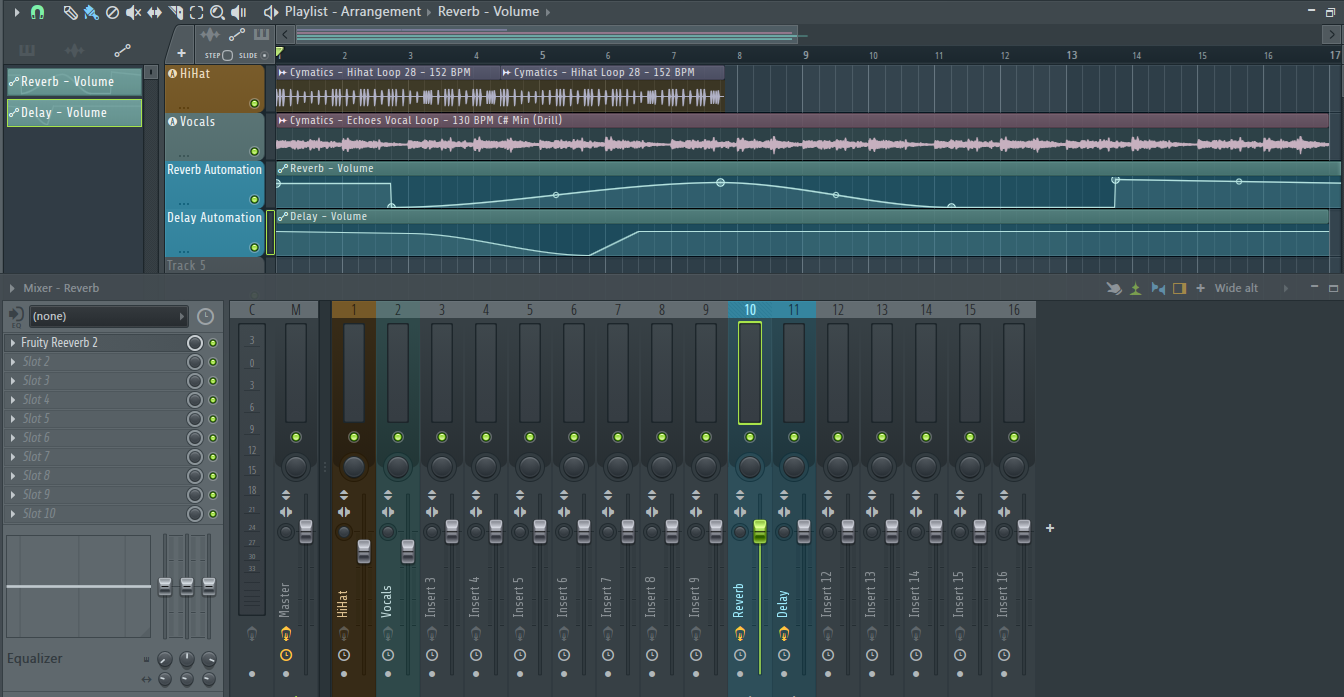
In music production, creating a sense of depth and space is essential for a professional sound. FL Studio, one of the most popular digital audio workstations, offers powerful tools to automate reverb and delay sends, allowing producers to craft dynamic and immersive mixes. This article explores how to effectively automate these effects to enhance your tracks.
Understanding Reverb and Delay Sends
Reverb and delay are time-based effects that add spatial qualities to audio signals. Reverb simulates the natural reflections of sound in a space, while delay creates echo effects. Sending your tracks to reverb and delay effects allows for greater control over how much of these effects are applied at different moments, rather than applying them directly to individual channels.
Setting Up Sends in FL Studio
To begin, create dedicated mixer tracks for reverb and delay effects. In the FL Studio mixer, select an empty track (for example, Insert 10 for reverb and Insert 11 for delay). Load your reverb plugin (such as Fruity Reverb 2 or Valhalla VintageVerb) on one insert, and your delay plugin (like Fruity Delay 3 or EchoBoy) on another.
Next, route your individual tracks to these effect buses. Click the track you want to send (for example, a vocal on Insert 1), then right-click the desired effect insert's track button at the bottom of the mixer. Select "Route to this track". Adjust the send level using the send knob that appears to determine how much of each track's signal is processed by the effects. This setup provides a flexible foundation for automation.
Pro Tip: Keep your reverb and delay sends at 100% wet (fully processed signal) since you'll control the amount via the send levels, not the effect's mix knob.
Creating Automation Clips
FL Studio uses automation clips to control parameters over time. To automate your send levels, right-click the send knob you want to automate and select "Create automation clip." This creates a pattern-based automation clip that appears in the playlist.
Note: You could also use Tools > Last Tweaked to automate the last thing you touched!

Use Automation for Depth and Space
Once you've created an automation clip, you can draw automation points directly in the playlist. Right-click to add points, then drag them to shape your curve. This can be tricky. Use the automation clip editor (double-click the clip) for more precise control.
For example, gradually increase reverb send during a chorus to add spaciousness, then reduce it during verses for clarity and intimacy. Similarly, automate delay to emphasize specific phrases or create rhythmic echoes that swell and fade.
Advanced Techniques in FL Studio
Using Automation Clips Across the Playlist
FL Studio's automation clips can be stretched, copied, and moved independently from audio or MIDI patterns. This allows you to:
- Create templates of reverb swells for choruses
- Copy delay automation across similar sections
- Build a library of reusable automation curves
- Layer Multiple Automations
You can automate both the send level AND the effect parameters themselves. For instance:
- Automate the send level to control overall wetness
- Simultaneously automate the reverb's decay time for evolving spaces
- Automate delay feedback for building or dying echoes
Use Peak Controller for Dynamic Sends
For advanced users, FL Studio's Peak Controller can create sidechain-style ducking on reverb/delay sends based on other tracks (like vocals triggering reduced reverb on guitars).
Tips for Effective Automation
- Use subtle changes: Small adjustments can make a big difference in perceived space. Start with 5-10% changes in send levels.
- Combine effects: Automate both reverb and delay for complex spatial effects. Try increasing reverb while decreasing delay for transitions.
- Experiment with timing: Sync delay times to the tempo (use Fruity Delay 3's tempo sync) for rhythmic effects that lock with your track.
- Automate parameters: Besides send levels, automate reverb decay time, pre-delay, or delay feedback for evolving sounds.
- Use envelope shapes wisely: Linear curves for smooth transitions, stepped automation for abrupt changes, and curved ramps for natural-feeling swells.
- Color-code your automation clips: FL Studio allows you to assign colors to automation clips—use this to distinguish reverb (blue) from delay (green) automation at a glance.
FL Studio-Specific Workflow Advantages
FL Studio's pattern-based automation system offers unique benefits:
- Non-destructive editing: Automation clips can be deleted without affecting audio
- Visual clarity: See all automation in the playlist alongside your arrangement
- Reusability: Save automation patterns as presets for future projects
- Flexibility: Automation clips can be shorter or longer than the audio they affect
Conclusion
By mastering automation of reverb and delay sends in FL Studio, you can add depth, dimension, and interest to your mixes. The combination of FL Studio's intuitive automation clips and flexible routing system makes creating dynamic spatial effects both powerful and accessible.
Practice different automation curves and settings to find what best complements your music style and enhances your tracks. Start with simple volume swells on reverb sends, then progress to complex multi-parameter automation for truly immersive soundscapes.
Next Steps: Try automating reverb sends on a vocal track—bring the reverb up during the end of phrases and pull it back at the start of new ones for a professional, polished sound.