
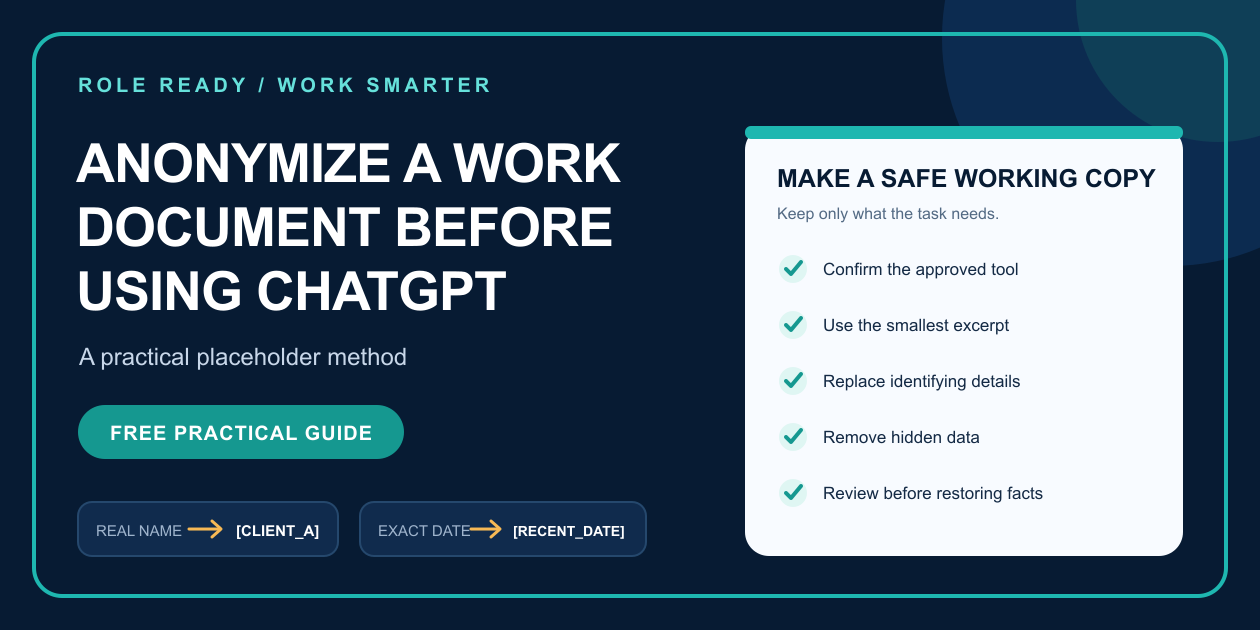
AI can help rewrite, summarize, organize, or analyze a work document—but the original file may contain far more information than the task requires.
Quick answer: First confirm that your employer permits the tool and the task. If it does, create a separate working copy, keep only the minimum relevant excerpt, replace direct and indirect identifiers with consistent placeholders, remove hidden data, and inspect the sanitized copy before submitting anything. Keep the private placeholder key outside the AI tool.
This is a practical data-minimization method, not a legal determination that information is anonymous. True anonymization can require specialist analysis, and lightly edited details may still identify a person, client, project, or organization.
STEP 1: CHECK THE RULE BEFORE CHANGING THE DOCUMENT
Start with your employer's current AI policy, approved-tool list, data classification rules, and instructions from the responsible manager, security, privacy, legal, or compliance owner.
If the tool or task is prohibited, anonymizing the document does not create permission. Stop and use an approved process instead.
STEP 2: COPY ONLY THE SMALLEST USEFUL EXCERPT
Do not begin by uploading the entire file. State the task first:
• rewrite one paragraph in a calmer tone;
• create a blank structure for a status update;
• explain a formula using fictional values;
• turn rough bullets into a neutral agenda; or
• identify questions that a reviewer should ask.
Then copy only the lines needed for that task into a separate working file. This reduces the chance of sharing unrelated pages, hidden tabs, comments, email chains, or attachments.
STEP 3: CREATE A PRIVATE PLACEHOLDER KEY
Use stable labels so the AI can follow the relationships without seeing the real identities.
Example key—kept locally, not pasted into the AI tool:
Private detail → Working placeholder
Real client name → [CLIENT_A]
Real employee name → [EMPLOYEE_1]
Internal product name → [PRODUCT_X]
Confidential project → [PROJECT_PINE]
Exact facility → [LOCATION_NORTH]
Consistency matters. If the same client appears five times, use [CLIENT_A] all five times rather than inventing five labels.
STEP 4: REMOVE DIRECT IDENTIFIERS
Replace details that identify a person or organization directly, including:
• names and initials;
• email addresses and phone numbers;
• account, customer, employee, or case numbers;
• street addresses and exact locations;
• usernames and profile links;
• signatures and contact blocks; and
• document links that lead back to private systems.
Never include passwords, access tokens, API keys, recovery codes, private keys, or authentication screenshots. Those are credentials, not writing context.
STEP 5: GENERALIZE INDIRECT IDENTIFIERS
Removing a name is not enough when the remaining facts point to one person or situation. Review:
• rare job titles;
• exact dates and times;
• exact dollar amounts;
• small teams or unusual locations;
• distinctive complaints or incidents;
• unique product, customer, or project descriptions; and
• combinations of facts that become identifying when read together.
Use ranges or categories only when they preserve the task:
• July 14, 2026 becomes [RECENT_DATE];
• $483,721.14 becomes [MID-SIX-FIGURE AMOUNT];
• a specific hospital becomes [REGIONAL HEALTHCARE CLIENT]; and
• a rare title becomes [SENIOR SPECIALIST].
If changing a detail would distort the analysis, do not guess. Use an approved environment or ask the responsible owner whether the task is permitted.
STEP 6: REMOVE HIDDEN AND LEFTOVER DATA
Visible text is only part of a file. Check for:
• comments and tracked changes;
• hidden rows, columns, sheets, or slides;
• speaker notes;
• document properties and author names;
• embedded files and linked objects;
• revision history;
• image metadata; and
• white text, cropped content, or concealed layers.
The safest low-data option is often a new plain-text working copy containing only the sanitized excerpt—not a cleaned version of the original file.
STEP 7: PRESERVE THE PATTERN, NOT THE SECRET
AI usually needs the structure of the problem rather than the real facts.
Original task: Rewrite a private client escalation email.
Sanitized working copy:
“[CLIENT_A] reported [SERVICE ISSUE] after [RECENT EVENT]. The current response explains [ROOT CAUSE CATEGORY] and offers [APPROVED REMEDY]. Rewrite it in a calm, accountable tone. Do not add promises, dates, causes, or remedies that are not supplied.”
The model can now help with tone and structure without receiving the original names, exact incident, internal product, or private correspondence.
STEP 8: ADD CLEAR OUTPUT BOUNDARIES
Tell the AI what it may and may not do:
Task: Rewrite the sanitized text as a concise customer update.
• Use:
• only the facts in the excerpt;
• the placeholders exactly as written;
• a calm, professional tone.
• Do not:
• invent dates, causes, promises, amounts, or next steps;
• replace placeholders with guessed identities;
• give legal, security, or policy conclusions.
• Output:
• subject line;
• email body under 180 words;
• a short list of facts that need human confirmation.
Boundaries improve usefulness, but they do not create permission to share data.
STEP 9: REVIEW BEFORE REATTACHING REAL FACTS
Treat the output as an untrusted draft:
1. Check every factual statement against the approved source.
2. Remove invented claims, unsupported certainty, and accidental promises.
3. Reinsert real details only inside the appropriate approved environment.
4. Confirm recipients, attachments, and destination before sending.
5. Keep consequential actions behind human review.
Do not paste the private placeholder key back into an unapproved AI tool.
STEP 10: KNOW WHEN NOT TO USE THE METHOD
Do not send the material to an external AI tool when:
• company policy prohibits the tool or task;
• the work involves credentials, security incidents, privileged material, or highly sensitive records;
• indirect details cannot be reduced without exposing the situation;
• the full private document is necessary for the requested analysis; or
• you are unsure who is authorized to approve the use.
In those cases, use an approved internal system, work from a fictional example, ask for a blank template, or consult the responsible owner.
COPY-READY SANITIZATION WORKSHEET
Use this before creating a prompt:
My task:
Approved tool and approved purpose:
Smallest excerpt needed:
Direct identifiers replaced:
Indirect identifiers generalized:
Hidden data checked:
Private placeholder key stored outside the AI tool:
Facts the AI must not invent:
Human reviewer:
Approved place where real details will be restored:
FREQUENTLY ASKED QUESTIONS
IS REMOVING NAMES ENOUGH TO ANONYMIZE A WORK DOCUMENT?
Usually not. Exact dates, amounts, locations, rare roles, and combinations of facts may still identify the person, client, project, or incident.
CAN I ASK CHATGPT TO ANONYMIZE THE ORIGINAL DOCUMENT FOR ME?
That sends the original information to the tool before it is sanitized. Remove or replace sensitive details first, using an approved local process.
DOES A BUSINESS OR ENTERPRISE AI ACCOUNT MAKE EVERY WORK DOCUMENT SAFE TO USE?
No. Business products may provide stronger privacy, retention, and administrative controls, but your employer must still approve the product, configuration, account, data, and purpose.
DOES THIS METHOD GUARANTEE LEGAL OR REGULATORY COMPLIANCE?
No. It is a conservative productivity workflow, not legal advice, a privacy impact assessment, a cybersecurity review, or a compliance certification.
KEEP THE FULL SYSTEM BESIDE YOU
The Safe AI at Work: Employee Quickstart Kit includes a green/yellow/red data guide, the five-question Safe to Paste check, an abstract-first workflow, 30 copy-ready workplace prompts, review reminders, worksheets, and an AI Wins Tracker.
Get the $19 Safe AI at Work Employee Quickstart KitView the $19 downloadable kit
It is a one-time download with no live call or subscription. Employer rules always come first.
FURTHER READING
• CISA: Stay Safe Online When Using AI https://www.cisa.gov/sites/default/files/2024-09/Secure-Our-World-Using-AI-Tip-Sheet.pdf
• ICO: Introduction to anonymisation https://ico.org.uk/for-organisations/uk-gdpr-guidance-and-resources/data-sharing/anonymisation/introduction-to-anonymisation/
• NIST AI Risk Management Framework https://www.nist.gov/itl/ai-risk-management-framework
• OpenAI business data privacy, security, and compliance https://openai.com/business-data/