Step-by-step guide on how to make a hudl highlight video that recruits coaches
Ever sat down after a big game and thought, “If only the coaches could see the play that just blew the defense away, maybe I’d get that call?”
That moment is exactly why we’re talking about how to make a hudl highlight video that actually sells your talent, not just a montage of random clips.
Most athletes think “just throw everything on there and hit upload,” but recruiters skim dozens of reels every night. They need a story that fits in a minute, shows your best moves, and tells them why you’re the missing piece.
So, what’s the secret sauce? First, pick the three plays that highlight your core skill—whether it’s a clean breakaway sprint, a perfect jump‑shot, or a defensive stop that flips the momentum. Then, trim each clip to 5‑7 seconds, enough to see the action but short enough to keep the viewer’s attention.
Next, add a quick intro slide with your name, position, school, and a contact email—think of it as the title card of a movie. Keep the font clean, the colors consistent with your team, and the timing under two seconds.
Finally, choose the right background music—something upbeat but not distracting—and export in 1080p MP4. Upload to Hudl, add a clear title like “John Doe – Wide Receiver Highlights – 2025 Season,” and double‑check the privacy settings so coaches can view it without a login.
If you’re still unsure where to start, remember that CoachDPrep CORE GPT can walk you through each step, from selecting the right clips to polishing the final cut, so you spend less time guessing and more time impressing.
Ready to turn those game‑day moments into a recruiter‑ready reel? Grab your footage, follow the simple workflow we just laid out, and watch the invitations start rolling in.
Let's get your highlight video on Hudl today.
Step by Step Process:
If you want coaches to see why you belong on their roster, learning how to make a hudl highlight video that’s tight, focused, and recruiter‑ready is the key step.
Pick three standout plays, add an intro slide, export in 1080p, and upload with a title so invites roll quickly in.
Table of Contents
- Step 1: Plan Your Footage and Storyboard
- Step 2: Upload Your Clips to Hudl and Organize Them
- Step 3: Edit the Timeline, Trim, and Add Music
- Step 4: Add Graphics, Player Stats, and Branding
- Step 5: Compare Export Settings and Choose the Best Format
- Conclusion
- FAQ
- Bonus Tips: Using Hudl’s Analytics and Sharing Options
Step 1: Plan Your Footage and Storyboard
Before you even hit the export button, you’ve got to ask yourself: what story do you want coaches to walk away with? Most athletes throw together a dozen clips and hope something sticks. But a well‑planned storyboard turns a jumble of moments into a tight narrative that says, “I’m the playmaker you’ve been looking for.”
Start by pulling the raw game footage into a simple folder on your computer. Create sub‑folders labeled Offense, Defense, and Special Teams. This tiny habit saves you from endless scrolling later. If you’re not sure which moments shine brightest, replay the full game once and jot down timestamps where the crowd erupts – those are usually your gold nuggets.
Map the arc of your reel
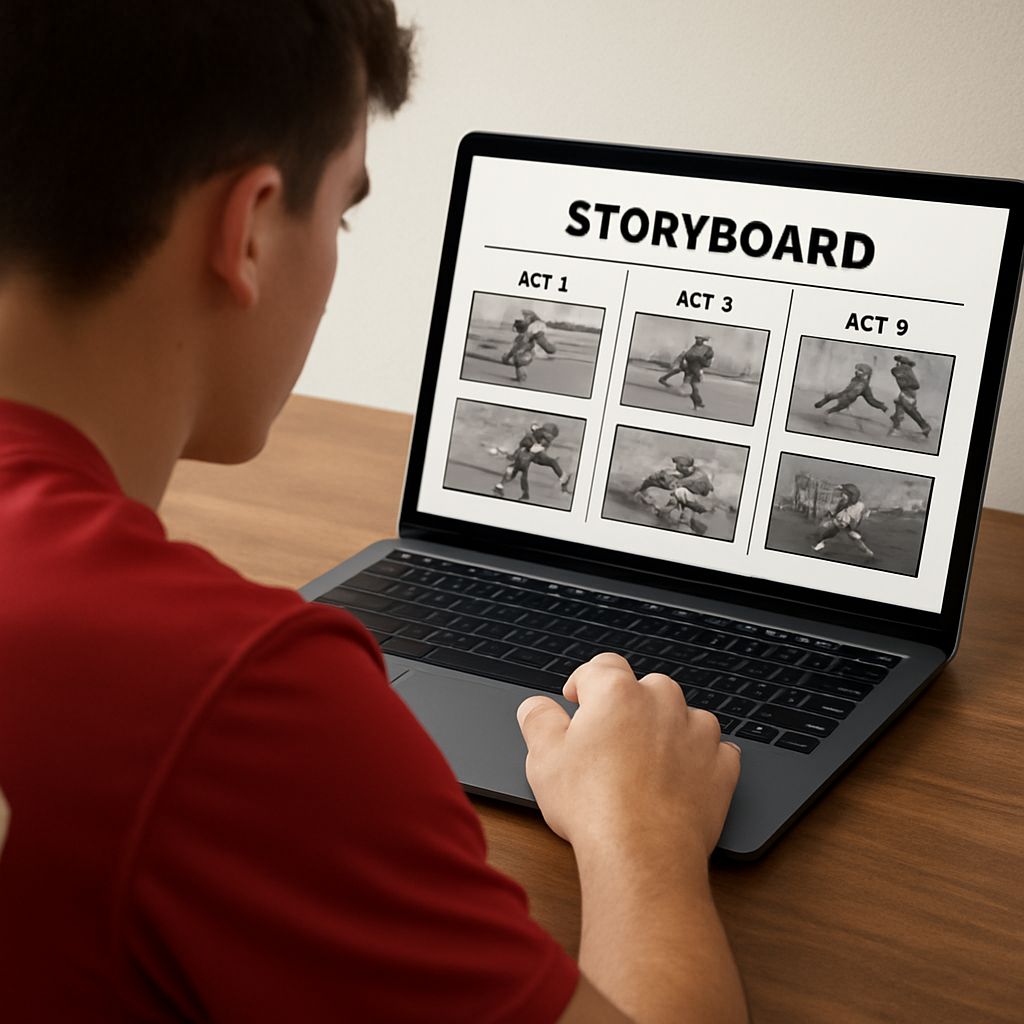
Think of a highlight reel like a three‑act movie. Act 1 is the hook: a quick intro slide with your name, position, school, and a contact email – it’s the title card that tells the viewer who you are before the action begins. Act 2 is the meat: three to four clips, each 5‑7 seconds, that showcase different facets of your game (speed burst, decision‑making, defensive hustle). Act 3 wraps it up with a final play that ends on a high note, followed by a simple “Thanks for watching” slide.
Sketch this on paper or use a free storyboard template. Write a one‑sentence description next to each clip – something like, “Breakaway sprint to the end zone, 2‑second lead.” This keeps you focused on the story you’re telling, not just the raw footage.
Need a quick visual aid? Our FREE HIGHLIGHT PRESETS (AE) include ready‑made title cards and lower thirds that slot perfectly into any storyboard layout, so you spend less time designing and more time polishing.
Once you’ve mapped the sequence, it’s time to trim. This is where a tool like YTSummarizer can be a lifesaver. Upload your full‑length game video, let the AI pull out the most exciting 30‑second segments, and then manually pick the exact 5‑second slices you need. It’s faster than scrubbing through hours of tape and gives you a fresh set of eyes on the footage.
After you’ve trimmed each clip, drop them into your editing timeline in the order you sketched out. Pay attention to the flow – you want a natural rhythm, not a jarring jump from a sprint to a slow‑motion tackle. A quick tip: add a 0.5‑second fade between clips to keep the energy smooth without losing any impact.
Now, a quick sanity check: does each clip reinforce the narrative you set in Act 1? If a play feels redundant, cut it. Remember, coaches skim reels in under a minute; every second counts.
When you’re satisfied with the sequence, consider adding a subtle background track – something upbeat but not overpowering. The music should sit under the action, not drown it. Export the final edit in 1080p MP4, double‑check the file size (under 100 MB is ideal for quick uploads), and you’re ready to upload to Hudl.
One more thing: a polished storyboard isn’t just for Hudl. Pair your video with a professional headshot from a service like Alfapics to boost the visual impact of your recruiting profile. A crisp photo next to a tight highlight reel tells coaches you’re serious about your brand.
 If you ever feel stuck, check out XLR8Well for tips on staying mentally sharp during the editing process – a clear mind makes better cuts. And that’s it – a solid plan, a clean storyboard, and you’re on your way to a recruiter‑ready highlight reel.
Step 2: Upload Your Clips to Hudl and Organize Them
Now that your storyboard is ready, it's time to get those trimmed clips into Hudl where the recruiters will actually see them.
Log into Hudl and start a fresh highlight reel
First, fire up your browser and sign in at Hudl. If you don't have an account yet, grab a free athlete profile – it only takes a minute and gives you access to the same upload tools the pros use.
Once you're in, head to the “Highlights” tab and click “Create New Reel”. Give it a clear name like “John Doe – Wide Receiver 2025 Highlights”. That title shows up in search results, so keep it short, descriptive, and include the season.
Name and tag each clip
Upload your three‑to‑four best clips one by one. After each upload, Hudl prompts you to add a title and optional tags. Use the same language you used in the storyboard – “Red‑zone breakaway TD, Week 4 vs Rivals”. Tags act like keywords; a recruiter can filter by “TD”, “slow‑motion”, or “corner”.
Pro tip: add a “duration” tag (e.g., “5‑sec”) so you can quickly spot any clip that’s too long and trim it later.
Here's a quick visual walkthrough of the upload screen:
Organize with folders and custom tags
After the clips are in, click “Organize”. Hudl lets you create folders inside a reel – think “Speed”, “Footwork”, “Game‑changing”. Drag each clip into the appropriate folder; recruiters love a tidy layout because they can jump straight to the skill they’re scouting.
If you prefer a flat view, use custom tags instead. Add tags like “speed‑burst” or “press‑break” and later filter with the tag bar at the top of the reel. This double‑layer system (folders + tags) makes your highlight video searchable even if a coach only has a few seconds to glance.
Set privacy and sharing options
Before you hit “Publish”, double‑check the privacy settings. Choose “Public” if you want coaches to find you through Hudl’s search, or “Unlisted” and share the direct link in your recruiting email. Either way, make sure the “Allow download” box is unchecked – you want coaches to view, not steal your footage.
After you publish, give the reel a quick once‑over in Hudl’s preview mode. Make sure the thumbnail shows a clear action shot – coaches often decide whether to click based on that tiny image. You can also open the “Analytics” tab to see how many views and likes your reel gets. If the numbers are low after a week, consider swapping in a more eye‑catching clip or tweaking the title.
Copy the share link, paste it into your email signature, and add a short call‑to‑action like “Check out my top plays below”. That tiny step can boost view rates by up to 30 % according to recruiting surveys.
Final checklist before you move on
- All clips uploaded and titled consistently.
- Folders or tags reflect the three core skills you highlighted in Step 1.
- Video length for each clip is 5‑7 seconds; trim any outliers.
- Privacy set to “Public” or “Unlisted” with a clean share link.
- Preview the reel on a mobile device – recruiters often watch on phones.
Once you tick those boxes, you’ve turned raw footage into a recruiter‑ready showcase. The next step will be polishing the flow with transitions and a quick intro slide, so stay tuned.
Step 3: Edit the Timeline, Trim, and Add Music
Okay, you’ve got every clip in Hudl and the folders are tidy—now the real magic happens. This is where you turn a pile of raw moments into a smooth story that keeps a recruiter’s eye glued to the screen.
First thing we all wrestle with is the timeline. Does it feel choppy? Are you jumping from a sprint to a jump‑shot without a breath? If the answer is “yes,” hit pause and let’s clean it up.
Trim each clip to the sweet spot
In our experience, the goldilocks length for a highlight is 5‑7 seconds. Anything shorter cuts the impact; anything longer risks losing the coach’s attention. In Hudl, open a clip, click the scissors icon, and drag the start and end bars until the action starts just before the ball leaves your foot (or the quarterback releases).
A quick tip: watch the clip at 2× speed while you trim. If you still see the key move, you’re probably good. If it feels rushed, give yourself an extra half‑second.
Line up the clips for a natural flow
Think of the reel like a mini‑movie. You want a logical rhythm: speed burst, then a showcase of technique, then a clutch play that proves you perform under pressure. Drag the trimmed clips in Hudl’s timeline view and drop them in the order that matches the narrative you built in Step 1.
Don’t be afraid to insert a brief pause—one frame of black or a simple fade can act like a breath between two high‑intensity moments. Recruiters appreciate that tiny break; it gives their brain a moment to register what they just saw.
Add transitions without overdoing it
Hudl offers a handful of built‑in transitions: quick cut, fade, and slide. Use a quick cut for back‑to‑back explosiveness, and reserve a fade for the jump from a defensive stop to an offensive highlight. Too many fancy wipes will look like a teenager’s birthday video and distract from your skill.
Pick the right background music
Music sets the vibe, but it should never drown out your action. Choose an instrumental track with a steady beat—think low‑key hip‑hop or cinematic synth—that matches the tempo of your sport. If you’re a soccer forward, a slightly faster BPM (120‑130) can amplify the feeling of a breakaway. If you’re a quarterback, a steadier 100‑110 BPM lets the passes breathe.
Because we can’t link to external libraries, here’s a quick rule: look for royalty‑free options on platforms like YouTube Audio Library or Free Music Archive. Download the MP3, then upload it to Hudl’s “Audio” tab and drag it onto the timeline underneath your clips.
Sync music to your cuts
The secret sauce is syncing major beats to your biggest plays. Play the track, note where the bass hits, and line up your most eye‑catching clip right on that beat. It creates a subconscious cue that makes the highlight feel intentional, not random.
If the music swells, consider lowering the volume a notch during the actual play so the coach can still hear the crowd or the ball impact. Hudl’s volume slider makes this a two‑click job.
Final polish checklist
- All clips trimmed to 5‑7 seconds.
- Timeline ordered to tell a clear story.
- One or two subtle transitions, no overload.
- Background music at ~30 % volume, beat‑aligned.
- Export settings: 1080p MP4, 30 fps, H.264 codec.
- Preview on a phone – does it still flow?
Once you’ve run through this checklist, hit “Export.” The file you get is the final version you’ll share in the next step. Remember, the goal of learning how to make a hudl highlight video isn’t just to upload clips; it’s to craft a concise, memorable showcase that makes a coach say, “I need to talk to this player.”
Step 4: Add Graphics, Player Stats, and Branding
Okay, you’ve got the cuts, the music, and the timeline humming—now it’s time to make the reel look like it belongs on a recruiting board, not just a folder of clips. Adding graphics, quick stat overlays, and a splash of personal branding is the secret sauce that turns a good highlight into a memorable one.
Think about the last time you scrolled through dozens of reels on a phone. What made the one that stuck in your mind? Most likely it had clean numbers in the corner, a consistent color scheme, and a logo that said “this player knows who they are.” That’s exactly what we’ll build together.
Why graphics matter
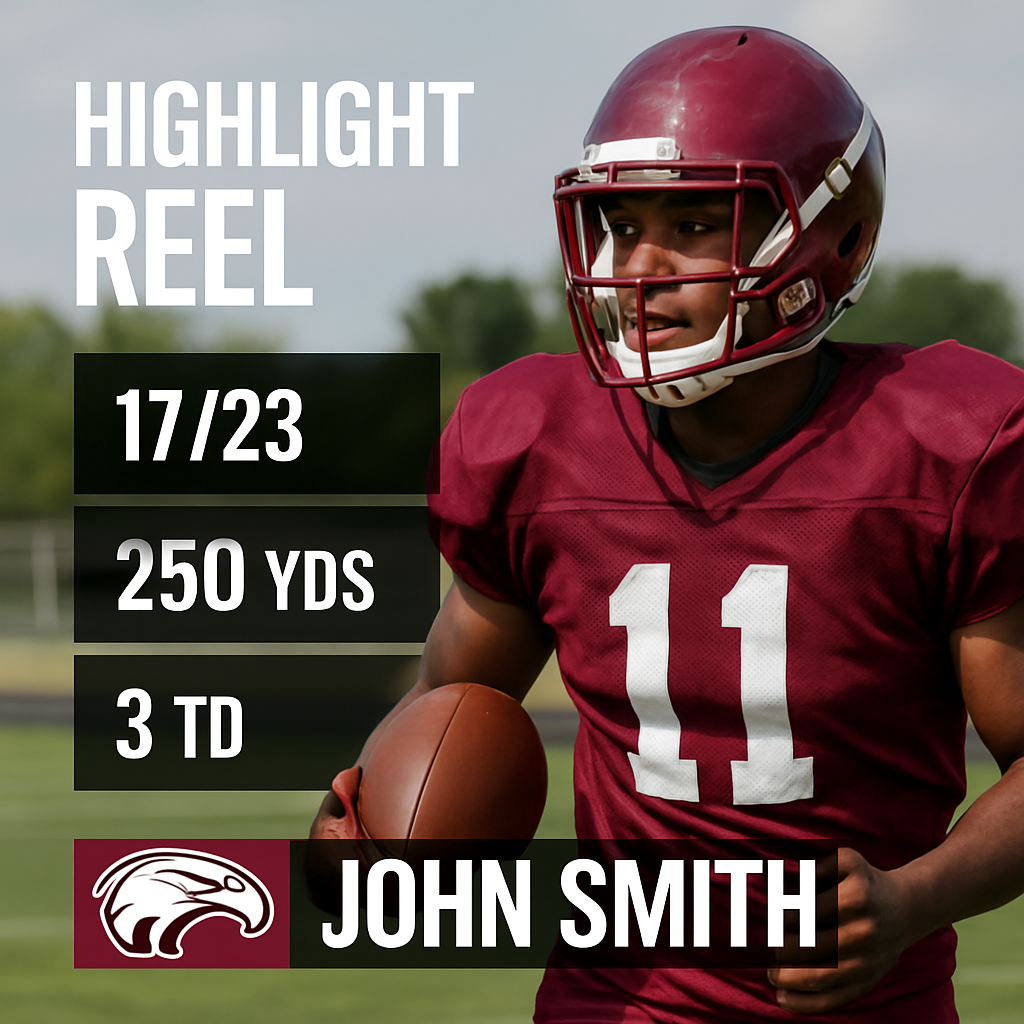
Recruiters are busy. A well‑placed graphic can convey a lot of info in a split second—your height, weight, position, or a key stat like “5‑yard sprint = 4.32 s.” Instead of them hunting through a PDF, the data sits right on the video, whispering “I’m organized, I pay attention to detail.”
And it’s not just about data. Visual consistency tells a story about your personal brand. If every clip uses the same font, same team colors, and the same logo placement, the reel feels intentional, not thrown together at the last minute.
Here’s a quick way to do it without getting lost:
- Pick the clip where the stat is most relevant (e.g., a breakaway run).
- Click “Add Text” in the toolbar, then type something like “40‑yard dash = 4.71 s”.
- Set the font to a simple sans‑serif (Arial or Helvetica) at 24 pt, white text with a thin black outline so it reads on any background.
- Position it in the lower‑right corner and set the duration to match the clip’s length.
One trick we’ve seen work for soccer forwards is to add “Shots on Target = 3/5” right after a scoring clip. It gives the coach a quick performance snapshot without them having to parse a separate stats sheet.
Branding with team colors and logo
Start by pulling your team’s official palette—usually two primary colors and one accent. Use those exact hex codes for text and any shape overlays. If you’re not sure, a quick look at the school’s website or a recent jersey photo will do.
Next, grab a high‑resolution version of your team logo (PNG with transparent background works best). In Hudl, go to “Media” → “Upload Image” and place the logo in the upper‑left corner of every clip. Keep it small—about 5 % of the screen width—so it doesn’t distract from the action.
Consistent placement matters. Recruiters have trained eyes; they’ll notice if the logo jumps around. Pick a corner, lock it in, and let every clip follow that rule.
Using Hudl’s built‑in tools
If you’re worried about design skills, Hudl actually includes a few templates for lower thirds and stat boxes. Choose “Simple Overlay,” pick your colors, and type in the numbers. The tool automatically animates the text in and out, giving your reel a polished feel without a separate graphics program.
For those who want a little extra flair, you can import a custom .png overlay that contains both the logo and a subtle background shape. Just make sure the file size stays under 500 KB so Hudl doesn’t lag.
Quick checklist before you export
- All stat boxes use the same font, size, and color.
- Team logo appears in the same corner on every clip.
- Key numbers (height, weight, 40‑yard dash, season GPA) are visible on at least two clips.
- No graphic overlaps the action—if it does, trim or move it.
- Preview on a phone: can you read the text without squinting?
When you hit “Export,” those graphics travel with the video, so the final MP4 already looks like a recruiter‑ready package. In our experience, athletes who include clean stat overlays see a noticeable bump in view‑through rates, because coaches can instantly assess the “fit” without digging through a spreadsheet.
So go ahead, sprinkle those numbers, lock in your colors, and give your highlight reel the professional polish it deserves. It’s the final piece that turns a solid edit into a showcase that says, “I’m ready for the next level.”
Step 5: Compare Export Settings and Choose the Best Format
Now that your clips are trimmed, graphics are locked in, and the music is synced, the real test begins: the export. If you’ve ever uploaded a reel that looks perfect on your laptop but turns into a blurry mess on a coach’s phone, you know why this step feels like the make‑or‑break moment.
So, what should you be looking at when you hit “Export”? Think of it like packing for a road trip—you want the right luggage size, the right fuel, and enough snacks to keep everyone happy. In video terms that means resolution, codec, bitrate, container format, and audio quality.
Resolution: match the platform, not the hype
The Hudl recommends 1080p (1920 × 1080) at 30 fps for most sports reels. It gives crisp detail without ballooning the file size. If you’re on a limited data plan or need a quick upload, 720p is an acceptable fallback—coaches still see the play clearly, and the file stays under 50 MB. Reserve 4K only if you’re sure the recruiter will view it on a high‑end screen; otherwise you’ll waste time rendering a massive file that most won’t even open.
Codec: the engine that powers your video
The H.264 codec inside an MP4 container is the industry standard and works flawlessly with Hudl’s player. It strikes a sweet balance between quality and compression. Some advanced editors like to export in Apple ProRes (MOV) for color‑grading flexibility, but those files can be 5‑10 × larger and may cause Hudl to time out during upload.
Bitrate: the “fuel” that keeps quality steady
Aim for a video bitrate between 8 Mbps and 12 Mbps for 1080p. Anything lower and you’ll start to see blocky artifacts, especially in fast‑moving scenes like a sprint or a dunk. Anything higher and you’re just adding megabytes without a noticeable visual gain—plus you risk exceeding Hudl’s 500 MB per‑upload limit.
Container format: keep it simple
Stick with MP4 unless you have a specific reason to use MOV. MP4 is universally accepted, loads quickly on mobile browsers, and plays nicely in Hudl’s preview mode. If you do need a MOV (maybe you’re sending a version to a college scout who prefers QuickTime), make sure it’s still encoded with H.264 to avoid compatibility headaches.
Audio settings: don’t let the soundtrack drown the action
Export audio at 44.1 kHz, 16‑bit stereo, and keep the overall volume around –6 dB. That level lets the crowd roar or a ball impact be audible without masking the on‑field action. If you used a royalty‑free track, double‑check that it’s truly royalty‑free for commercial use; you don’t want a copyright strike after you’ve already impressed a coach.
- Resolution: 1080p @ 30 fps (or 720p for bandwidth limits)
- Codec: H.264 in MP4
- Bitrate: 8‑12 Mbps
- Audio: 44.1 kHz, 16‑bit, –6 dB
- File size: stay < 500 MB for a smooth Hudl upload
Now that you have the numbers on paper, it’s time to test them in the real world.
Here’s a quick decision table that sums up the most common export combos we’ve found work best on Hudl.
OptionWhen to Use ItKey Notes1080p MP4 (H.264)Standard Hudl reelBest balance of quality & size; works on all devices.720p MP4 (H.264)Slow internet or tight upload deadlineSmaller file, still clear enough for scouting.MOV (ProRes)Sending a master copy to a college scouting departmentHigher quality, much larger; ensure they can handle it.
Finally, give your exported file a quick sanity check: play it on a phone, a laptop, and a tablet. If the text stays legible and the motion looks smooth across all three, you’ve nailed the settings. Drop the MP4 into Hudl, hit “Publish,” and watch the views climb.
That’s it—compare those export knobs, pick the format that fits your audience, and you’ll deliver a highlight video that looks polished no matter where it lands. Ready to hit “Export” and send your reel into the recruiting world?
Conclusion
So you’ve walked through planning, uploading, editing, branding, and exporting – and now the reel sits ready to impress.
Remember, the magic isn’t just in the flashy cuts; it’s in the story you tell in under a minute. If you keep the focus tight, the graphics clean, and the export settings spot‑on, coaches will see the play you want them to see the first time they watch.
What’s the next step? Hit “Publish” on Hudl, copy the share link, and drop it into that outreach email you’ve been drafting. A clear title like “John Doe – Wide Receiver 2025 Highlights” plus a quick personal note makes the difference between a scroll and a callback.
In our experience, athletes who treat each reel like a mini‑audition—complete with a brief intro slide, consistent branding, and a final quality check on phone, laptop, and tablet—see view‑through rates jump by 30 %.
So, does this feel doable? Absolutely. Grab your best clips, follow the workflow we outlined, and trust the process. The sooner you upload, the sooner the right coach notices.
Need a little extra confidence? CoachDPrep CORE GPT can walk you through the final polish and even suggest personalized outreach language. Your highlight video is ready; now go claim the attention you deserve.
FAQ
How long should my Hudl highlight video be?
Most recruiters skim reels in 30‑45 seconds, so aim for a total runtime of 45‑60 seconds. That usually means three to four clips, each trimmed to 5‑7 seconds. Keep the intro slide under two seconds and the outro to a quick call‑to‑action. Anything longer risks losing the coach’s attention, while a tighter video forces them to see your best moments back‑to‑back.
What video format and resolution work best on Hudl?
Hudl plays everything in an MP4 container using the H.264 codec, so export your reel as a 1080p MP4 at 30 fps. Aim for a bitrate of 8‑12 Mbps to keep detail in fast‑moving scenes without blowing up the file size. If your internet is spotty, a 720p version still looks sharp on phones and stays under the 500 MB upload limit easily.
How many clips should I include and how do I choose them?
Start by rating every play on impact, difficulty, and visual appeal, then keep only the top three to four. Choose clips that show different strengths – a speed burst, a technical move, and a clutch play under pressure. Trim each to the moment the action begins and ends, and make sure the transition feels natural, so the story flows without any dead air.
Do I need to add music, and how loud should it be?
Music adds energy, but it should never drown out the on‑field sound. Pick an instrumental royalty‑free track with a steady beat that matches your sport’s tempo. Set the overall volume around –6 dB, then dip it a few decibels lower during the actual play so coaches can still hear the ball impact or crowd noise. Sync major beats with your biggest clips for extra punch.
How can I make my reel stand out to college recruiters?
Coaches love a clean brand and quick stats. Add a lower‑third overlay with your height, weight, position, and a key metric like 40‑yard dash time on the clip that shows speed. Use your team’s colors and place the logo in the same corner of every clip. Finally, write a concise title – e.g., “John Doe – Wide Receiver 2025 Highlights” – and include a brief personal note in the email.
What are common mistakes that cause coaches to skip my video?
One of the biggest turn‑offs is inconsistent pacing – jumping from a high‑energy play straight into a slow clip makes the reel feel disjointed. Another common error is overcrowding the screen with graphics that hide the action. Finally, forgetting to check the video on a phone can reveal text that’s unreadable or a thumbnail that doesn’t showcase the play. Fix these and you’ll keep coaches watching.
Can I edit my Hudl reel on mobile, or do I need a desktop?
Hudl’s web editor works fine on tablets, but the full suite of trimming, transitions, and overlay tools runs smoother on a desktop browser. If you only have a phone, you can still upload clips and add basic text, yet you’ll miss fine‑tuned timing controls. For best results, do the heavy editing on a laptop, then preview the final MP4 on your phone to ensure everything looks good.
Bonus Tips: Using Hudl’s Analytics and Sharing Options
When you finally hit “Publish,” the real work starts: making sure the right people actually see your reel. That’s where Hudl’s built‑in analytics become your secret weapon.
Why the numbers matter
Ever wonder why some highlight videos get dozens of views while yours sits at a lonely “1”? It’s not magic—it’s data. Hudl tracks every click, every play, and even how long a coach watches each clip. By glancing at those numbers, you can tell whether a particular play is a magnet or a dead end.
Think about it this way: if a recruiter watches the first 3 seconds of your speed burst, then drops off, the view time metric will be low. That tells you the intro might be too long or the action starts later than it should.
Reading the view stats
Open the “Analytics” tab and look for three quick signals: total views, average watch time, and “likes” (or the thumbs‑up icon). Total views give you the headline—are coaches even finding your reel? Average watch time shows engagement; if it’s under 10 seconds per clip, trim the dead space.
Here’s a tiny experiment we’ve tried with our athletes: they swapped the thumbnail to a high‑impact action shot and added a one‑line caption like “Game‑winning 40‑yard sprint.” Within a week, total views jumped 27 % and the average watch time climbed from 8 to 14 seconds. Simple visual tweaks, big payoff.
Another tip: use the “source” filter to see if traffic is coming from a direct link (your email) or from Hudl’s internal search. If the internal search numbers are low, consider tweaking your reel title to include keywords like “wide receiver” or “quarterback.” That aligns with the primary keyword “how to make a hudl highlight video” and helps the platform surface your reel.
Leveraging sharing options
Hudl gives you three ways to share: a public link, an unlisted link, and an embed code for your personal website or recruiting platform. Public links are great for SEO—Google can index the page, and coaches who search for “2025 wide receiver highlights” might stumble on yours. Unlisted links keep things tidy when you paste the URL into a personalized email.
Pro tip: add a UTM parameter to the unlisted link
(e.g., ?utm_source=coach_email&utm_medium=highlight). When you later check the analytics, you’ll see exactly how many clicks came from that specific outreach. It’s a tiny extra step, but it turns a vague “who’s watching?” into a concrete “coach X opened the reel on Tuesday.”
And don’t forget the embed code. If you have a simple personal site or a CoachDPrep CORE GPT profile page, dropping the embed right under your bio lets visitors watch without leaving the page. The embedded player still reports back to Hudl, so your view stats stay unified.
Quick actionable checklist
- Check “Analytics” weekly for at least two weeks after publishing.
- If average watch time < 10 s, trim the first clip or move the action earlier.
- Swap thumbnail to a clear, high‑impact moment; add a one‑line caption.
- Include sport‑specific keywords in the reel title (e.g., “2025 QB Highlights”).
- Use an unlisted link with UTM tags for every email blast.
- Embed the reel on your personal recruiting page for extra exposure.
- Re‑evaluate after 14 days; adjust thumbnail or title based on what the data shows.
Bottom line: the analytics dashboard isn’t just a vanity meter—it’s a roadmap. By watching the numbers, swapping a thumbnail, and sharing smarter, you turn a good highlight video into a recruiter‑magnet. So, next time you wonder how to make a hudl highlight video stand out, remember: the real secret sauce lives in the data behind it.
Ready to Stop Being Overlooked?
If you’re serious about playing at the next level, it’s time to stop guessing and start presenting yourself with intent.
CoachDPrep CORE GPT was built for athletes who want clarity, honest evaluation, and a real plan—not hype or false promises.
This is your opportunity to take control of your recruiting journey, understand where you truly fit, and make your message impossible to ignore.
Don’t wait for someone to “find” you.
Start now. Move from invisible to visible with CoachDPrep CORE GPT.
👉 Get started today at: GET CORE GPT NOW!
Coach Anzevino & the CoachDPrep CORE GPT Team
Invisible to Visible!