
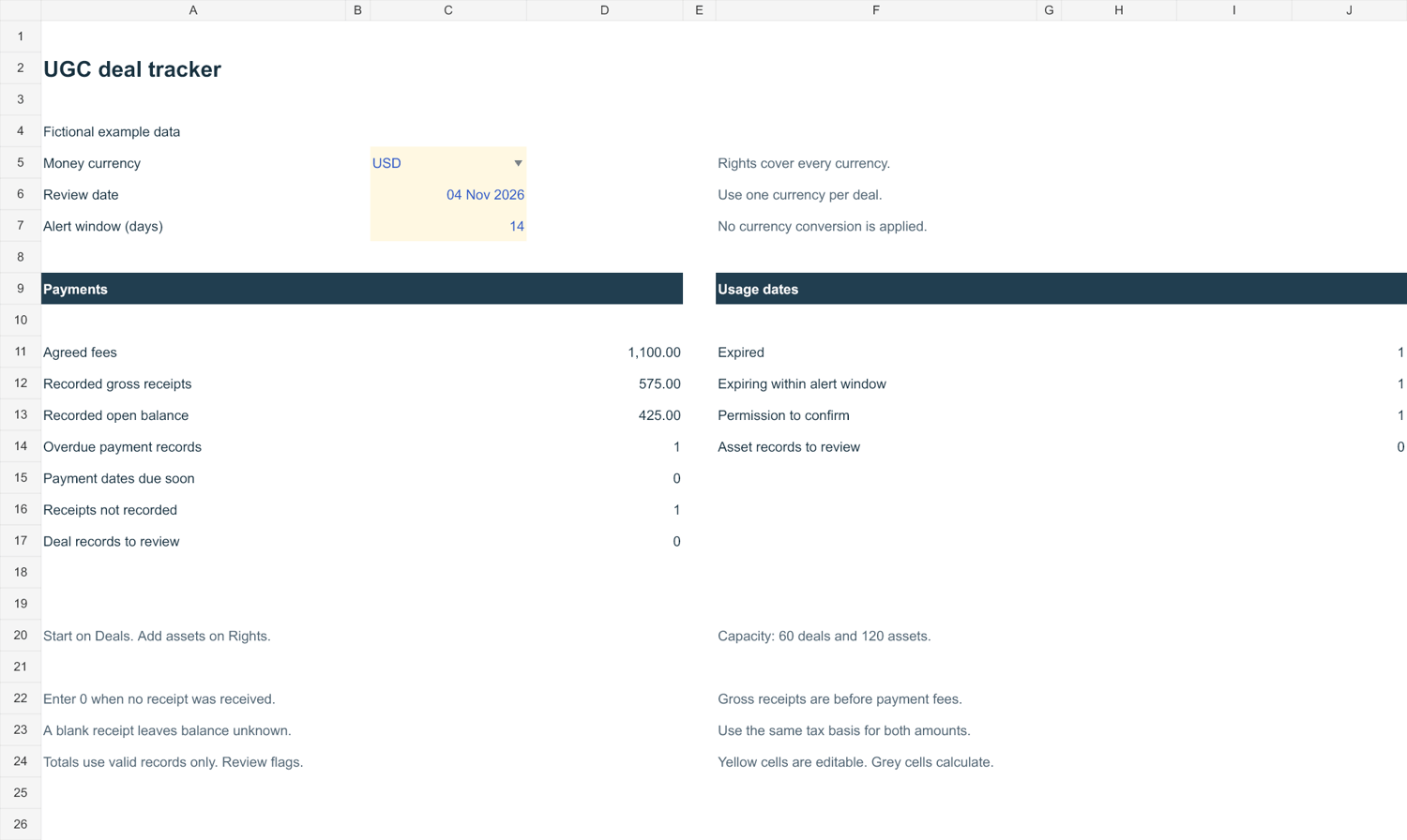
A UGC deal has at least three separate dates: when you must deliver the content, when payment is due, and when an agreed usage period ends. Tracking them in different columns makes it easier to review what needs attention.
You can build the following layout in your own Excel file. The amounts and dates below are fictional examples, not customer results.
1. Keep one row per deal
Create a Deals sheet with these columns:
• Deal ID and brand
• Currency
• Agreed fee
• Payments received to date
• Open balance
• Delivery due date
• Payment due date
• Invoice or payment reference
• Next action
Use the same Deal ID whenever you refer to the project. Keep payment evidence in your own records so you can check what each entry refers to.
2. Separate an agreed fee from money received
Fictional example: a brand agrees to pay USD 500 and has paid USD 200. The open balance is USD 300. The deal is partially paid; it is not a USD 500 receipt.
If E2 contains the agreed fee and F2 contains the numeric amount received, the basic Excel balance formula is =E2-F2. Enter 0 when no payment has been received. A positive result is still outstanding; 0 means the two amounts match. Review a negative result as a possible overpayment or entry error.
Do not add USD, EUR, GBP and KZT into one total. Keep a separate summary for each currency unless you deliberately add and document a currency-conversion method.
3. Give each content asset its own usage record
Create an Assets sheet and link each row back to a Deal ID. Record the asset name or URL, the agreed usage channels, the term type, and any fixed usage end date.
Use separate term labels such as Fixed, Perpetual and Not agreed. A blank end-date cell alone cannot tell you which applies. Copy the terms and dates from the actual agreement rather than assuming a duration.
For example, a fictional project might have a delivery due date of 10 November 2026, a payment due date of 25 November 2026 and a fixed usage end date of 10 February 2027. Those dates answer different questions.
4. Review the next action
• Filter deals with an open balance and a payment due date that has passed.
• Review upcoming delivery deadlines separately.
• Review fixed usage end dates within a window you choose, such as the next 14 days.
• Update the received amount after checking the payment record.
A date in a spreadsheet does not establish whether an ad is still running, stop it, collect a payment or decide a contractual dispute. Those checks and actions remain separate from the tracker.
Prefer a ready-made workbook?
Creator Desk Tools sells UGC Deal Tracker for Excel for US$9, one time. It has Overview, Deals and Rights sheets, capacity for 60 deals and 120 assets, partial-payment tracking and separate USD/EUR/GBP/KZT summaries.
The workbook runs locally without macros, external data connections or a subscription. Its alerts stay inside the workbook; it does not send emails. Windows Excel has been tested. Google Sheets, Numbers and mobile apps have not been verified.
The buyer download is empty for your own records. Product-page screenshots show clearly labelled fictional examples. You can also use the layout above to make your own sheet.