

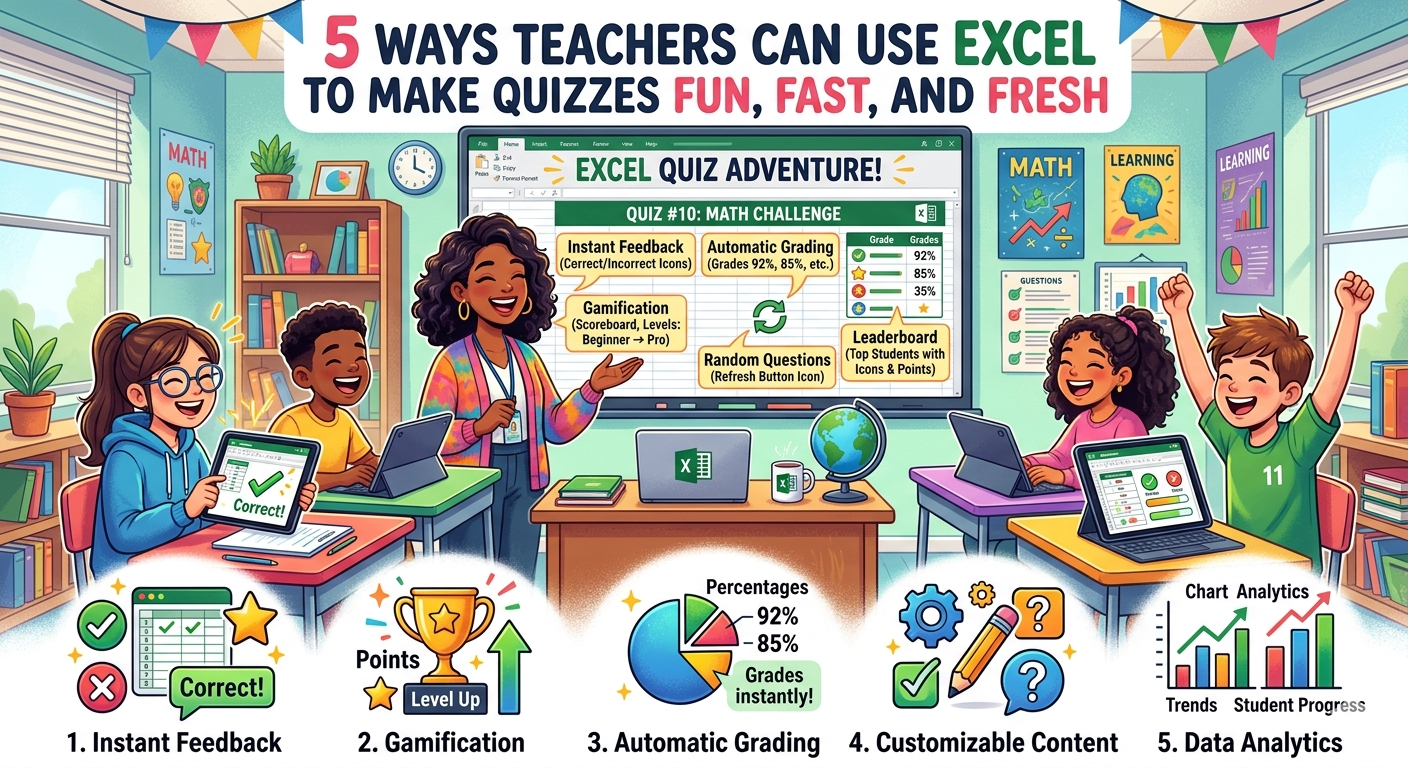
If you’ve ever found yourself copying the same 10‑question quiz week after week, you know how quickly students lose interest—and how much extra time it costs you to rebuild the test each period. The good news? Microsoft Excel can do the heavy lifting for you. With just a few simple tricks, you can randomize quiz questions in Excel, keep your assessments fresh, and free up valuable planning time.
Below, we walk through five practical ideas that use teacher Excel templates you can download from our Payhip/Wix store right now. Whether you’re a math wizard, an English‑language guru, or a science explorer, these tools will help you create dynamic quizzes in minutes, not hours.
1. Build a Master Question Bank (Teacher Excel Template)
Start with a clean “Question Bank” worksheet:
Q‑IDCategoryQuestion TextOption AOption BOption COption DCorrect AnswerQ001FractionsWhat is 1/2 + 1/4?3/41/45/81/2AQ002VocabularySynonym of “happy”?SadJoyfulAngryTiredB……………………
Our Teacher Excel Templates bundle includes a pre‑formatted Question Bank with data validation drop‑downs for categories, automatic numbering, and color‑coded cells that keep your data tidy. Simply paste your own questions, and you’ll have a reusable repository for any subject.
2. How to Randomize Quiz Questions Excel‑Style
Now that you have a bank, the magic step is to pull a random subset for each class. Here’s a quick formula‑only method (no VBA required):
- Add a helper column next to your bank called “Rand”.
=RAND()
- Drag the formula down the whole list. Excel generates a new random decimal every time the sheet recalculates.
- Create a “Quiz Sheet” where you want the random questions to appear. In cell A2 (first question slot) type:
- =INDEX(QuestionBank!$C$2:$C$500, MATCH(SMALL(QuestionBank!$H$2:$H$500, ROW(A1)), QuestionBank!$H$2:$H$500, 0))
- QuestionBank!C is the column with the question text.
- QuestionBank!H is the “Rand” column.
- ROW(A1) tells Excel to pull the 1st smallest random number; copy the formula down and it will fetch the 2nd, 3rd, etc., automatically.
- Copy across the option columns using a similar INDEX/MATCH construct, or simply pull the whole row with:
- =INDEX(QuestionBank!A$2:G$500, MATCH(SMALL(QuestionBank!$H$2:$H$500, ROW(A1)), QuestionBank!$H$2:$H$500, 0), COLUMN())
- Press F9 (or set the sheet to Manual Calculation and hit Calculate) each time you need a fresh set. The quiz will shuffle instantly—how to randomize quiz questions in Excel becomes a one‑click routine!
Pro tip: Add a button (Insert → Shapes) and assign a tiny macro that runs Calculate. That way, a single click re‑randomizes the entire test without you having to open the Formula bar.
3. Generate Multiple Quiz Versions Automatically
For large classes, it’s handy to create a “Quiz Pack” with several unique versions. Use the Teacher Excel Templates “Quiz Generator” sheet:
- Set Number of Versions (e.g., 5).
- Define Questions per Version (e.g., 10).
- Click the Generate button.
The macro loops through the randomization steps above, copies the output to a new worksheet named Quiz_1, Quiz_2, etc., and even builds a simple answer key automatically. All of this comes ready‑to‑print, saving you hours of manual copy‑pasting.
4. Turn the Excel Quiz into a Printable PDF (Great for Payhip)
Once your quizzes are ready, you can quickly export them:
- Select the quiz sheet.
- Go to File → Export → Create PDF/XPS Document.
- Choose Standard (publishing online and printing) for crisp text.
Upload the PDFs to your Payhip store as downloadable resources. Teachers love the convenience of a ready‑made, printable quiz that they can print on-demand for any class size.
5. Share Interactive Quizzes via Google Sheets (Wix Integration)
If you prefer a web‑based format, simply upload your Excel file to Google Drive, open with Google Sheets, and share the link on your Wix site. Google Sheets respects the RAND() function, so each student who opens the link will see a uniquely shuffled quiz (just turn on Protected ranges so they can’t edit the questions).
Combine this with a Wix Members area to restrict access to paid customers—perfect for teachers who want to sell teacher Excel templates and interactive quizzes as a subscription service.
Ready to Upgrade Your Quiz Game?
All the templates mentioned above are available right now in our Payhip/Wix store:
- Complete Question Bank Pack – 100+ pre‑formatted rows, data validation, and conditional formatting.
- Quiz Generator Macro – One‑click creation of multiple random versions + answer key.
- Teacher’s Quick‑Start Guide (PDF) – Detailed screenshots for the “how to randomize quiz questions Excel” process.
Download instantly, customize in seconds, and start delivering fresh quizzes that keep students engaged and you're stress‑free.
https://payhip.com/b/KdXEQ
Got a question or a specific quiz format you need? Drop a comment. We love building custom Excel solutions for teachers!