

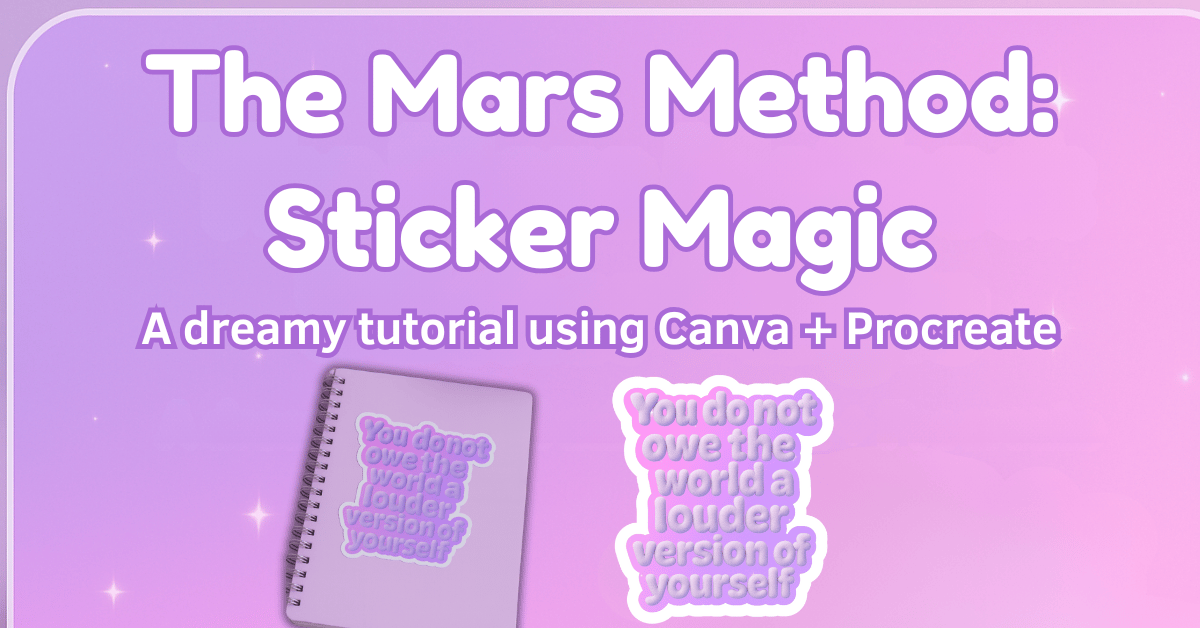
Create dreamy, empowering digital quote art using this step-by-step process!
Step 1: Prep Your Files in Canva
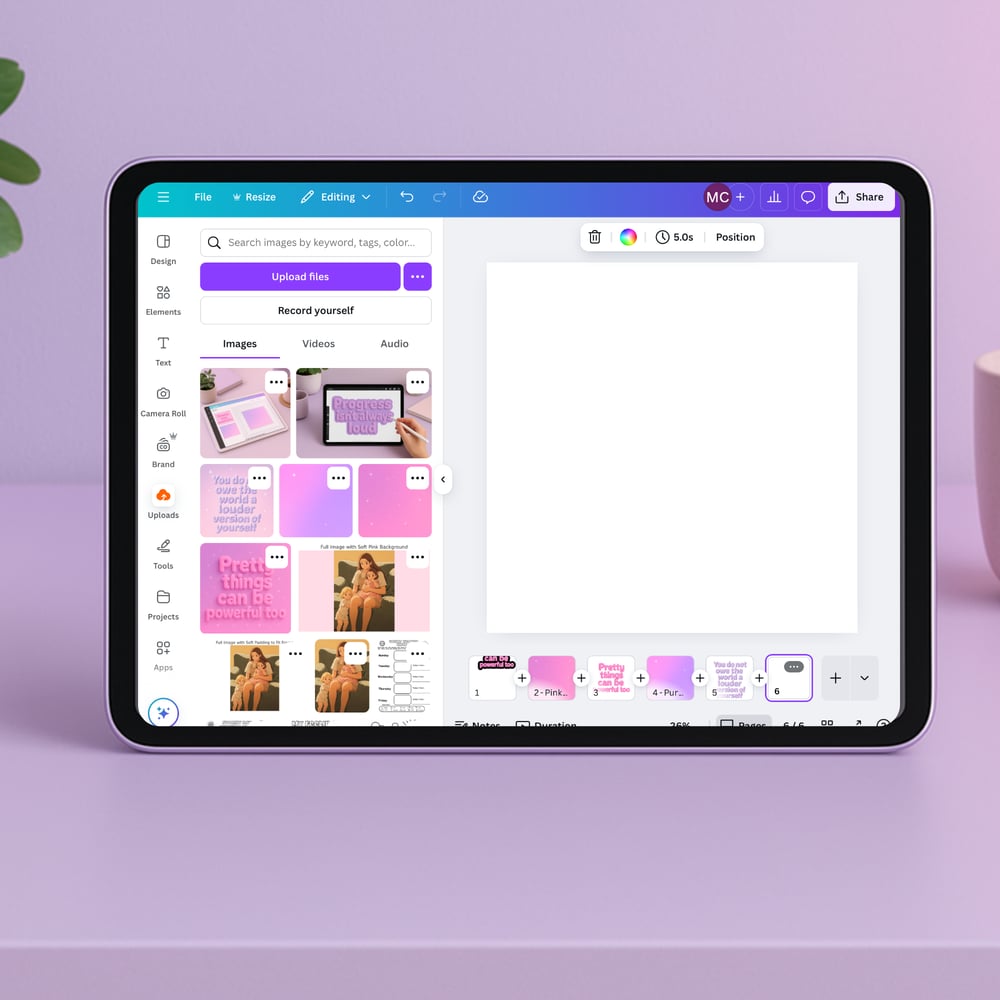
- Upload your text PNG and your background PNG into Canva.
- Place each on a separate page or remove the background from the text.
- Save your background-only image as a PNG.
- Save your transparent text image as a PNG.
Step 2: Add the Offset to Your Text
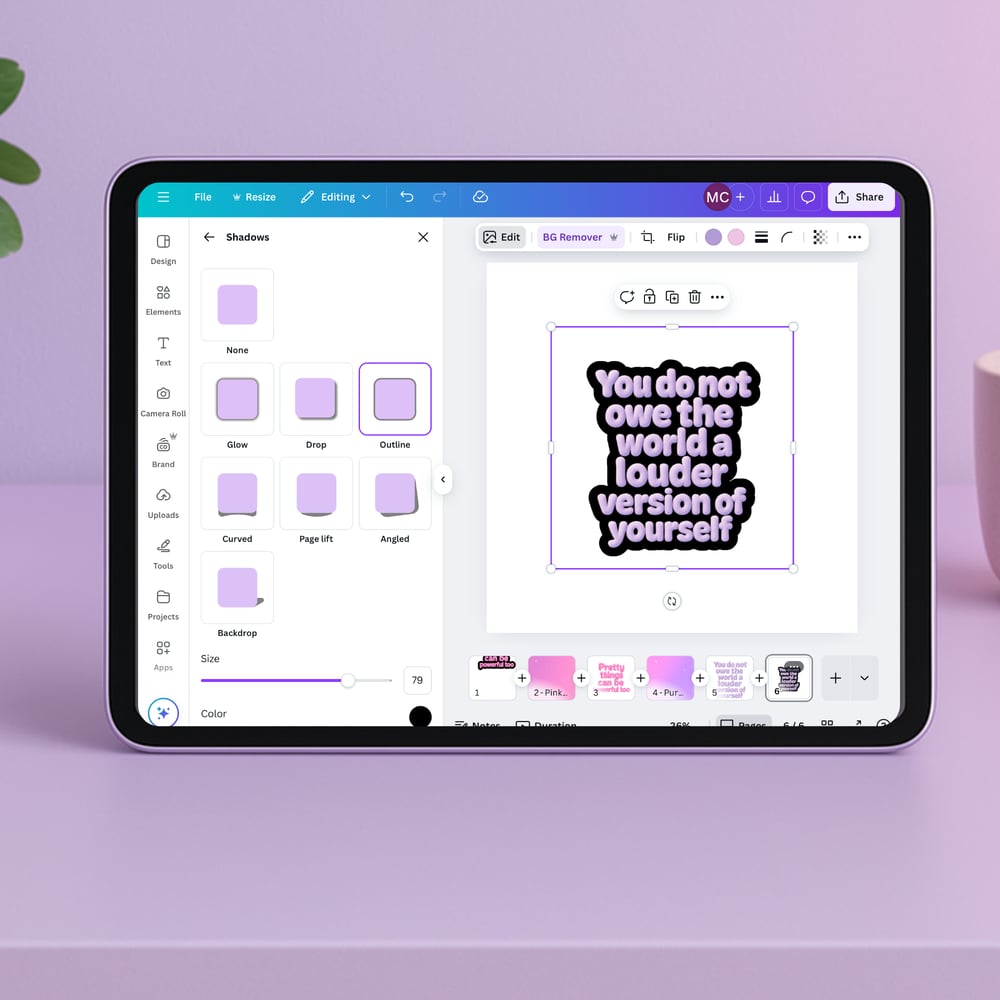
- Select your transparent text in Canva.
- Go to Effects > Shadows > Outline.
- Adjust the outline size until the text is fully bordered (no gaps or inner missing sections).
- Set the outline color to black (or a dark color for contrast).
- Download as a PNG with a transparent background.
Step 3: Start Your Canvas in Procreate
- Open Procreate and create a 2000 x 2000 px canvas.
- Insert the offset text PNG onto your first layer.
- Create a new layer and place your background PNG on top.
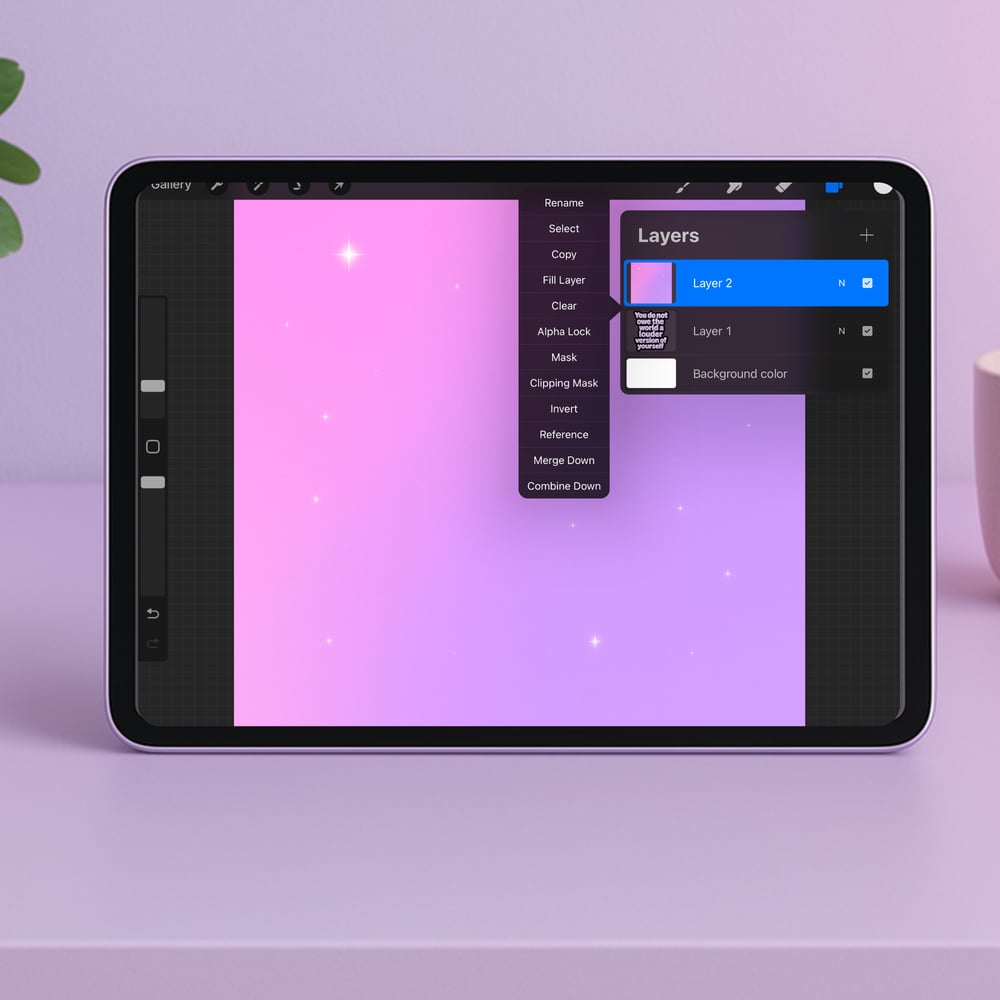
Step 4: Clip the Background to the Offset
- Tap the background layer and select Clipping Mask.
- Make sure the background layer is on top of the offset text layer.
- This will fill the offset with your dreamy background!
Step 5: Add Your Text Layer
- Add a new layer and insert your original text (the one with no background).
- Resize and position it so it aligns with the offset and looks balanced.
Pro tip: zoom in and use grid lines to make sure your text is centered and not leaning.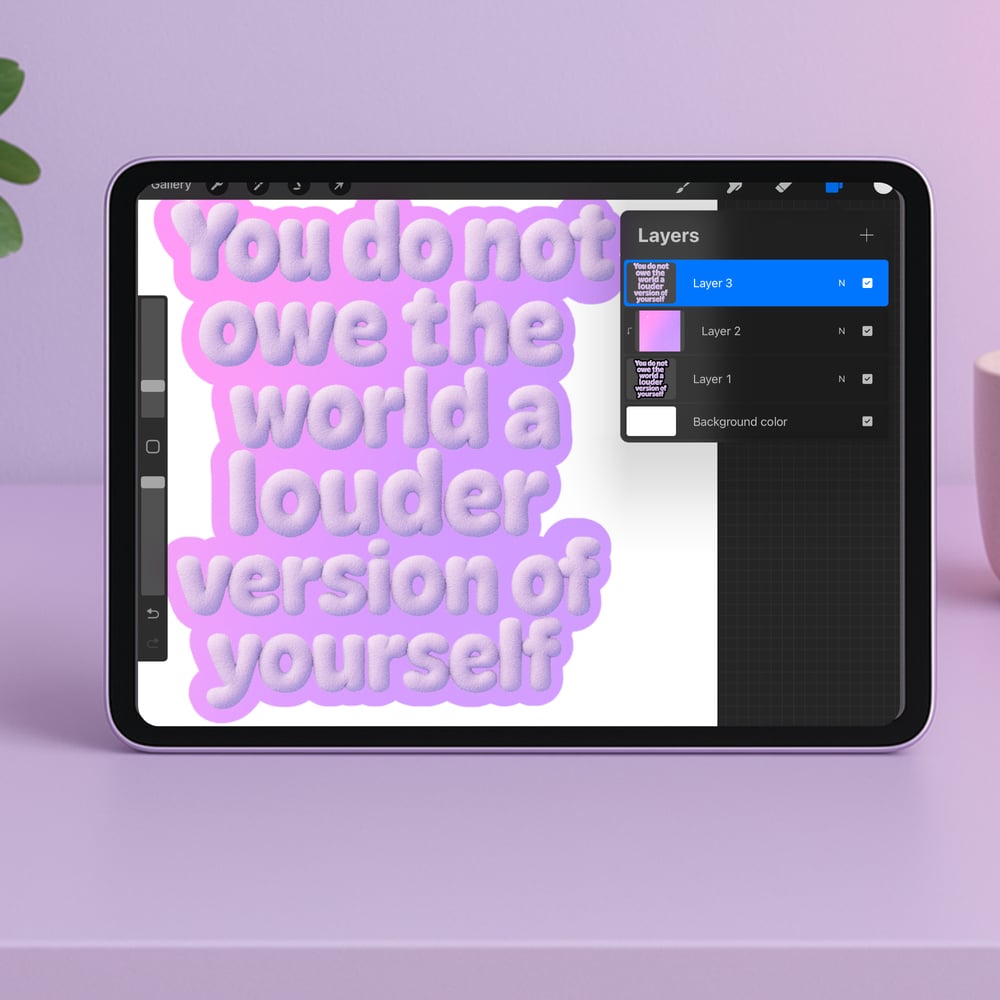
Step 6: Clean Up Layers
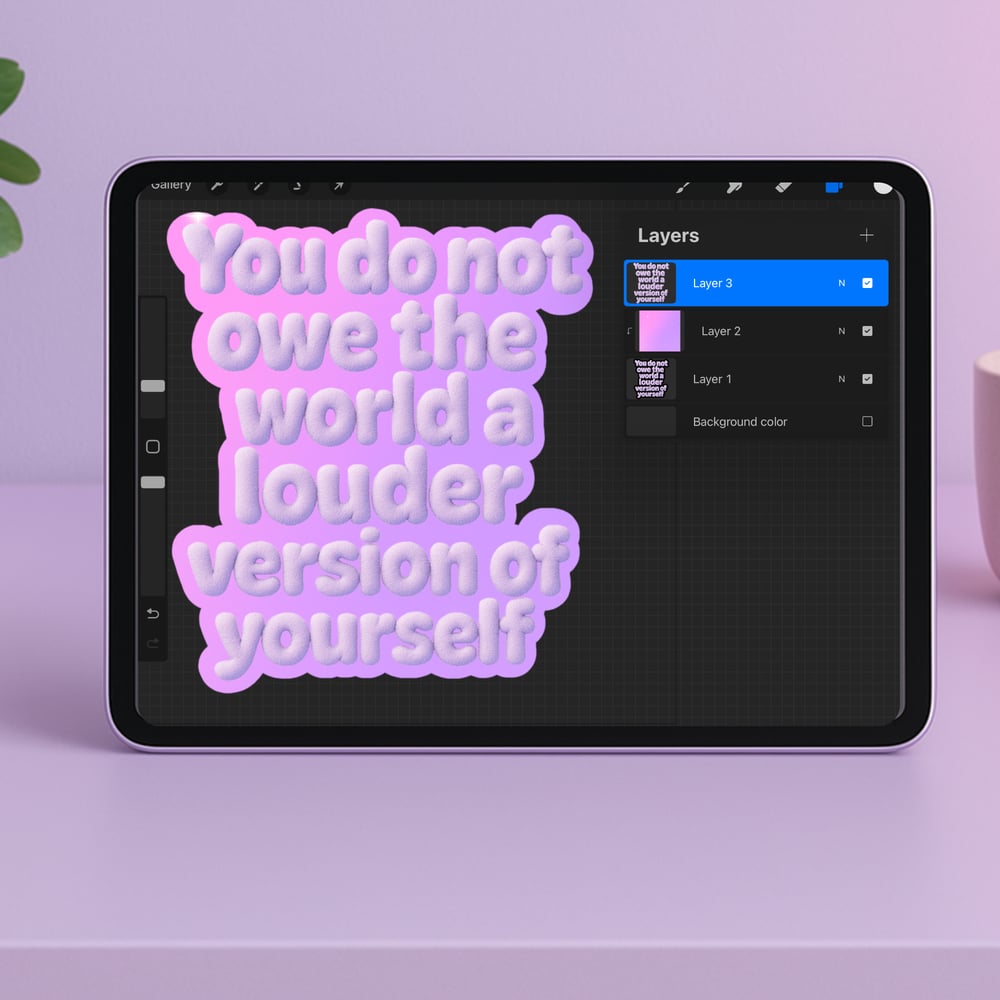
- Delete the default "Background color" layer (the white one that Procreate starts with).
- You should now have:
- Offset + background layer (clipped)
- Original text layer
Step 7: Export Your Final Artwork
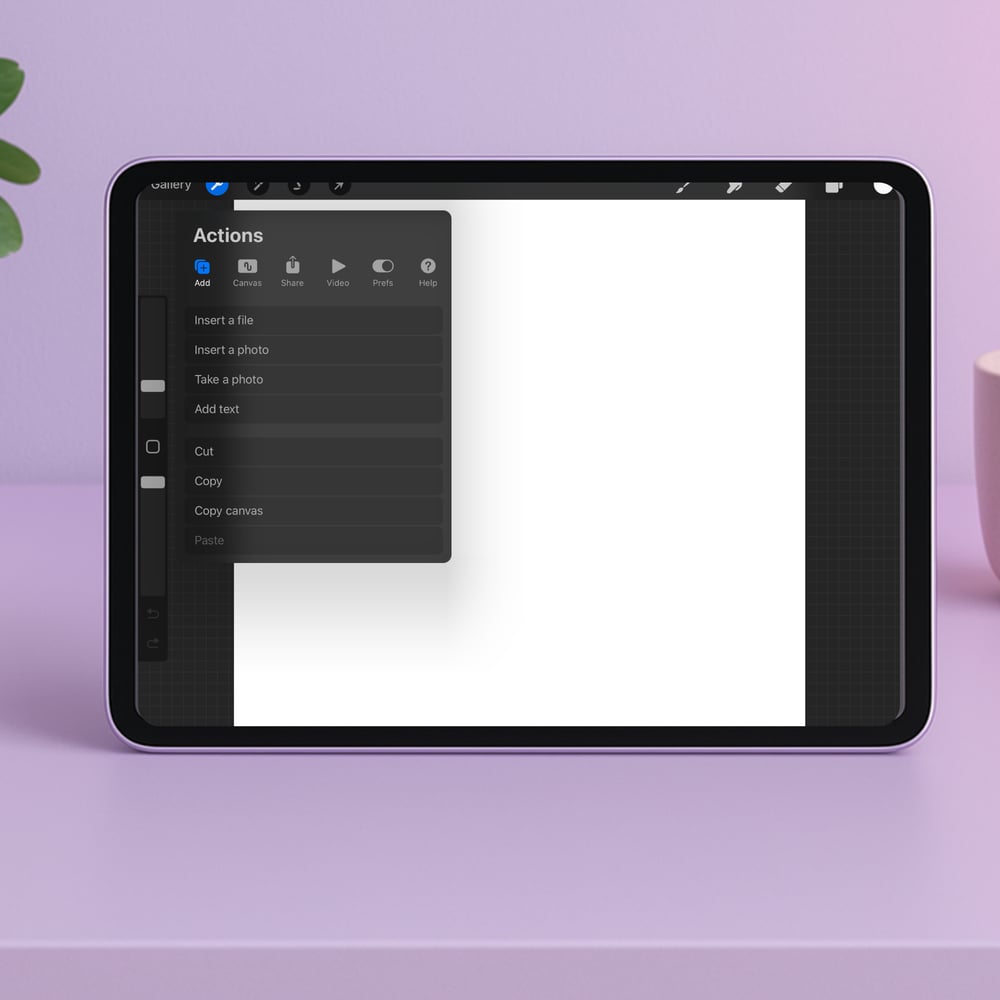
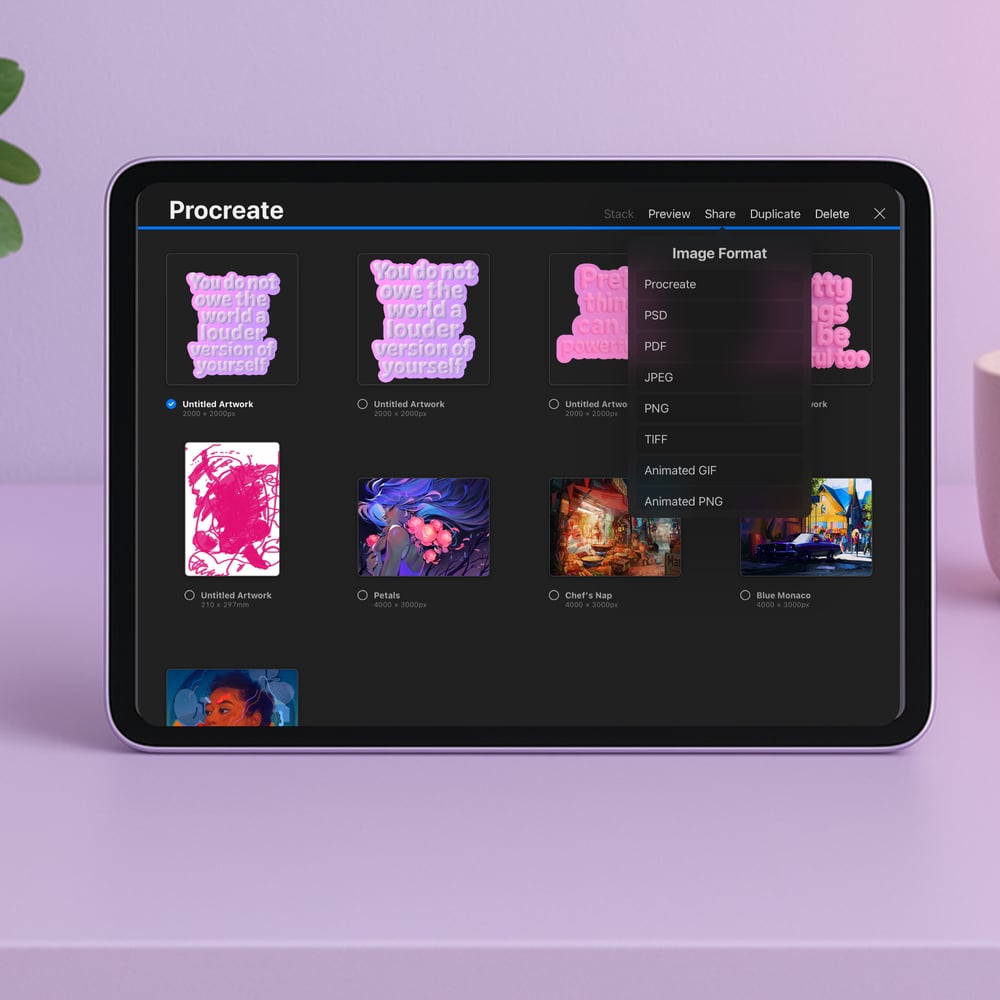
- Tap Actions (wrench icon) > Share.
- Choose PNG to preserve transparency.
- Save to your camera roll or files!
Optional Step: Add a White Border in Canva for Printing or Mockups
If you notice a white background around your sticker in mockups or want to make the outline more visible:
- Upload your final PNG from Procreate back into Canva. Click the image and go to Effects > Outline.
- Choose white as the color.
- Adjust the thickness until the outline looks like a clean border around your sticker.
- Download again as a PNG with a transparent background.
This step helps your sticker look great in mockups and print files by adding a polished edge!
Final Thoughts
This method blends the editing power of Canva with the layer control of Procreate to create something totally magical. Whether you're making stickers, art prints, or just vibing on your own, this is a soft and dreamy way to show off your creativity.
And best of all? You don’t need to draw a single thing by hand. 💅
Ready to try it out? Tag me when you post your creations! I’d love to cheer you on. 💜
💭 Not sure how to create the fuzzy 3D letters?
Skip the guesswork and start creating dreamy text in seconds!
Grab my exact AI prompts in the Fuzzy Text Starter Set—now available in my Payhip shop for just $1. ✨