Your Cart
Loading

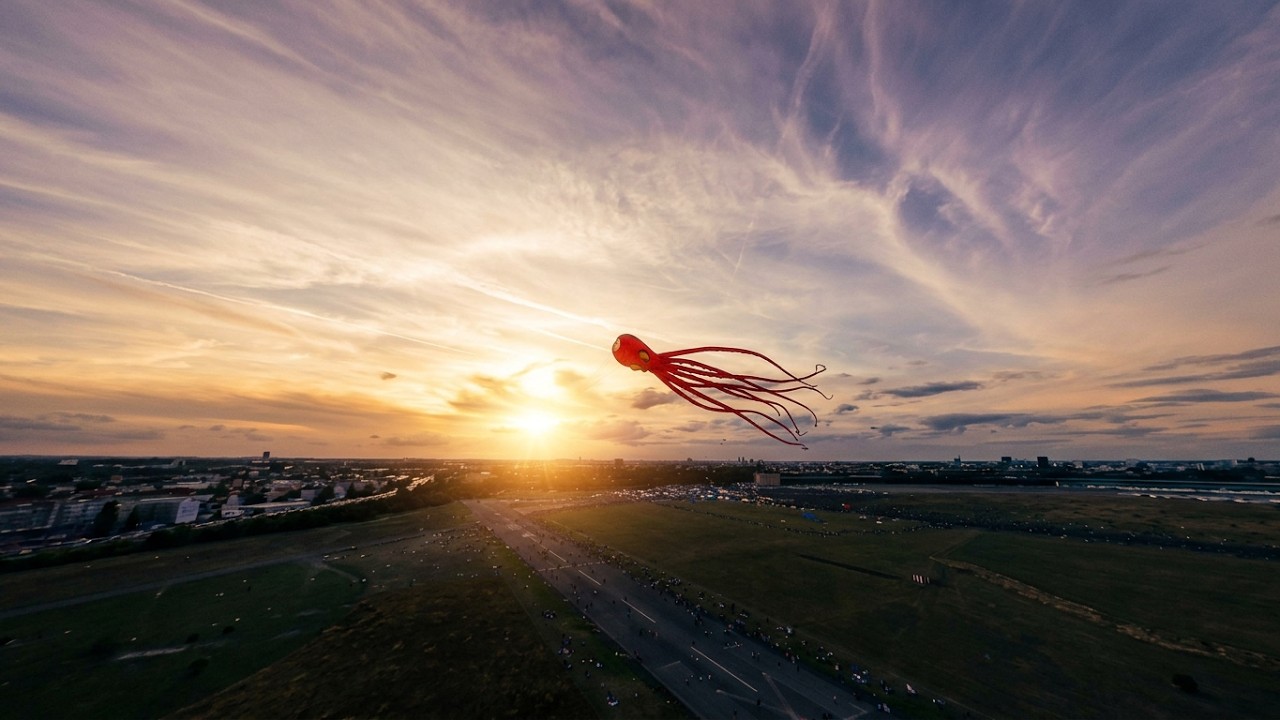
Cinematic FPV Color Presets by k2fpv.

Premium LUTs designed for high-speed drone footage, dynamic lighting, and instant cinematic colors. Compatible with Premiere, Resolve, Final Cut, and mobile editors.

How to install LUTs

Premiere Pro

Save custom LUTs directly into Adobe's shared system folders:

  • Mac Directory: Navigate to /Library/Application Support/Adobe/Common/LUTs/Creative
  • Windows Directory: Navigate to C:\Program Files\Adobe\Common\LUTs\Creative
  1. Paste your .cube files into the Creative folder. (Note: If the LUTs or Creative folders do not exist, create them manually).
  2. Restart Premiere Pro.
  3. Open the Lumetri Color panel, go to the Creative tab, and your LUTs will appear in the Look dropdown list.

DaVinci Resolve

DaVinci Resolve includes a built-in folder link to automatically load custom files:

  1. Open DaVinci Resolve, go to the Color page, and click LUTs in the top-left menu.
  2. Right-click inside the LUT sidebar panel and select Open File Location.
  3. Copy and paste your entire LUT folder or individual .cube files into this window.
  4. Return to DaVinci Resolve, right-click inside the LUT panel again, and select Refresh.

Final Cut Pro (FCPX)

You can store custom LUTs directly within Final Cut Pro's inspector:

  1. Add the Custom LUT effect to any clip on your timeline.
  2. In the Video Inspector window, click the LUT dropdown menu under Custom LUT.
  3. Click Choose Custom LUT... and select your .cube files.
  4. Final Cut Pro will automatically add them to the persistent dropdown list for future projects.

CapCut (Desktop)

Import custom LUT files directly into your workspace for quick access across projects:

  1. Open a project, select a video clip, and click the Adjustments tab in the top-right panel.
  2. Click LUTs on the left sub-panel and click the + (Import) button.
  3. Select your .cube files to add them to your local CapCut LUT library.