
Nothing to get Hung Up on 🖼️
All of this is done free , yes zero 💰 (although there are some advantages to the paid versions)
Site’s to have accounts with (whether it’s individual account or signing in via google/gmail)
- Canva
- pdf2jpeg.net
- CreativeFabrica.com
- chatGPT
- photopea.com
- freepik.com
What each site does (generally speaking)
- Canva - design / graphics / templates
- pdf2jpeg converts PDFs into 300dpi JPEGS (necessary for print quality)
- CreativeFabrica - host of design / creative features to enhance the Canva experience or your project
- chatGPT - use prompts to facilitate your workflow and add a personal touch afterwards (ex. Keywords, titles, descriptions).
- photopea - editing sweet that can create 300dpi images, has some features to make mockups look way better and it’s free (some overlap with Canva except photopea has more at no charge with some conditions)
- freepik.com - AI generator for mockups that are incredible
HOW TO SELL DIGITAL ART ON PAYHIP FOR FREE WORKFLOW
LET’S BEGIN
- all my art or passages/sayings are creations of mine (not ai - and are part of some publication I have. For example, ‘Content’ is from Clear Your Mind, An Interactive Guide to Meditation for beginners. Hello is a poem from Markings of the Soul, A Poetic Saga
- Illustrations like the sunflower in ‘Flowering Abode’, the ‘3 Hearts’ and the watercolour of Mustang’s profile pic (which I use for the Store Logo) were all created on my iPad by me and I’ve applied filters/edits to some of them to stylize them. Mustang being the exception, it was my first attempt at ‘cartooning’ and that took me 3 hours.
- To make a long story longer, pick something you want to create as an expression of art to be placed on a wall.
Payhip, for example has digital download formats / sizes / requirements as do stores like Etsy. So all these things have to be done with the aforementioned in mind.
I’m going to speak specifically about the workflow I use with a ‘subject’ - example - Serendipity’ wall art.
TWO PARTS
- Digital Download
- Listing the Printable
DIGITAL DOWNLOAD
- Take your passage and create 5 project files for the 5 sizes that most prints come in (2:3, 3:4, 4:5, 5x7in, 11.14in).
- Take one of these (ex. 11x14 project file) and download a JPEG (call this JPEG-A) of it. This will be used for mockups.
- Convert all 5 ratio sizes to PDFs
- Take these PDF’s and upload to ‘pdf2jpeg.net’ , select 300DPI parameter, click convert. Do this for all 5 sizes.
- Put those 5 JPEGS in a file, compress and convert to a ZIP file which is then uploaded to Payhip on the product page you create.
LISTING THE PRINTABLE
- Go to FREEPIK and create a wall art mockup.
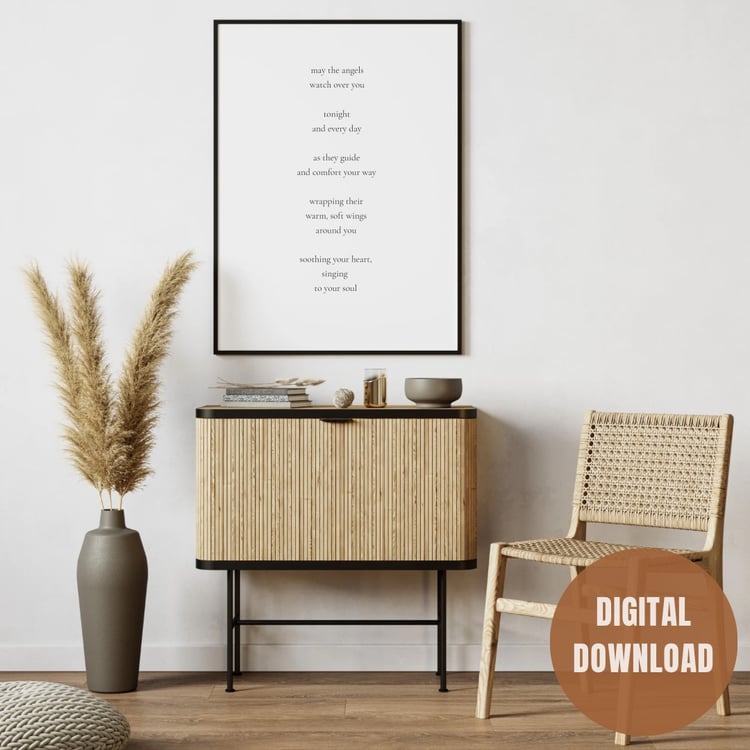
- Go to PHOTOPEA and create a new project (1080x1080 pixels) > once in new project work area select 300DPI as parameter > UPLOAD FREEPIK mockup into PHOTOPEA (use ‘upload and place’ > select UPLOAD AND PLACE again for JPEG-A > size it to fit in frame of mockup (right click and choose distort to be very specific 0 > go to file tab > export > export as JPEG. This becomes one example of a mockup for your passage/ art. Repeat this 3 more times. Two different variations of the art being displayed in different environments relative to the art. A compilation (multi-frame) mockup to highlight that passage and a couple others you may have.
- Log in to Payhip > add product > click digital product > fill in relevant boxes and upload 2 files. The ZIP file you just created + an INSTRUCTIONS PDF (email me for a free sample of one that has 2 significant purposes > Upload MockUp Images + 3 other JPEG images (related to Instructions PDF) > set price > input description (this is where you can use chatGPT to come up with a title and description then adapt or you can look at other sellers and paraphrase what they do)
I have a checklist of the above 2 steps available to download, send a request and I’ll fire it off to you.
Hope this helps you with your own personal expressions. Remember to use one of the unique digital journals in the shop (ie. Shine ) to help stay organized and focused with your projects 🙏
✍️ Sign up here to get new blog posting notifications!
Put “Blog Updates” in Subject and receive a special offer🔥