

This mini-guide explains how to connect Google Drive to Google Colab and access your PDF file using Python.
1. Upload Your PDF File to Google Drive
Upload the PDF file you want to use to your Google Drive.
2. Mount Google Drive
Run the following code in your Colab notebook:
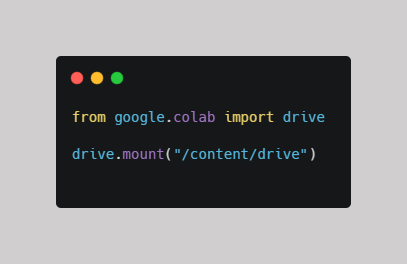
Follow the prompts to authorize access to your Google Drive.
Once mounted, your file will be accessible through the /content/drive directory.
3. Specify the File Path
Define the path to your PDF file:
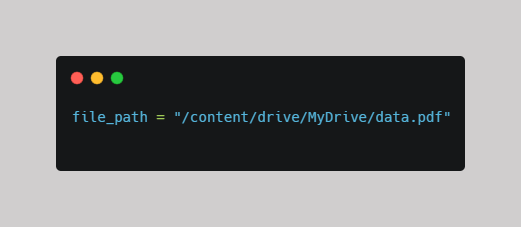
Replace data.pdf with your actual filename.
If the PDF file is in a subfolder, include the subfolder name, for example Projects, in the path:
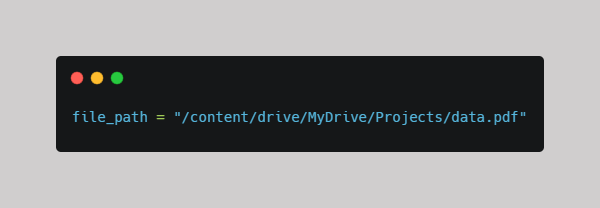
To check whether the file exists at file_path in the Google Colab environment, run:

Complete Example

Practice with a Free PDF for Google Colab
Download the free PDF practice file and follow these steps:
- Download the PDF.
- Upload it to your Google Drive.
- Open the Google Colab notebook here and run the code to access your file.
Get the Free PDF Practice File →
What's Next? Install PyMuPDF in Google Colab
Learn how to install PyMuPDF so you can start working with PDF documents in Google Colab.
How to Install PyMuPDF in Google Colab →
Comments ()