

In this mini-guide, you’ll learn how to add a PDF file uploader to your Streamlit web app using Python.
1. Add the code to your app
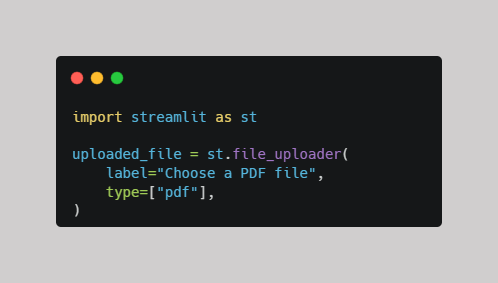
In your GitHub repository, open the app.py file and add the following code:
If you’d like to learn how to create a GitHub repository, set up an app.py file, and deploy a Streamlit app on Streamlit Community Cloud, read the mini-guide: Build and Deploy a “Hello World” Web App with Streamlit Community Cloud + GitHub
2. Understand the code
Let’s break down the code step by step.
import streamlit as st
- import streamlit tells Python to load the Streamlit package so you can use its functions.
- as st gives the package the shorter name st, making the code easier to write.
st.file_uploader()
- file_uploader() is a Streamlit function that displays a file upload widget in your web app. You call it using st.file_uploader() and pass two parameters: label and type.
label= "Choose a PDF file"
- The label parameter specifies the text displayed above the file uploader. In this example, the label tells users what to do. The text is a string, which means a sequence of characters enclosed in quotation marks in Python.
type= ["pdf"]
- The type parameter specifies the file extensions accepted by the uploader. Here, ["pdf"] means users can upload PDF files. The square brackets indicate that the file extension is provided as a list. The extension "pdf" is a string inside that list.
The uploaded PDF file is stored in the uploaded_file variable. You can use this variable later in your code to access the uploaded file and process its contents.
3. Upload a PDF file
Save your changes to app.py and deploy your Streamlit app.
The app will display a file uploader labeled Choose a PDF file, allowing users to select a PDF from their device.
Note: Streamlit limits uploaded files to 200 MB each by default.
Comments ()