Your Cart
Loading
Read PDF metadata using PyMuPDF

How to Read PDF Metadata Using PyMuPDF

PDF metadata gives us information about the PDF document without having to read through every page. This can be useful when building a PDF Inspector because we can quickly read basic information about a PDF before inspecting its pages and content. 


Metadata can include the document title, author, subject, keywords, creator, producer, creation date etc. 


In the previous tutorial How to Count the Number of Pages in a PDF Using PyMuPDF, you learned how to count the pages in a PDF and built the first feature of your PDF Inspector.


In this tutorial, you'll learn how to read PDF metadata using PyMuPDF.


No previous experience with PDF metadata is required.


Tutorial objectives

  • Read metadata from a PDF document.
  • Use the doc.metadata property.
  • Understand what a Python dictionary is.
  • Access individual metadata fields.
  • Add metadata inspection as another feature of your PDF Inspector.


What you'll learn

In this tutorial you'll learn:

  • What PDF metadata is.
  • How to use doc.metadata.
  • What a dictionary is in Python.
  • How dictionary keys and values work.
  • How to access individual metadata fields.
  • How to display each metadata field clearly. 


Who this tutorial is for

This tutorial is for Python beginners who want to learn how to inspect information stored inside PDF documents using PyMuPDF.


Prerequisites

Before starting, you should have:


What is PDF metadata?

PDF Metadata is information that describes a PDF document.


For example, a PDF might contain:

  • format: The PDF format and version, such as 'PDF 1.7'.
  • title: The title of the PDF.
  • author: The person who created the document.
  • subject: A short description of what the document is about.
  • keywords: Words that describe the document.
  • creator: The application originally used to create the document, such as 'Microsoft Word'.
  • producer: The software that created the PDF file, such as 'Adobe Acrobat'.
  • creationDate: The date and time when the PDF was created.
  • modDate: The date and time when the PDF was last modified.
  • trapped: Information about whether the PDF has been prepared for professional printing.
  • encryption: Information about whether the PDF is encrypted. It returns None if the PDF is not encrypted.


Not every PDF contains all of these fields. Some metadata fields may be empty, and some PDFs may contain very little metadata.


Read PDF metadata

In the previous tutorials, we opened a PDF document and stored the resulting Document object in a variable called doc


import pymupdf

doc = pymupdf.open("sample.pdf")


Once the PDF is open, we can access its metadata using doc.metadata.


Run in Google Colab:

doc.metadata


PyMuPDF returns the document's metadata.


The result will look something like:


{'format': 'PDF 1.2',

 'title': 'Education.PDF',

 'author': 'Peter Buckland',

 'subject': '',

 'keywords': '',

 'creator': 'Microsoft Word ',

 'producer': 'Acrobat PDFWriter 3.02 for Windows',

 'creationDate': 'Tuesday, October 31, 2000 10:17:48 AM',

 'modDate': '',

 'trapped': '',

 'encryption': None}


The exact values will depend on the PDF you are inspecting.


Understanding doc.metadata

Let's break down the code:

doc.metadata


The variable doc contains the PyMuPDF Document object representing our PDF.

By using the dot notation (.) we are accessing the metadata property that belongs to the doc object.


The metadata returned by PyMuPDF is a Python dictionary.


What is a dictionary?

A dictionary is a Python data structure that stores information as key-value pairs.

For example:

{'name': 'Jane',

 'age': 30}


This dictionary contains two pieces of information: the key and the value.

The key 'name' has the value: 'Jane' and the key 'age' has the value: 30.


The same idea applies to PDF metadata.


When we run doc.metadata, PyMuPDF returns a dictionary containing metadata fields.


For example:

{ 'format': 'PDF 1.2',

 'title': 'Education.PDF',

 'author': 'Peter Buckland'}


Here:

  • 'format' is a key, and 'PDF 1.2' is its value.
  • 'title' is a key, and 'Education.PDF' is its value.
  • 'author' is a key, while 'Peter Buckland' is its value.


Access metadata using a variable

We can also assign the metadata dictionary to a variable.


Run in Google Colab:

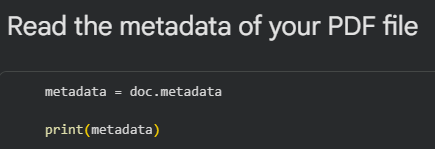
metadata = doc.metadata


Now the variable metadata contains the PDF's metadata.


Method 1: Using print()

We can display the metadata using the print() function.


Run in Google Colab:

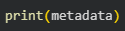
print(metadata)


This displays the metadata as a Python dictionary, usually on one long line.


Method 2: Displaying the variable directly

We can also type the variable name on its own.


Run in Google Colab:

metadata


This also displays the metadata as a Python dictionary with the metadata fields shown on separate lines.


This method is often easier to read when the dictionary contains many fields.


Method 3: Display each metadata field on its own line

We can also display each metadata field on its own line.


Run in Google Colab:

for key, value in metadata.items():

    print(f"{key}: {value}")


This goes through each metadata field and displays the key and its value on a separate line.

  • key contains the name of the metadata field, such as 'title' or 'author'.
  • value contains the information stored in that field.


This method makes the metadata easier to read because each field appears on its own line.


For example, the output might look like:

format: PDF 1.2

title: Education.PDF

author: Peter Buckland

subject: 

keywords: 

creator: Microsoft Word 

producer: Acrobat PDFWriter 3.02 for Windows

creationDate: Tuesday, October 31, 2000 10:17:48 AM

modDate: 

trapped: 

encryption: None


The exact information will depend on the PDF you are inspecting.


Access individual metadata fields

The variable metadata contains the dictionary. When we run metadata['title'], we give Python the 'title' key and Python returns the value stored under that key.


For example, to read the title of the PDF document, run:

metadata['title']


If the title stored in the PDF is Education.PDF, the output will be:

'Education.PDF'


Here:

  • metadata is the dictionary containing the PDF metadata.
  • 'title' is the key we want to look up.
  • 'Education.PDF' is the value stored under the 'title' key.


Similary, to read the author, run:

metadata['author']


Example output:

'Peter Buckland'


Complete example

Here is the complete program:


%pip install -q -U pymupdf


from google.colab import files

uploaded = files.upload()


import pymupdf

doc = pymupdf.open("sample.pdf")


page_number = doc.page_count

print(page_number)


metadata = doc.metadata

metadata


Remember to replace sample.pdf with the name of your uploaded PDF.


Read PDF metadata using PyMuPDF


Source: Google Colab notebook


What's next?

Great job! You have now added metadata inspection to your PDF Inspector.

Your PDF Inspector can now:

  • Open a PDF.
  • Count its pages.
  • Read its metadata.


In the next tutorial, you'll learn how to check whether a PDF is encrypted and whether any restrictions are applied to the document.


Open the notebook

Open the Google Colab notebook for this tutorial and run the code as you follow along.

Open in Google Colab


This tutorial is Lesson 4 of the upcoming free course, Build a PDF Inspector.

Pre-enrol for free here to receive each new tutorial by email as it's published and be notified when the complete course is released.