

If you want to split a PDF into multiple PDFs by selecting specific pages for each one, you can use Python and PyMuPDF in Google Colab.
For example, you can turn a 20-page PDF into 3 separate PDFs, each containing 5 pages of your choice.
1. Install PyMuPDF
First, run this code in a Google Colab cell to install PyMuPDF:

2. Import libraries
Next, import the libraries needed for the workflow:
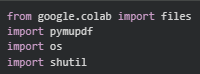
These libraries are used for:
- files — uploading and downloading files in Google Colab
- pymupdf — opening and creating PDF files
- os — creating and working with folders
- shutil — creating the ZIP archive at the end
3. Upload your PDF
Use Google Colab's file upload dialog to select the PDF you want to split:
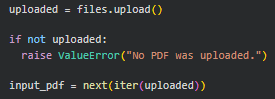
After running the cell, click Choose Files and select your PDF.
The uploaded filename is stored in the input_pdf variable.
4. Open your PDF
Now open the uploaded PDF using PyMuPDF:

The doc object represents your original PDF document.
5. Specify the pages for each PDF
Create a dictionary called selections to specify which pages should be included in each output PDF:
Page numbers start at 0, so 0 is the first page, 1 is the second page, and so on.
For a 20-page PDF split into 3 parts of 5 pages each:
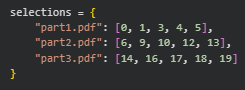
The pages don't have to be consecutive, and you can arrange them in whatever order you specify.
6. Create the separate PDFs
Next, create a folder for the output files:

Now loop through the selections and create each PDF:
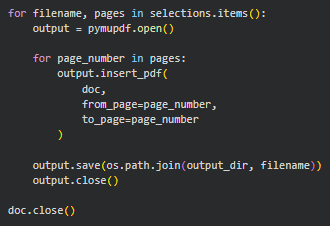
Here's what this code does:
- Goes through each filename and its list of selected pages.
- Creates a new, empty PDF.
- Copies each selected page from the original PDF.
- Saves the new PDF inside the output folder.
- Closes the new PDF.
- Finally, closes the original PDF.
The resulting folder will look like this:
split_multiple_pdfs/
├── part1.pdf
├── part2.pdf
└── part3.pdf
7. Download all PDFs as a ZIP file
Instead of downloading each PDF separately, create a ZIP file containing all the parts:
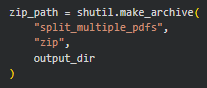
This creates:
split_multiple_pdfs.zip
The ZIP file contains all of the PDFs from the split_multiple_pdfs folder.
8. Download the ZIP file
Finally, use Google Colab's files.download() function:

Your browser will download:
split_multiple_pdfs.zip
After extracting the ZIP file, you'll find all of your newly created PDFs inside.
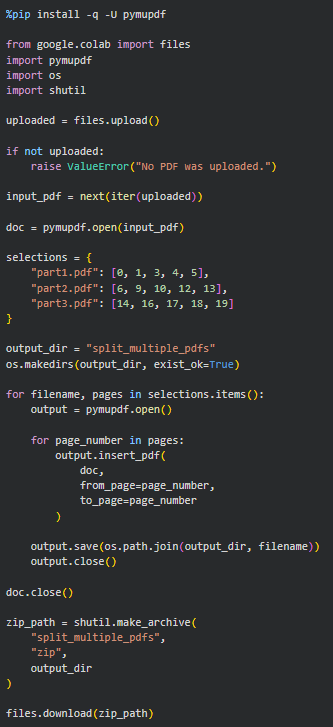
Complete Example
Open the notebook
Open the Google Colab notebook for this PDF mini-guide and run the code as you follow along.
Ready to put this into practice? Check out the Python and PDF resources in our store.
More PDF Python Resources
Want to learn how to Split a PDF by Custom Page Selections in Google Colab?
Check out this mini-guide: How to Split a PDF by Custom Page Selections in Google Colab
Comments ()