

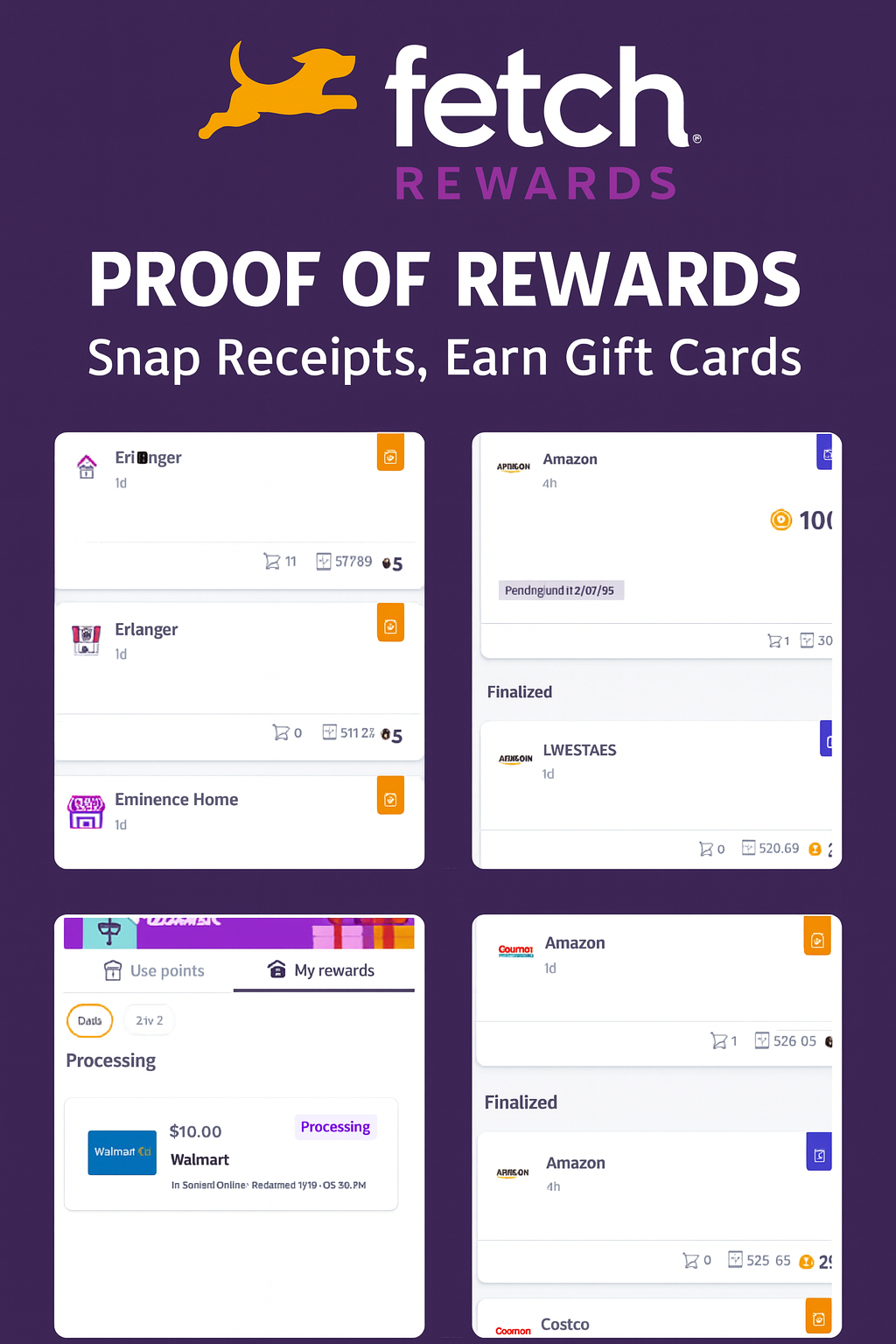
Turn basically anything you do into gift cards with Fetch!
Earn points at stores, restaurants, shopping online, and even playing free games.
👉 Here’s how it works:
- Snap a photo of any receipt (paper or e‑receipt).
- Earn points instantly—minimum 25 points per receipt.
- Redeem points for free gift cards to Amazon, Target, Starbucks, and more.
- Share your referral code to earn bonus points when friends join.
💡 Referral Bonus:
Download Fetch with my link or use code 26AP2Q to get a bonus when you submit your first receipt.
https://referral.fetch.com/vvv3/referralqr?code=26AP2Q
📱 iPhone (App Store – Switch to U.S.)
- Open Settings → tap your name → Media & Purchases → View Account.
- Tap Country/Region → Change Country or Region.
- Select United States.
- Agree to the Terms & Conditions.
- Enter a valid U.S. billing address and payment method (can use U.S. PayPal or card).
- Once updated, open the App Store and download Fetch Rewards.
- Sign up using my referral link (https://referral.fetch.com/vvv3/referralqr?code=26AP2Q) or enter code 26AP2Q.
🤖 Android (Google Play Store – Switch to U.S.)
- Open the Google Play Store → tap your profile icon (top right).
- Go to Settings → General → Account and device preferences → Country and profiles.
- Select United States.
- Add a valid U.S. payment method.
- Wait up to 48 hours for the Play Store to update.
- Download Fetch Rewards once the store switches.
- Sign up using my referral link (https://referral.fetch.com/vvv3/referralqr?code=26AP2Q) or enter code 26AP2Q.
🌐 VPN Setup (Required in Jamaica)
Because Fetch isn’t available locally, you’ll need a VPN to make your device appear as if it’s in the U.S.:
- Download a trusted VPN app (NordVPN, Surfshark, ProtonVPN, etc.).
- Open the app and sign in.
- Select a U.S. server location.
- Connect—the VPN icon should appear in your status bar.
- Keep the VPN active while switching your App Store/Play Store and while downloading Fetch.
💻 Laptop / PC (Optional)
- Fetch is primarily mobile‑based, but you can log in via the Fetch website to track points and rewards.
- Use your referral link: https://referral.fetch.com/vvv3/referralqr?code=26AP2Q