

Publix Coupon Clipper
On Sale
$6.99
$6.99
Publix Digital Coupon Auto-Clipper (Google Chrome Extension)
Hey everyone! 👋
If you love saving money at Publix but hate the endless clicking required to clip dozens (or hundreds) of digital coupons manually, I built this simple tool for you.
This Chrome Extension completely automates the process. With just one click, it automatically clips all available digital coupons in your Publix account in seconds, saving you time and ensuring you never miss a deal at checkout!
🔑 Key Features & Important Details:
- Desktop Chrome Exclusive: This is a Google Chrome Extension for PC and Mac desktop computers. Please note: Google Chrome does not support extensions on mobile devices (iOS/Android smartphones or tablets).
- One-Time Purchase / Lifetime Access: Your purchase includes a single-user lifetime license. Pay once and enjoy unlimited clipping for life—no monthly subscriptions!
- Single User License Policy: Each purchase grants a license for one individual customer. Sharing, redistributing, or using a single license across groups, forums, or multiple households is strictly prohibited.
- Multiple Store Accounts Supported: Do you manage multiple Publix accounts for your family? No problem! You don't need extra licenses. Simply log out of one account on your desktop browser, log into the other, and run the extension again. It works seamlessly across all your personal accounts on your computer.
- Safe & Lightweight: The extension directly interacts with the official Publix coupon page in your browser. It does not collect, store, or transmit your password or personal information anywhere.
🛠 How It Works:
- Open Google Chrome on your computer.
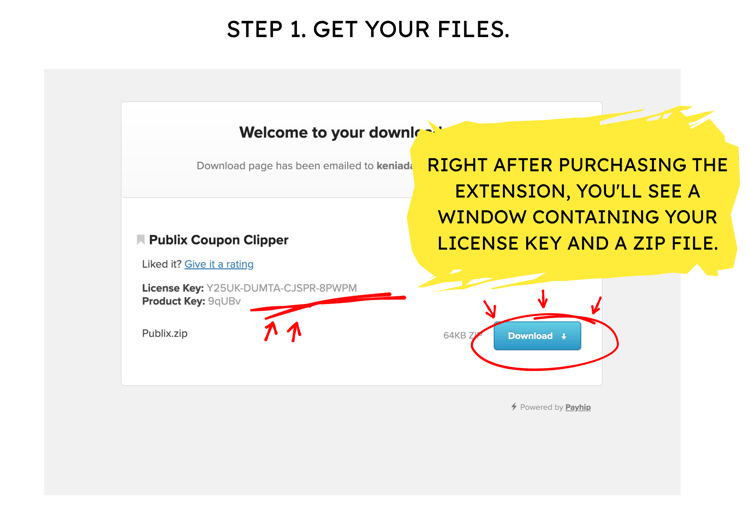
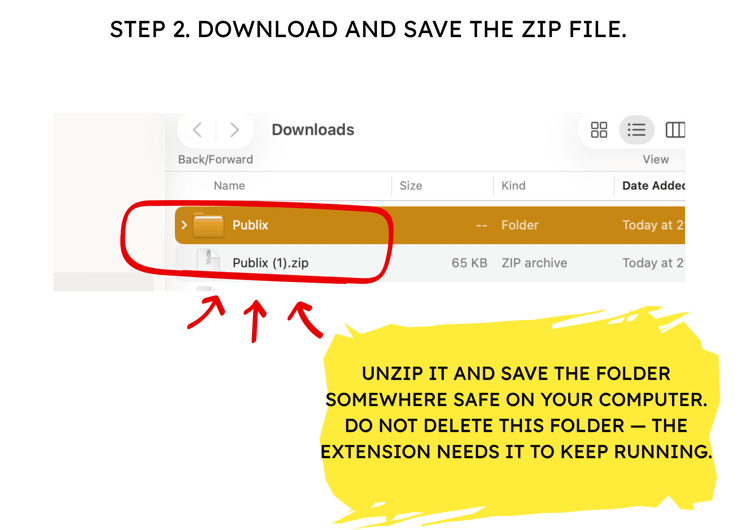
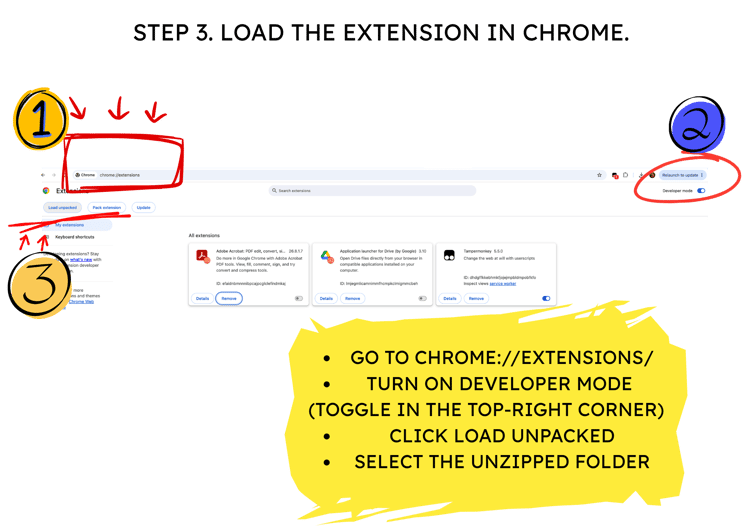
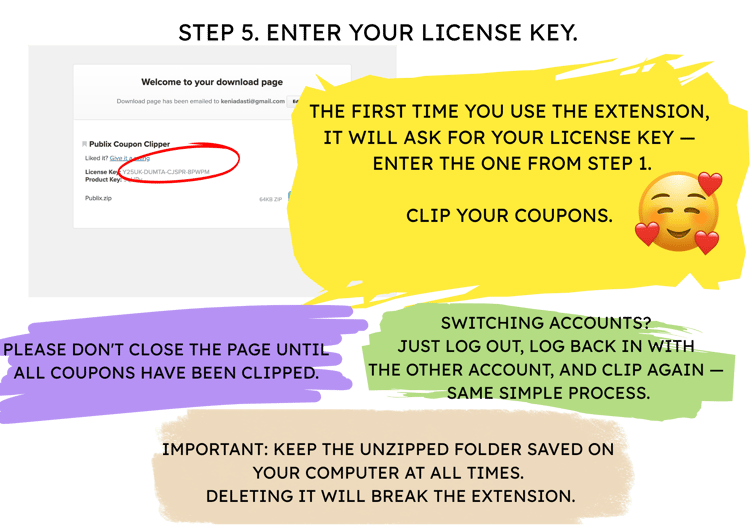
- Install the extension (easy step-by-step instructions included).
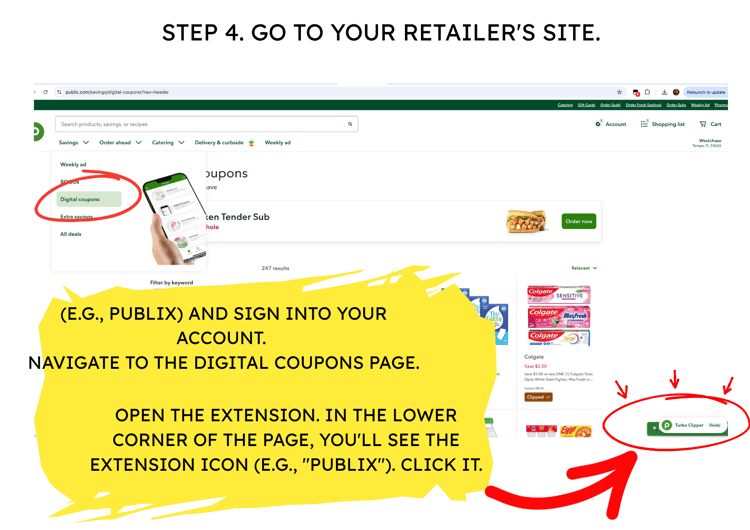
- Log into your Publix account and go to the Digital Coupons page.
- Click the extension icon, sit back, and watch it clip all coupons automatically!
Disclaimer – Extension Functionality & Compatibility
This product is a browser extension designed to work with activation coupon system as it currently operates.
Please note:
- Third-party platforms frequently update their systems, security measures, and policies without notice.
- We actively monitor for such changes and will make reasonable efforts to update and maintain this extension to keep it functional.
- However, we cannot guarantee uninterrupted or permanent compatibility. If a platform update prevents the extension from working and we are unable to restore functionality, the product may be discontinued without further notice.
- This is a digital product delivered upon purchase. Due to its nature, all sales are final.