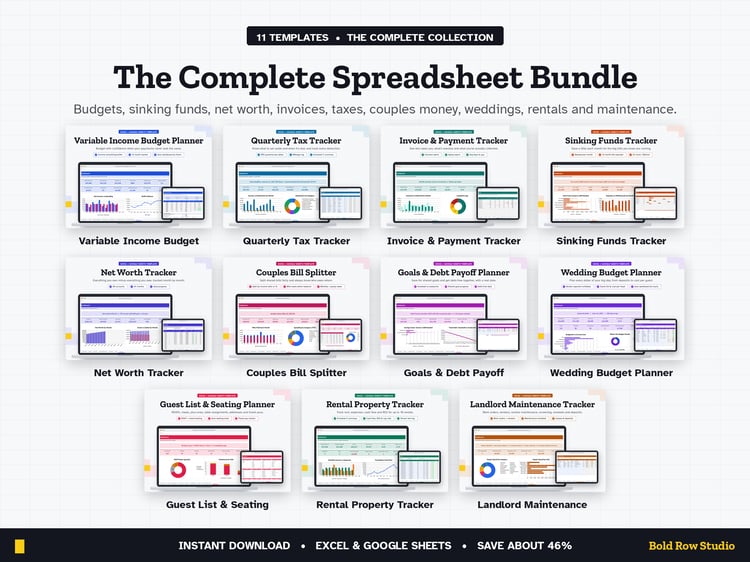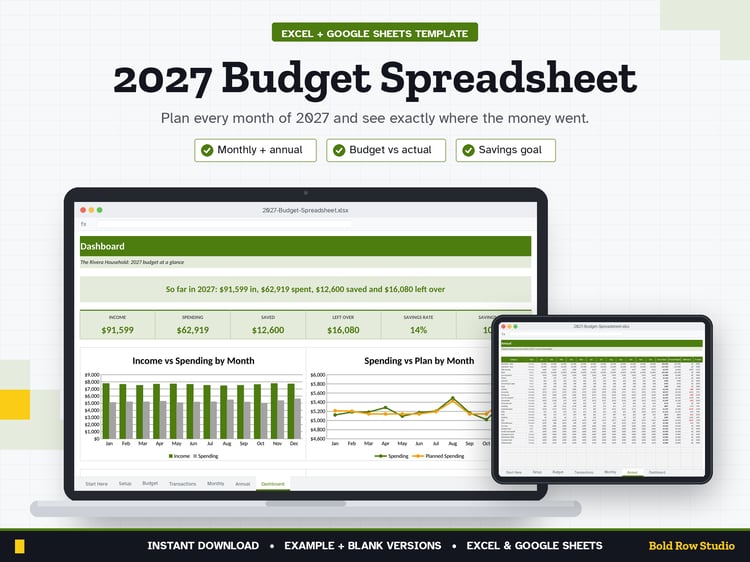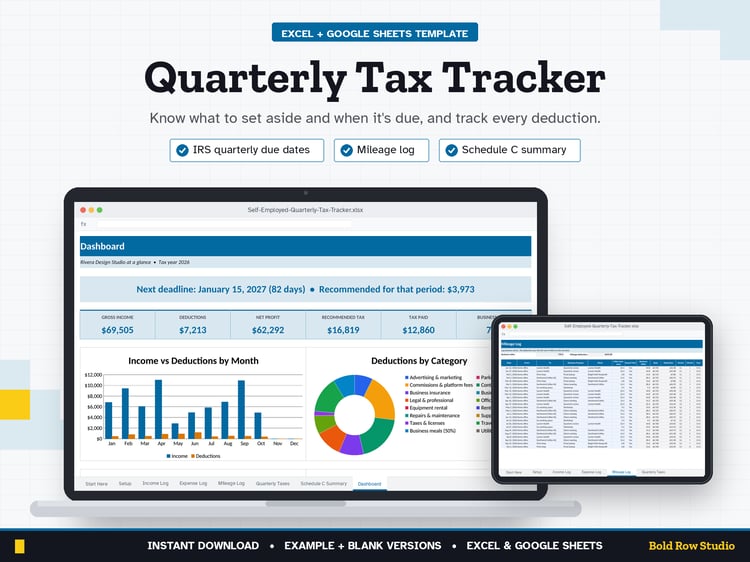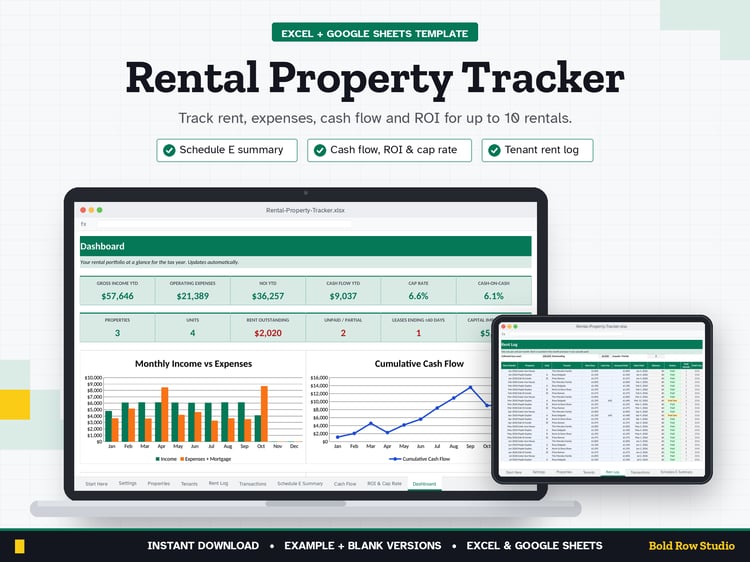
Wedding Guest List & Seating Chart Planner: RSVPs, Meals, Addresses & Thank-Yous (Excel + Google Sheets)
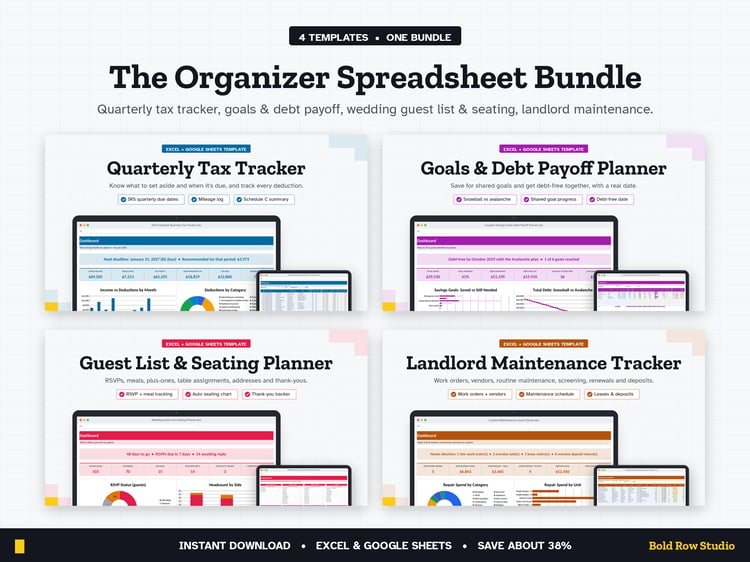
The Wedding Guest List & Seating Planner is a spreadsheet template for Microsoft Excel and Google Sheets that tracks RSVPs, meal choices, plus-ones, table seating, invitation addresses and thank-you notes. It's for engaged couples and wedding planners who want the whole guest list in one organized file (it doesn't do budget tracking).
WHAT'S INCLUDED
• Wedding-Guest-List-Seating-Planner_BLANK.xlsx: ready for your guests
• Wedding-Guest-List-Seating-Planner_EXAMPLE.xlsx: a sample 48-invitation wedding so you can see how it works
• Download guide (PDF) with step-by-step Excel and Google Sheets setup
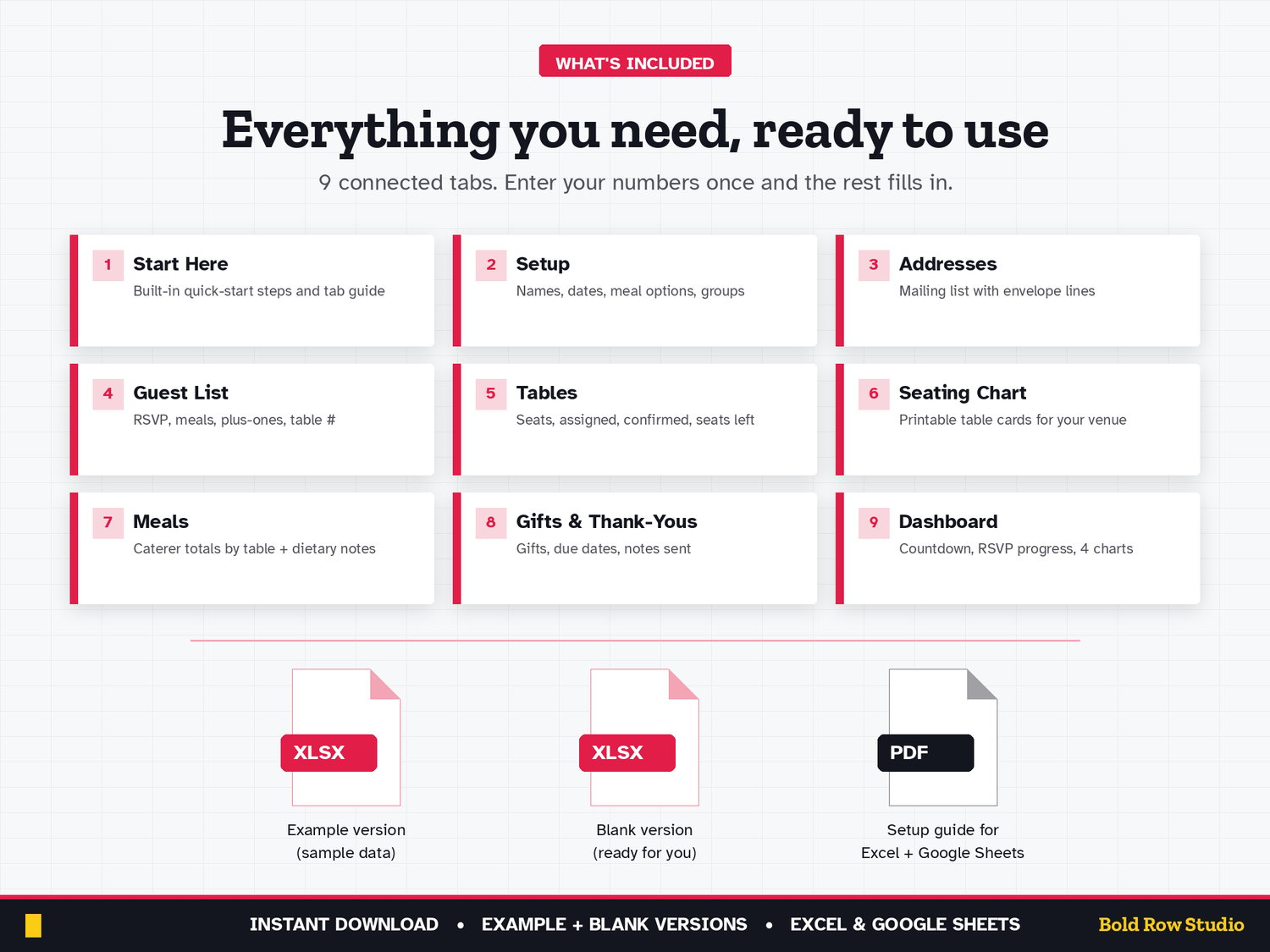
9 TABS
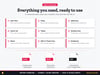
Start Here (built-in quick-start notes) · Setup · Addresses · Guest List · Tables · Seating Chart · Meals · Gifts & Thank-Yous · Dashboard
Room for 200 invitations, 400 guests, 30 tables and 300 gifts. No budget tracking: this one is all about your people.
KEY FEATURES
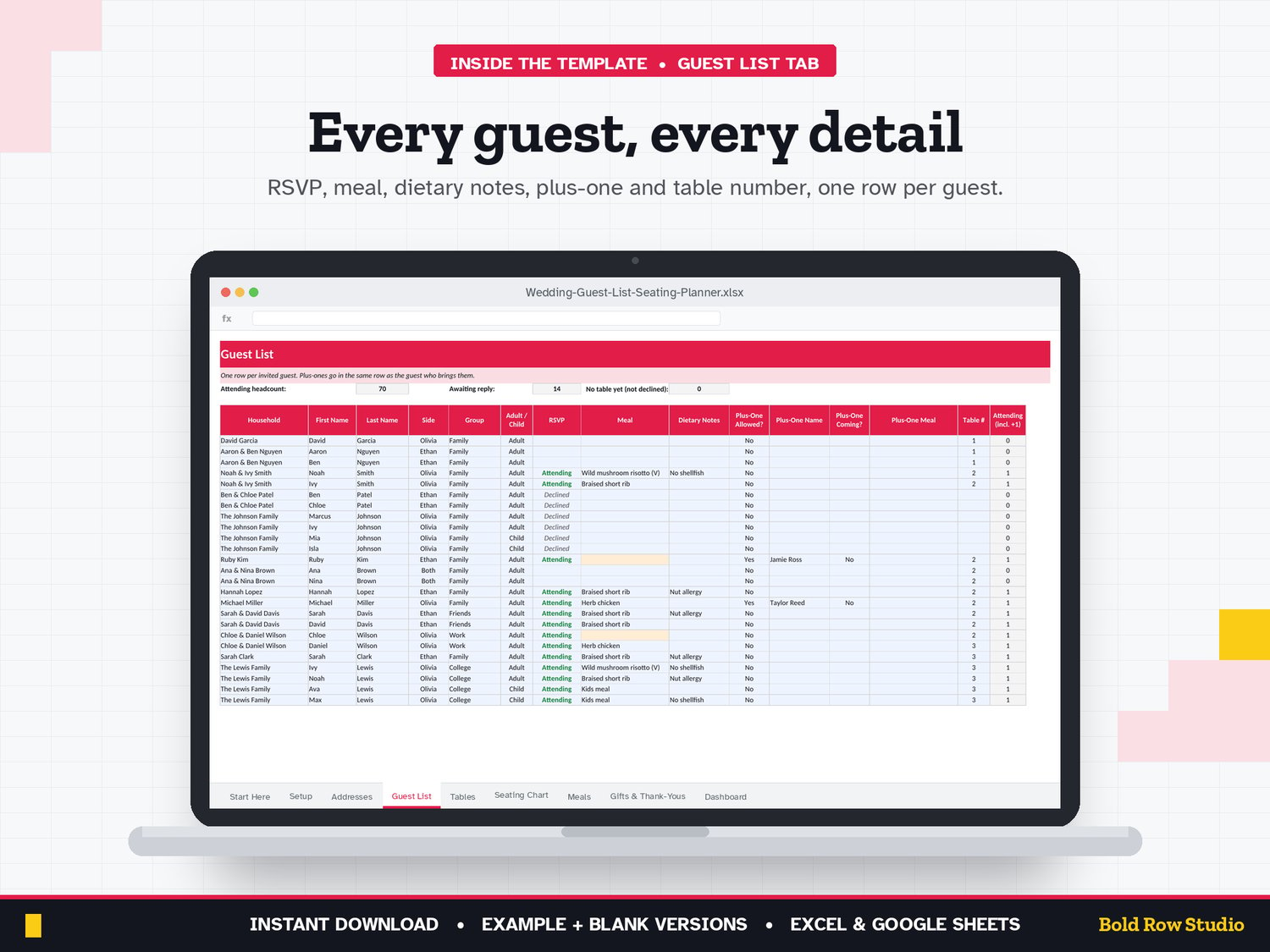
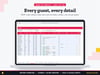
• Guest list: side, group, adult/child, RSVP, meal choice, dietary notes, plus-one allowed / name / coming / meal, and table number
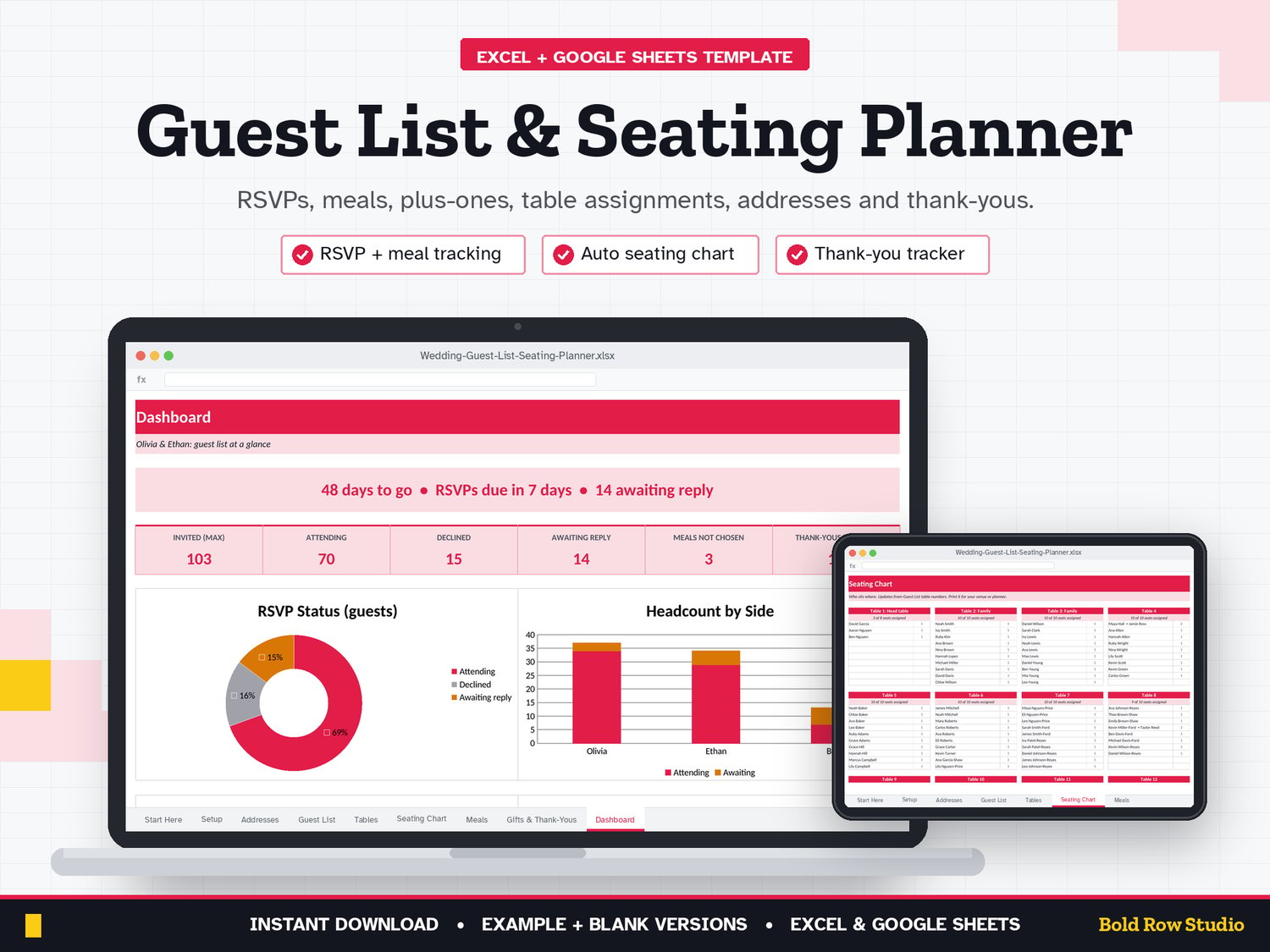
• Live headcount: invited (max), attending, declined and awaiting reply, with plus-ones counted correctly
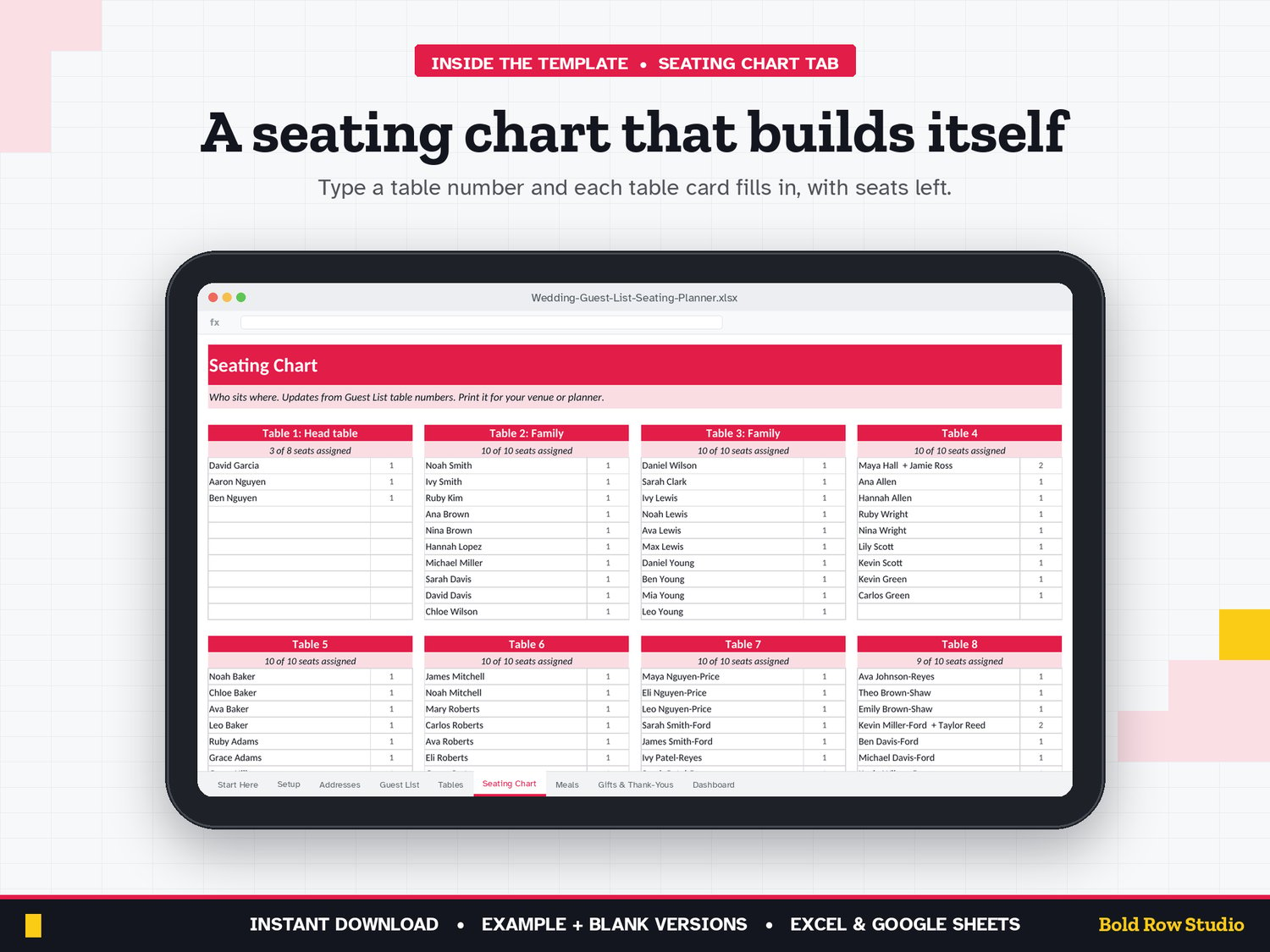
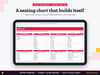
• Seating chart that builds itself: printable table cards list who sits where, with seats assigned vs. table size
• Tables tab: seats, assigned, confirmed and seats left, with "Over by" warnings
• Meals: totals for your caterer, a table-by-meal grid and every dietary note in one list
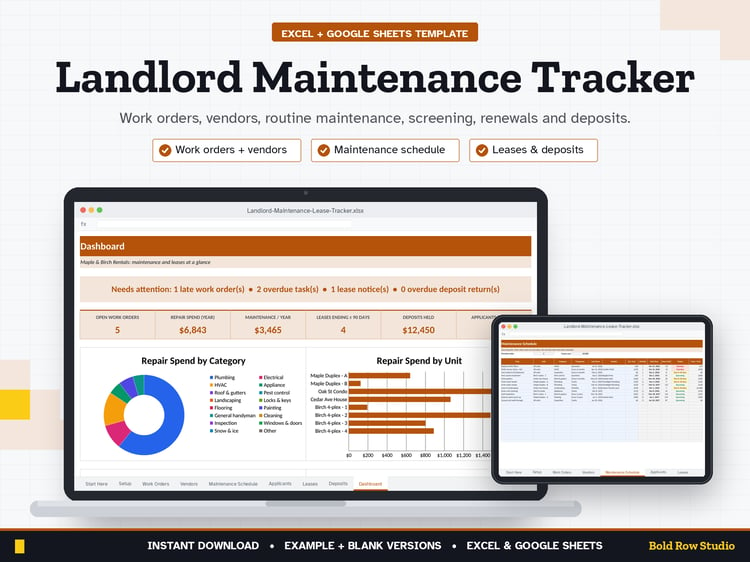
• Address list: one row per invitation with save-the-date and invite sent, replies so far and a ready-to-print envelope line
• Gifts & thank-yous: who gave what, note due date (based on before/after the wedding) and Sent / Due soon / Overdue
• Dashboard: countdown, RSVP progress and 4 charts
HOW IT WORKS
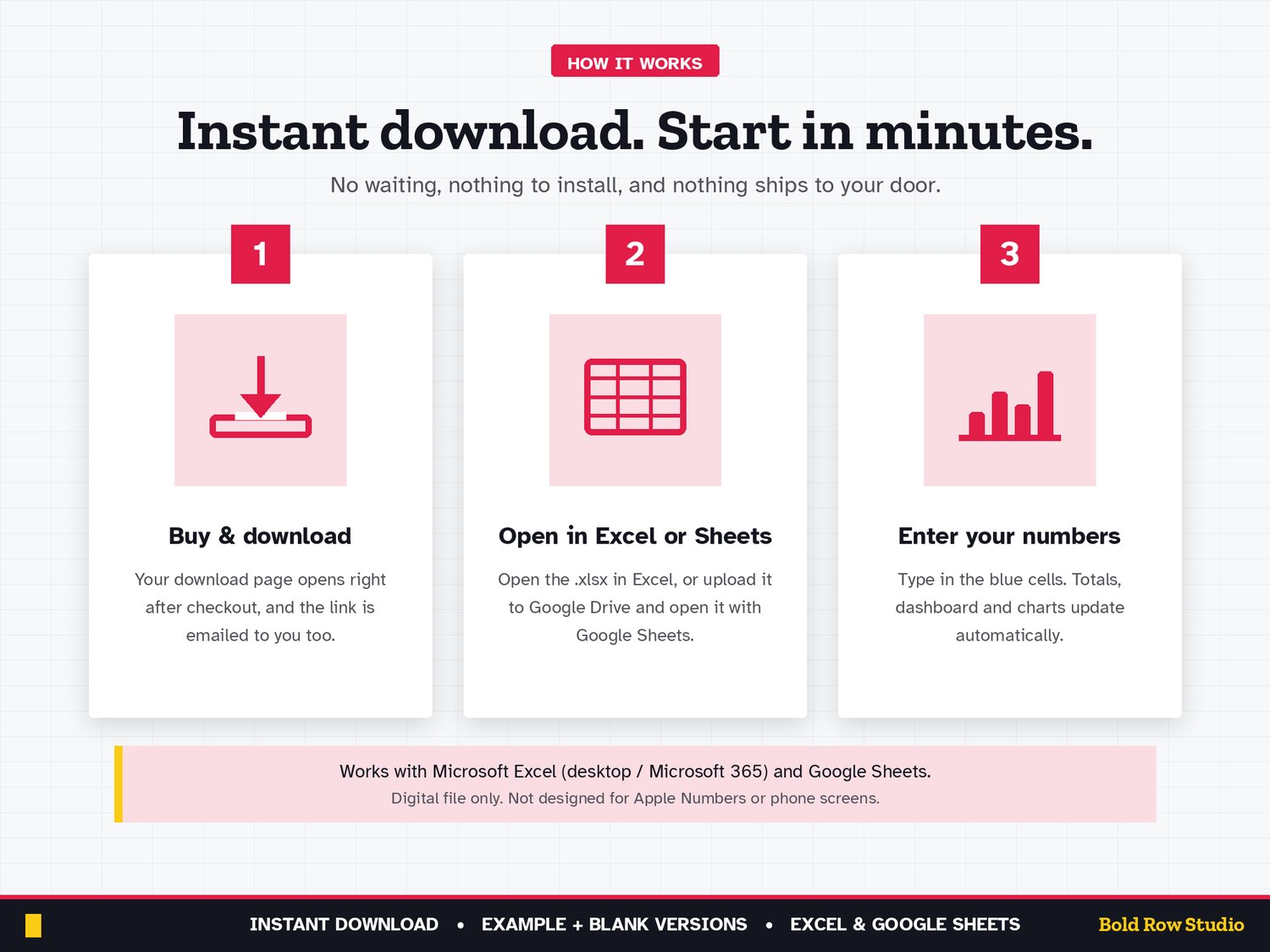
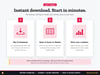
1. Buy and download instantly: your download page opens right after checkout, and the link is also emailed to you.
2. On a computer, open the BLANK file in Microsoft Excel, or upload it to Google Drive and open it with Google Sheets (the PDF guide shows both).
3. Start on the Start Here tab and type your numbers into the blue cells. The grey formula cells, summaries and dashboard charts update automatically.
4. Open the EXAMPLE file any time to see how a filled-in version looks.
COMPATIBILITY
✔ Microsoft Excel (Windows and Mac desktop, Microsoft 365)
✔ Google Sheets (free): upload the .xlsx to Google Drive, then Open with Google Sheets. Easy to share with your partner or planner.
✘ Not designed for Apple Numbers or phone screens. A computer is recommended.
FREQUENTLY ASKED QUESTIONS
Q: Does it work in Excel and Google Sheets?
A: Yes. It works in Microsoft Excel (Windows or Mac desktop, or Microsoft 365) and in Google Sheets, which is free with a Google account. It isn't designed for Apple Numbers.
Q: Should I use Google Sheets or Excel?
A: Either works: the formulas, dropdowns and charts work in both. Choose Excel if you want to keep the file on your computer. Choose Google Sheets if you want a free, browser-based option. It's also the easy way to share the file with your partner, family or planner. For Google Sheets, upload the .xlsx file to Google Drive, right-click it and choose Open with > Google Sheets, then File > Save as Google Sheets.
Q: Can I use it on my phone or tablet?
A: It's designed for a computer screen, not a phone. Phones often can't open .xlsx downloads, so download and set it up on a computer. Once it's saved as a Google Sheet, you can open it in the Google Sheets mobile app to check your numbers, but a computer is best for setup and data entry.
Q: How do I download it?
A: Right after checkout your download page opens, and the download link is also emailed to you. Download all the files on a computer, then follow the PDF guide to open the BLANK file in Excel or Google Sheets.
Q: Can I customize it?
A: Yes. Enter your names, wedding date, meal options and guest groups in the blue cells on the Setup tab and the rest of the workbook updates. Formula cells are locked without a password so they can't be overwritten by accident. To change formulas or the layout, unprotect the tab: Review > Unprotect Sheet in Excel, or Data > Protect sheets and ranges in Google Sheets.
Q: Can I get a refund?
A: Yes, within 14 days of purchase, in two cases: a file has a problem I can't fix, or you bought the same product twice by mistake. Email todorgan@gmail.com with your order details.
GOOD TO KNOW
• This is a digital product. Nothing will be shipped.
• Makes a thoughtful engagement gift.
• For personal use. Please don't share or resell the files.
• Questions or a problem with a file? Email todorgan@gmail.com.
AI disclosure: this template was designed with the help of AI tools. The formulas, layout and example data were reviewed and tested before release.