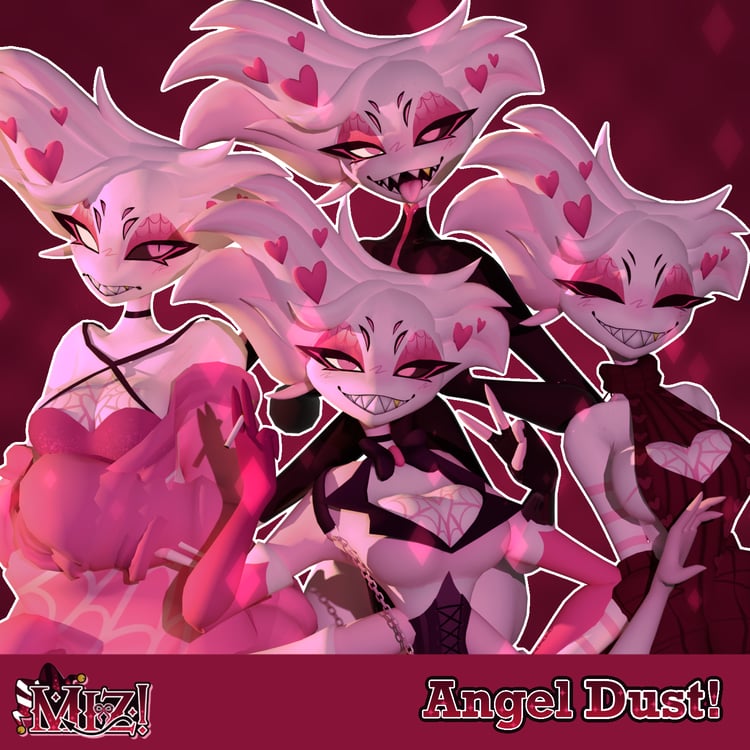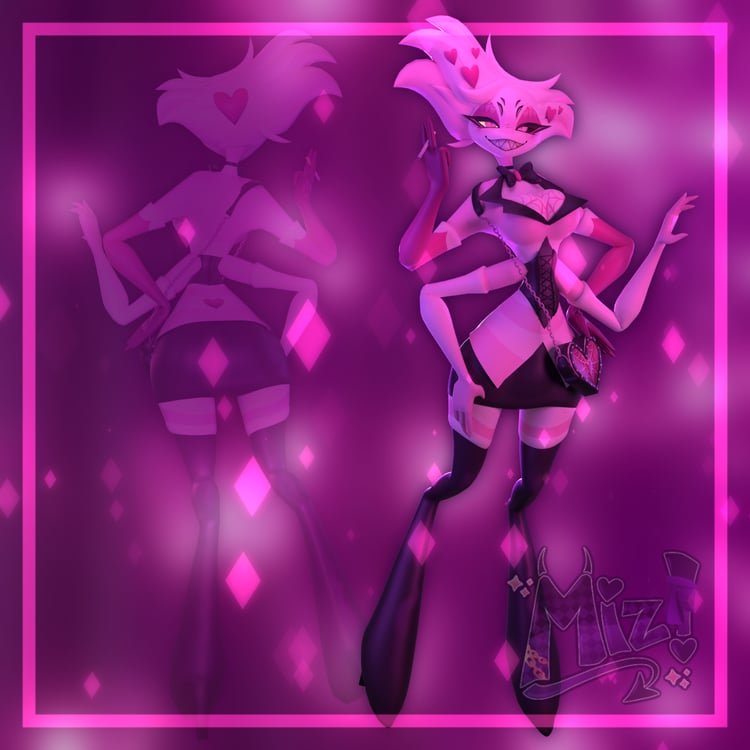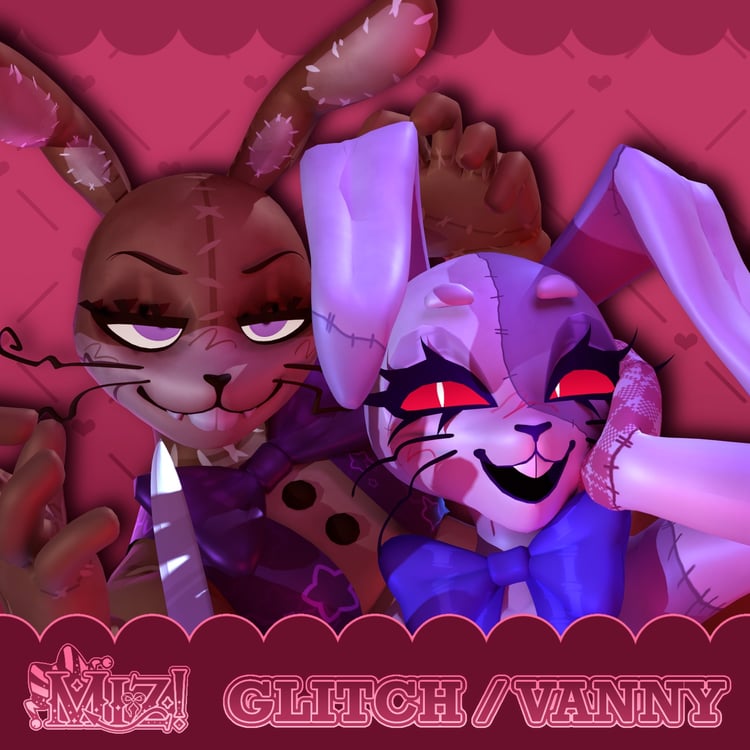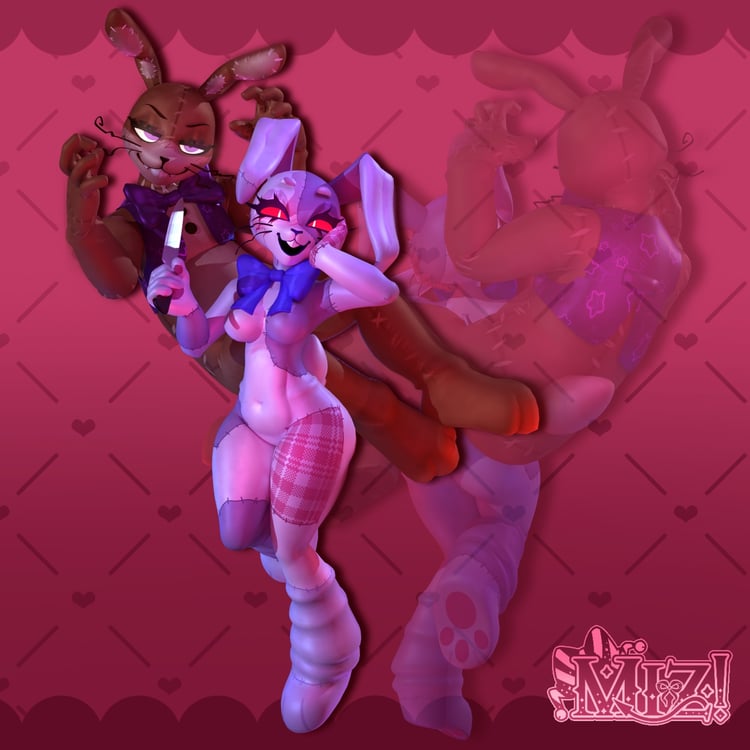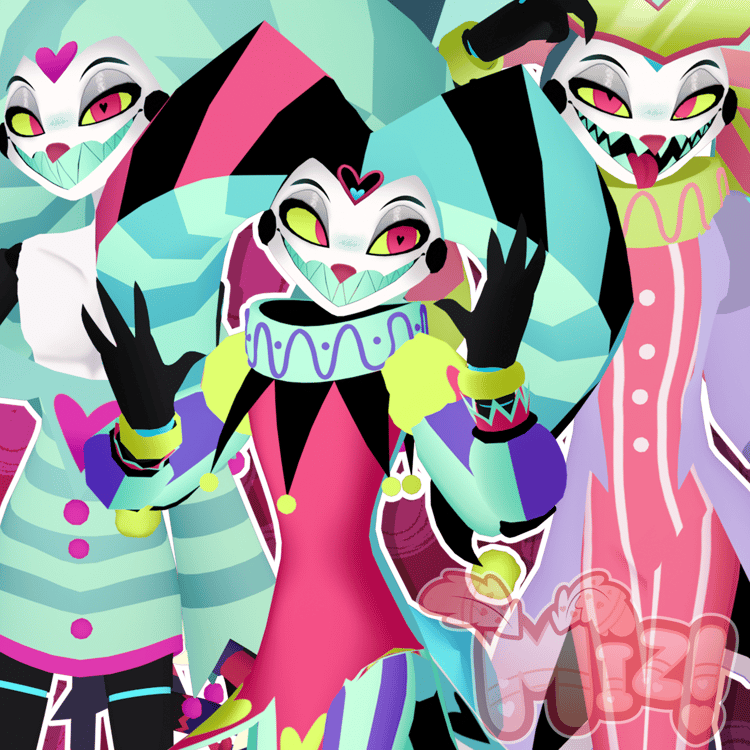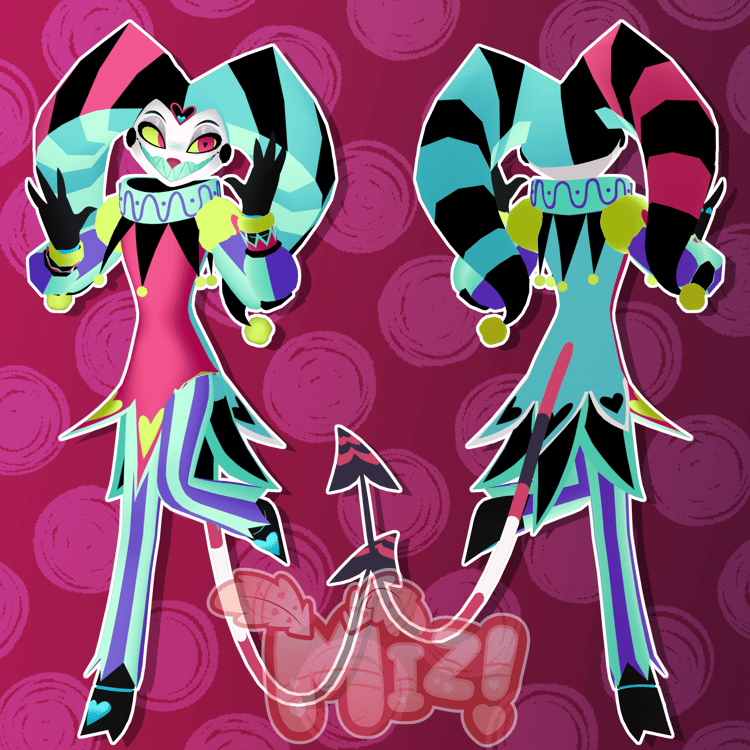

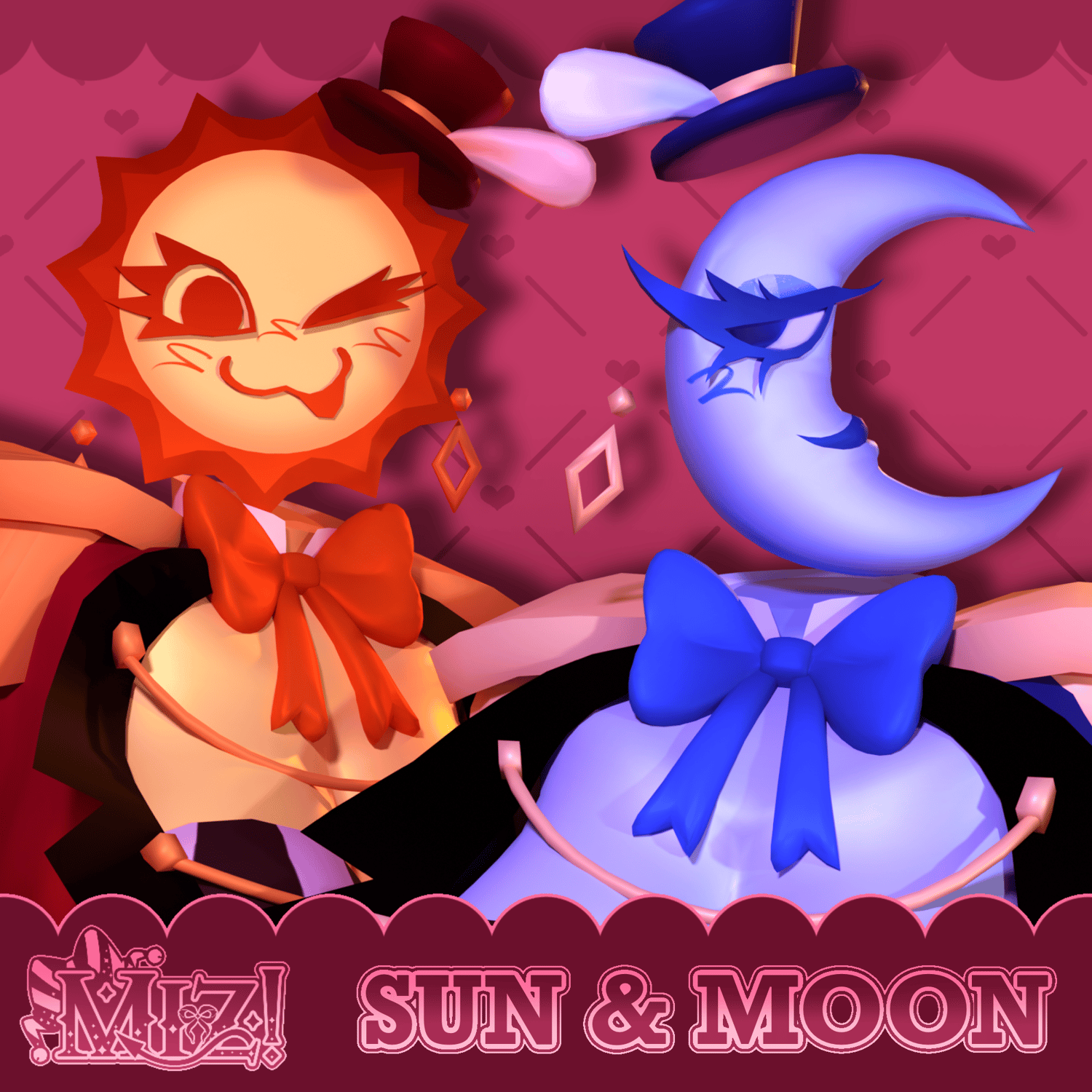
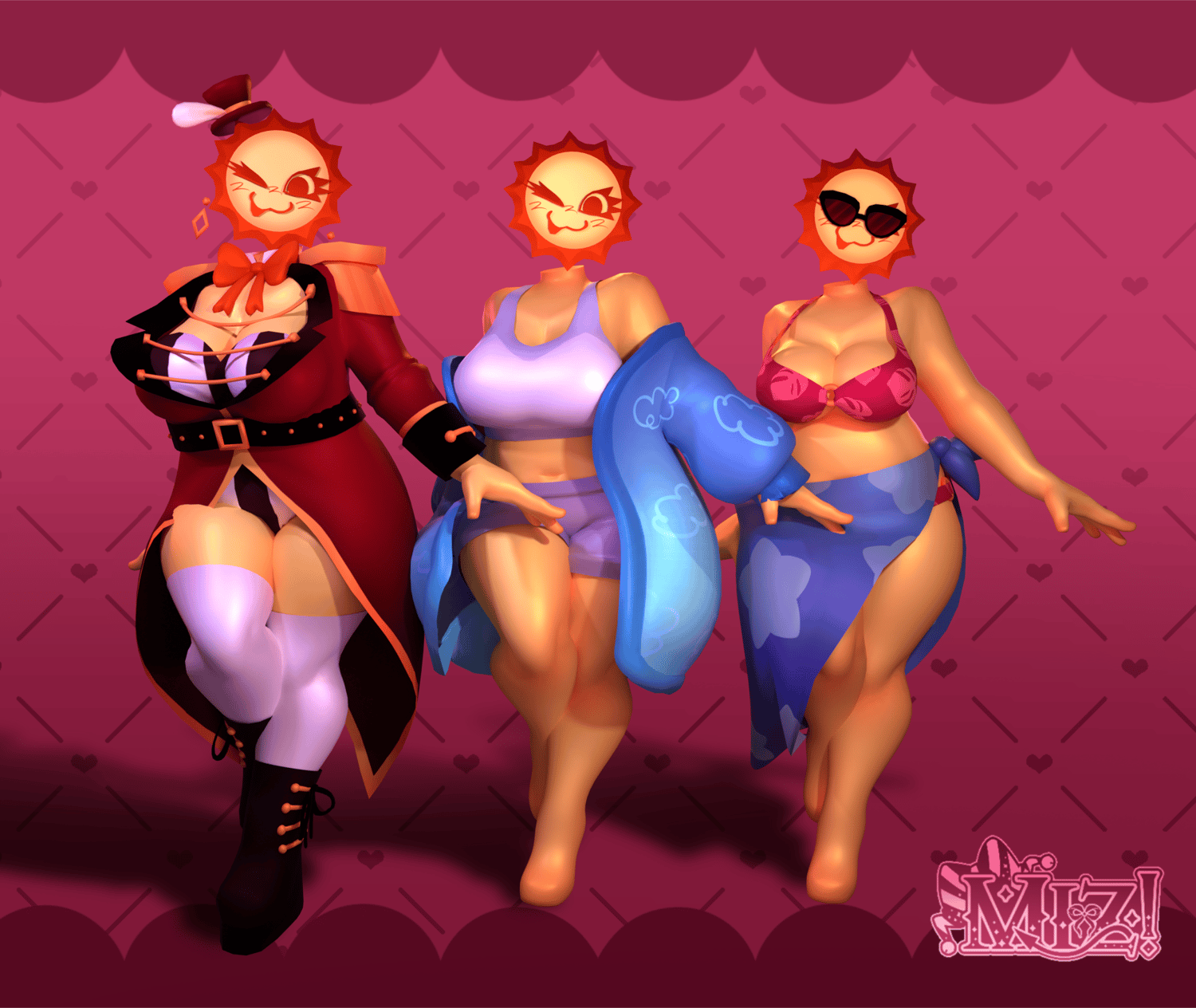
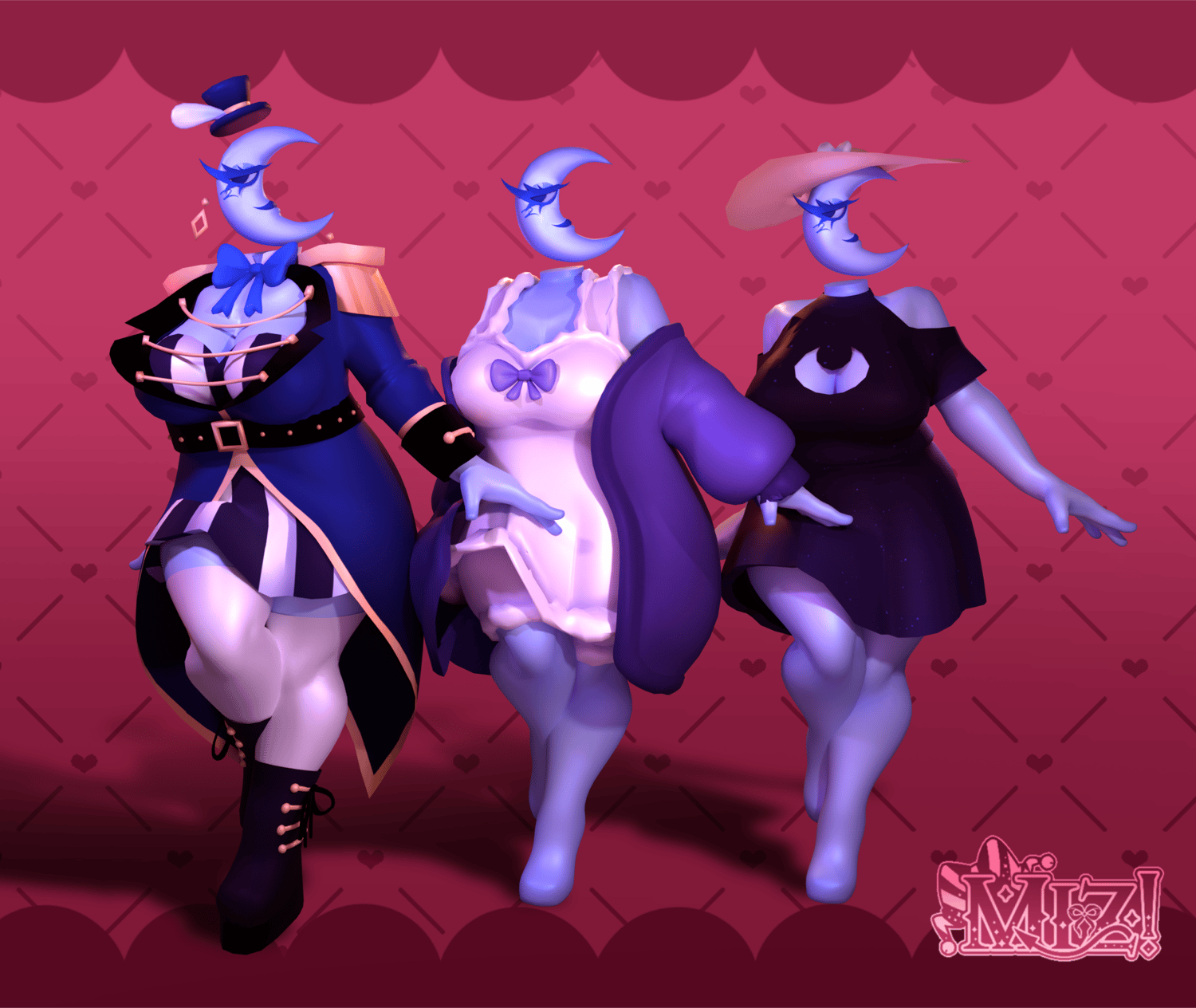

♡ Sun & Moon! ♡ (PC & QUEST)
VRChat ready model, assets created by Miz!
Thank you to HellaJester as well for helping with the design for Sun, menu icons and outfits!
Upon purchase, you will receive a .zip folder with Blend, Unity, FBX, UV maps, texture files, & PSD files.
For this avatar, I used Poiyomi 10.0.20, ThryEditor 2.74.0 (this comes with the newest version of Poiyomi), VRChat SDK 3.10.5, & Unity 2022.3.22f1!
To ensure this model works in Unity, please install:
ʚɞ — PoiyomiToonShader
ʚɞ — VRCFury
♡ Sun & Moon Features ♡
ʚɞ — FBT ready
ʚɞ — GoGo Loco
ʚɞ — Body sliders / Smaller chest, bigger/smaller thighs, & weight slider
ʚɞ — Default Outfit / Hat on/off, jacket on/off
ʚɞ — Sleepwear Outfit / Cardigan on/off
ʚɞ — Swimwear Outfit / Hat on/off (MOON), sunglasses on/off (SUN), swimsuit cover on/off (SUN)
ʚɞ — WORLD DROP BED!!
BASE IS INCLUDED!
♡ Upload Step-by-Step Guide ♡
1︰✦ — Create a new project using the VRC Companion using the latest Unity version 2022.3.22f1. name it whatever you'd like.
2︰✦ — Open the project, and import Poiyomi 10.0.20, the latest version of VRCFury, and the latest version of GoGo Loco before continuing.
3︰✦ — Begin by importing the unity package. Open the folder labeled "!!! OPEN ME !!!" and open the unity scene located in that folder. Open the VRChat SDK on the top, log in, and begin uploading the PC version of the avatar FIRST. Make sure there is no blueprint ID in the avatar descriptor before uploading, or you will run into issues.
4︰✦ — After uploading the first version of the model (PC version), import the second Unity package containing the quest version. Copy the ID from the model (if you can't find it, open the VRChat SDK, click on "content manager", and copy the ID listed there). Paste the ID into the blueprint ID box on the QUEST version of the model.
5︰✦ — After importing and checking the blueprint ID for the quest version, switch build in the VRChat SDK to android and upload. (IGNORE THE SDK AND CONTINUE TO UPLOAD IF IT TELLS YOU "AVATAR UNCOMPRESSED SIZE IS TOO BIG".)