
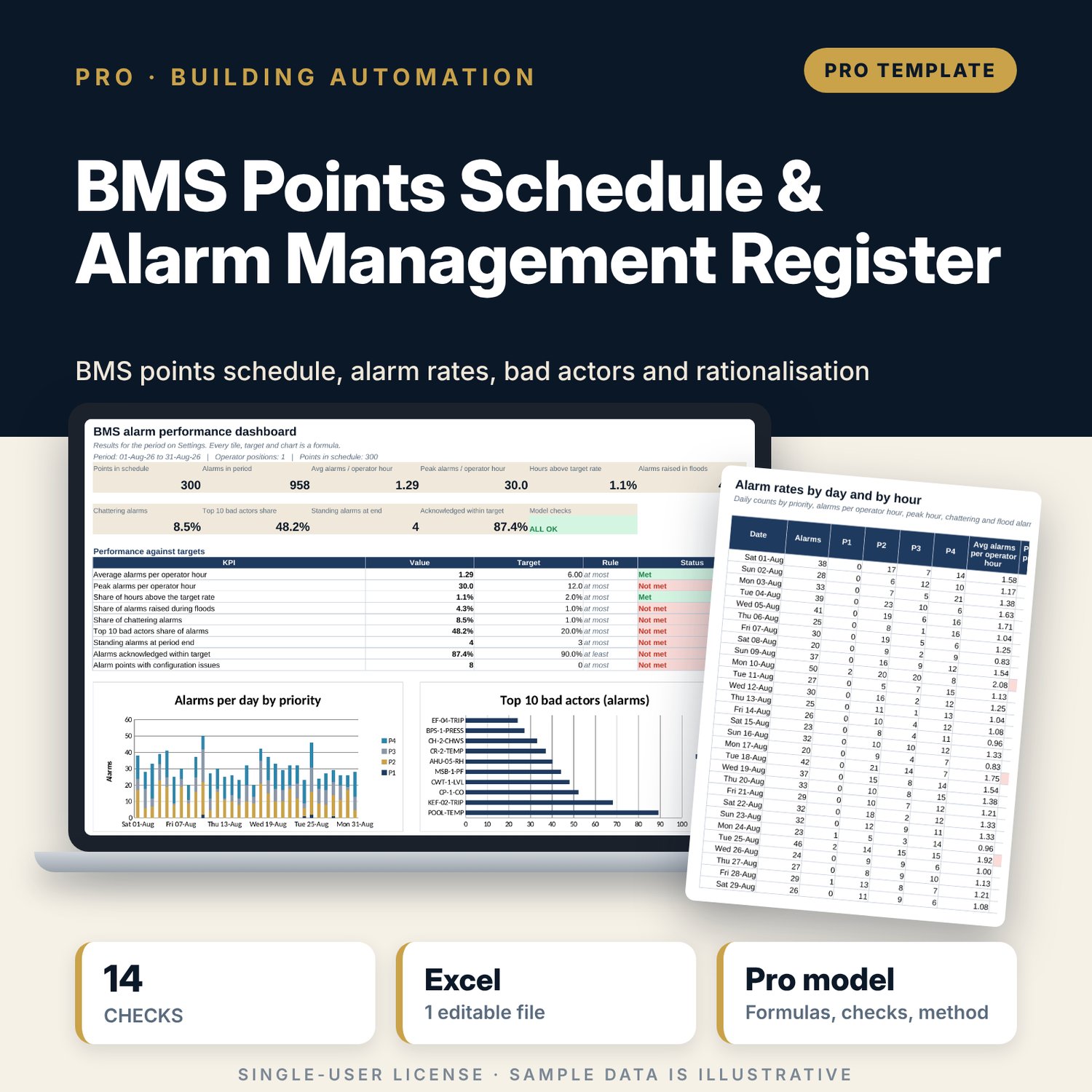
BMS Points Schedule & Alarm Management Register: BMS alarm management and points list template in Excel
Full description
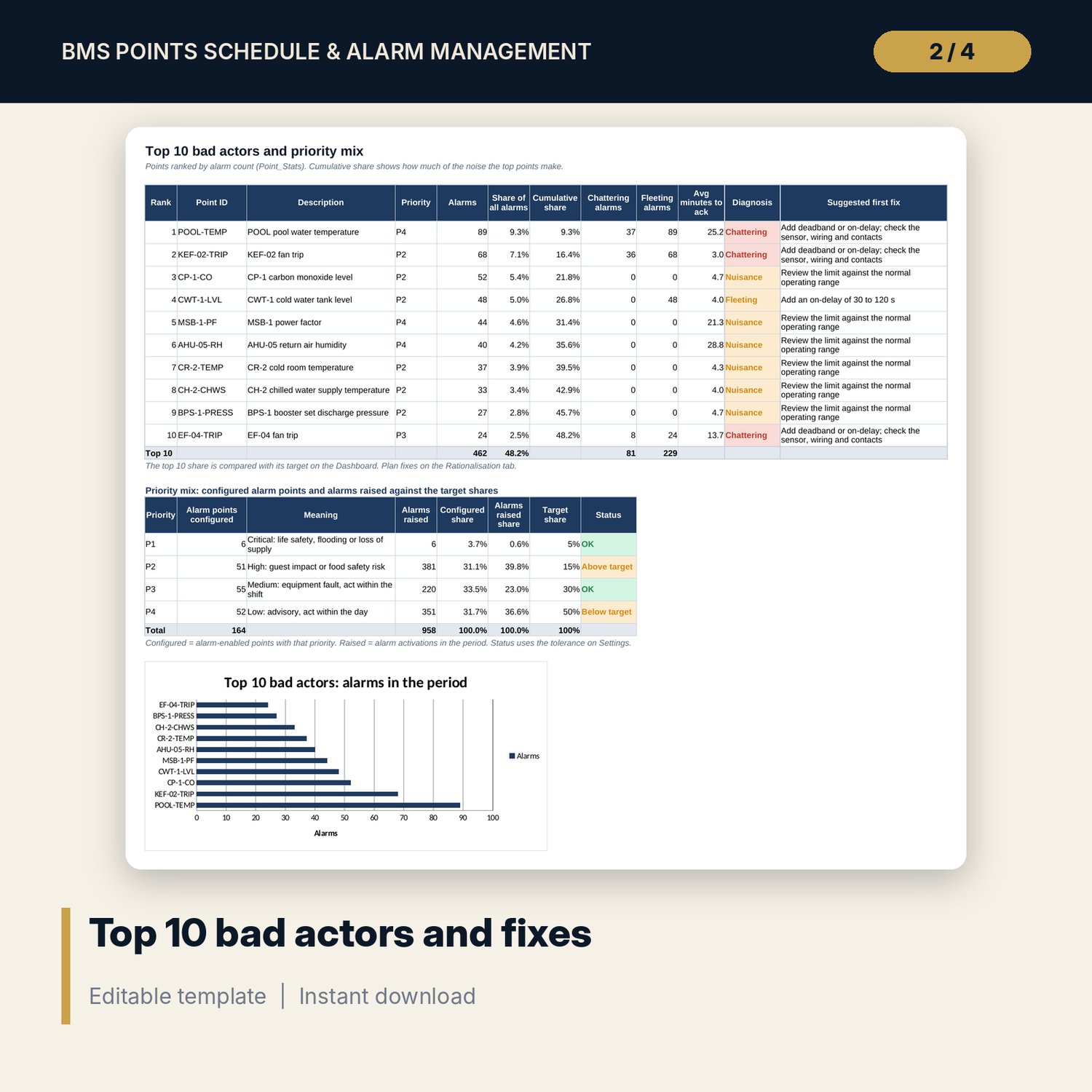
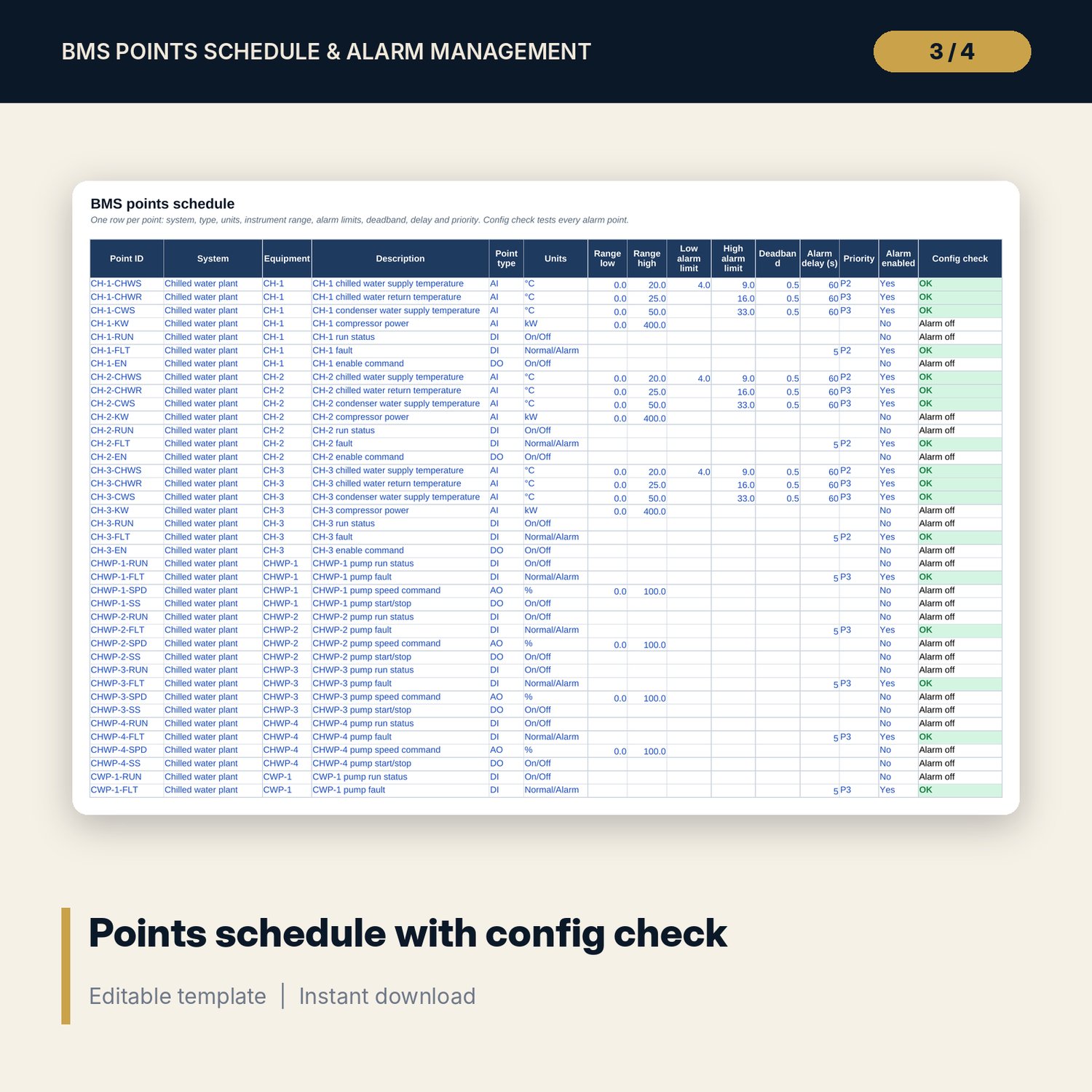
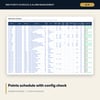
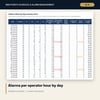
For chief engineers, engineering managers and BMS technicians who need to cut alarm noise on a hotel building management system. The points schedule holds every point with system, type (AI, AO, DI, DO), units, instrument range, alarm limits, deadband, delay and priority, and a config check flags swapped limits, limits outside the range, missing limits, missing priority and zero deadband. Paste the alarm history and the engine works out minutes to acknowledge and minutes active for each alarm, then flags standing, fleeting, chattering (repeat count of one point inside a short window) and flood alarms (count of all alarms inside a window). Rates turn this into alarms per operator hour by hour and by day. Each point gets a count, nuisance flag, rank and diagnosis, and the top 10 bad actors are listed with a first fix. The rationalisation worksheet sets each alarm's priority from a consequence and response-time matrix, records the fix and owner, and projects the alarm rate after the actions.
Save with a bundle: this workbook is also in the Hotel Engineering & MEP Pro Bundle, 25 workbooks for $59 instead of $319. All 100 Pro workbooks are in the Pro Library for $119, and all 241 templates and workbooks are in the Ultimate Hospitality Library for $149.
What is inside
- BMS_Points_Schedule_Alarm_Management_Register.xlsx: 12 tabs, 35,914 formulas, 5 native charts, 14 integrity checks, 18-row Method tab
- Points_Schedule: 300 illustrative points across 11 systems (88 AI, 33 AO, 137 DI, 42 DO; 165 with alarms enabled), room for 400, with a config check per point
- Alarm_Log: 1,600 rows, with 958 illustrative alarms over 31 days
- Alarm_Calc engine: 16 columns per alarm (minutes to acknowledge, minutes active, standing, chattering repeats, fleeting, flood count)
- Point_Stats engine: 15 columns per point (alarm count, chattering, fleeting, standing, average ack time, nuisance flag, rank, diagnosis)
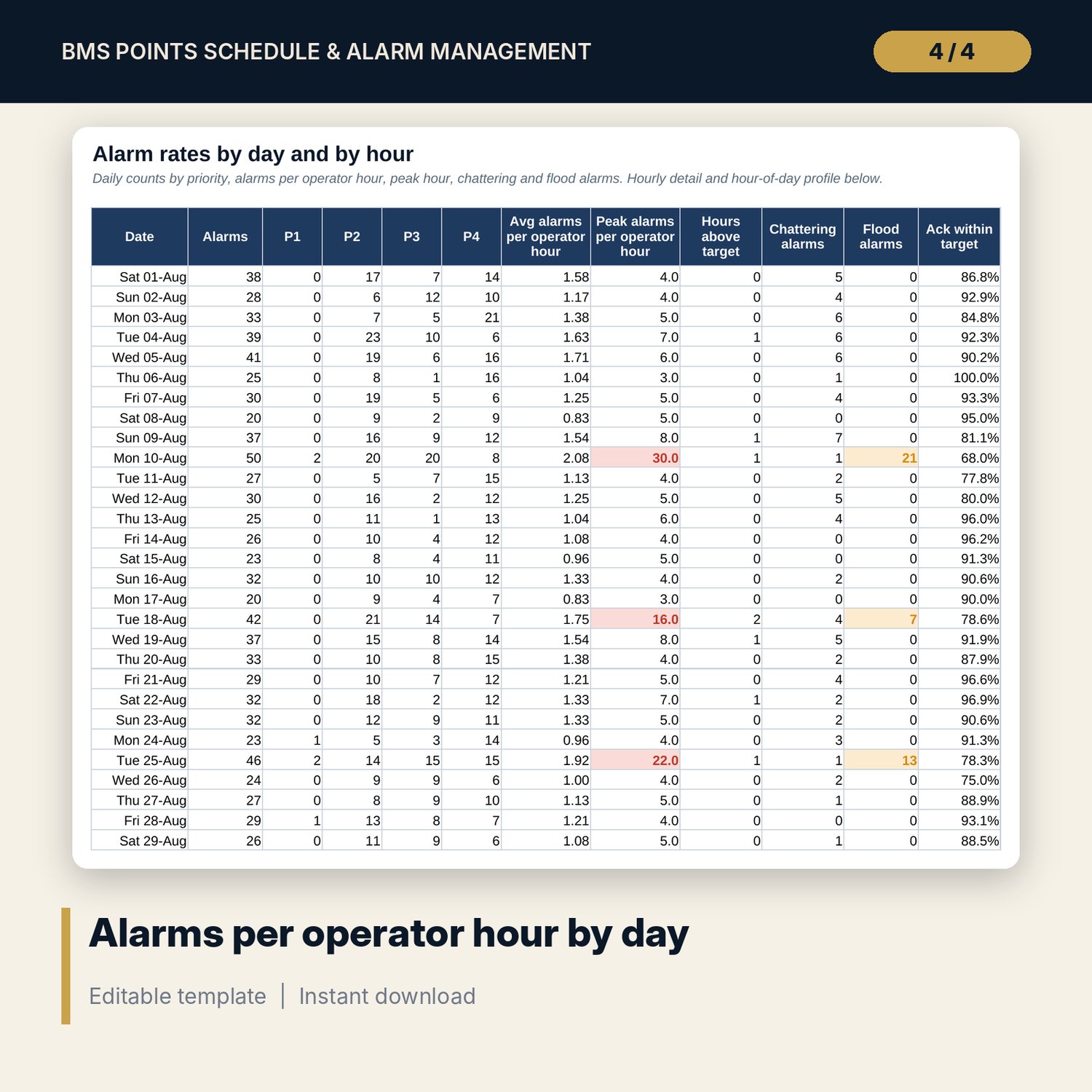
- Rates: 31-day table by priority, 24-hour profile and 744-row hourly detail of alarms per operator hour
- Bad_Actors: top 10 points with cumulative share and first fix, plus the priority mix against target shares
- Rationalisation: 30-row worksheet (15 sample reviews) with a 4 x 4 priority matrix, fix, owner, due date and projected alarm rate
- Settings: 22 editable inputs with units, priority table, matrix and 7 drop-down lists
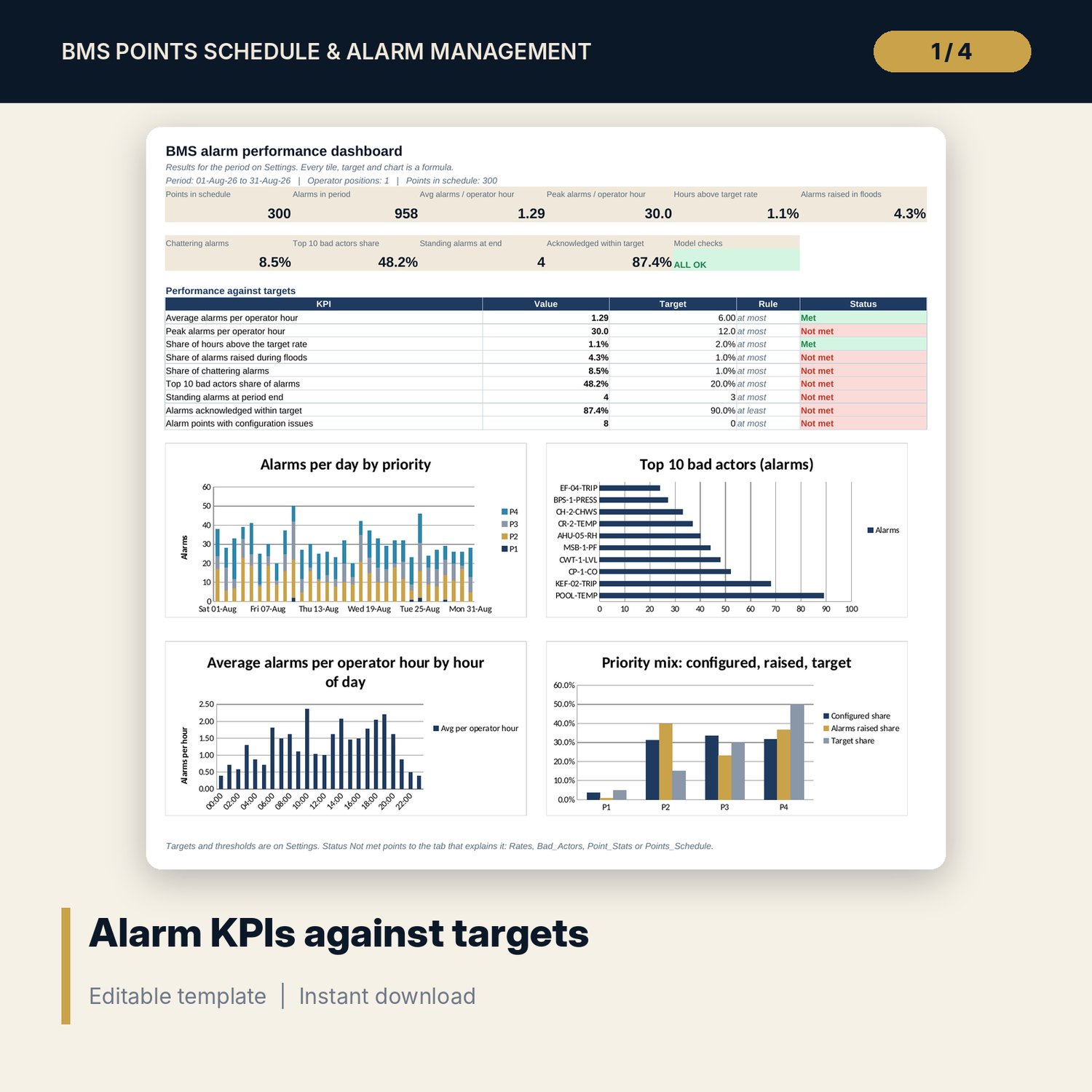
- Dashboard: 10 KPI tiles, check status, 9 KPIs against targets and 4 charts on one page
- README.txt and LICENSE-and-Terms.txt
How it works
- Set the period, operator positions, rate limits, detection rules and KPI targets on Settings.
- Load your BMS points list on Points_Schedule and fix every point the config check flags.
- Paste the alarm history (point, type, activated, acknowledged, cleared) into Alarm_Log.
- Read Rates, Point_Stats, Bad_Actors and the Dashboard to see alarm load, response times and the noisiest points.
- Review the bad actors on Rationalisation, agree fixes and owners, and track them to closed.
Details
- Format: one XLSX workbook
- Language: English
- Software: Excel 2016 or later (Windows or Mac) or LibreOffice Calc; also opens in Google Sheets, where chart styling may differ
- No macros, no array formulas, no external links
- Times are date-times with seconds
- Delivery: instant download
Good to know
- Sample data is illustrative. Replace it with your own points and alarm history.
- Targets and thresholds are editable inputs based on common alarm management practice. Set your own site policy and verify local requirements.
- This is an operating tool, not engineering advice. It does not replace fire alarm, life-safety or emergency systems.
- Single-user license.
FAQ
How do I get my alarm history into the workbook?
Export the alarm history for the period from your BMS head-end to CSV and paste point ID, alarm type and the activated, acknowledged and cleared times into Alarm_Log.
What counts as a chattering alarm?
An activation is chattering when the same point has activated at least 3 times inside a 10-minute window ending at that activation. You can change the count and the window on Settings.
Can I use it with more than one operator?
Yes. Enter the number of operator positions on Settings. Rates divide the hourly alarm count by that number.
Why are my point IDs showing Unknown point?
The point ID in Alarm_Log does not match any ID on Points_Schedule. Check spelling and spaces; the Checks tab shows CHECK until every alarm matches.
How long a period can I analyse?
Up to 31 days at a time. Save a copy each month to compare periods.