

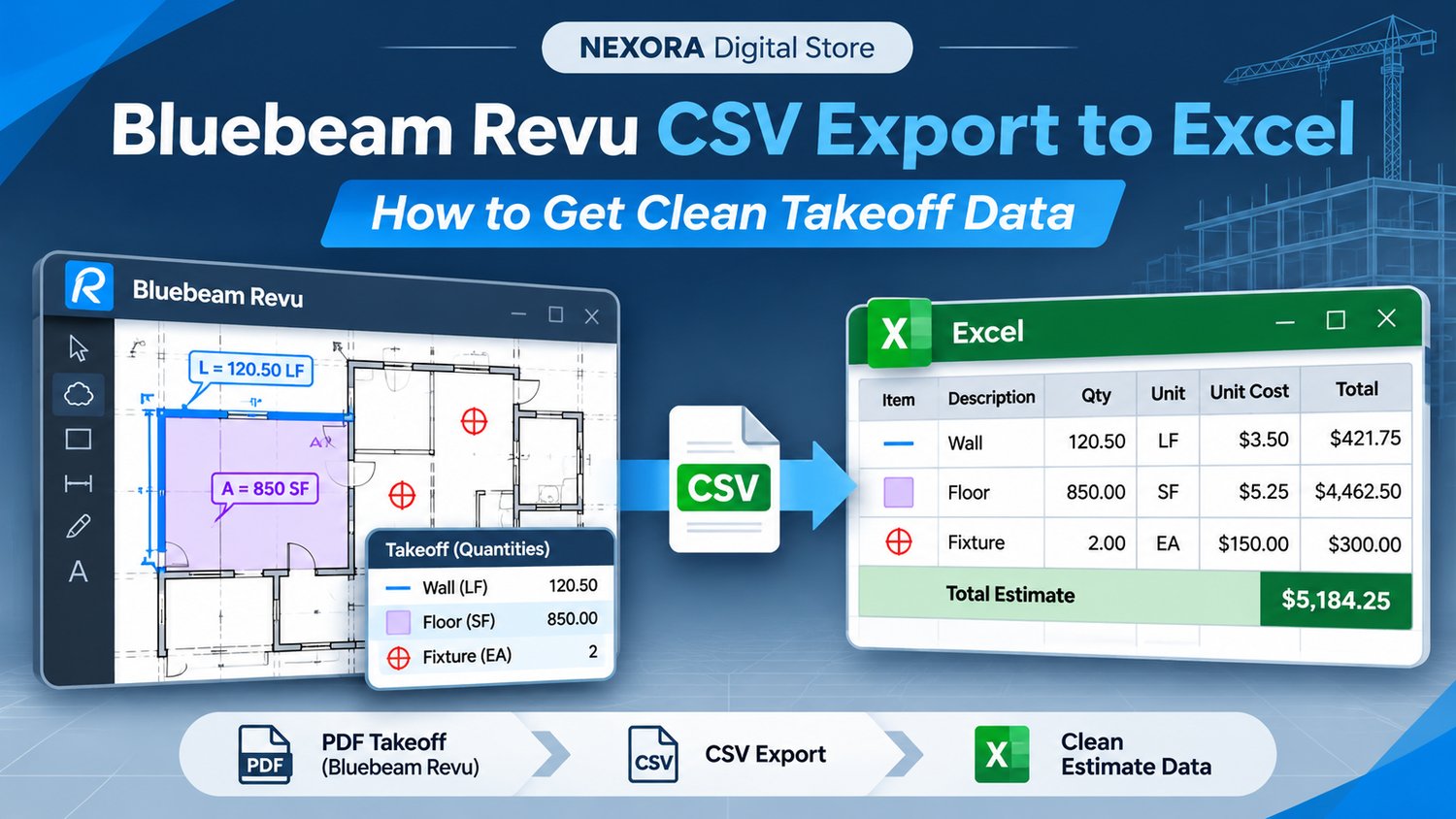
Bluebeam Revu CSV Export to Excel: How to Get Clean Takeoff Data
Bluebeam Revu is a powerful tool for measuring quantities, marking up PDF drawings, and organizing project information.
But for many contractors and estimators, the real work begins after the takeoff is complete.
You export your measurements to Excel, open the spreadsheet, and suddenly you have hundreds of rows that still need to be cleaned, sorted, checked, and converted into a usable estimate.
If this sounds familiar, here are some practical ways to improve your Bluebeam-to-Excel workflow.
1. Export Your Markups List as CSV
Before exporting, open your project PDF in Bluebeam Revu and review the Markups List.
- Open the Markups List at the bottom of the Revu interface.
- Check that your relevant markups and measurements appear.
- Select the Summary option from the Markups List toolbar.
- Choose CSV as the output format.
- Select the required columns, filters, and sorting options.
- Export the file to your computer.
You can then open the CSV file in Microsoft Excel.
Important: CSV export availability depends on your Bluebeam version and subscription. In Revu 21, a Basics subscription supports PDF summaries rather than CSV summaries.
2. Fix Missing or Unnecessary Columns
One common problem is exporting more information than you actually need.
Your spreadsheet may contain fields such as:
- Subject
- Label
- Page Number
- Quantity
- Measurement
- Comments
- Custom Columns
You may also see technical columns that are not useful for your final report.
Instead of deleting information immediately, create a separate working copy of your spreadsheet.
Keep the original export unchanged so you can compare the results if anything looks incorrect.
3. Standardize Your Markup Names Before Exporting
This is one of the easiest ways to make your reports more consistent.
Imagine that your CCTV project contains these markup subjects:
- Camera
- CCTV Camera
- IP Cam
- Security Camera
All four might refer to the same equipment category, but Excel will treat them as different labels.
A better approach is to use consistent naming conventions directly in Bluebeam.
For example:
CCTV-IP-DOME
CCTV-IP-BULLET
ACCESS-READER
FIRE-SMOKE-DETECTOR
When the exported data uses consistent subjects and labels, grouping and checking quantities becomes much easier.
4. Use Custom Columns for Better Estimates
Bluebeam Revu supports custom columns that can help organize additional project information.
Depending on your subscription and setup, you may use fields for:
- Material type
- Equipment category
- Location or room
- Unit cost
- Installation labor
- Project phase
Formula columns can also support certain calculations directly in the Markups List.
However, a construction estimate may still need additional information, such as supplier pricing, labor rates, waste allowances, overhead, and markup.
This is where a structured estimating workflow becomes useful.
5. Check Measurement Units and Quantities
Before using exported measurements to calculate costs, confirm that the original PDF was calibrated correctly.
A drawing with an incorrect scale can produce incorrect quantities, even if the spreadsheet formulas are perfect.
Review:
- Drawing scale
- Measurement units
- Duplicate markups
- Hidden or excluded quantities
- The difference between item counts, lengths, and areas
Also check that Excel interprets decimal separators and numeric fields correctly.
A CSV export is only as reliable as the measurements and data behind it.
6. Turn Your Export Into a Usable Estimate
A clean takeoff report should answer practical questions:
What materials do we need?
How many units are required?
What will the materials cost?
How much installation labor is needed?
What should we quote the customer?
For example, a solar installation estimate might include PV modules, mounting rails, clamps, cables, and inverters.
A low-voltage installation might include cameras, readers, detectors, network components, and cable lengths.
Rather than treating the CSV as the finished estimate, use it as the starting point for building a material list, assigning costs, and preparing a professional quote.
7. Tools for Bluebeam-Based Workflows
I develop practical tools for contractors, technicians, and estimators who use Bluebeam Revu.
NEXORA Bluebeam Tools Bundle
A collection of reusable tools and symbols for low-voltage, CCTV, access control, and fire alarm drawing workflows.
Solar Takeoff & Quotes PRO
A solar estimating application with 60 Bluebeam Revu tools, CSV quantity import, a bill of materials calculator, editable pricing, and PDF-ready quotes.
These tools are designed to complement existing Bluebeam workflows and reduce repetitive tasks. They are not replacements for engineering checks or full project design software.
Final Thoughts
Exporting a CSV from Bluebeam Revu is straightforward once your Markups List is configured correctly.
The harder part is making sure the data is consistent, accurate, and organized for your actual estimating process.
Start with clear markup naming conventions, review your columns, confirm measurement units, and keep your original exports available for checking.
A few improvements to this workflow can make your project documentation and estimates easier to manage.
What is the most frustrating part of your Bluebeam-to-Excel workflow?
I'm always interested in hearing about repetitive tasks that could be simplified with better tools.
NEXORA Digital Store — Practical Tools for Real Workflows