

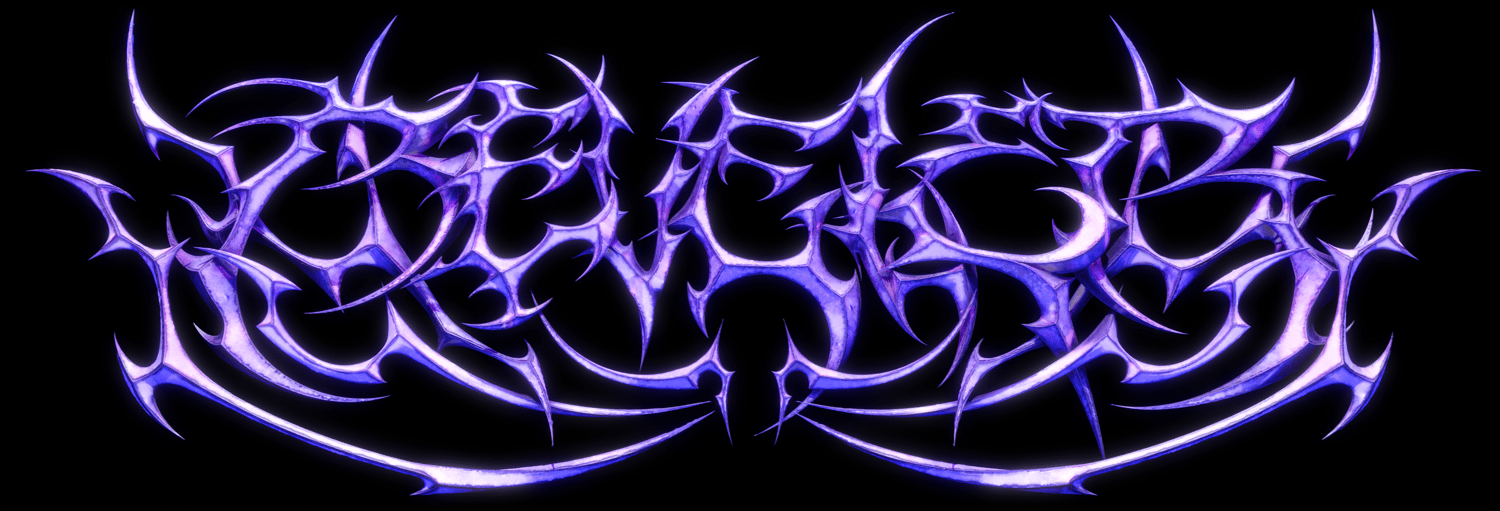
Beveler
On Sale
$30.00
$30.00
The tutorial is ready! Scroll down to find it :)
Turn flat shapes into solid, beveled 3D objects in a few clicks. Beveler takes any closed 2D outline (logos, letters, silhouettes, vector art) and builds it into a clean 3D piece.
Features
- Drawing to 3D in one step: pick a closed shape or text and Beveler builds it into a solid object.
- Real-time preview: the bevel is generated live on your curve as you edit it, so you see the result instantly.
- Adjustable profiles: go from a nearly flat bevel to a fully rounded one, and shape the edge curve with built-in or custom profiles.
- Clean geometry: objects are generated with a tidy, low-polygon structure, so they’re easy to smooth, subdivide, or deform afterward.
- Spine Rig: draw a center line through your object and shape it with control points, like a wire you can bend, stretch, and twist.
- Edge Wear: adds realistic worn-edge effects to your bevels, with its own controls for wear shape and material slots.
Requirements:
Blender 5.2 preferrably; Beveler works from 4.2 on but Edge Wear needs at least 5.1
Recommended: A mid-range CPU with strong single-core performance from the last 4–5 years or newer, 16 GB of RAM, and a GPU equivalent to a GTX 1660 or RTX 3050 or better.
Minimum: 4 CPU cores and 8 GB of RAM. The add-on will work, but you may experience lag when using the Spine editor.
The Spine and live preview performance depend on your CPU speed and mesh density. For a smoother experience, keep Resolution low and add detail using Subdivision.
Refund Policy
Due to the digital nature of Beveler, all purchases are final once the product has been downloaded.
Refunds are only available if the product is defective or cannot be used as described, and we are unable to resolve the issue. Please contact us before requesting a refund if you experience any technical problems. We will do our best to help.
Beveler is a specialized creative tool and its workflow and feature set may not suit every user's needs. Please review the product description, documentation, and examples before purchasing.
Beveler PlugIn - Features and Workflow
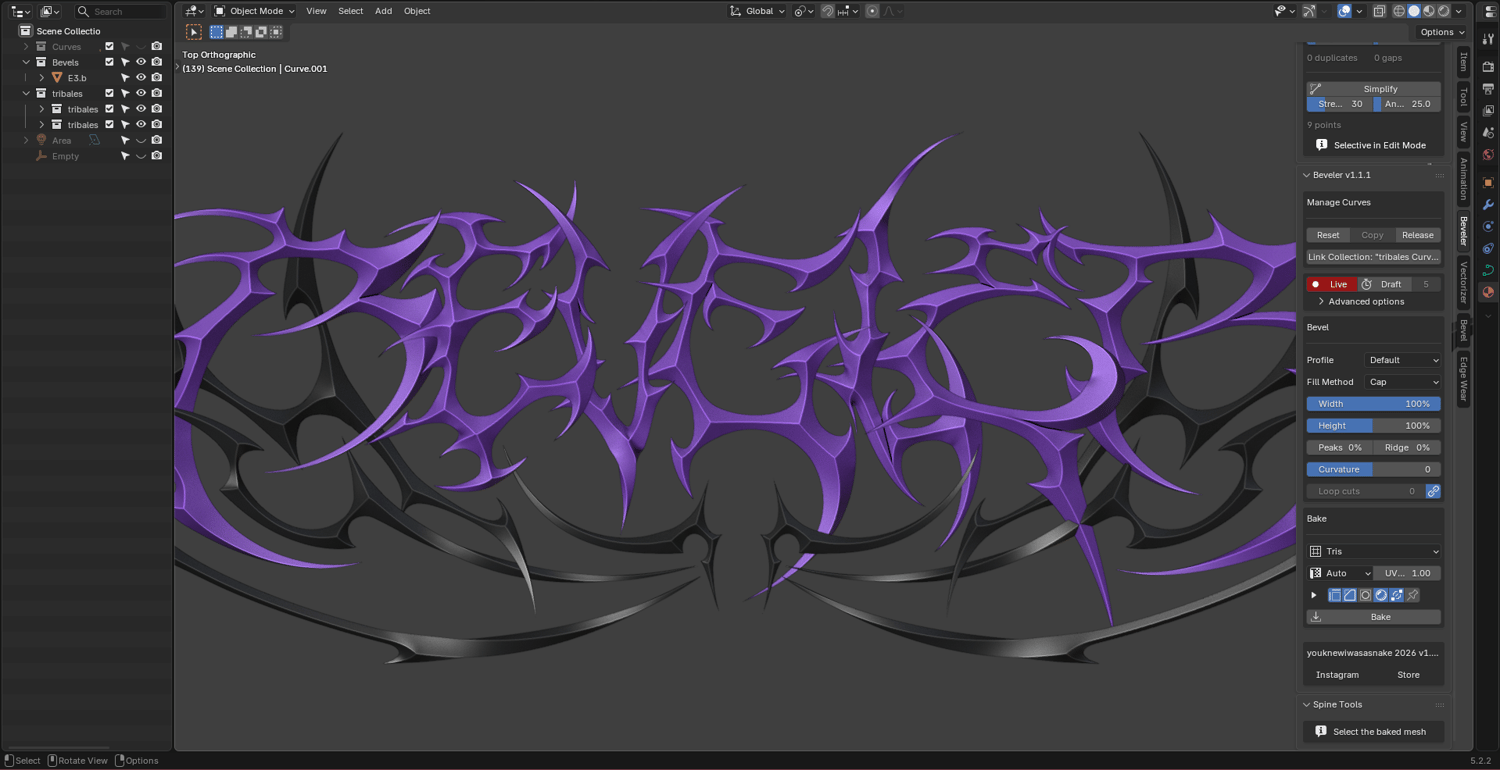
From Curve to Final Result
- Select your curve or text. Convert text to curves if needed.
- Click Bevel Curve. If the shape contains unnecessary points or artifacts, clean it up first.
- Shape the bevel. Adjust the profile and bevel settings while checking the live preview. Use Draft if complex shapes affect performance.
- Bake the mesh. Choose a topology, configure UVs if needed, and click Bake.
- Deform (optional). Select the baked mesh, click Edit spine, and adjust the nodes and handles. Press Enter to apply or Esc to cancel.
- Finalize. Click Bake to mesh, then use Add Edge Wear if you want additional surface detail.
Cleaning Tools
Use the Cleaning Tools before beveling when working with complex curves or imported SVGs.
- Clean Curve: Fixes duplicate points, collapsed handles, and degenerate splines in one operation.
- Simplify: Removes unnecessary points to reduce complexity and improve performance.
- Duplicates / Handles: Adjust the detection thresholds used by the cleanup tools.
Simplify affects selected points in Edit Mode and the entire curve in Object Mode.
Beveler
Shape the Bevel
Choose a profile to establish the overall look:
- Default: A linear profile with adjustable curvature and cuts.
- Terraces: Stepped profiles for hard-surface or geometric looks.
- Manual: Create your own profile using the graph.
Use Width, Height, Peaks, and Ridge to refine the result. The live preview updates as you work. Enable Draft for complex shapes.
Work with Multiple Curves
Use Bevel Batch to process multiple selected curves. Link Collection synchronizes settings across a collection, while the chain icon lets individual curves use independent settings.
Bake the Mesh
Choose the topology that best fits your needs:
- Quads: Recommended for demanding Spine deformations.
- Delaunay: Evenly distributed triangles with good deformation behavior.
- Tris: Direct triangulation.
- Ngons: Preserves polygonal faces.
Adjust Resolution for Quads or Delaunay. Choose a UV method if the mesh needs texturing. Bake Batch processes curves across a linked collection.
Spine Tools
Edit spine deforms an already baked mesh by moving its spine—the line that follows the ridge of the geometry. The mesh follows the spine while preserving its profile, ridge, and silhouette.
It works on any baked mesh, but meshes with triangular topology (Tris or Delaunay) are more prone to wrinkling. The add-on recommends: “Bake with Quads to deform harder.”
- Select the baked mesh and click Edit spine.
- Select and move nodes with G. Use R to rotate and S to scale handles.
- Add or remove controls with right-click. Press M to merge selected nodes or V to switch handle types.
- Press Enter to apply or Esc to cancel.
- Click Bake to mesh to commit the final deformation.
For stronger deformations, use Quads topology. Triangular meshes may wrinkle more easily. Use Relax to reduce wrinkles and Smooth to improve transitions between sections.
Edge Wear
Edge Wear is a separate extension requiring Blender 5.1 or later. It adds procedural wear, highlights, and valley effects to a mesh.
- Select your baked mesh.
- Click Add Edge Wear.
- Open Main Materials and assign materials to the four layers.
- Adjust the masks and effects to achieve the desired finish.
The four layers are Base, Worn, Highlight, and Valley. Each can use a custom material.
- For reliable results, make sure the mesh has sufficient geometry to support the wear mask. Low-density meshes may require subdivision.
Spine Tool Keys
Main Keys
- Enter Edit Spine: Click Edit spine. The panel displays “Enter to apply / Esc to cancel.”
- Apply and exit: Press Enter. Space no longer confirms.
- Cancel: Press Esc.
- Undo / Redo: Use Ctrl+Z and Ctrl+Shift+Z, or Ctrl+Y. On Mac, use Cmd.
Selection
- Select / Move: Left-click. Drag to move.
- Add to or remove from selection: Shift + Click.
- Range selection: Ctrl + Click. On Mac, use Control, not Cmd.
- Box selection: Press B.
- Circle selection: Press C.
- Switch selection tool: Press W.
- Drag / Deselect within B or C: Left-click to drag; middle-click to deselect.
- Adjust circle radius: Use the scroll wheel, PgUp / PgDn, or + / −.
- Exit selection tool: Press Enter or Esc.
Transforming Elements
- Move: Press G. Press GG to slide along the branch.
- Rotate: Press R. Press RR to toggle between trackball and view-axis rotation.
- Scale handles: Press S.
- Tilt section: Press T.
- Adjust radius (silhouette or proportional): Press Alt+S.
- Move handle outward / inward: Press H.
- Reset selected elements: Press Backspace.
- Constrain to an axis: Press X, Y, or Z during transformation.
- Exclude an axis (plane constraint): Press Shift + X, Shift + Y, or Shift + Z.
- Fine adjustment: Hold Shift.
- Confirm transformation: Left-click or press Enter.
- Cancel transformation: Press Esc or right-click.
Controls and Branches
Add or Remove a Control
Right-click to add or remove a control. On silhouette points, Shift adds multiple controls, while Ctrl adds them all.
Set the Number of Controls
When adding controls, use the scroll wheel to adjust how many will be created. Left-click to confirm or press Esc to cancel.
Delete Selected Controls
Hover over the branch and press X or Delete to disable or Re-enable a Branch,
Nodes and Handles
Merge Nodes
Press M to merge nodes. Hold the key to open the merge-mode pie menu.
Handle Types
Press V to switch handles between Aligned and Free. Hold the key to open the pie menu.
Select Handles
Use Shift + Click on the handles.
M requires at least two selected nodes. V requires controls, silhouette points, or both handles of a node to be selected.
Behavior Options
Proportional
Press O to enable Spine-specific proportional editing. Hold the key to open the falloff menu.
This is independent of Blender's proportional editing.
Press Alt+O to affect only elements connected to the node.
Parenting
Press P to access parenting. Use Ctrl+P to attach and Alt+P to detach.
Secondary branches follow a node when it is moved or rotated.
Advanced Panel Settings
Smooth
Controls how smoothly the mesh follows the spine by blending between sections.
Relax
Controls wrinkle relaxation. It smooths the surface while preserving its overall shape. Higher values produce a cleaner surface but reduce deformation flexibility.
Handle
Controls how closely the curve follows a handle. A value of 1 preserves the original response.
Spine
Controls stiffness. A value of 0 produces elastic behavior, while 1 makes the mesh follow the spine exactly. Tips always follow the spine exactly.
Panel Buttons
- Reset Pose: Restores the mesh and spine to their original state.
- Clear Edits: Clears node edits, including merges and disabled branches.
- Bake to mesh: Commits the final pose to a mesh.
Navigation and Additional Notes
Viewport Navigation: Middle-mouse controls and navigation keys are passed through to Blender. When using a trackpad, working on macOS, or navigating without a numpad, use PgUp / PgDn and − / = as alternatives.
thanks for supporting my work!
more plugins and free updates coming soon :)