
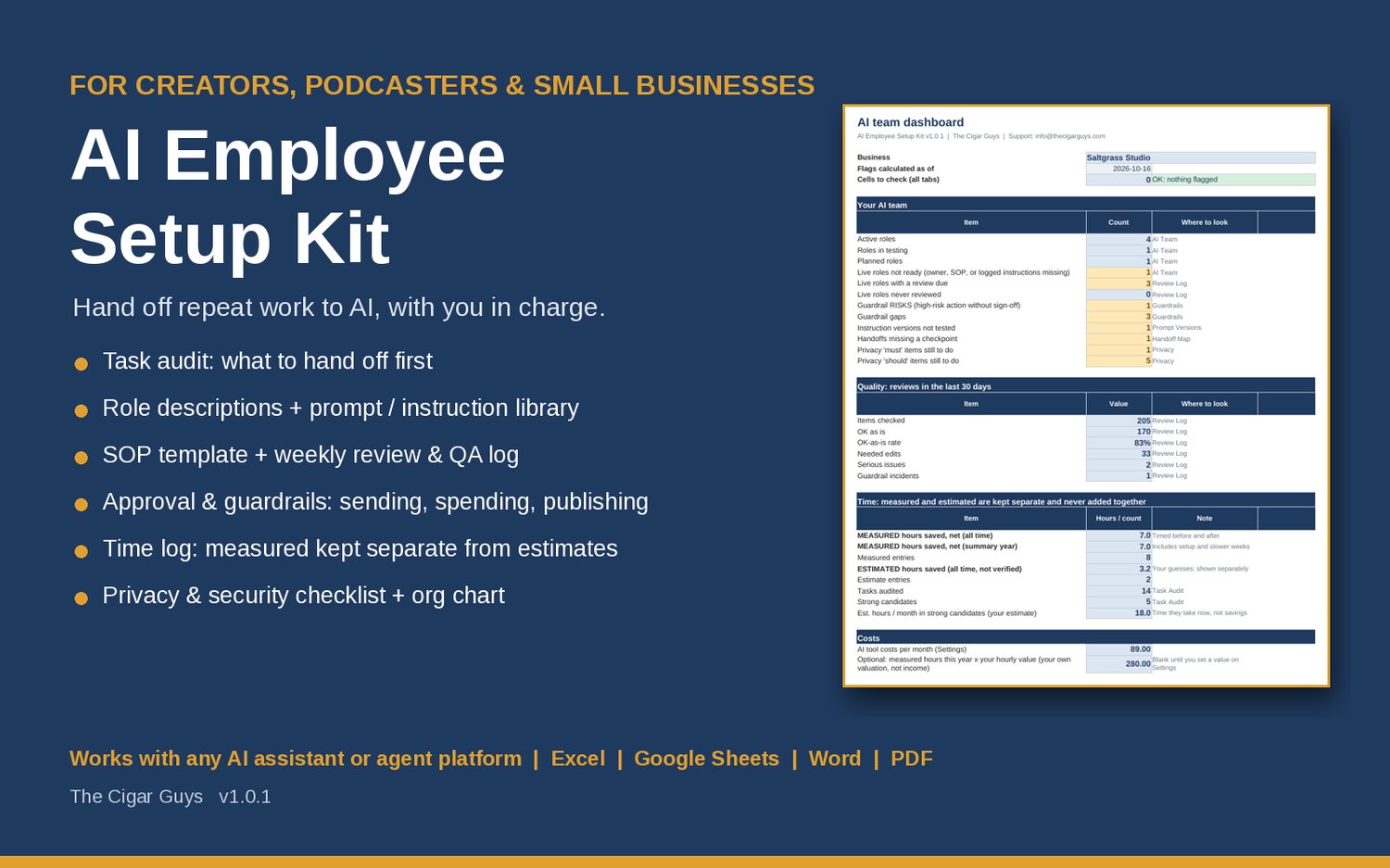
A lot of creators and small business owners have tried handing work to an AI assistant and ended up with the same mess: prompts scattered across a dozen chats, drafts nobody checked, a tool connected to more accounts than it needs, and no honest answer to the question "is this actually saving me time?"
The fix isn't a better prompt. It's treating the AI like a new hire. You wouldn't give a new team member your inbox password and walk away. You'd give them a clear role, written instructions, rules about what needs your sign-off, and a regular check of their work. This post walks through that process step by step, and shows how the AI Employee Setup Kit from The Cigar Guys Podcast team gives you the templates to do it.
Step 1: Audit your tasks before you pick a tool
Start with the work, not the software. List the tasks you repeat every week or month, with rough notes on:
- How often you do it and how many minutes it takes
- How repeatable it is (same steps every time, or different each time?)
- How risky it is if it goes wrong
- Whether it touches sensitive data
- Whether it really needs your judgment
The best first candidates are frequent, repeatable, low-risk tasks that don't need your judgment, like sorting your inbox into categories or drafting a first pass at show notes. Anything that needs your taste, your relationships or your signature stays with you, at least for now.
The kit's planner workbook has a Task Audit tab with room for 100 tasks. Each one gets a score from 3 to 9 and a recommendation: strong candidate, start with drafts, draft-only, privacy check first, or keep. Pick one or two strong candidates to start. Don't automate ten things at once.
Step 2: Hire on paper with a role description
Before you write a single prompt, write a short "job description" for the AI role. It should say:
- The role's purpose in one or two sentences
- The tasks it handles
- What it must never do
- Who its human owner is
- How you'll judge whether its work is good
The kit includes a blank role description template plus six starter roles you can adapt: inbox triage, content drafter, research assistant, social post scheduler, customer support drafter and bookkeeping prep helper.
Step 3: Write standing instructions and test them
Standing instructions are the rules the AI follows every time, separate from the individual task you ask it to do. Write them once, then test them on 5 to 10 real examples before you trust them.
When the output is wrong, don't just fix the output. Fix the instructions and save a new version, so the same mistake doesn't come back next week. Keep a simple log of each version: where it's saved, what changed and whether you tested it.
The kit's Prompt and Instruction Template Library has a standing-instruction template, plus instructions and three task prompts for each of the six starter roles. The planner's Prompt Versions tab keeps the version log and flags any version you haven't tested yet.
Step 4: Write the SOP
A standard operating procedure (SOP) spells out exactly how the work flows: what comes in, the steps, where a human checks it, and when the AI should stop and ask instead of guessing.
The kit's SOP template covers inputs, steps, checks and escalation, and the fictional example includes a completed SOP for an inbox triage role so you can see what a finished one looks like.
Step 5: Set guardrails, and enforce them with access
This is the step most people skip, and it's the one that protects your business. The default rule in the kit is simple: AI drafts, people decide. Some actions are hard or impossible to undo, so they need either "Never" or "Human approves each time":
- Sending email or messages
- Publishing or posting
- Spending money or buying anything
- Contacting new people
- Replying to customers
- Changing or deleting data
- Accessing sensitive data
- Making bookkeeping entries
One point is worth repeating: instructions aren't locks. A rule written in a prompt can be misunderstood or ignored. Where you can, enforce it with access instead: draft-only email access so you press send, no publish permission, read-only data, and never a payment method connected to an agent.
The kit's Approval and Guardrails Checklist walks through each role, and the planner's Guardrails tab lists every action a role could take with its rule, approver, how it's enforced and when you last tested it. Any high-risk action without a human sign-off is flagged as a RISK on the dashboard.
Step 6: Check privacy before you connect real accounts
Before an AI tool touches customer emails, order data or your accounts, run through a privacy and security checklist covering what data goes in, which connections use the least access that works, and how you'd revoke access quickly. The kit includes a 22-item checklist with room for your own items. It's practical guidance, not legal advice, since rules differ by place and industry and each tool's terms change.
Step 7: Start in draft-only mode and review weekly
Run each new role in draft-only mode for at least two weeks. Once a week, review a sample of its work: how many items were fine as they were, how many needed edits, and whether anything serious went wrong. If something did, pause the role, fix the cause, update the guardrail and SOP, and re-test before you switch it back on.
The kit's weekly routine for this takes about 20 to 30 minutes.
Step 8: Measure time saved honestly
Here's where a lot of AI enthusiasm falls apart. People guess they're saving hours but never time it, and forget the setup and the weeks when fixing drafts took longer than doing the task.
The kit's Time Log keeps measured time (you actually timed it) separate from estimates (your guesses). The two are never added together, and setup time and slower weeks count. Some tasks get faster and some don't. The point is to know which is which, so you keep the roles that work and drop the ones that don't.
What's in the kit
Besides the planner workbook (Excel or Google Sheets) and the templates above, you get an org chart and handoff map, a Start Here guide, a User Guide and a completed fictional example for a made-up podcast studio with a small online shop. The example's business, tools and numbers are invented to show how the files work.
It's tool-agnostic: it works with any chat assistant or agent platform, such as ChatGPT, Claude, Gemini or Grok, and isn't affiliated with any AI company. It doesn't connect to or control any AI tool, and it can't make a tool safe or accurate on its own. It gives you the structure, and you stay in charge.
Price: $39, one-time payment.
Related kits
If your first AI role is a content drafter, the Small Business Social Media Content Planner gives you one place to plan and track the content it helps with. And if you run a service business, the Freelance Service Business Kit covers pricing, a client CRM, proposals, scope of work, invoices and client emails.
Where to start
Pick one repeat task that's frequent, low-risk and eating your week. Write the role, set it to draft-only, and review it for two weeks before you hand over anything else.
Get the templates here: AI Employee Setup Kit.
Questions or a file that won't open? Email info@thecigarguys.com. These are instant digital downloads, so all sales are final, but if a file is broken or missing we'll fix it.