

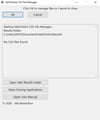
Vsk5 Race Result.csv File Manager
Vsk5 Race Result.csv File Manager – User Manual
Developed by: Vsk Revolution
Distributed by: Virtual Sailing Solutions
Overview
The Vsk5 Race Result.csv File Manager is a lightweight, easy-to-use tool designed for Virtual Skipper 5 (VSK5) and VSK5Online players.
When hosting or joining races in Vsk5, the game automatically generates CSV results files for every race you host or enter. This includes restarted races which produce invalid results. Over time, these files accumulate quickly, and a lot of them may represent invalid “restart race” results. Sorting through these manually is time-consuming and tedious.
The Vsk5 Race Result.csv File Manager automates this process, saving time and ensuring your results folder stays organized.
Key Features
- Automatic Detection of Restart Race Files
- The app scans all Result.csv files in your Vsk5 results folder.
- It identifies files where all rows are marked -1 in the second column, which indicates a race was restarted and the results are invalid.
- These files are deleted automatically, removing clutter from your results folder.
- Month-Based File Organization
- Valid Result.csv files are automatically sorted into month folders based on their timestamps in the filename (e.g., 2025-12).
- Month folders are created dynamically: a folder is only created when a file for that month is encountered.
- No duplicate folders are ever created.
- Non-Disruptive File Management
- The creation of month subfolders does not interfere with new files being saved by the game.
- New race results will continue to save in the main Results folder as usual.
- This allows users to manually review the most recent results before running the application.
- Progress and Reporting
- A live progress bar shows the scanning process.
- The report log displays:
- Files scanned
- Files deleted
- Files kept
- Files moved
- Count of files per month
- Quick Access Buttons
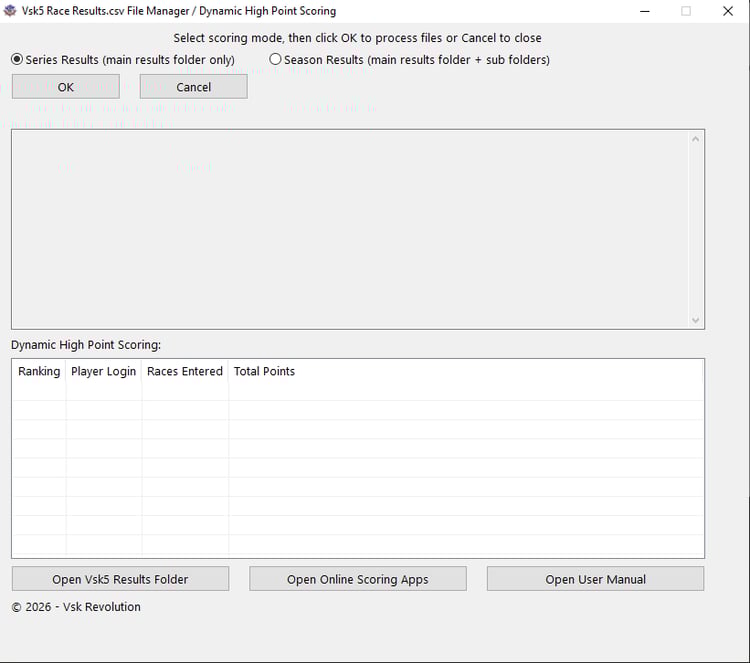
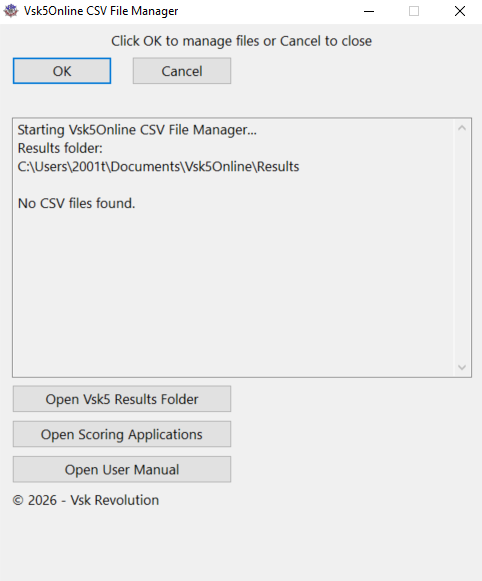
- Open Vsk5 Results Folder: Opens your results folder in Windows Explorer.
- Open Scoring Applications: Opens online scoring tools for race management.
- User Manual Button: Opens this user manual in a browser (or Google Docs).
How It Works
- Preparation
Ensure your Vsk5 results folder is located at:
Documents\Vsk5\Results
- This is the default folder the app monitors and manages.
- Starting the App
- Launch the Vsk5 Race Result.csv File Manager.
- Click OK to start scanning your results folder.
- Scanning Process
- The app scans every Result.csv file in the results folder.
- Files with all -1 values in the second column are identified as restart race files.
- These files are deleted automatically to reduce clutter.
- Sorting Files
- Valid Result.csv files are sorted into month folders according to the timestamp in the filename.
Example: A race held in December 2025 will be moved to:
2025-12
- This allows users to keep the results organized by month without creating unnecessary subfolders.
- Completion
- The app displays a summary report showing:
- Total files scanned
- Number of files deleted
- Number of files kept
- Number of files moved
- Breakdown of files per month
Benefits
- Saves Time: No need to manually open Result.csv files to identify invalid races.
- Keeps Results Folder Organized: All valid files are grouped by month for easy navigation.
- Reduces Errors: Automatically removes invalid restart race files, preventing confusion in scoring.
- Essential for Vsk5 Players: Especially helpful for players hosting multiple races or participating in frequent online events.
- Safe for New Files: New race results are unaffected and continue to save in the main Results folder.
Tips
- Run the app regularly if you participate in many races to avoid clutter.
- Use the Open Vsk5 Results Folder button to quickly check your files after processing.
- Use the Open Scoring Applications button to calculate your results using any of our online scoring applications.
- Manually review the most recent results files before running the app, if desired.