
Bluebeam Markups List to Excel: How to Export a Clean CSV for Estimating
The Markups List in Bluebeam Revu can contain the quantities and device information you need for a takeoff. But getting those details into Excel requires more than copying a number from the bottom of a PDF. You need the right export format, columns, and a quick quality check.
Here's a practical workflow for low-voltage estimators who count cameras, access-control devices, network outlets or fire alarm components.
First, check your Revu subscription
The export options are not identical across Revu 21 plans. Bluebeam's current support documentation says that the Basics plan exports the Markups List summary as PDF only. CSV and XML summary export are available with higher plans, including Core, Complete and Max.
If CSV is missing, check your subscription before spending time searching for a hidden menu. A PDF report may still be useful for review, but it is not the same as a structured CSV ready for spreadsheet calculations.
Step 1: Prepare your markups before exporting
Open the drawing and inspect the Markups List. Confirm that the markups you intend to estimate are actually present, rather than just visual annotations that have not been recorded the way you expect.
Review these fields where available:
- Subject: a consistent name for the device or work item.
- Label / Comment: descriptive information or an equipment code.
- Count: quantity for count-based markups.
- Page / Space: drawing location or area.
- Measurement / Unit: length, area or other applicable takeoff values.
For instance, “Camera” is less helpful than “CCTV — Fixed Dome” if your estimate differentiates equipment types. The more consistent your Subjects are, the less cleanup you need in Excel.
Step 2: Clear unintended filters
A filter can be useful when reviewing one trade, but it can also hide items you expect to export. Check the Filter List and remove unintended filters. Compare the visible counts with your drawing or project device schedule.
For a multi-level CCTV job, check each sheet or Space. Do not assume that a total shown for one page equals the full-building quantity.
Step 3: Export the Markups List as CSV
- Open the Markups List panel.
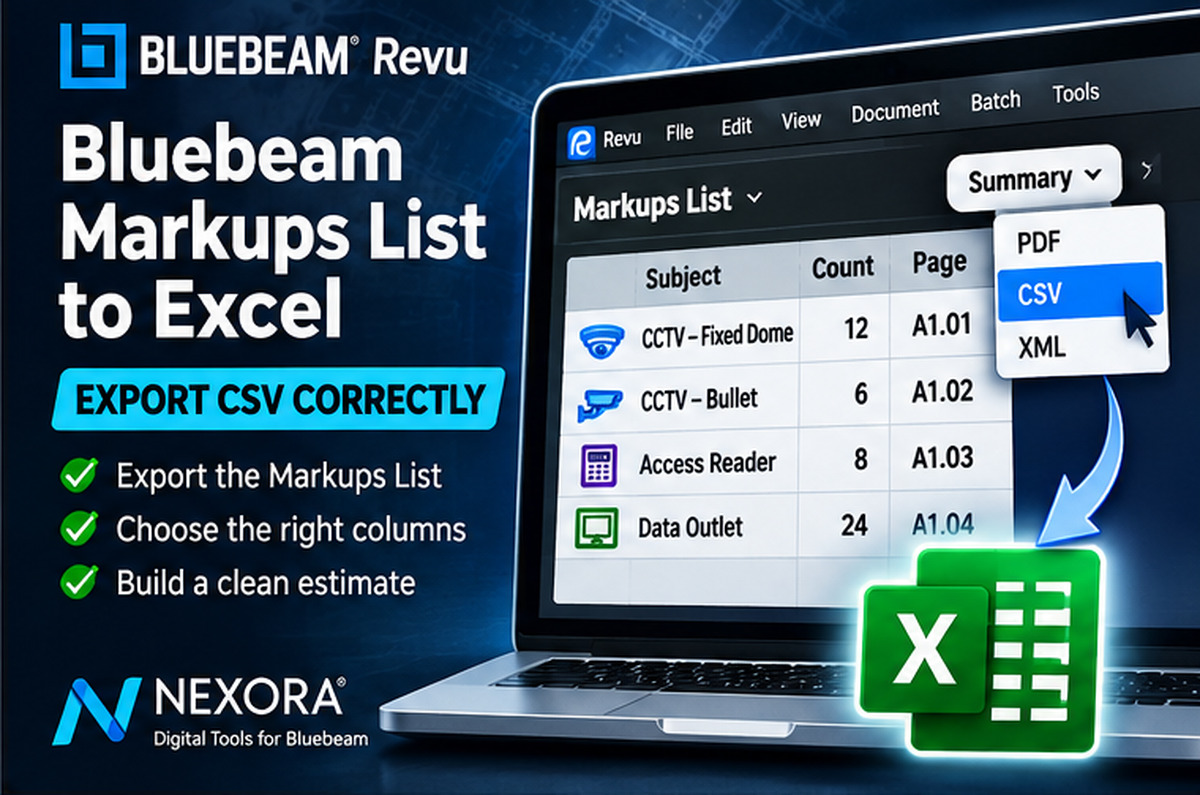
- Select Summary > CSV (the exact wording can vary by version and workspace).
- Choose the drawing files or pages to include.
- Select the relevant Columns, especially Subject, Count, Page and location fields needed by your estimating workflow.
- Review the Filter and Sort settings.
- Choose an output filename and export the summary.
If you only need a client-facing record, you may prefer a PDF summary. For calculations and lookups in Excel, CSV is generally the more useful option.
Step 4: Open the CSV in Excel without breaking the columns
A CSV is plain-text tabular data. Depending on regional settings, Excel may interpret commas, semicolons, decimals or text encoding differently.
Use Data > From Text/CSV in Excel where available, preview the delimiter and data types, and then load the file. Make sure equipment codes have not been converted into dates or numbers, and inspect any measurement columns before calculating costs.
Create a clean working table with columns such as Item Code, Description, Qty, Unit, Unit Cost, Labor Cost, Zone, Total. Keep the original CSV in a separate folder or worksheet so you can audit the transformation later.
Step 5: Check the estimate before quoting
Imagine a project containing three drawing sheets: ground floor, first floor and parking. Your count list includes fixed cameras, PTZ cameras, access readers and data outlets. Before pricing, confirm:
- Every relevant sheet was included in the export.
- Items with similar names have not been combined incorrectly.
- Count quantities and measured lengths are not mixed.
- Alternate options and deleted/replaced devices are not counted as base scope.
- New drawing revisions have not invalidated the previous exported quantities.
This review matters because a CSV export is a snapshot. When the drawings change, export again and compare quantities rather than assuming the old spreadsheet remains current.
A faster path from takeoff to client quote
After exporting, the time-consuming part is often mapping materials, unit prices, labor and overhead into a proposal. If that is your repeated bottleneck, use a dedicated estimating workflow instead of rebuilding formulas for every project.
NEXORA Takeoff & Quote Studio supports Markups List CSV imports and tested Stamp-type BAX annotations. It can help group equipment quantities, calculate material and labor pricing, compare supplier BOMs, and export editable Excel estimates and client-ready PDF quotes. Its BAX support is specifically limited; it is not an automatic drawing-recognition tool and it does not replace final estimate checks.
See the estimating workflow and sample files: https://payhip.com/b/vNM6Z
Official Bluebeam reference: https://support.bluebeam.com/revu/how-to/track-and-manage-markups-using-markups-list.html
This independent guide is not affiliated with or endorsed by Bluebeam.