

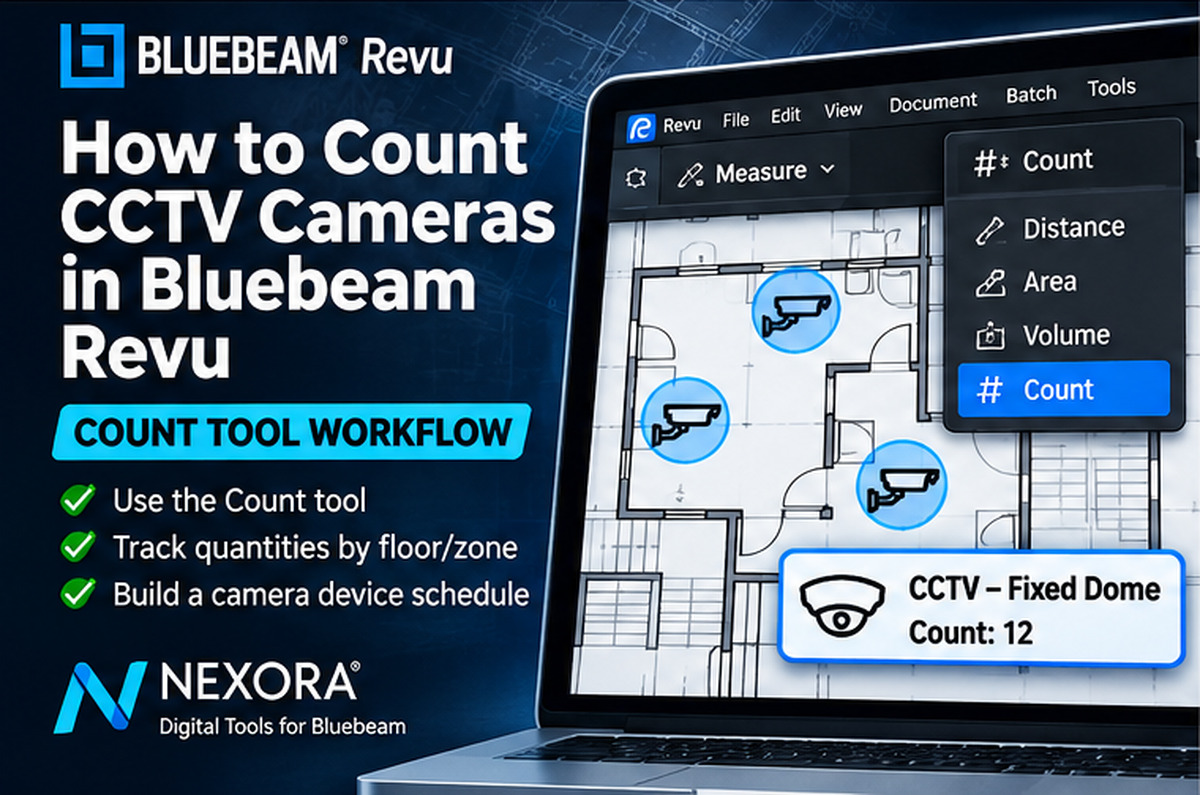
How to Count CCTV Cameras in Bluebeam Revu and Build a Device Schedule
Counting cameras on a drawing is easy until the project includes multiple floors, several camera types, revised plans, and a separate installation schedule. At that point, a collection of visual symbols is not enough. The goal is to produce a traceable quantity, tied to locations and equipment types, that the estimator and installation team can both check.
This workflow uses the Count and Markups List features in Bluebeam Revu. It is designed for CCTV contractors and low-voltage systems integrators.
Step 1: Decide what you are actually counting
Before marking the PDF, separate cameras into categories. A simple project might distinguish fixed dome cameras, bullet cameras, PTZ cameras and specialty cameras. Use the equipment schedule and drawing legend to define the categories rather than guessing from the symbol shape.
Do not combine camera quantities with mounting kits, power supplies, storage devices, switches or cabling. Those items may require different counts, measurements or allowances.
Step 2: Create a manual Count markup
In a compatible Revu plan, go to Tools > Measure > Count. Click each matching camera location, then press Esc when finished.
Use a clear Subject such as “CCTV — Fixed Dome” so the total is understandable in the Markups List. Where appropriate, set the appearance and label in Properties. Bluebeam groups Count markups and can track running totals by page or Space.
Subscription note: Bluebeam identifies Count workflows as features for Core, Complete or Max plans. Check your edition and active entitlement before relying on this workflow.
Step 3: Use Visual Search carefully, if available
For drawings with repeated, identical printed symbols, Bluebeam's Visual Search can find matching appearances and apply Count measurements to selected results. Open Search, select Visual Search, draw a rectangle around the reference symbol, search the document, review the matches and apply Count measurements only to confirmed results.
Do not treat that as guaranteed automatic recognition. Overlapping notes, rotation, differing symbol styles or scanned PDF quality can affect matching. A human should review every page before using the counts in a quote.
Step 4: Group the counts by floor or zone
A building-wide total is useful, but it will not tell an installer which devices belong on a particular level. Use drawing pages and, if your workflow supports them, Spaces to associate markups with areas such as Ground Floor, Level 1, Level 2 or External Perimeter.
For a multi-storey job, the checklist should answer: “How many of each camera type are on this floor?” rather than only “How many cameras are there in the building?”
Step 5: Build a camera schedule
A practical camera schedule may include:
Camera IDLevel / ZoneCamera TypeMounting PointRecorder / SwitchStatusCAM-001Ground Floor / LobbyFixed DomeCeilingTo confirmPlannedCAM-002Parking / EntryBulletWallTo confirmPlannedCAM-003External / GatePTZPoleTo confirmPlanned
The entries above are illustrative, not taken from a real project.
Start with the drawing quantities, then verify the camera identifiers, room labels and equipment assignments against the design documents. A camera schedule should be useful during installation and handover, not just at tender stage.
Step 6: Cross-check before buying equipment
Compare the number of devices in your schedule with the totals in the Markups List. Check for duplicated labels, cameras on superseded drawing sheets, and cameras that moved between rooms or floors. Keep revision dates beside your exported files.
The same approach works for access-control readers, door contacts and network outlets, provided each device type has a consistent naming convention.
Connect your Bluebeam symbols and project records
The NEXORA 96 Bluebeam Revu Low Voltage Tools library includes 32 CCTV tools, 32 access control tools and 32 AV/data tools. The package also includes an Excel Closeout System with a Device Register, CCTV Schedule, punch list and related handover templates. Check whether any individual markup is a Count tool before using it for automatic quantity totals; the library's visual symbols and its Excel tracking templates serve complementary purposes.
See the Bluebeam tools and schedule templates: https://payhip.com/b/Q3gmo
For contractors who also need costs and proposals from supported exported markup data, see NEXORA Takeoff & Quote Studio: https://payhip.com/b/vNM6Z
Official Bluebeam reference: https://support.bluebeam.com/revu/how-to/tips-and-tricks/boost-takeoff-workflows-with-count-tool.html
This independent guide is not affiliated with or endorsed by Bluebeam.