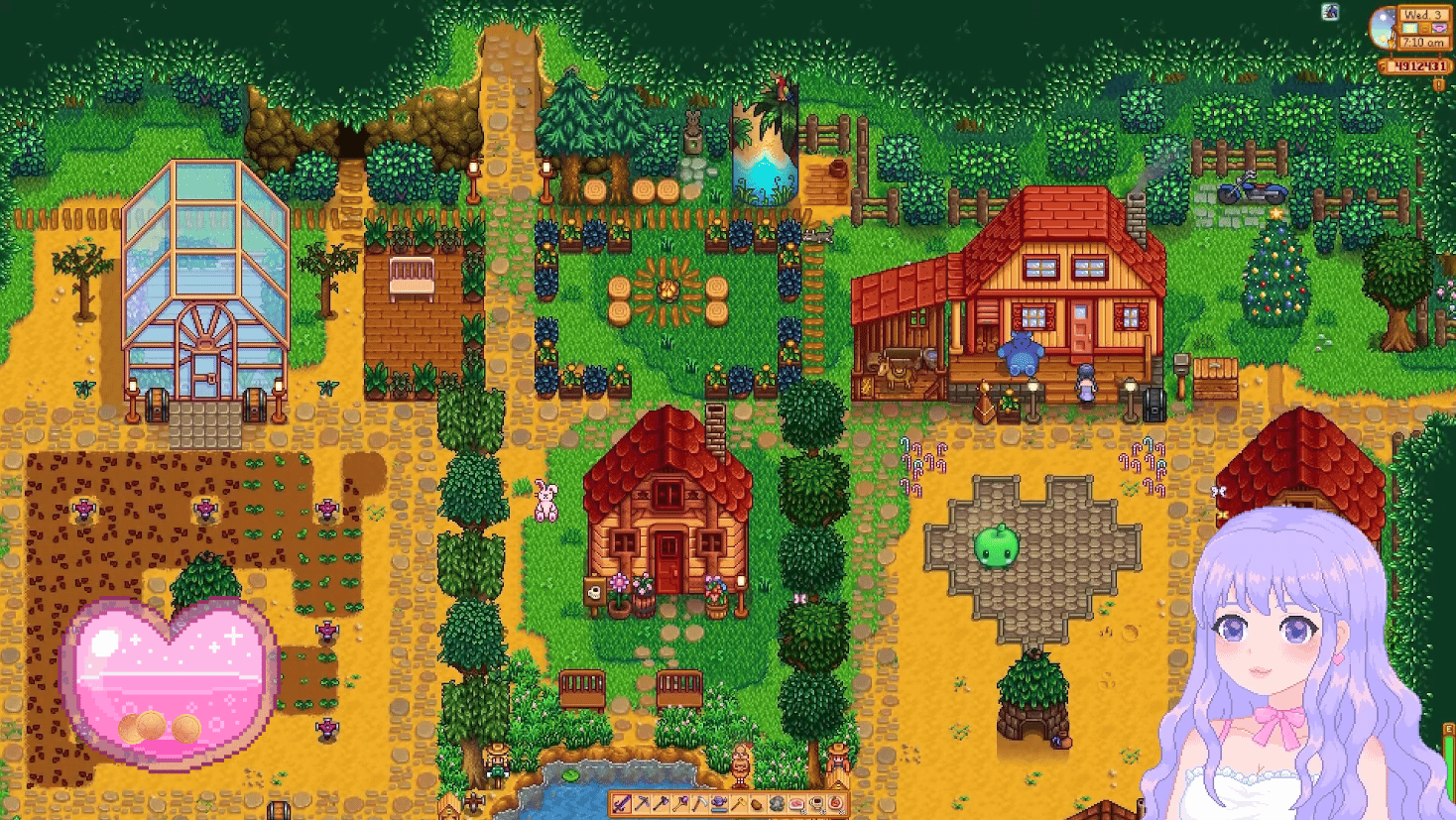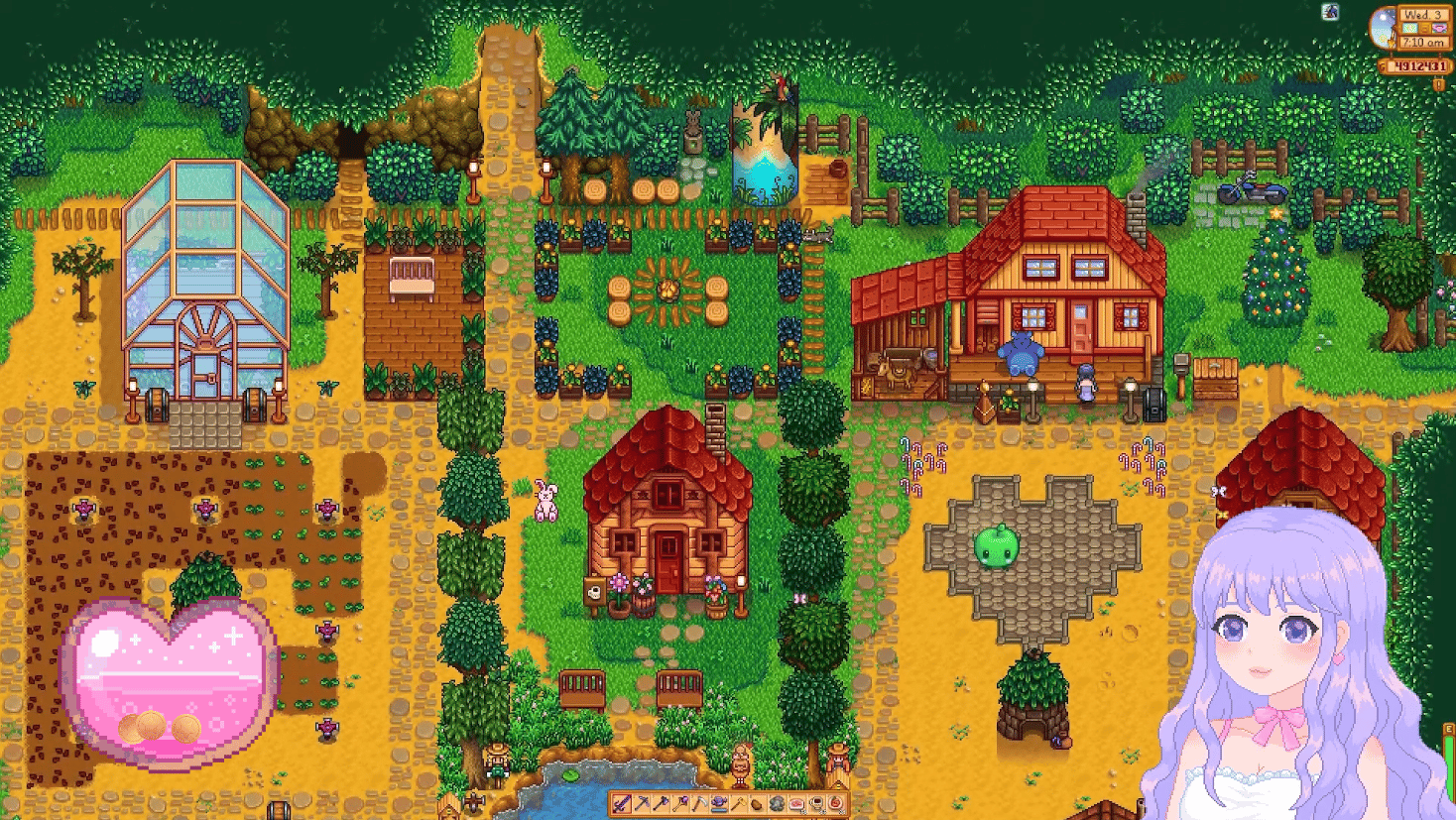
1. Login to Streamlabs. Click on 'All Widgets', then click on 'The Jar' widget.
2. Adjust the settings to your preferences (e.g. set the jar image to 'Whiskey' or 'Bourbon'). Choose a shape that fits well with your custom tip jar overlay.
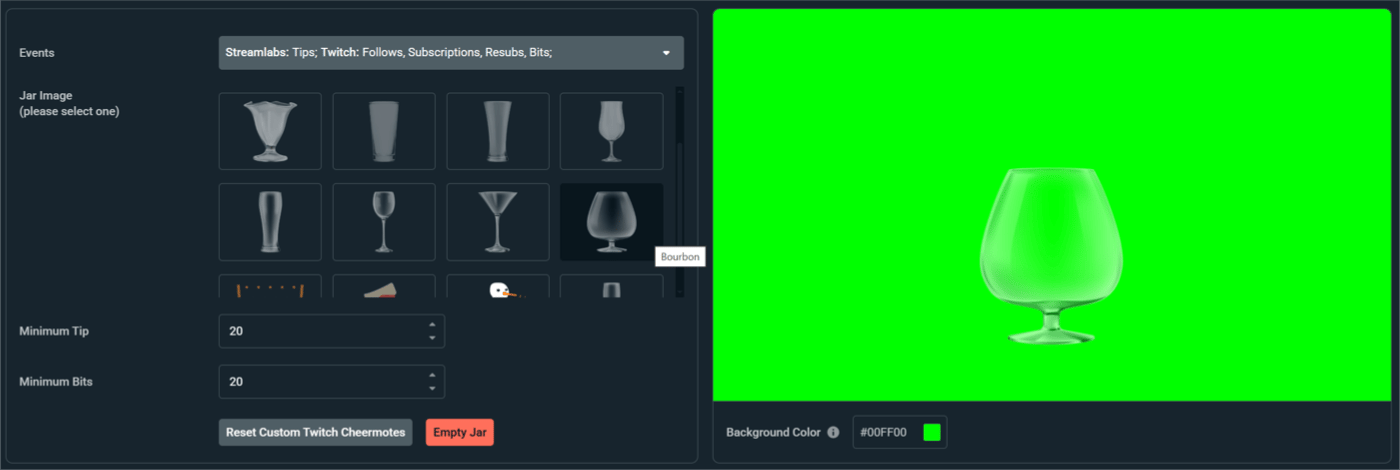
3. Click 'Click to Copy Widget URL'.
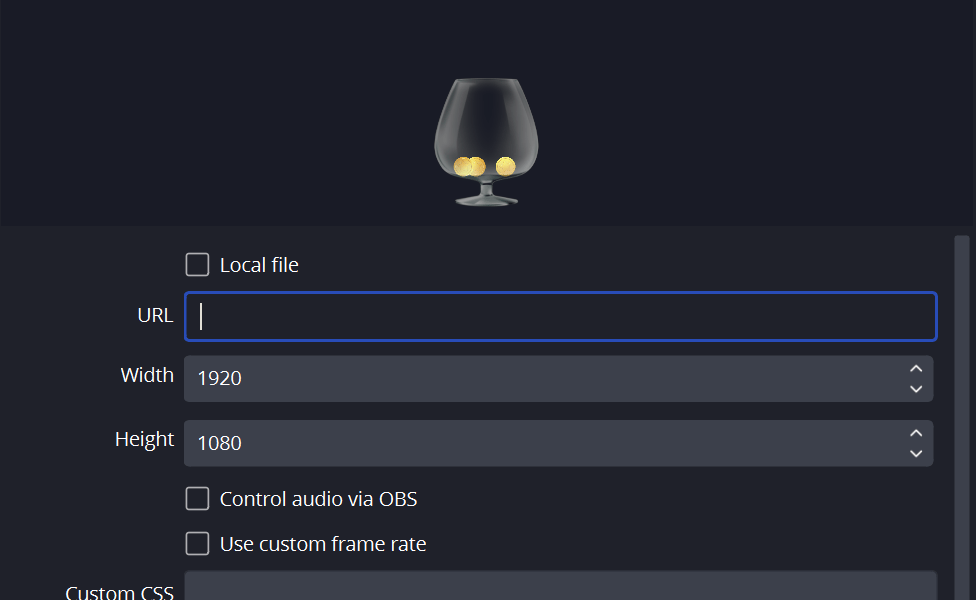
4. Open OBS. Under 'Sources' click the plus icon and add a new 'Browser'. Paste the copied URL into the URL field and click 'OK'.
5. Add your overlay image(s):
- Click the plus icon → Image. Locate your custom tip jar image file.
- If your tip jar has separate images for the foreground and background, add another image source.
- For the foreground image (the part that sits on top of the jar widget in the browser), make sure to check 'Apply alpha in linear space'. This ensures that any semi-transparent areas of the image display correctly.

6. Arrange the source layers: Click and drag the Browser source layer so it is placed below the foreground image layer and above the background image layer.
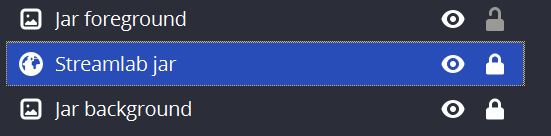
7. Position and size the browser & images to place the tip jar where you want it on your stream.
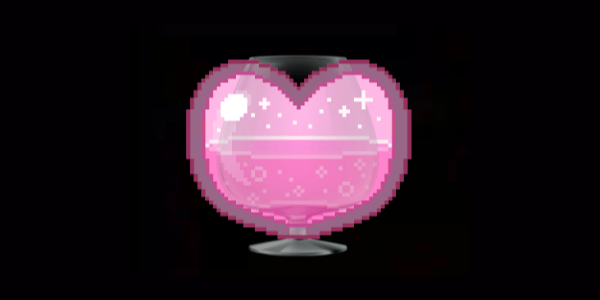
8. Once you’re happy with how the Browser jar widget aligns with your custom image, double-click the Browser source layer. Then under 'Custom CSS' paste the following CSS code:
body { background-color rgba(0, 0, 0, 0); margin 0px auto; overflow hidden; }
#sl__tip__jar > #widget { visibility:hidden; }
This will hide Streamlab's jar image. Click 'OK'.

9. Test the tip jar: Go back to Streamlabs and click Test → Streamlabs → Tips. You should see test coins drop into the jar in OBS.