
Once you have opened a PDF with PyMuPDF, you can easily find out how many pages it contains.
1. Using page_count
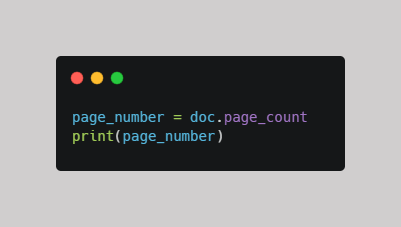
The page_count property returns the total number of pages in the PDF.
Here, the number of pages is stored in the variable page_number, and print() displays it.
For example, if the PDF contains 44 pages, the output will be:
44
2. Using len()
You can also use Python's built-in len() function:
len(doc)
This returns the total number of pages in the PDF as well.
For example:

Example Output:
44
Key takeaway
Both approaches give you the number of pages:
doc.page_count
or
len(doc)
Complete Example
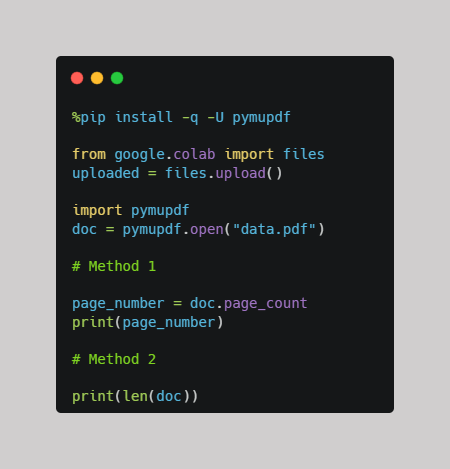
Note: Before running the following code, make sure that the pymupdf package is installed, that your PDF file (data.pdf) has been uploaded to your Google Colab environment, and that you know how to open the PDF file using PyMuPDF.
-Want to learn how to install the pymupdf package in Google Colab?
Check out this mini-guide: How to Install PyMuPDF in Google Colab.
-Want to learn how to upload your PDF file in Google Colab?
Check out this mini-guide: Uploading Files in Google Colab.
-Want to learn how to open your PDF file in Google Colab using PyMuPDF?
Check out this mini-guide: Open Your First PDF with PyMuPDF
Open the notebook
Open the Google Colab notebook for this PDF mini-guide and run the code as you follow along.
Ready to put this into practice? Check out the Python and PDF resources in our store.
Comments ()