
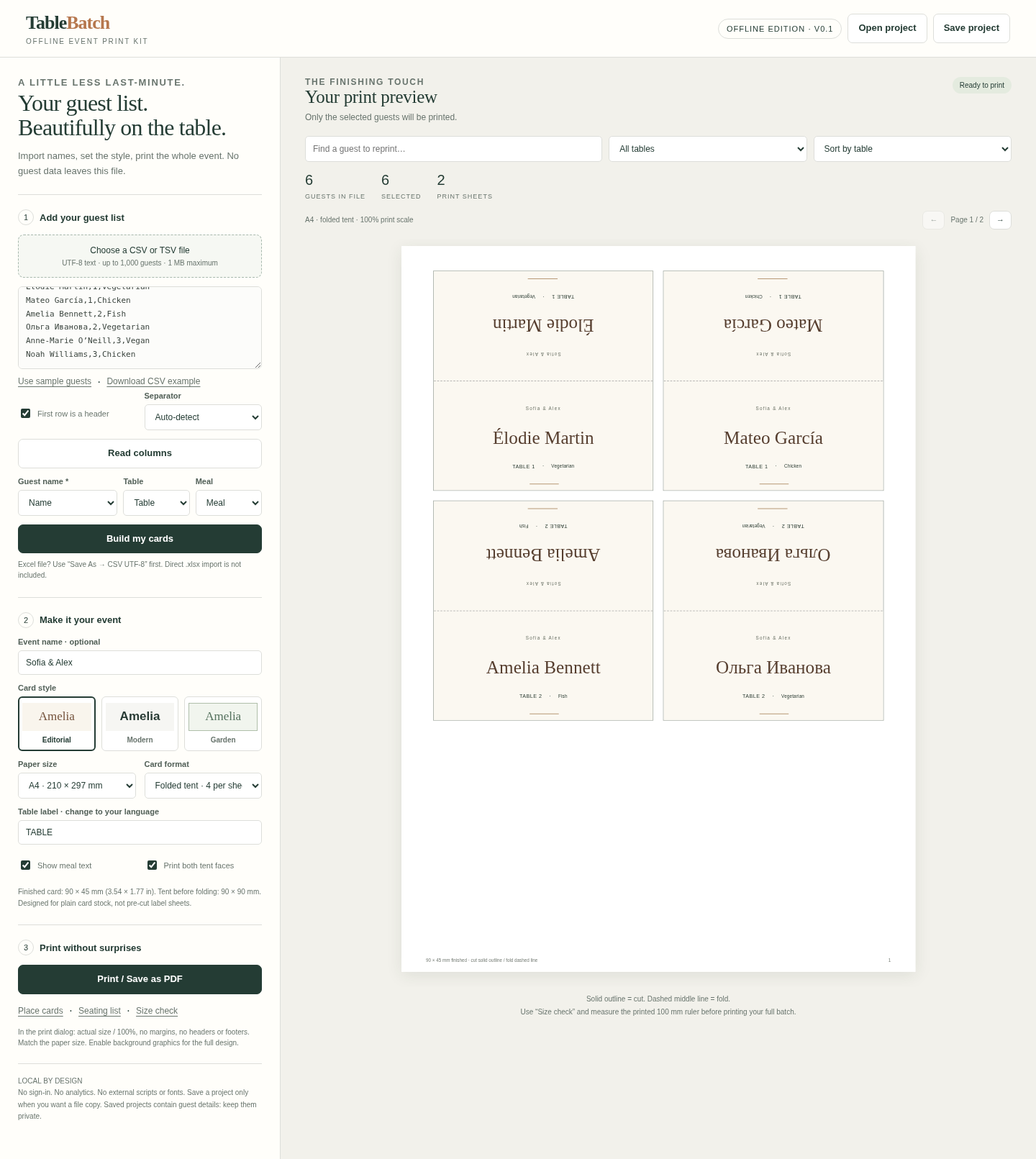
A guest spreadsheet already contains the names and table numbers you need. This guide shows how to turn those rows into a batch of flat or folded place cards with TableBatch, then reprint a single guest after a last-minute change.
TableBatch is our downloadable desktop-browser tool. You can try the workflow before buying: open the product page below and click Preview. The free ZIP includes a six-guest demo, a sample CSV and a folded-card PDF example. Extract the ZIP and open TableBatch-demo.html locally. Demo printouts have a watermark.
Try the free Preview or get TableBatch
1. Prepare three simple columns
Need a starting spreadsheet? Download our free Excel guest list and seating planner. It covers 200 confirmed guests and 20 tables, checks table capacities and includes a blank CSV template. Use it on its own, then export columns A–C as CSV UTF-8 when you are ready to print cards.
Use one guest per row. Name is required; Table and Meal are optional. For a small practice list, paste this fictional example into the app:
Name,Table,Meal
Alex Morgan,1,Vegetarian
Sam Rivera,1,
Jamie Chen,2,Vegan
If your list is in Excel, save a copy as CSV UTF-8 first. TableBatch reads CSV and TSV text files; it does not open .xlsx files directly. Start with the sample rather than a real guest list while learning the controls.
2. Import and map the columns
Open the local TableBatch HTML file in a compatible desktop browser. Choose your CSV/TSV file or paste the rows into the guest-list box. Leave “First row is a header” checked for the example above, then click “Read columns”.
Select the Guest name, Table and optional Meal columns. Click “Build my cards”. Review the guest count and names before continuing. If you change the source text, read the columns and build again; the old preview is not the updated list.
3. Choose the paper and card layout
Choose one of the three styles, then A4 or US Letter and flat or folded cards. A finished card measures 90 × 45 mm. A folded tent starts as a 90 × 90 mm piece before folding. Each sheet holds ten flat cards or four folded tents.
These layouts are for plain card stock. They do not match pre-cut label sheets. Check long names and accented characters in the preview, and choose card stock your printer supports.
4. Check the scale before printing a batch
Use “Size check” first. Match the paper size in the browser print dialog, choose 100% scale and turn off headers and footers. Enable print backgrounds for the full design. Measure the printed ruler: it should be 100 mm long.
Then use “Print / Save as PDF”. In Safari, the macOS print dialog offers PDF → Save as PDF. Inspect every page before printing. The solid outline is the cut guide; the dashed middle line is the fold guide.
The current release received local-file and representative PDF checks in macOS Safari; the original build also passed Chromium checks. Physical printers and Edge have not been tested, so the size check matters for your own setup.
5. Reprint one changed guest
Correct the row in your source list, then read the columns and rebuild. Type the guest’s name into “Find a guest to reprint…” or select a table. Confirm the Selected count and preview before printing. Clear both filters when you want the full batch again.
“Save project” stores the guest details and design settings in a local JSON file. “Open project” restores it later. Keep that file private: it contains your guest list, just as an exported PDF does.
Try the free demo or get the full edition
The free preview supports six guests and watermarked card printouts. The full TableBatch edition supports up to 1,000 guests per project and includes the seating-list view, examples and printing instructions. It costs €19 once, plus applicable tax at checkout.
TableBatch formats a guest list you have already arranged; it does not choose seating assignments. The application processes the list locally. The storefront and checkout are separate online services.
Try the free Preview or get TableBatch
For product or download support, contact info@nordic.expert. Please do not send guest lists.