

Getting your child their first phone? These 7 checks take about an hour on iPhone or Android.
They cover the 3 things that matter most: who can reach your child, what they can download, and what to do when something goes wrong.
You don't need to be good with tech. You need the new phone, your own phone and a quiet evening.
It's easier to start with limits and loosen them later than to take things away. The American Academy of Pediatrics suggests that a first phone starts with the basics, like calls, texts, maps and the camera, with more added as your child shows they're ready.
A first phone doesn't have to mean social media.
You're not alone in this. In the US, about 6 in 10 parents of 11- and 12-year-olds say their child has their own smartphone, according to an October 2025 Pew Research Center survey. And 68% of parents of children 12 and under said kids should be at least 12 before they get one.
Check 1: Make the "open-door" promise
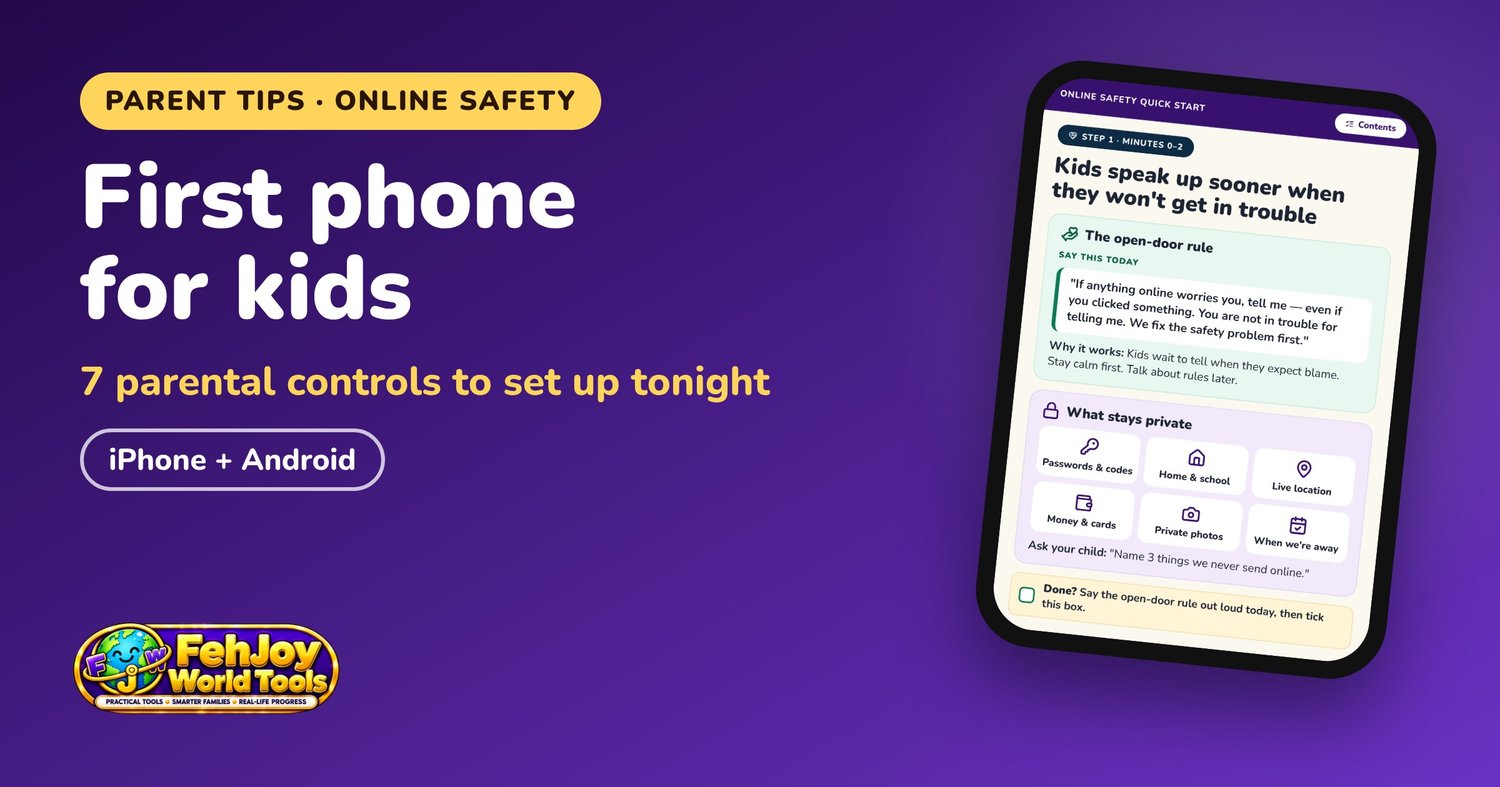
Before you touch any settings, say this out loud: "If anything online worries you, even if you clicked something you shouldn't have, tell me. You won't be in trouble for telling me."
Kids often hide online problems because they're afraid of losing the phone. This promise means you hear about problems early. No setting can do that.
Check 2: Set it up as a child's phone
- iPhone: add your child to Family Sharing as a child. On your own iPhone, go to Settings › Family › Add Member. Every iPhone setting below then lives in Settings › Family › [your child's name].
- Android: set up Google Family Link and link your child's Google account. Family Link lets you approve apps, set screen time and see where the phone is.
- Both: use your child's real birth date. Some protections switch on automatically based on age.
Check 3: Choose who can contact them
- iPhone: Allowed Contacts › During Screen Time › Contacts Only. Then use Manage Contacts to add family and approved friends.
- Android: in Family Link, open your child's account › Controls › Contacts, calls & text. Add your approved contacts, then set Allowed calls & texts to "Only contacts I add". Your child can ask to add a new number, and you approve it. This works on Android 14 or newer, in Google's own Phone and Messages apps. On many Samsung phones, first make Google Messages and Google's Phone app the default apps, because these limits only work there.
- Both: these limits don't cover chat apps like WhatsApp. Approve each chat app yourself (Check 4), then open its privacy settings and limit who can message your child.
Check 4: Setup to check before you approve every download and purchase
- iPhone: Apps & Websites › Restrictions › Ask to Buy, then turn on Require Purchase Approval. You'll get a request on your phone before anything new is downloaded or bought.
- Android: in Family Link, turn on approvals for apps and Google Play purchases. This covers purchases made through Google Play's own payment system, not every way an app can take money.
Check 5: Turn on filters and safety warnings
- iPhone: Content & Privacy Restrictions sets age ratings for apps, movies and music. Apps & Websites › Restrictions › Filtering limits adult websites. Then check that Communication Safety is on. Apple turns it on by default for children under 18. It's designed to blur photos and videos that may contain nudity, warn your child and offer ways to get help.
- Android: in Family Link, choose which sites Chrome allows and turn on SafeSearch.
Check 6: Set phone-free times
- iPhone: Screen Time Schedule sets quiet times, like bedtime. Time Allowances sets a daily limit for games and other apps.
- Android: set a daily limit in Family Link. Then use Downtime for sleep and School time for class hours.
The AAP suggests phone-free time before bed. One simple family rule helps a lot: phones charge outside bedrooms at night.
Check 7: Teach 3 rules and pick a family code word
- Codes and passwords stay private, even from friends. A "friend" asking for the code that just arrived on your phone is a common way accounts get stolen.
- Pause before you pay, click or download.
- Strange or scary message? Stop and tell a grown-up.
Then pick a family code word that's never posted online. The US Federal Trade Commission warns that scammers can clone a family member's voice to fake an emergency. If anyone calls saying they're family and in trouble, ask for the code word, or hang up and call back on the number you already have. Teach the grandparents too.
Bonus: Write it down together
A short family agreement turns these rules into something your child helped make. The AAP recommends a Family Media Plan. Keep it to a few rules, sign it together and check it again in a month.
Quick answers
What's the right age for a first phone? There's no single right age. Readiness is more about skills than birthdays: does your child tell you when something feels wrong, stop when asked, and keep passwords private?
Will parental controls let me read my child's messages? Not with the built-in controls. Google says Family Link doesn't let parents read messages or listen to calls. Controls are a safety net. The open-door promise is the real safety system.
Do these steps work outside the US? Yes, in most countries. Apple's and Google's controls are widely available, though a few features vary by country and language. If you can't find a setting, type its name into the phone's Settings search bar. For emergencies, use your own country's emergency number.
Will these menus look the same next year? Probably not. Phone menus change often. These steps were checked against Apple's and Google's help pages in October 2026. The iPhone steps match iOS 27. Older iPhones use some older names, like Downtime instead of Screen Time Schedule.
Do this in 10 minutes, together
Our free Online Safety Quick Start walks your family through it on your phone: the open-door rule, locking the main account, checking one app, practicing "Is this real?" with fake messages and voices, and making a family plan with a code word. Get the free Quick Start
Want every step done for you? The Family Online Safety Toolkit ($7.99, 64 pages) adds step-by-step setup for iPhone, Android, Roblox, Discord and ChatGPT, 27 practice cards by age, and calm "get help now" plans for scams, hacked accounts and pushy strangers. See the toolkit
More Parent Tips
- How to Remember What You Study: A 10-Minute Method for Kids and Teens
- How to Use ChatGPT & AI for Beginners: Practical Before-and-After Prompts for Busy Parents
Written by the team behind FehJoy World the family video page followed by more than 550,000 people. This article gives general safety guidance, not legal or professional advice. If someone is in danger, call your local emergency number.
Sources
- Pew Research Center: How Parents Describe Their Kids' Tech Use (Oct 2025)
- American Academy of Pediatrics: Getting Your First Phone
- Apple: Use parental controls on your child's iPhone or iPad
- Apple: About Communication Safety
- Google: Set up your child's contacts
- Google: Manage supervision with Family Link
- Google: Family Link updates, School time and contacts
- FTC: Family emergency scams
Comments ()