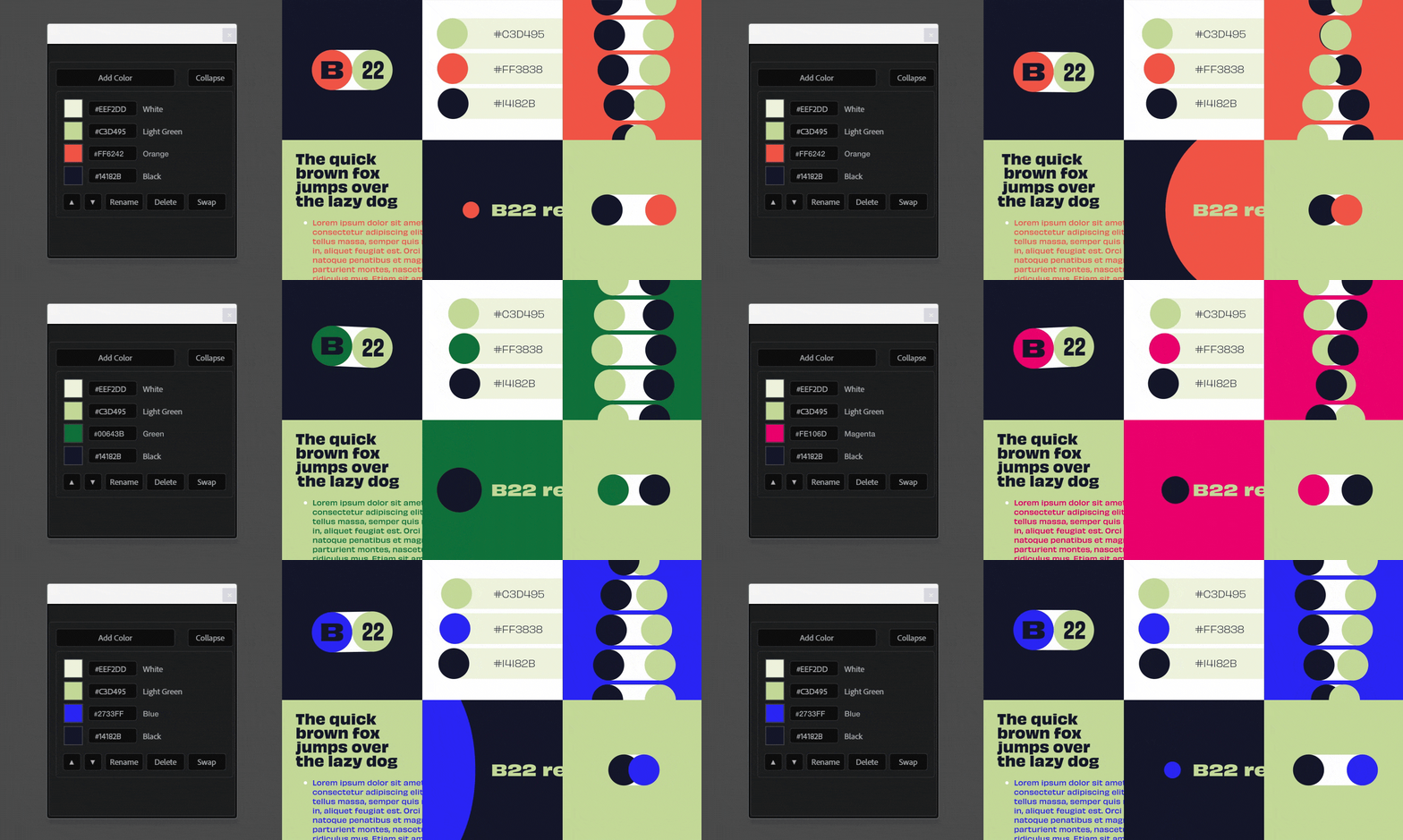
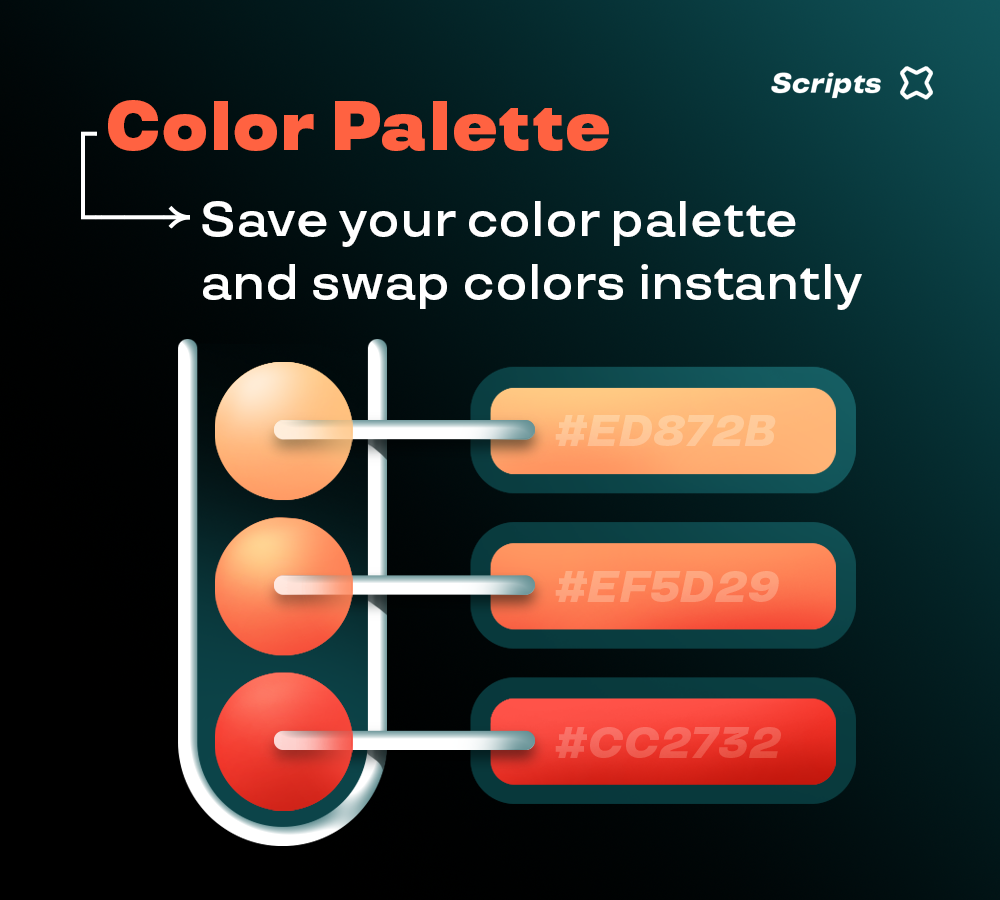
Click Add Color to save a new color to your palette.
Once your palette is set, click Collapse to display only the colors and reduce the UI footprint.
After selecting a color, use the buttons at the bottom to:
- Move it up or down in the list
- Rename it
- Delete it
- Swap it
When you click Swap, the color picker opens and asks you to choose a new color.
After selecting the color and clicking OK, you can decide whether to replace the original color:
- Only in the current composition.
- Across the entire project.
If you choose the entire project, the script scans every composition and automatically replaces the color wherever it’s used, including shapes, solids, strokes, text, and effects.