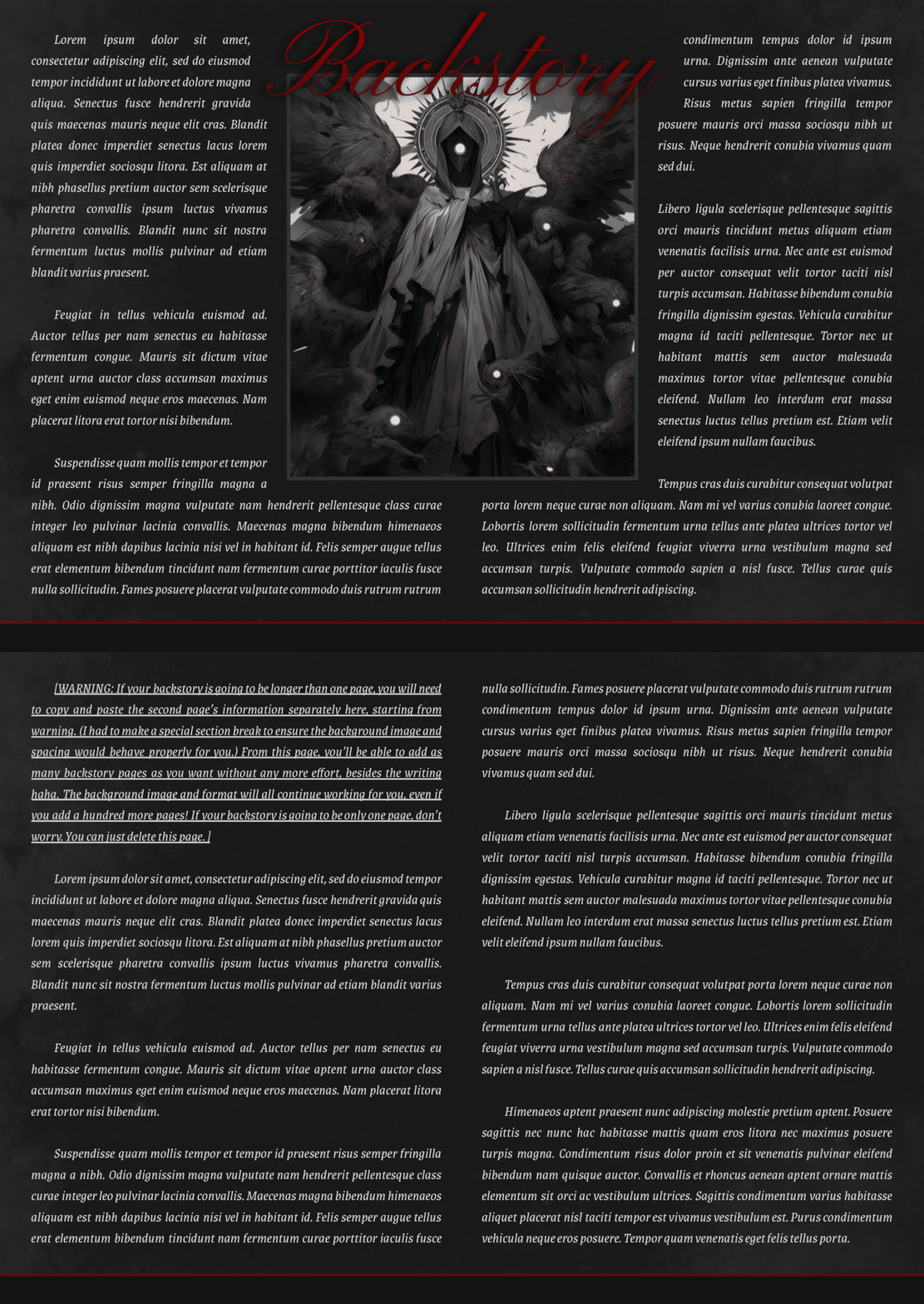


Crimson Caster
THE WEAVE REMEMBERS EVERYTHING
Arcane. Ambitious. Transformed.
Blood-marked. Rune-etched. Fate-touched.
For those who reach beyond mortal limits.
DESCRIPTION:
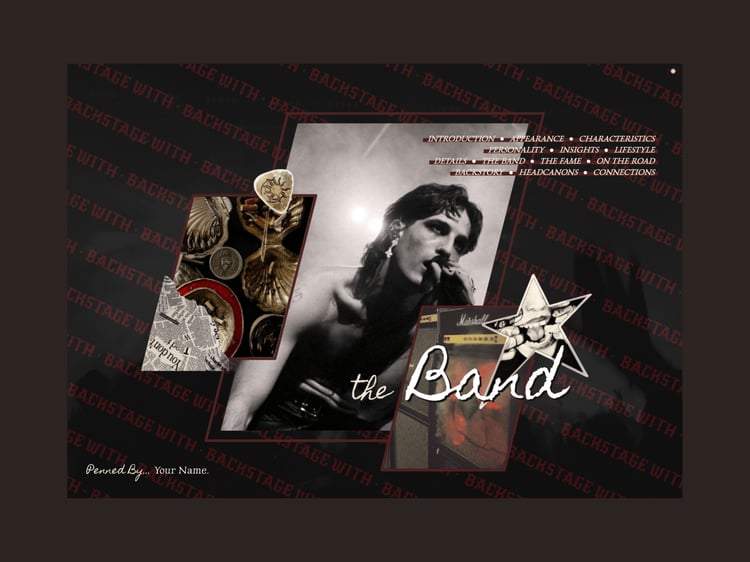
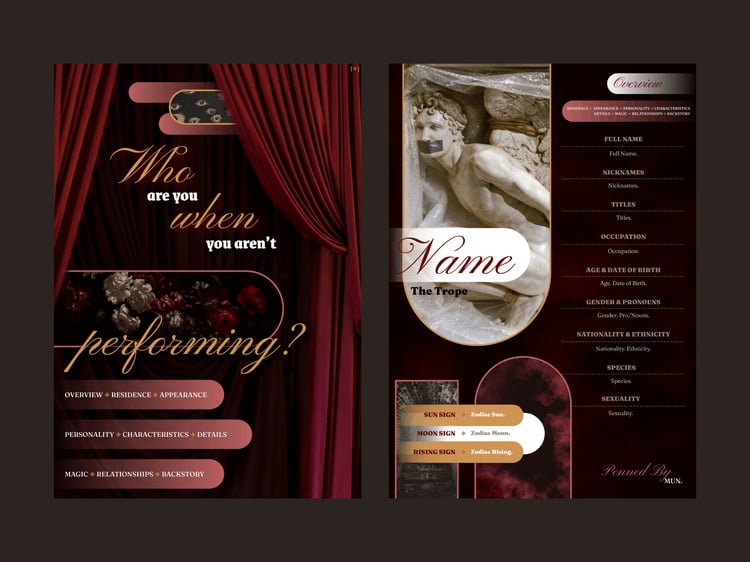
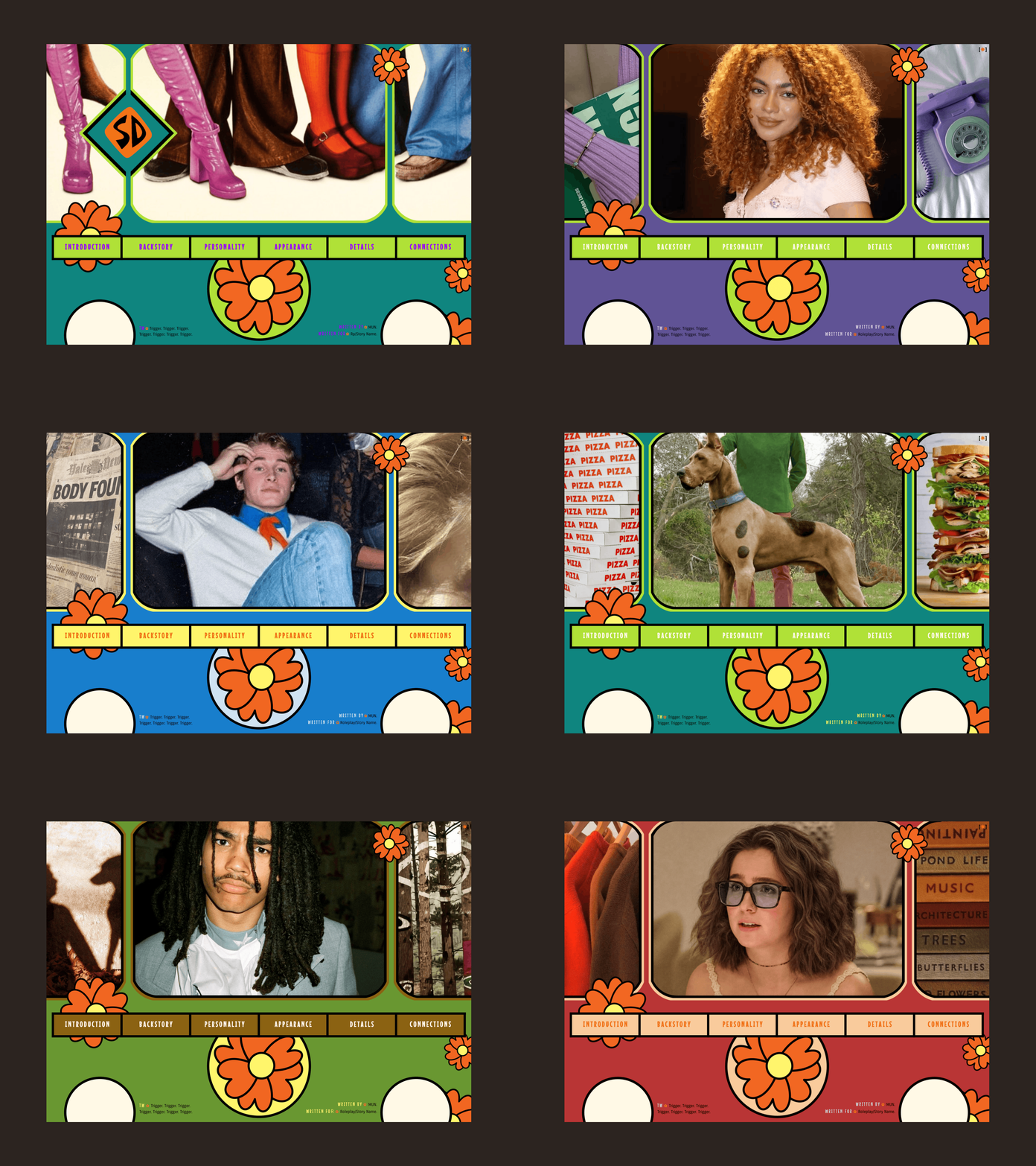
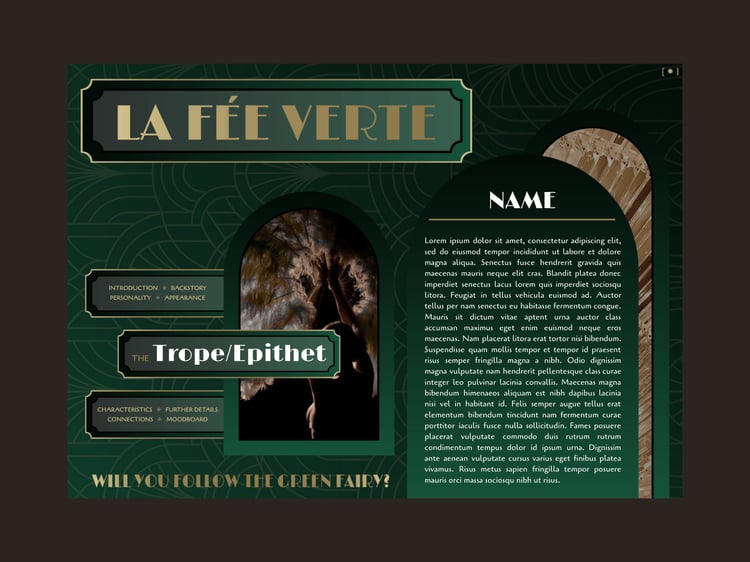
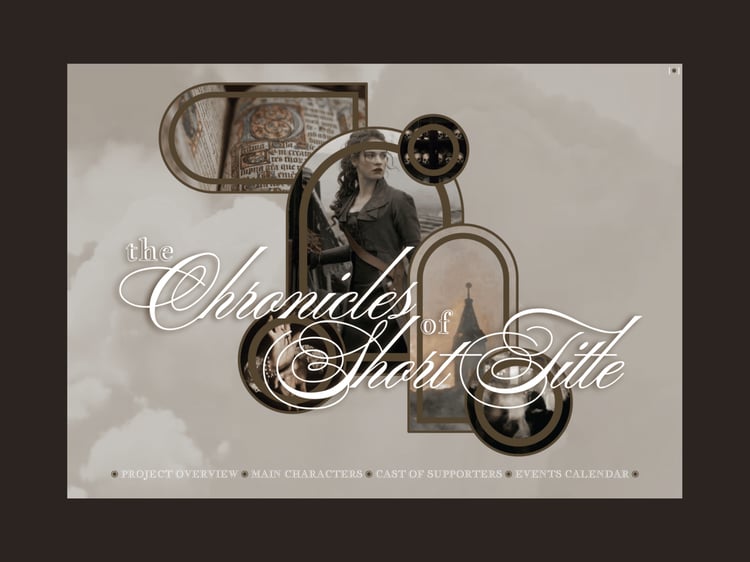
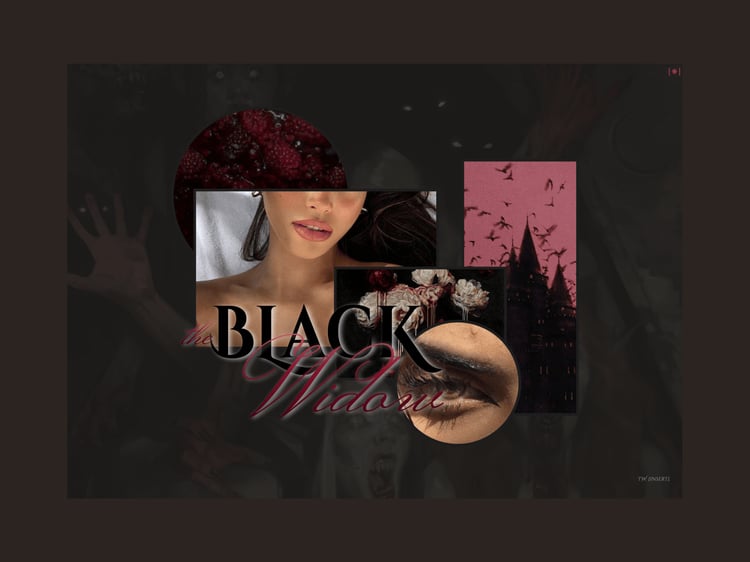
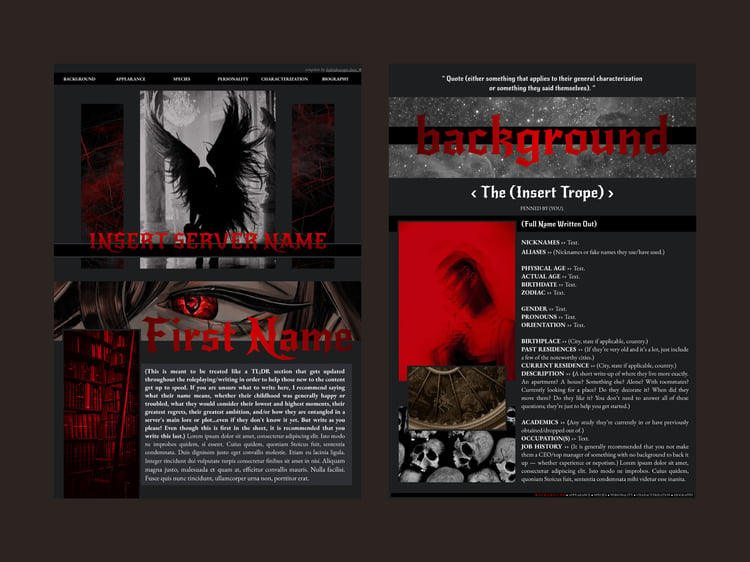
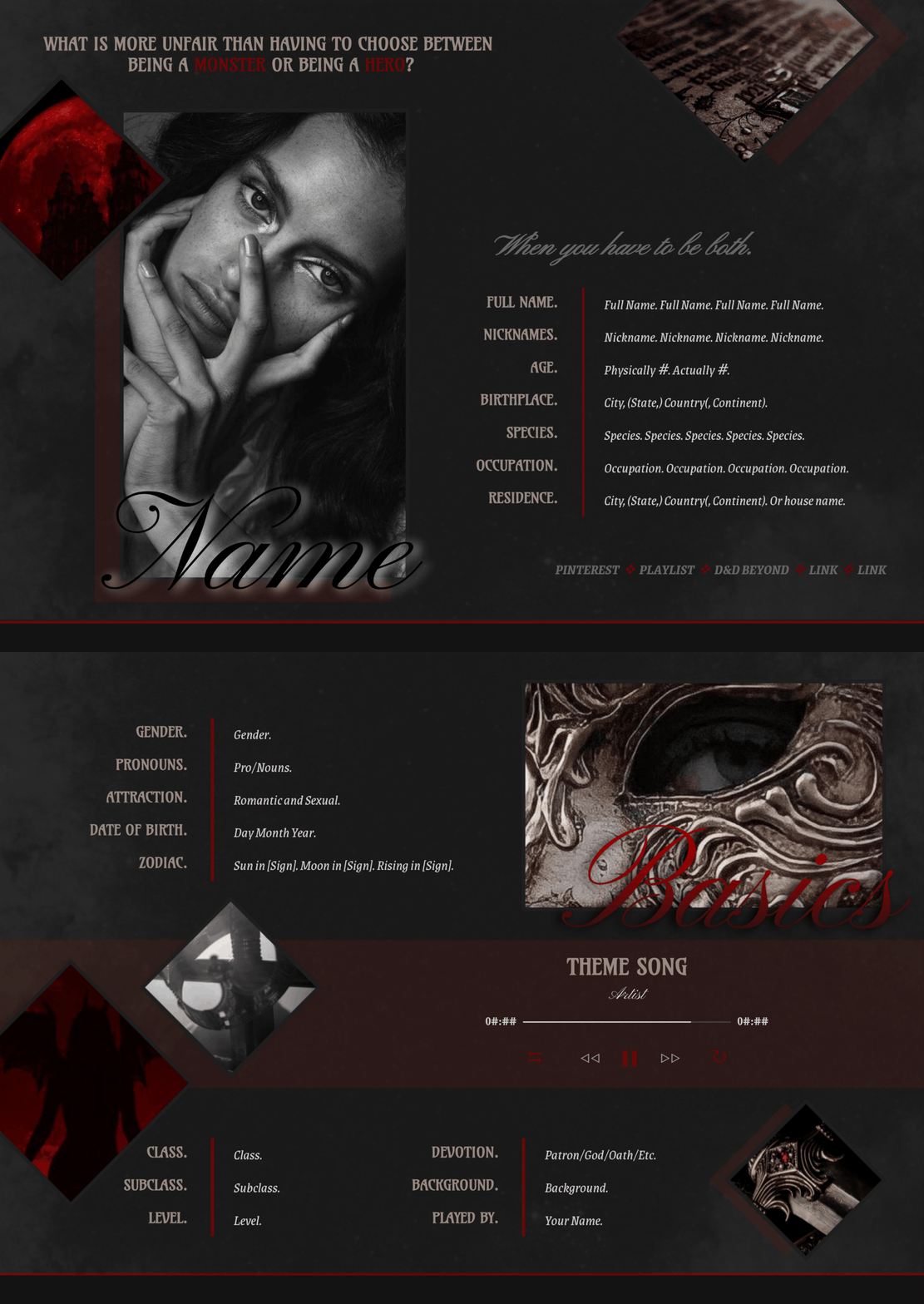
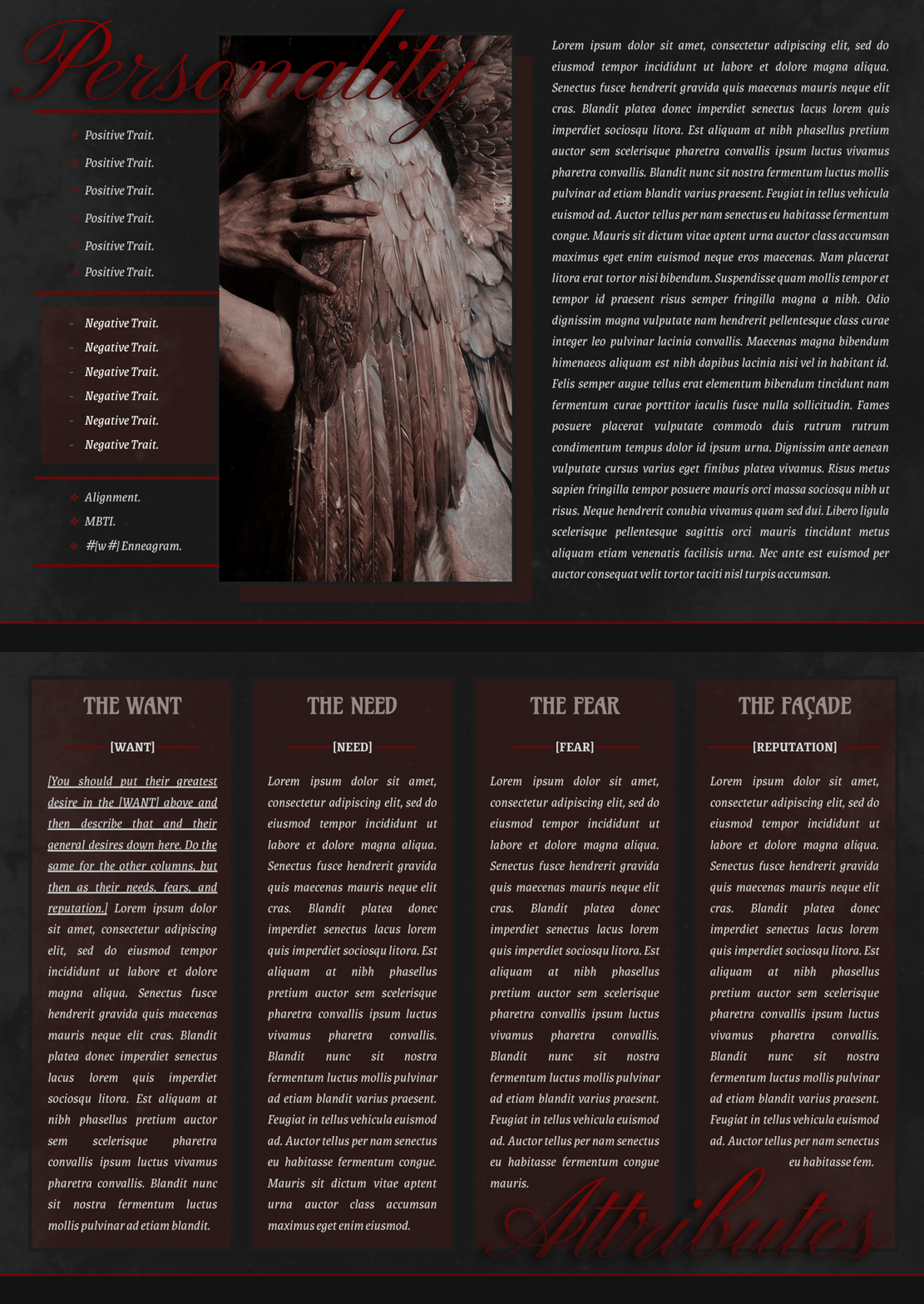
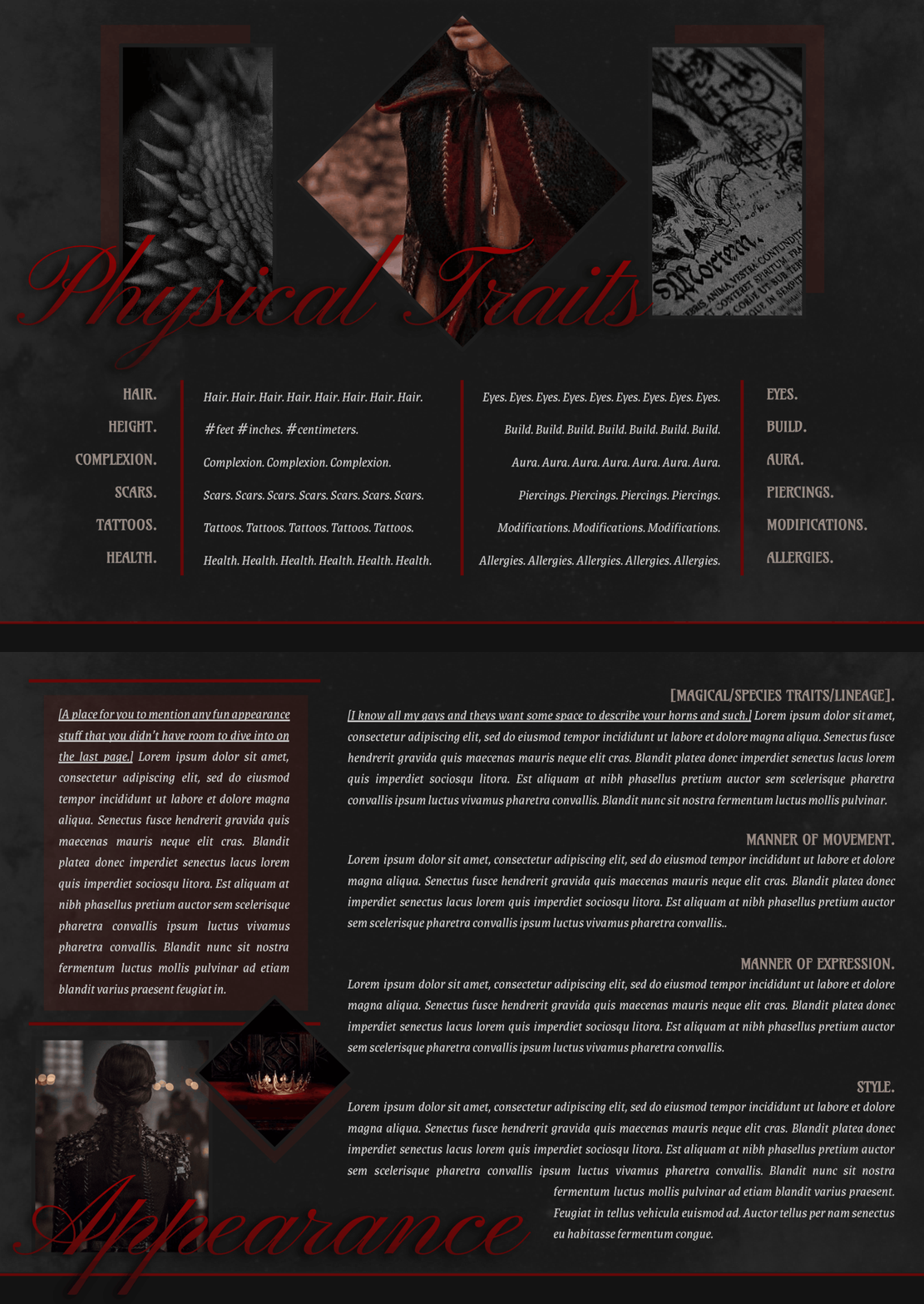
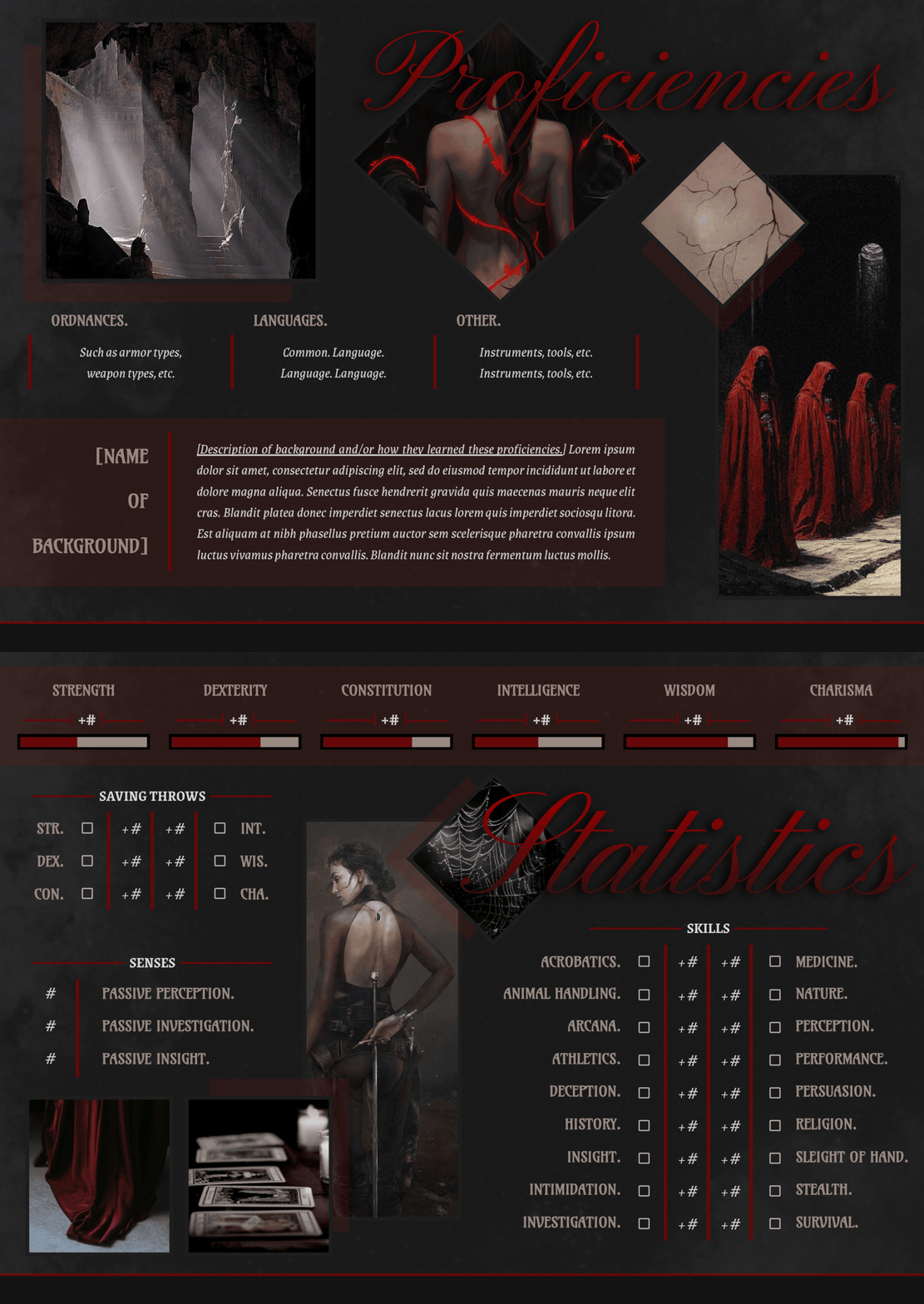
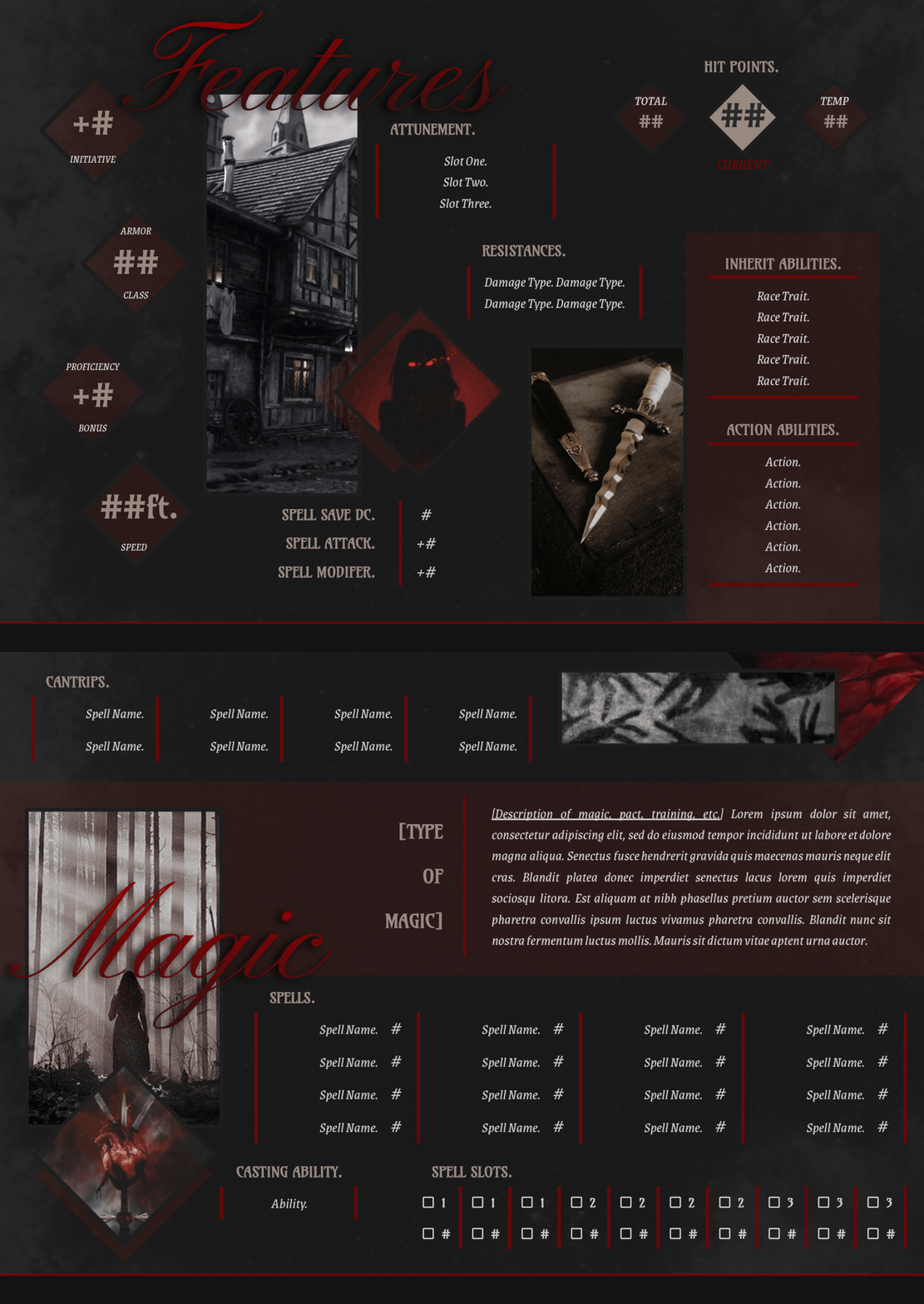
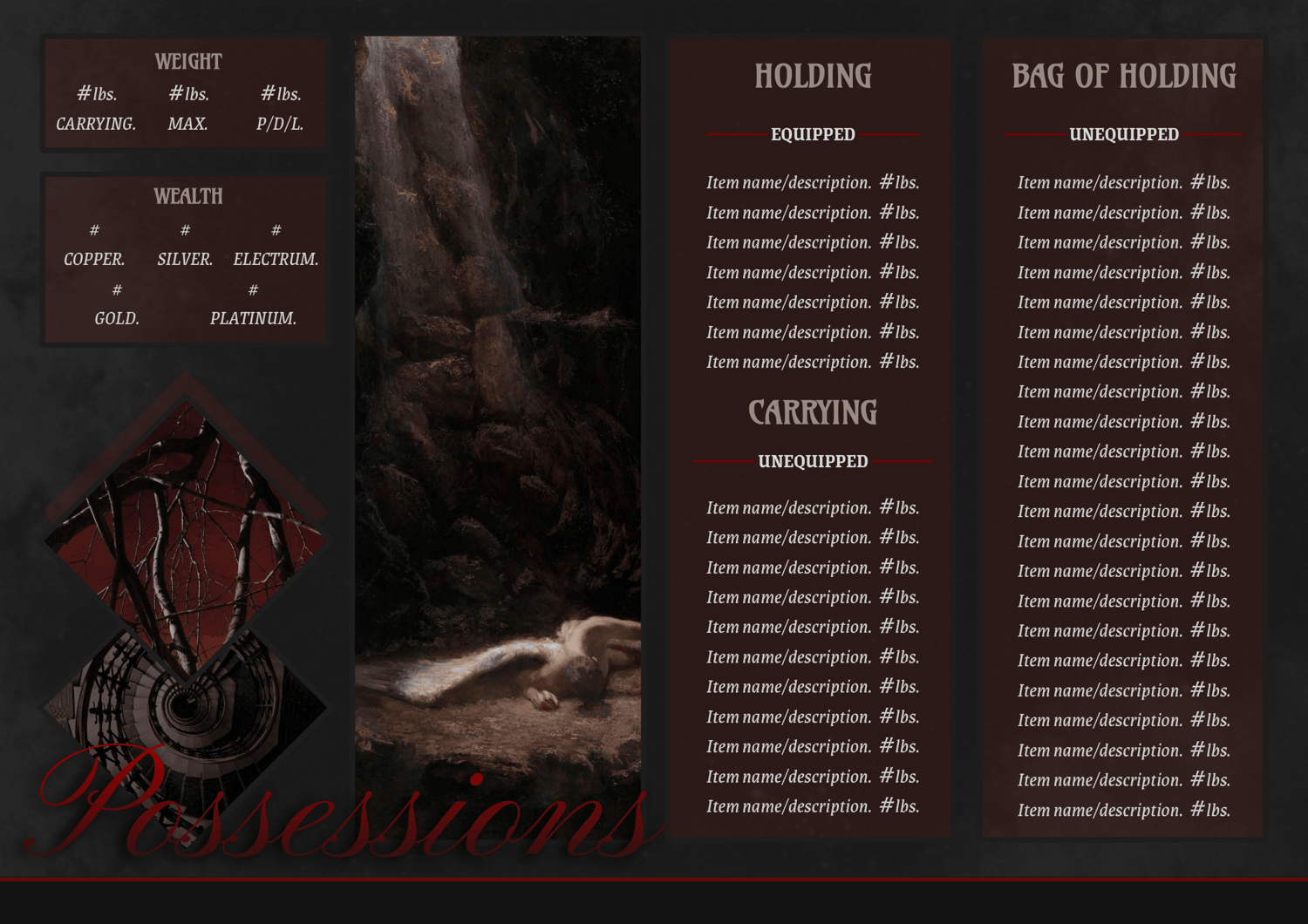
This fourteen-page Google Doc template for a single muse is designed with a D&D spellcaster in mind! It's meant to be a compendium to your other sources that will have all of the RAW for you, with a focus on the deep characterization of your cutie pie in order to roleplay them as thoroughly as can be. When I originally made this for a character of mine, it was actually insane how much it helped me better understand her and thus play her better. I loved it! Although perhaps a bit tedious to do, this can be changed to any color or vibe that would better fit your adventurer!
Complexity Level: This one is a bit more complex if you're editing the aesthetic, but simply adding your own info will be a breeze!
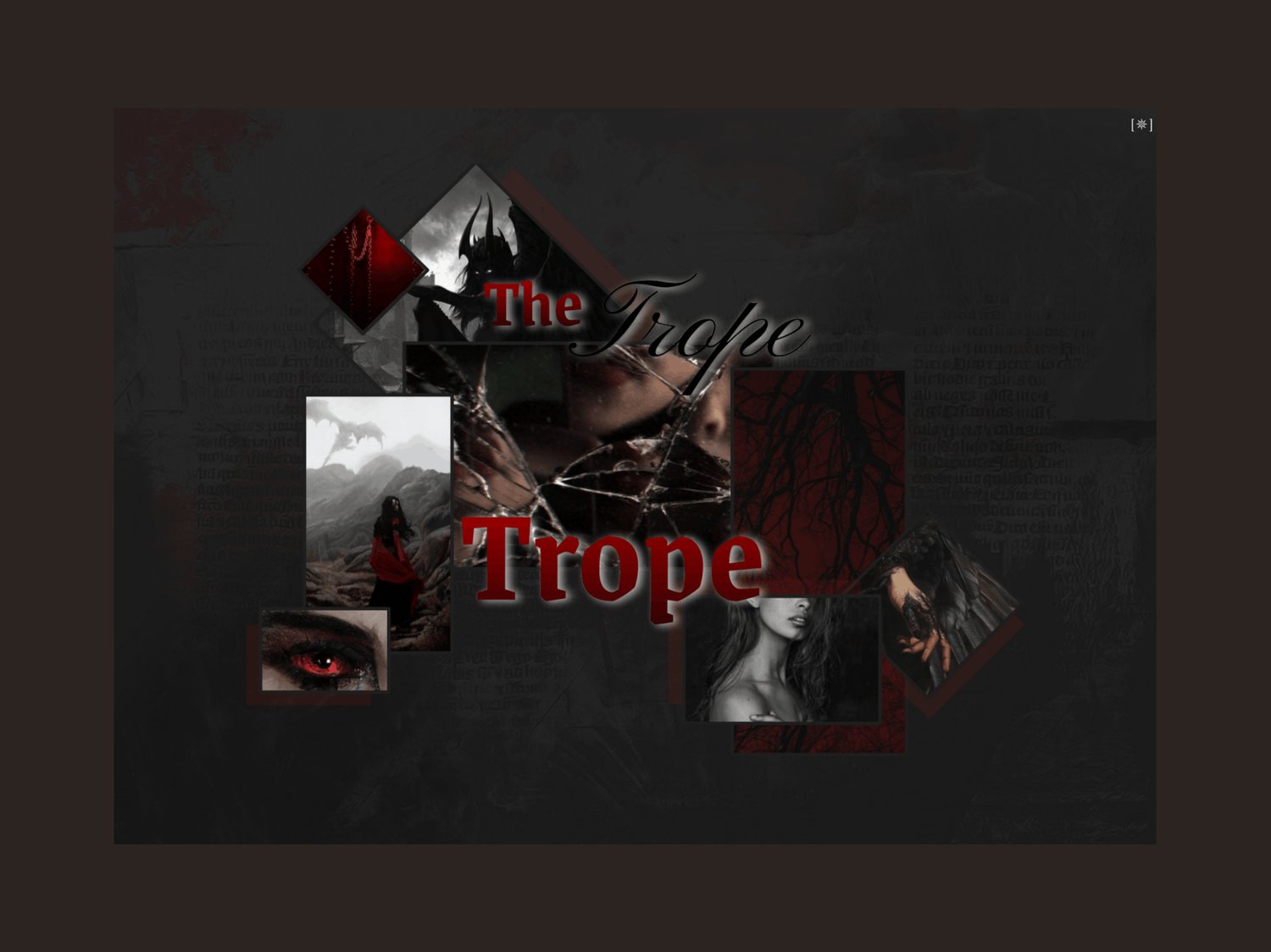
Page Order: Front cover, introduction, basics, personality, attributes, physical traits, appearance, proficiencies, statistics, features, magic, possessions, and backstory x2.
(Should I go back and add a relationships page too?)
Drawings: Yes.
Elements: Warm tones, red/maroon, black & white, cream/tan, gray/grey, supernatural, Dungeons & Dragons, D&D, TTRPGs, and royalty. Lots of room to write!
NOTES:
- All purchases are subject to my usage agreement.
- Reminder: do not remove the linked emoji [✵] and credit link [template by kaleidoscope docs ✵] that direct to my Tumblr or store.
- I am happy to provide editing tips for Google Doc templates in general, as well as specific feedback when contacted for help. Kindly note that I have a set of policies on how to use my templates, such as what edits, sharing, etc. are permitted. I even have details on how I use and protect your data. These important things can all be found on this page.
- The faceclaim pictured here is Zoe Barnard.
YOU WILL RECEIVE A PDF CONTAINING:
- A link to the template's Google Doc for copying into your own account
- Instructions on how to make your own copy and protect it properly
- Usage instructions, tips, and troubleshooting/support options
- And a few more helpful bits!