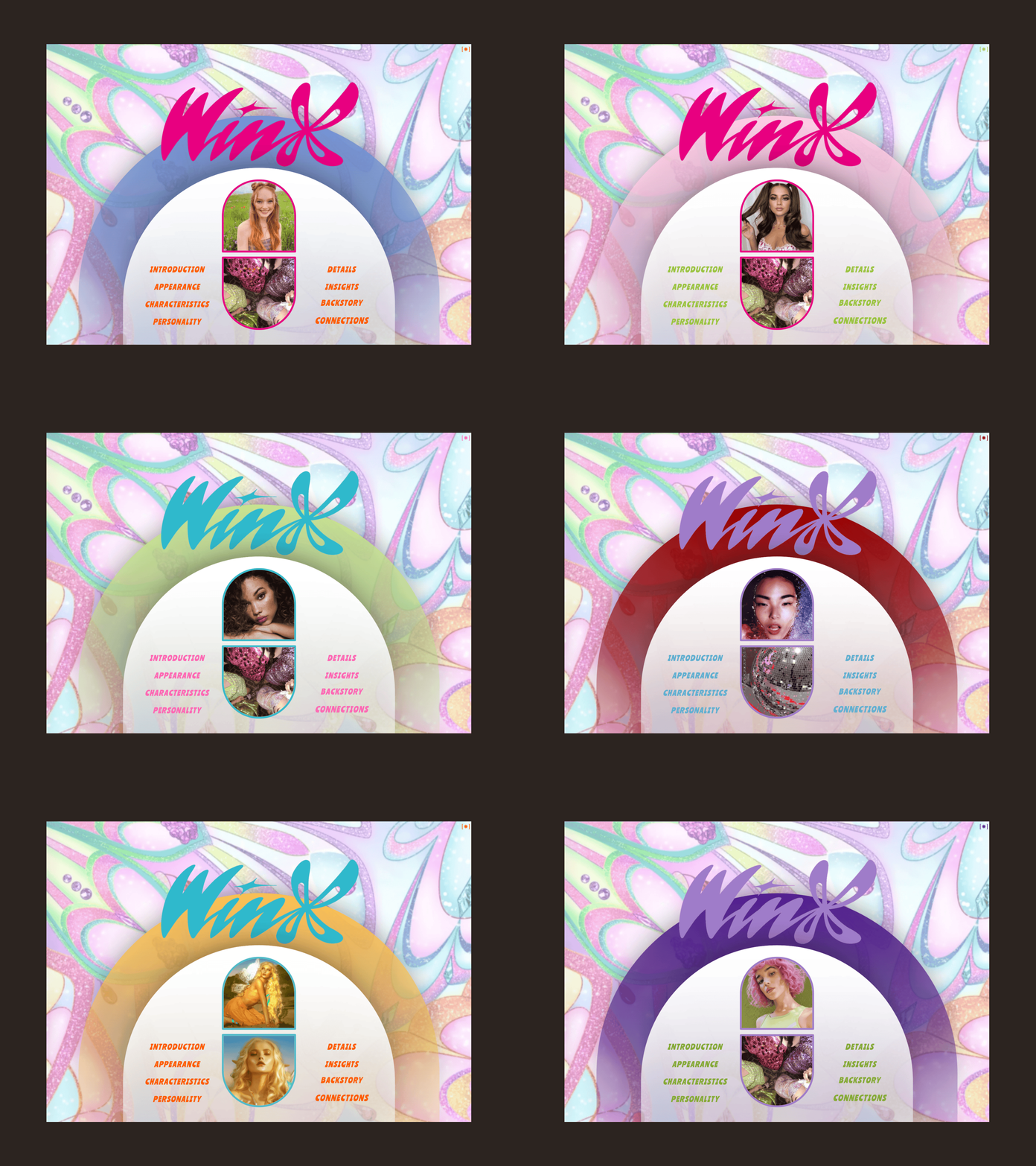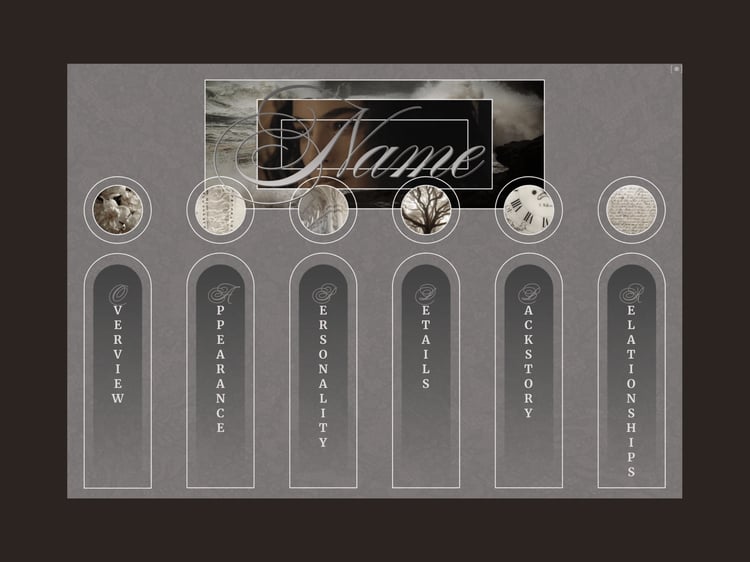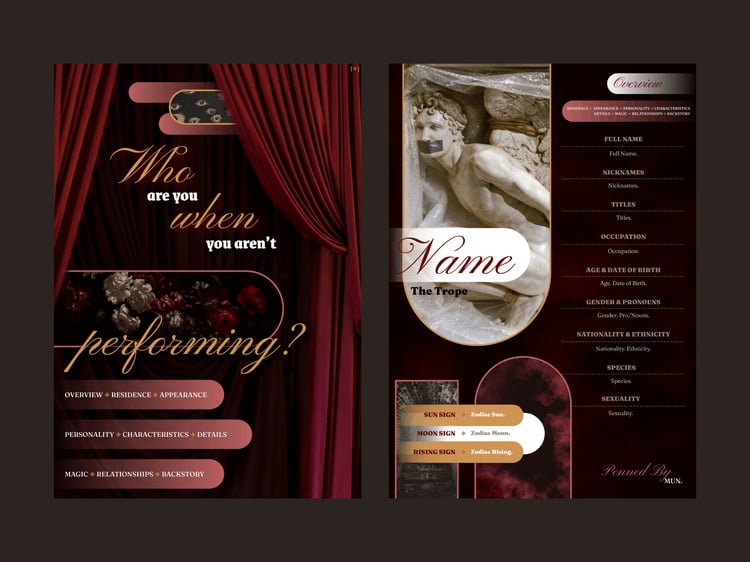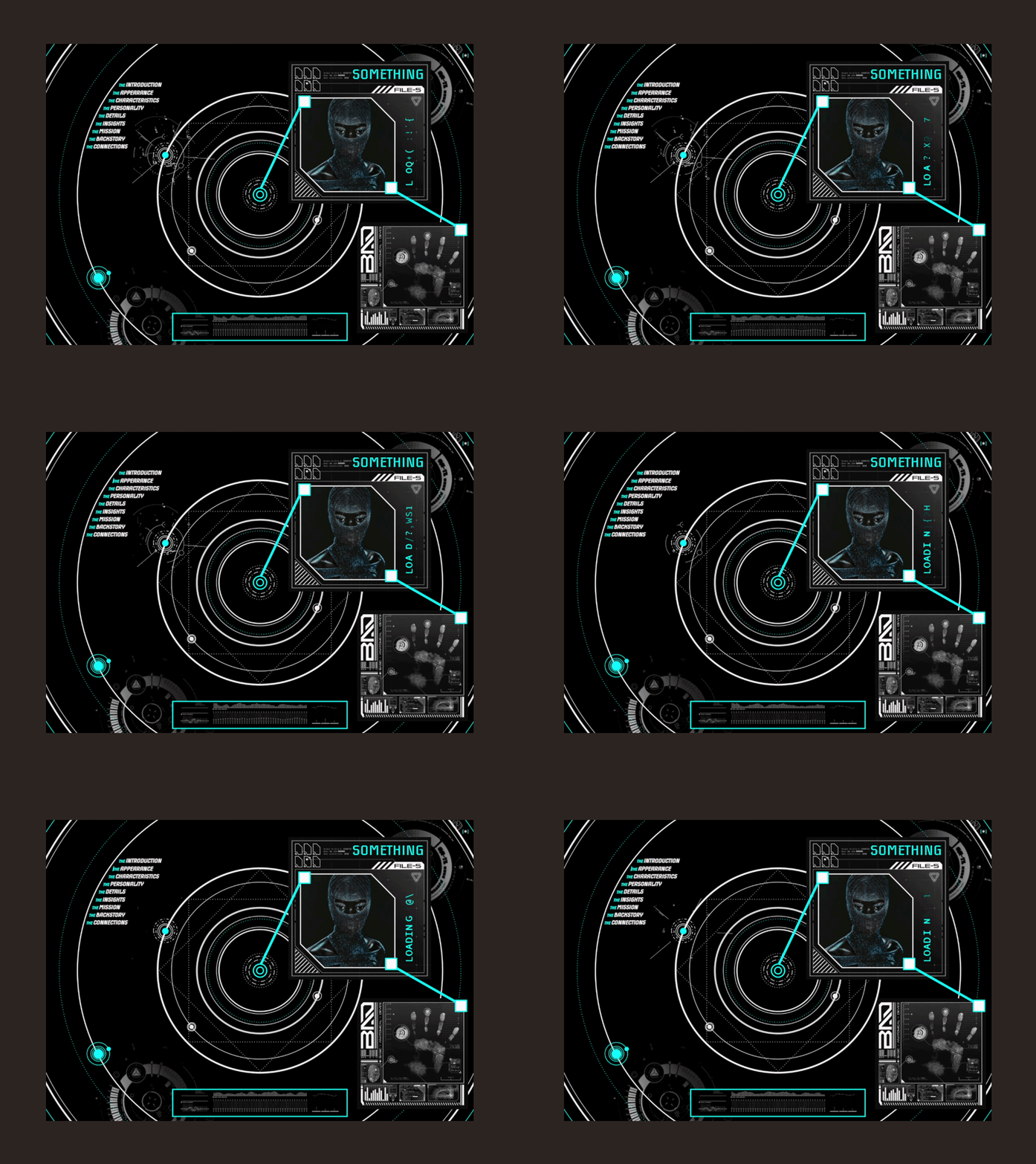





Taupe Tracker
PINNING DOWN THE POINT OF EVERY PLOT
Organized. Flexible. Comprehensive.
Cast lists. Timelines. Big reveals.
A hundred moving pieces. One story taking shape.
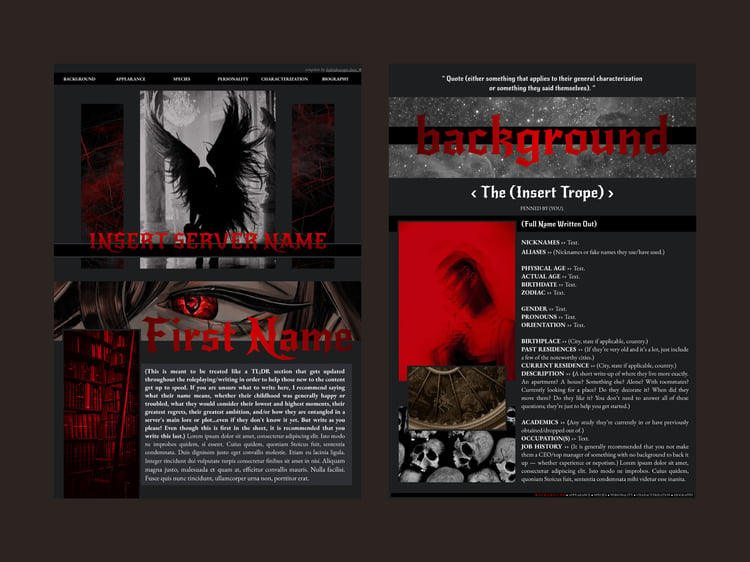
DESCRIPTION:
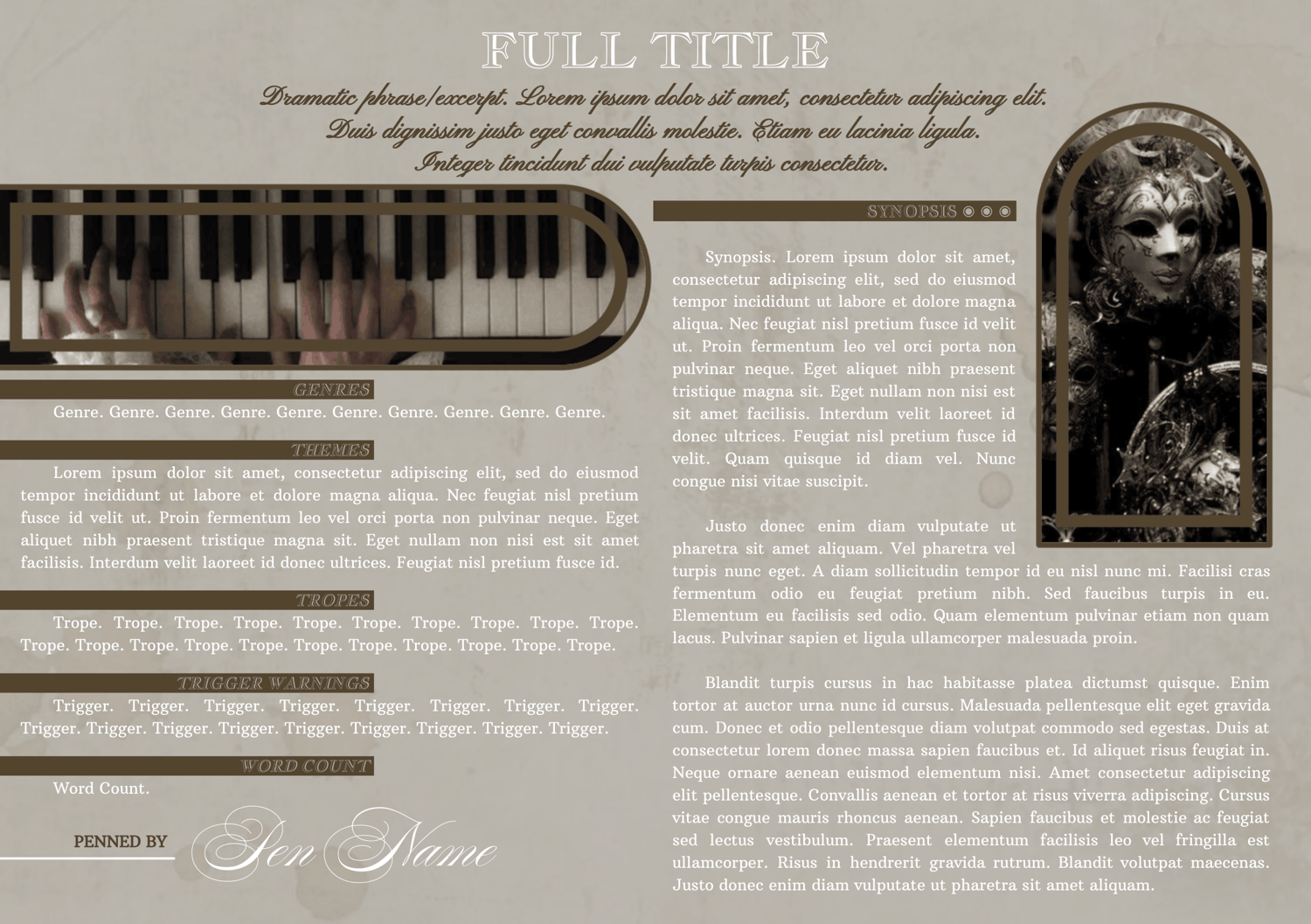
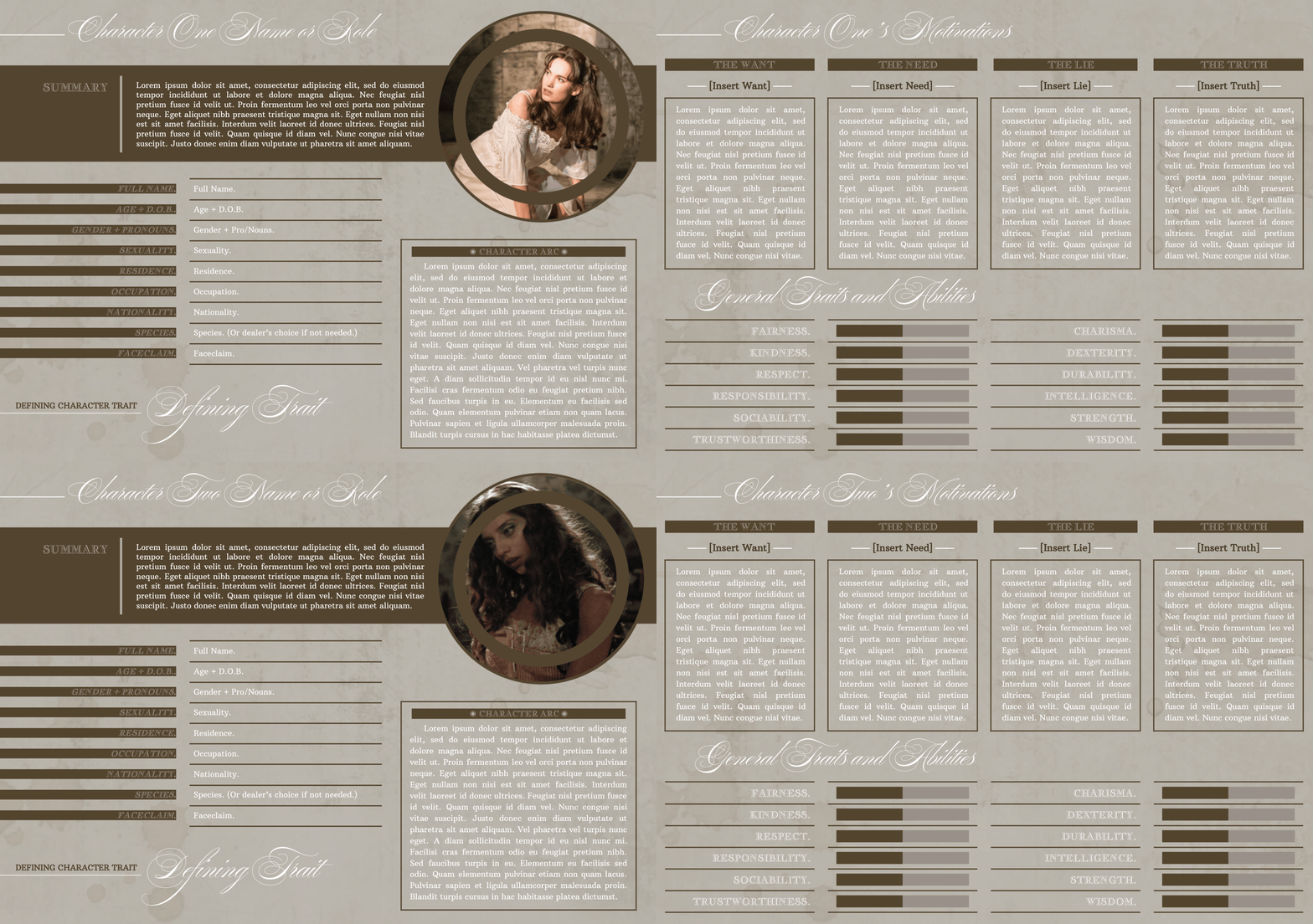
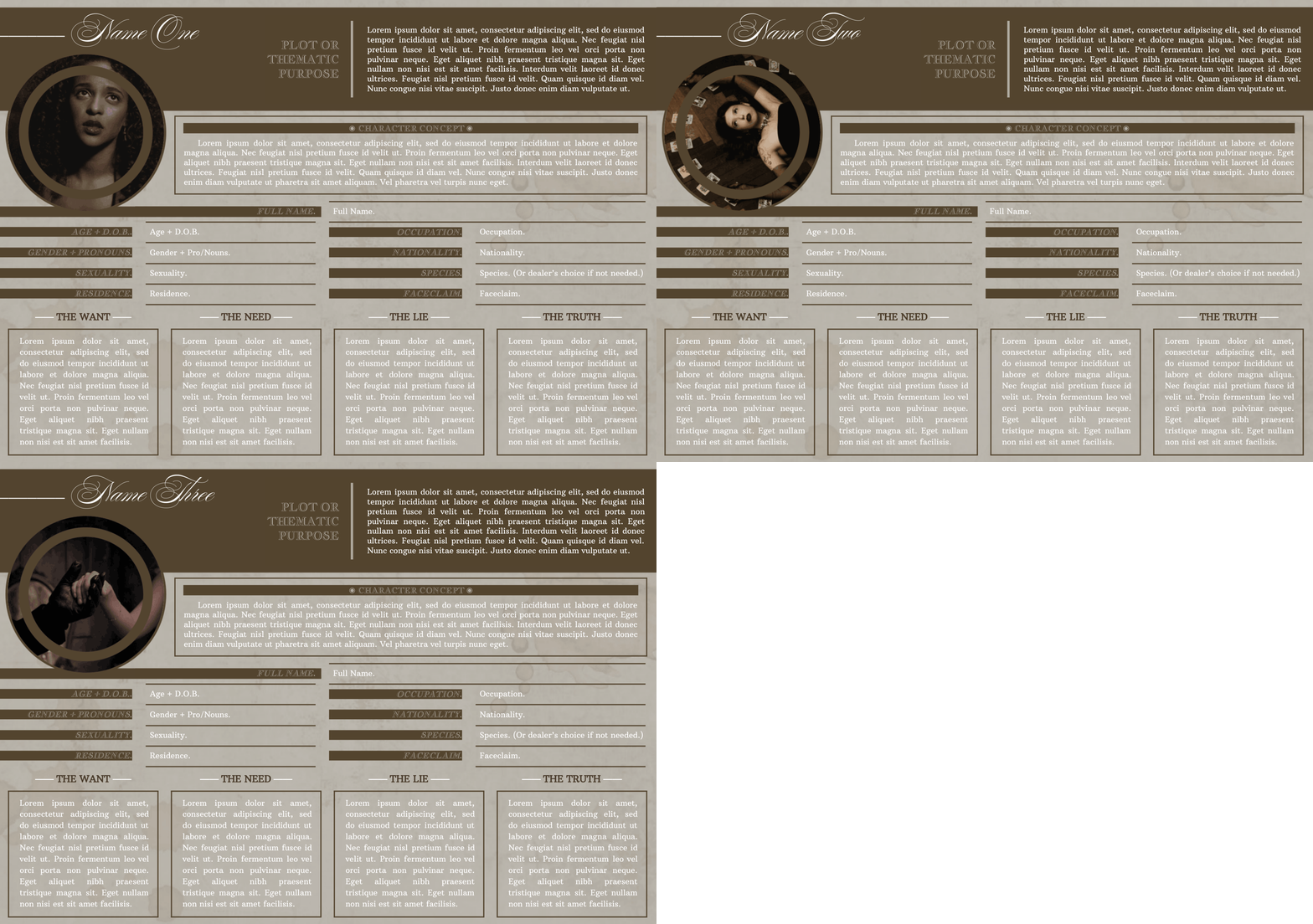
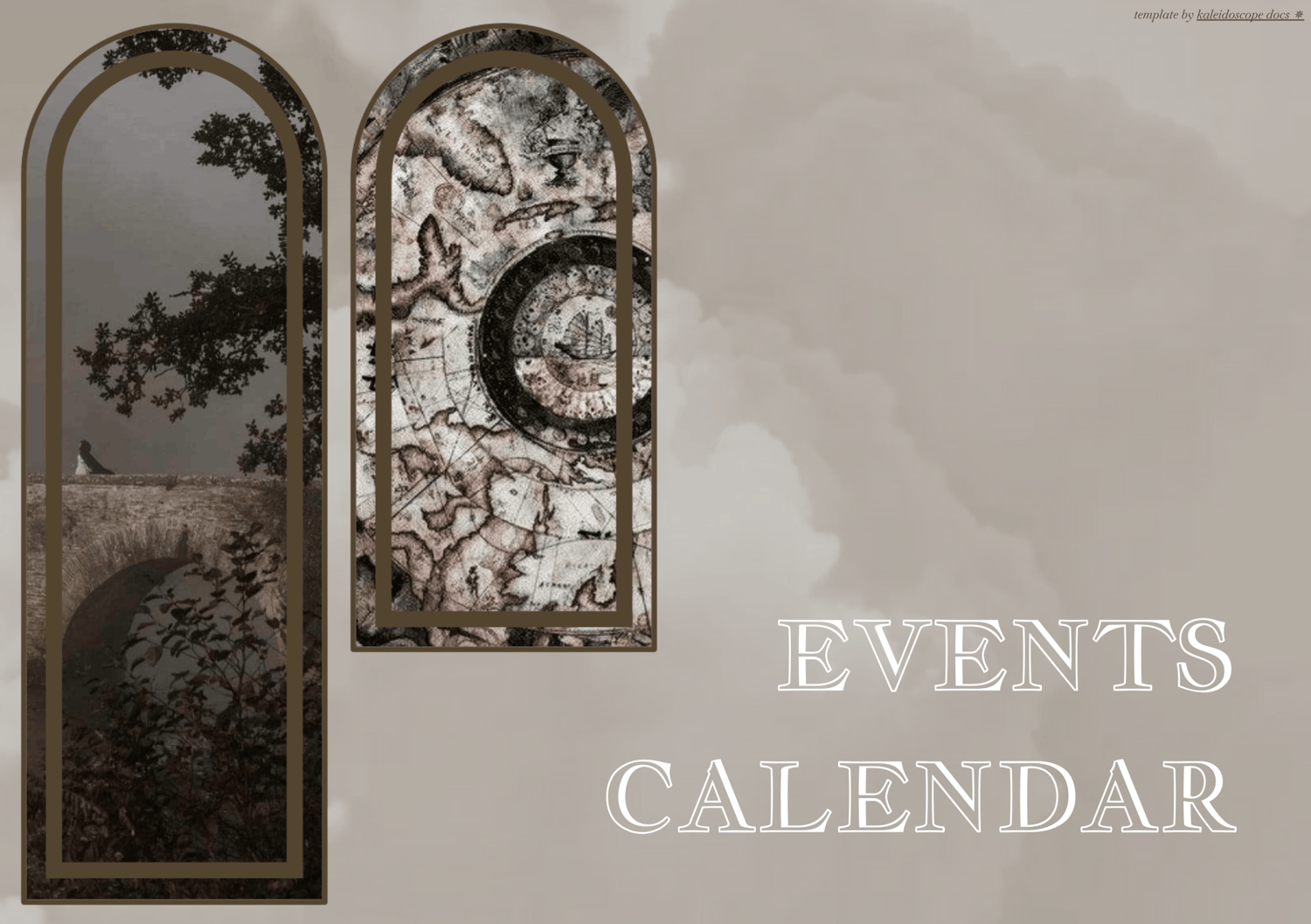
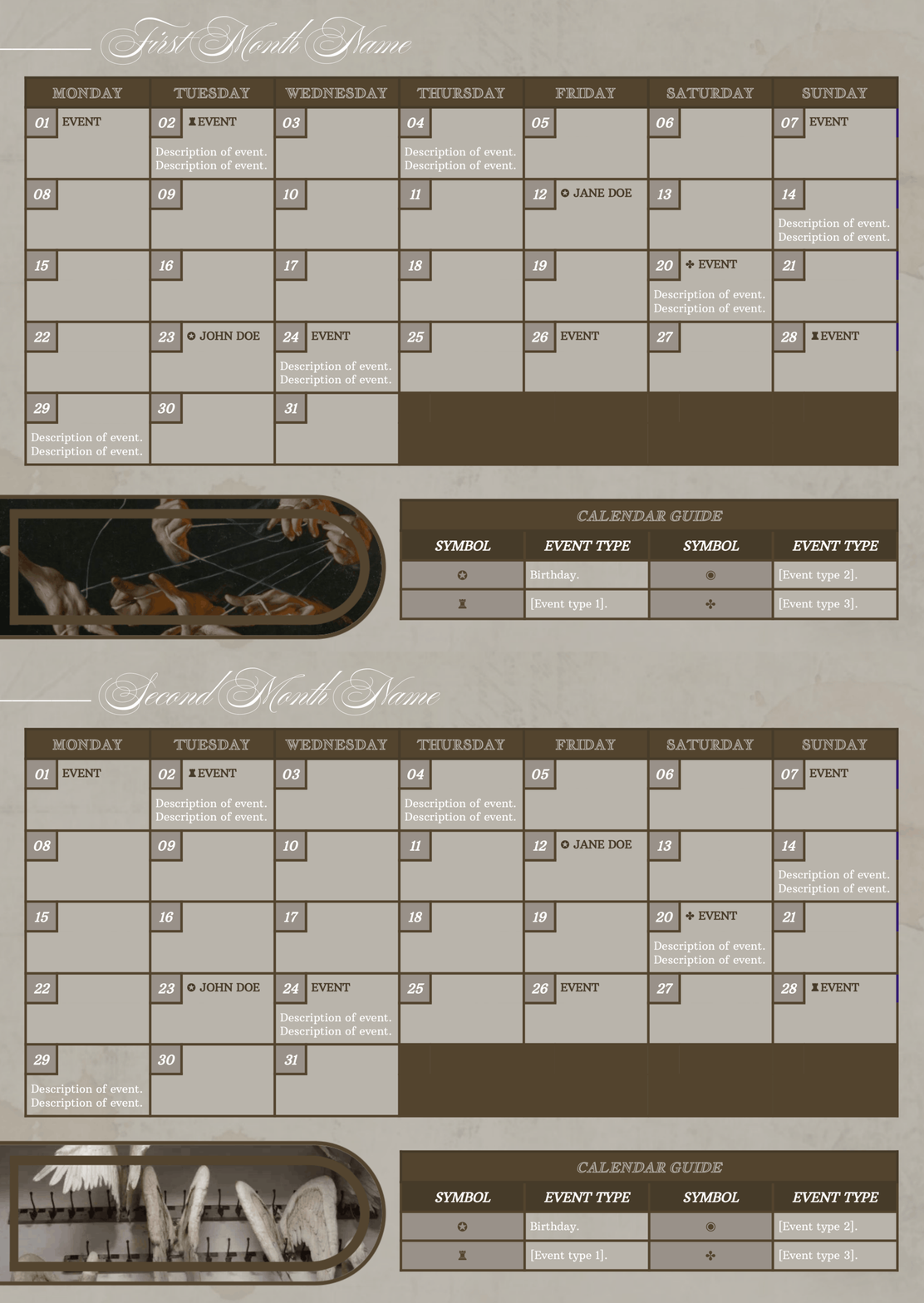
This Google Doc is fourteen pages, but it can be expanded to as many as you need! Just copy and paste the various entries to cover all of your tracking goals! This is sort of a multi-muse doc, though I'd say it's a bit more like a writing overview. It delves into your project, the main protagonists / antagonists, side characters, and a calendar of events to keep it clear what happens when. I do think the pages / titles could be pretty easily changed to track other things though! I tried to keep it neutral and clean to keep the pages from getting too busy even when there's a lot of info packed into them. I hope it'll help you maintain a bit of order while also providing a nice overview for you (or people you show it to)!
Complexity Level: So, due to the fun shapes of the images, they're all "housed" in the Drawings function. But I've tried to make it as easy as possible by almost always putting everything on the same drawing per page, to limit having to click around and such. So you'll be able to edit the text from any mobile app pretty easily, but the design, colors, and images will have to be done on a desktop of some kind.
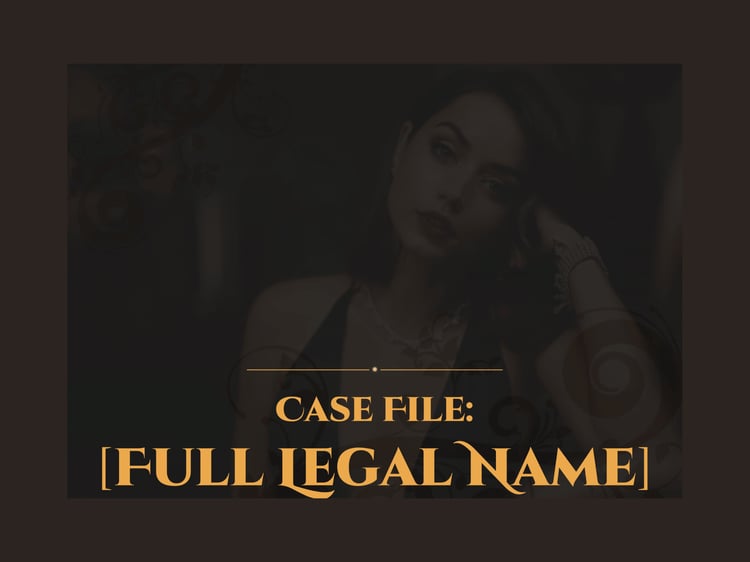
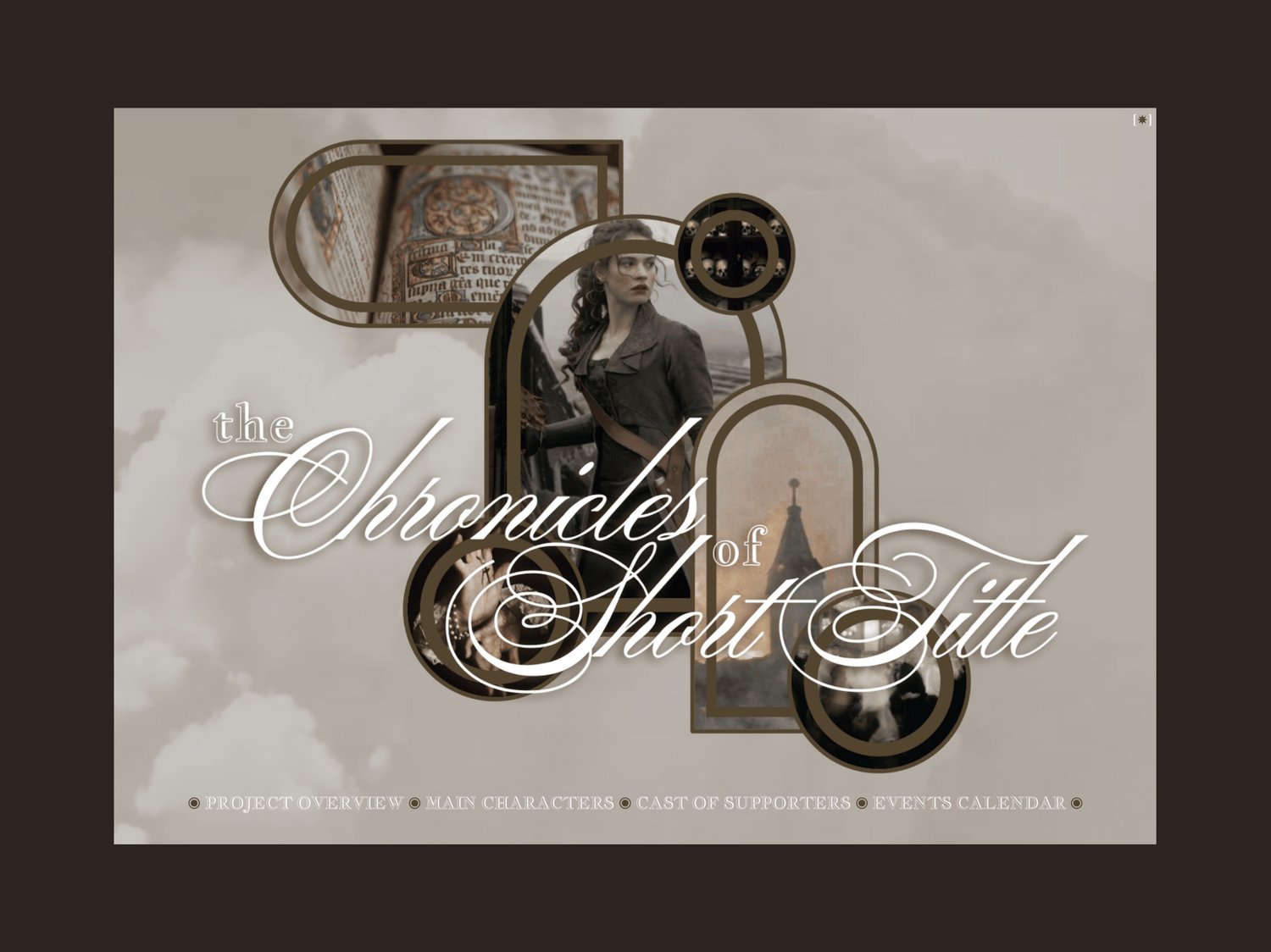
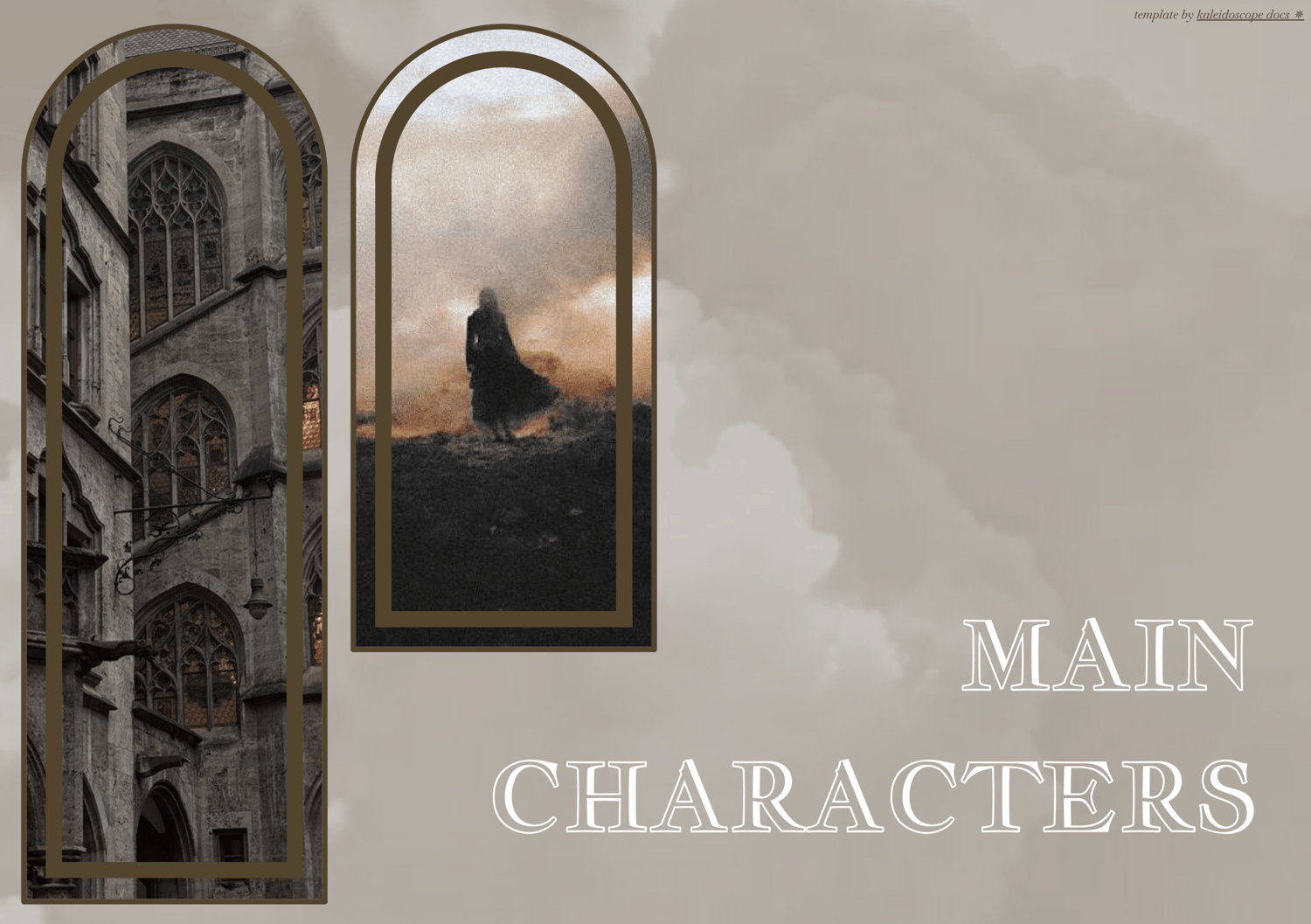
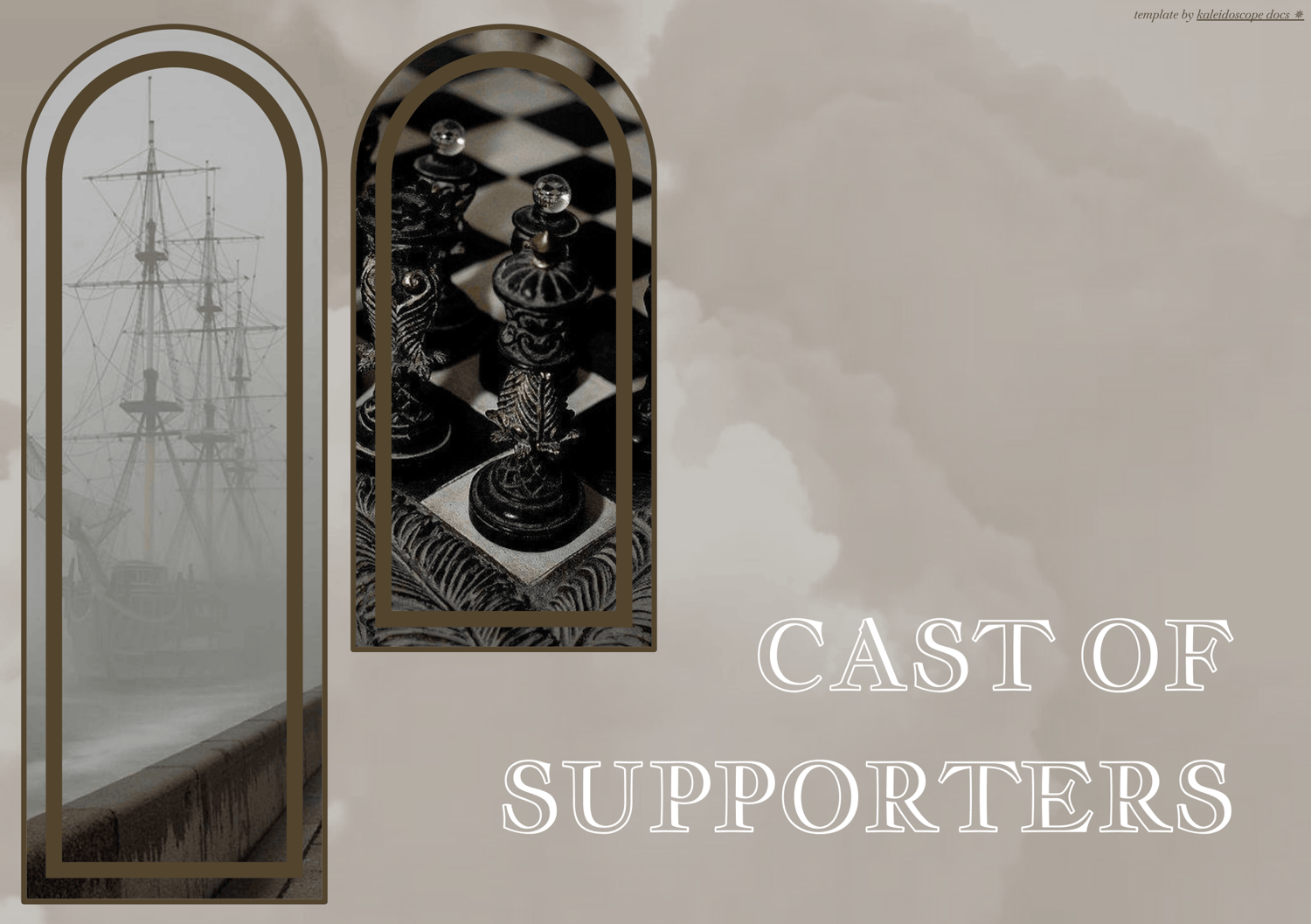
Page Order: General cover page, project overview, main character cover page, main character pages (x2 per each character, can copy+paste as many as you want), side character cover page, side character pages (x1 per each character, can copy+paste as many as you want), events cover page, and event pages (x1 per each month, can copy+paste as many as you want)
Drawings: Yes.
Elements: (Coming soon.)
NOTES:
- All purchases are subject to my usage agreement.
- Reminder: do not remove the linked emoji [✵] and credit link [template by kaleidoscope docs ✵] that direct to my Tumblr or store.
- I am happy to provide editing tips for Google Doc templates in general, as well as specific feedback when contacted for help. Kindly note that I have a set of policies on how to use my templates, such as what edits, sharing, etc. are permitted. I even have details on how I use and protect your data. These important things can all be found on this page.
YOU WILL RECEIVE A PDF CONTAINING:
- A link to the template's Google Doc for copying into your own account
- Instructions on how to make your own copy and protect it properly
- Usage instructions, tips, and troubleshooting/support options
- And a few more helpful bits!