

Introduction:
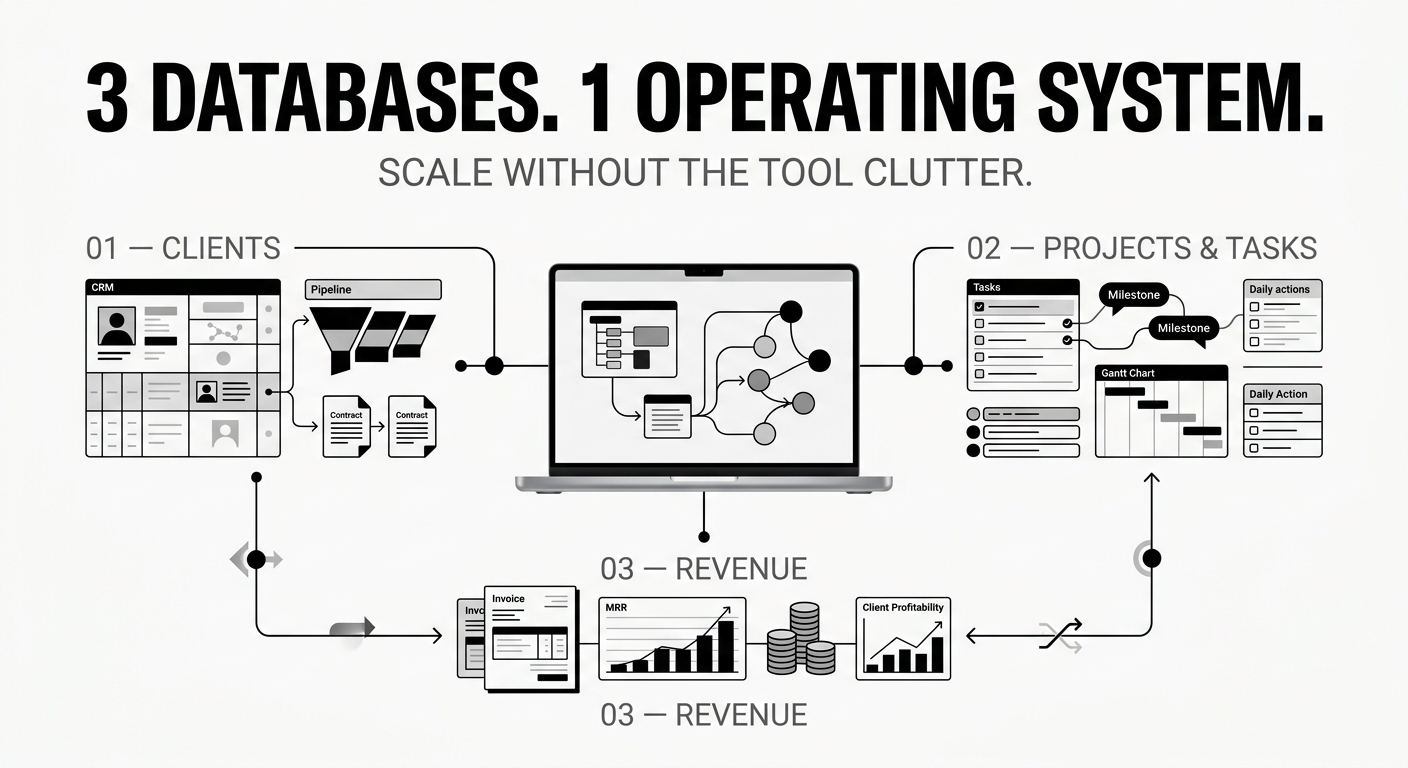
Over-engineering causes Notion burnout. The secret to a stress-free Notion setup isn't more databases—it's minimizing to 3 core databases connected by clean relations.
Who is this blog: Students, creators, and professionals who spend more time building templates than completing tasks.
Why Most Notion Templates Cause Overwhelm
- High Maintenance Friction: Managing 15+ databases forces you to spend more time tagging, linking, and organizing data than actually doing work.
- System Brittleness & Lag: Heavy formulas slow down workspace performance and break easily. When an error occurs, simple task management turns into a debugging session.
- Hidden Information: Deeply nested sub-pages suffer from "out of sight, out of mind." If capturing an idea requires clicking through three sub-folders, you will stop using it.
- Notion Overhead Fatigue: When a template demands more cognitive effort to maintain than the actual work it tracks, friction wins and the workspace gets abandoned.
The 3-Database Rule for Minimalist Productivity
To prevent system overwhelm, limit your workspace to 3 core master databases.
[ Projects & Goals ] ─── (Relation) ─── [ Tasks & Actions ]
│ │
└───────────── (Relation) ──────────────┴─── [Notes & Resources]
Database 1: Tasks & Actions (Master Task List)
- Purpose: Captures every actionable to-do, routine, and deadline.
Properties
- Task Name (Title)
- Status (Status: To Do, In Progress, Done, Archived)
- Due Date (Date)
- Time Horizon (Select: Today, This Week, Someday)
- Project (Relation $\rightarrow$ Projects & Goals)
- Type (Select: Task, Admin, Habit/Routine)
Essential Views
- Today View (Board or List): Filtered by Due Date = Today OR Time Horizon = Today, sorted by status.
- This Week View (Board or Calendar): Filtered by Due Date is within next week.
- Inbox / Unscheduled (Table): Filtered by Due Date is empty AND Status is not Done (for quick brain dumps).
Database 2: Projects & Goals
- Purpose: Tracks multi-step outcomes with deadlines (e.g., Launch Store, Course Work, Trip Planning).
Properties
- Project Name (Title)
- Status (Status: Planning, Active, On Hold, Completed)
- Category / Area (Select: Work, Personal, Finance, Health, Growth)
- Target Date (Date)
- Tasks (Relation $\rightarrow$ Tasks & Actions)
- Progress (Rollup or Formula: Percentage of completed tasks in the related Task database)
Essential Views
- Active Projects (Gallery): Filtered by Status = Active, displaying the progress bar on card previews.
- By Category (Board): Grouped by Category to view balance across life areas.
- All Projects (Table): Sorted by Target Date.
Database 3: Notes & Resources (The Knowledge Vault)
- Purpose: Houses meeting notes, web clips, ideas, references, and documentation.
Properties
- Title (Title)
- Category (Select: Idea, Article, Meeting Notes, Reference, Journal)
- Project Link (Relation $\rightarrow$ Projects & Goals)
- Created Date (Created Time)
- URL / Source (URL)
Essential Views
- Quick Inbox (List): Filtered by Category is empty (uncategorized notes needing triage).
- Knowledge Hub (Board): Grouped by Category.
- Recent Notes (List): Sorted by Created Time descending, limited to top 10 items.
Dashboard Layout & Setup Guide
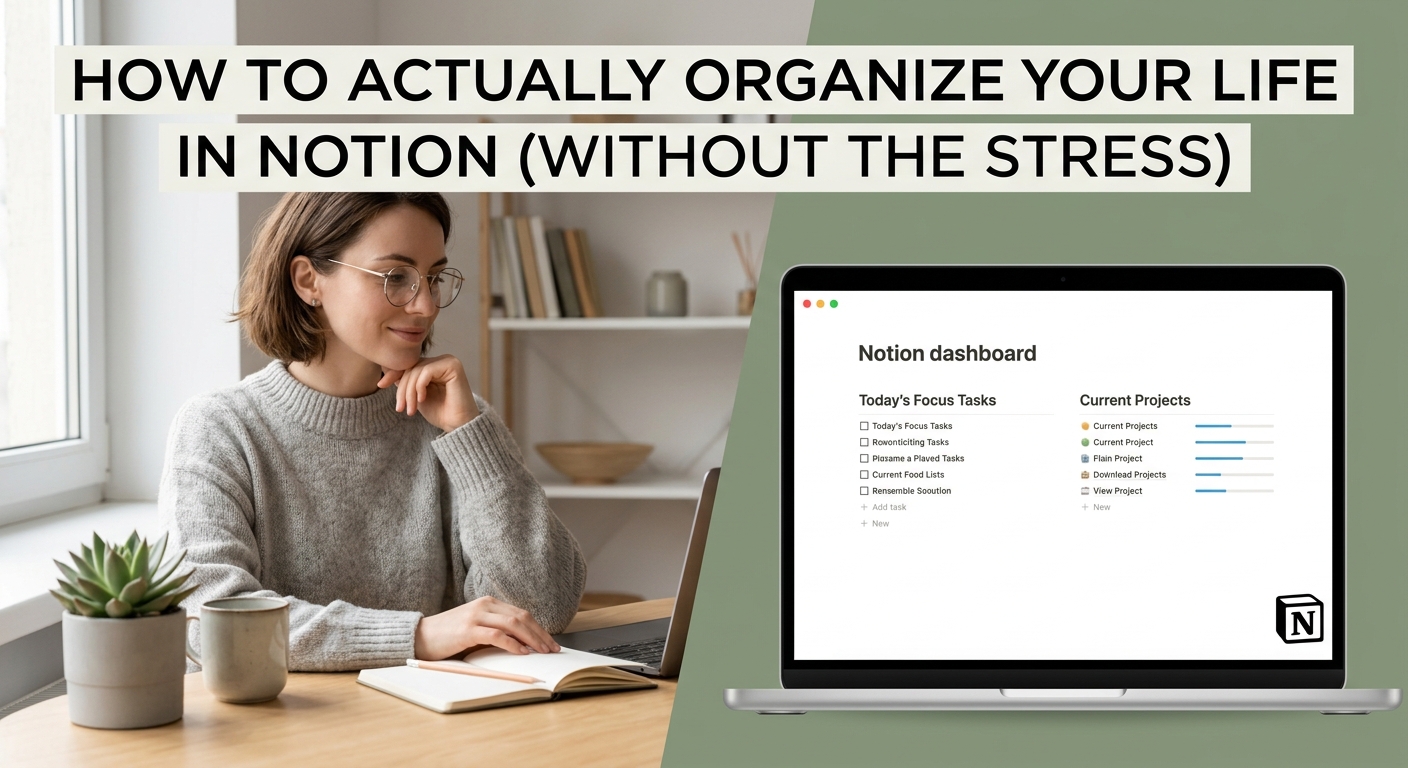
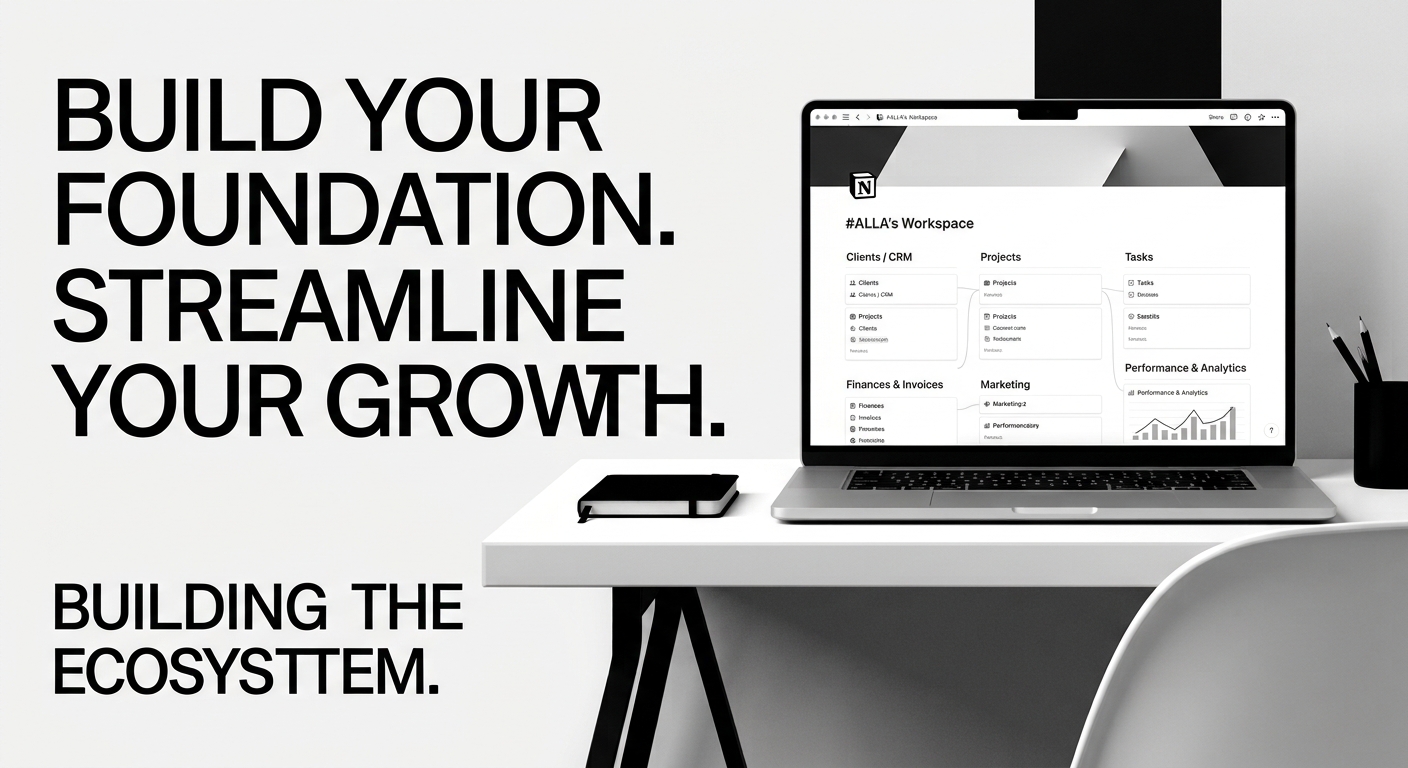
A single-page Life Dashboard should display only what requires attention today, keeping the background engine hidden.
-----------------------------------------------------------------------
| [Header] Today's Focus & Quick Action Buttons |
----------------------------------------------------------------------
| LEFT COLUMN (60% Width) | RIGHT COLUMN (40% Width) |
| | |
| 1. Today's Tasks | 1. Active Projects |
| (Linked View: Tasks) | (Linked View: Projects) |
| | |
| 2. Unscheduled Inbox | 2. Recent Notes & Ideas |
| (Linked View: Tasks Inbox) | (Linked View: Resources) |
+------------------------------------+----------------------------------+
- Top Section: Quick Buttons
- Use Notion’s built-in Button Block for 1-click entry: + New Task and + Quick Note.
- Left Column: Action Center
- Today's Tasks: Filtered view showing tasks due today.
- Task Inbox: Filtered view for tasks without dates so you can drag-and-drop them into today's schedule.
- Right Column: Context & Overview
- Active Projects: Gallery cards with progress bars to show current active goals.
- Quick Resources: Recent entries from the Notes & Resources database.


Comments ()