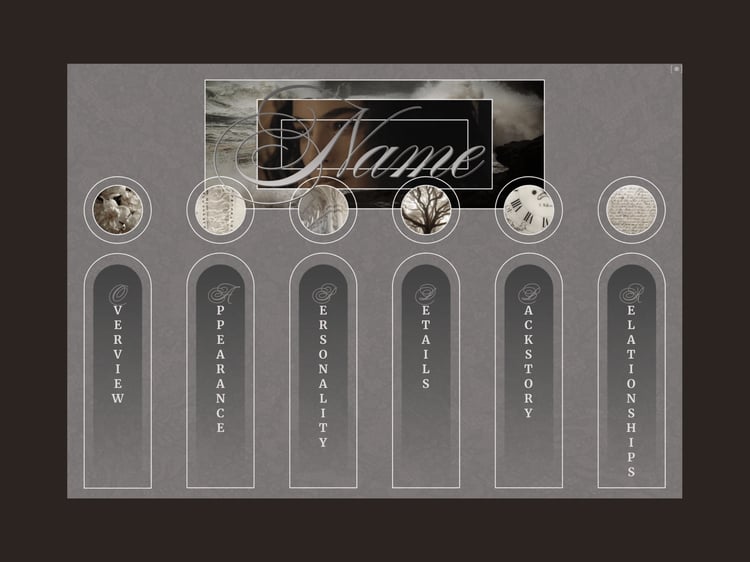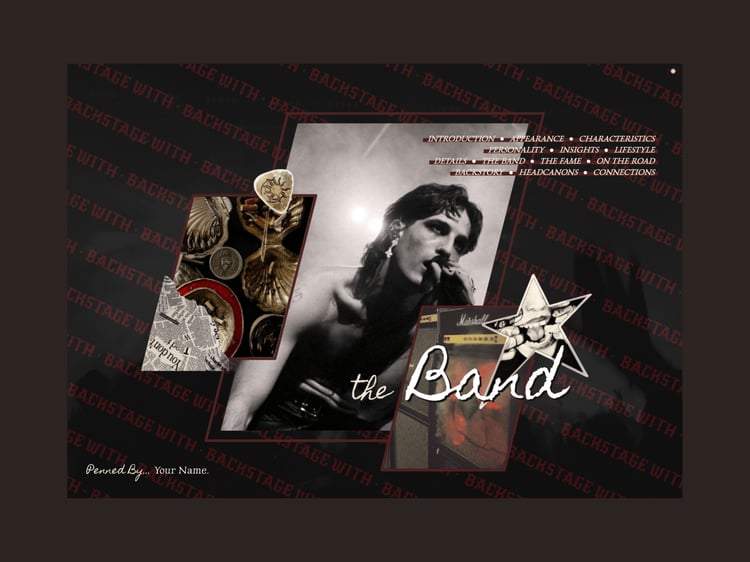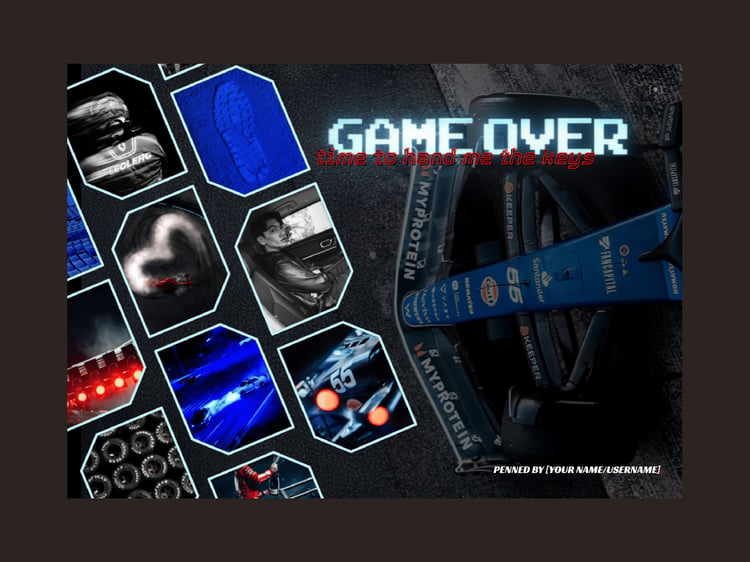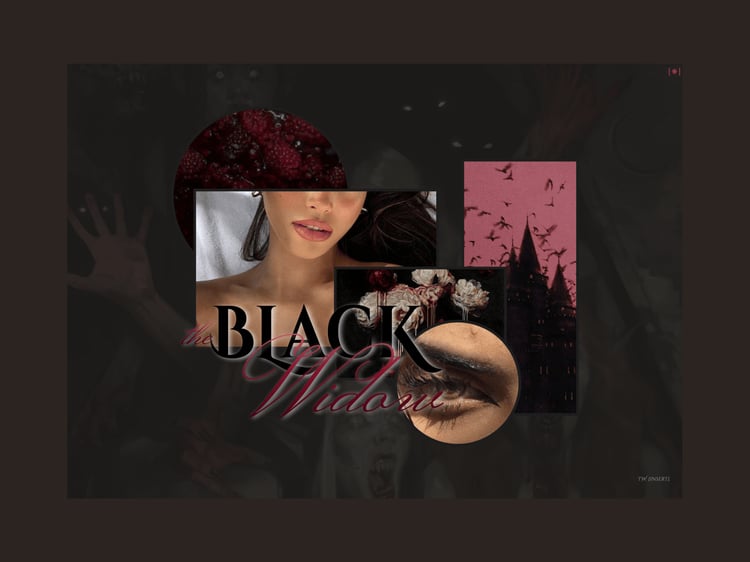
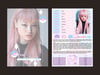

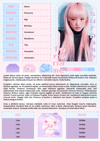
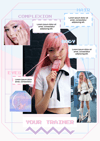
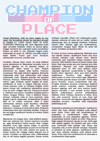
Bubblegum Evolution
SWEET THINGS CAN STILL HIT HARD.
Playful. Tactical. Spirited.
Pastel-bright. Go-get-em Energy. Team-focus.
Soft colors. Strong bonds.
DESCRIPTION:
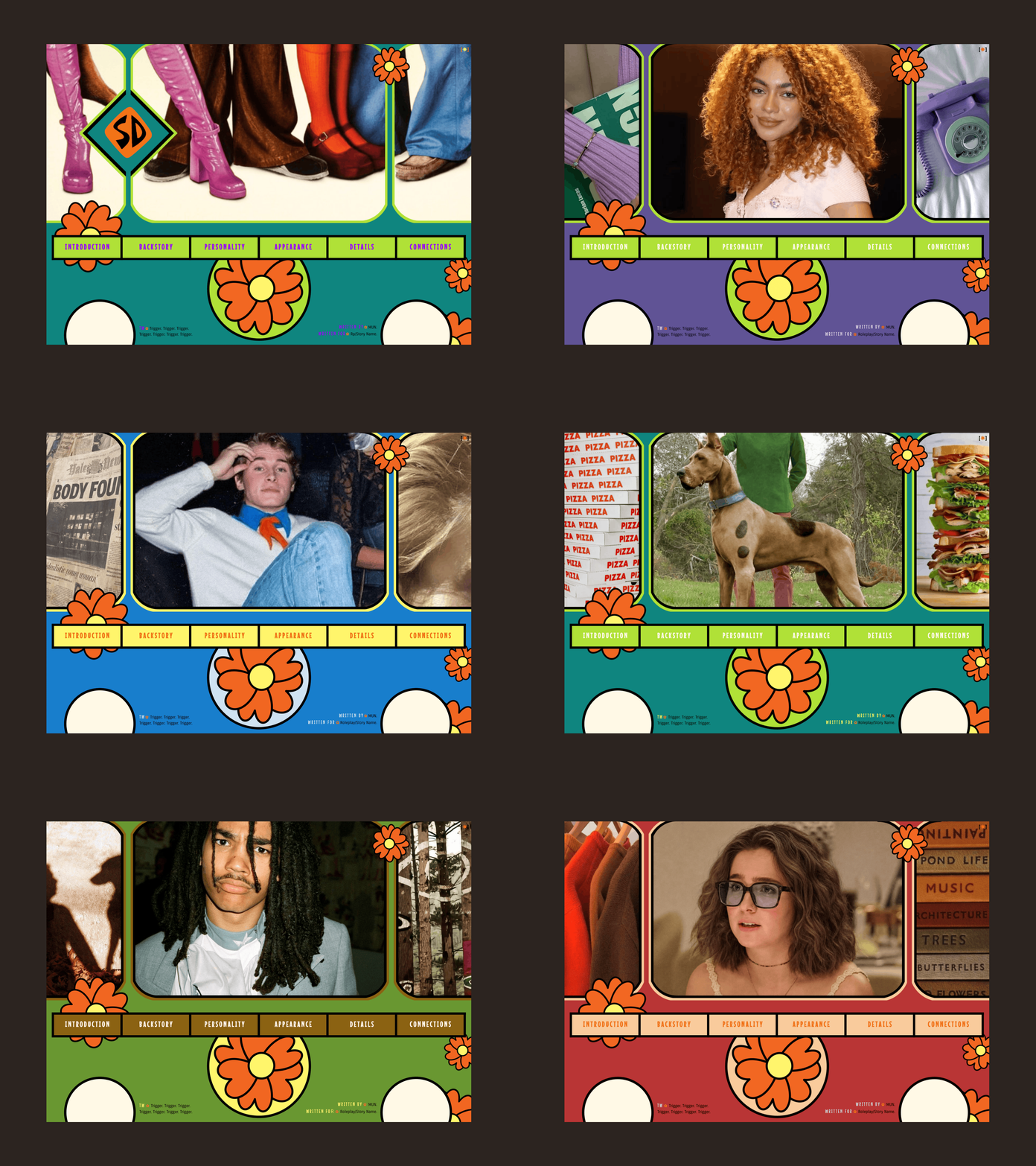
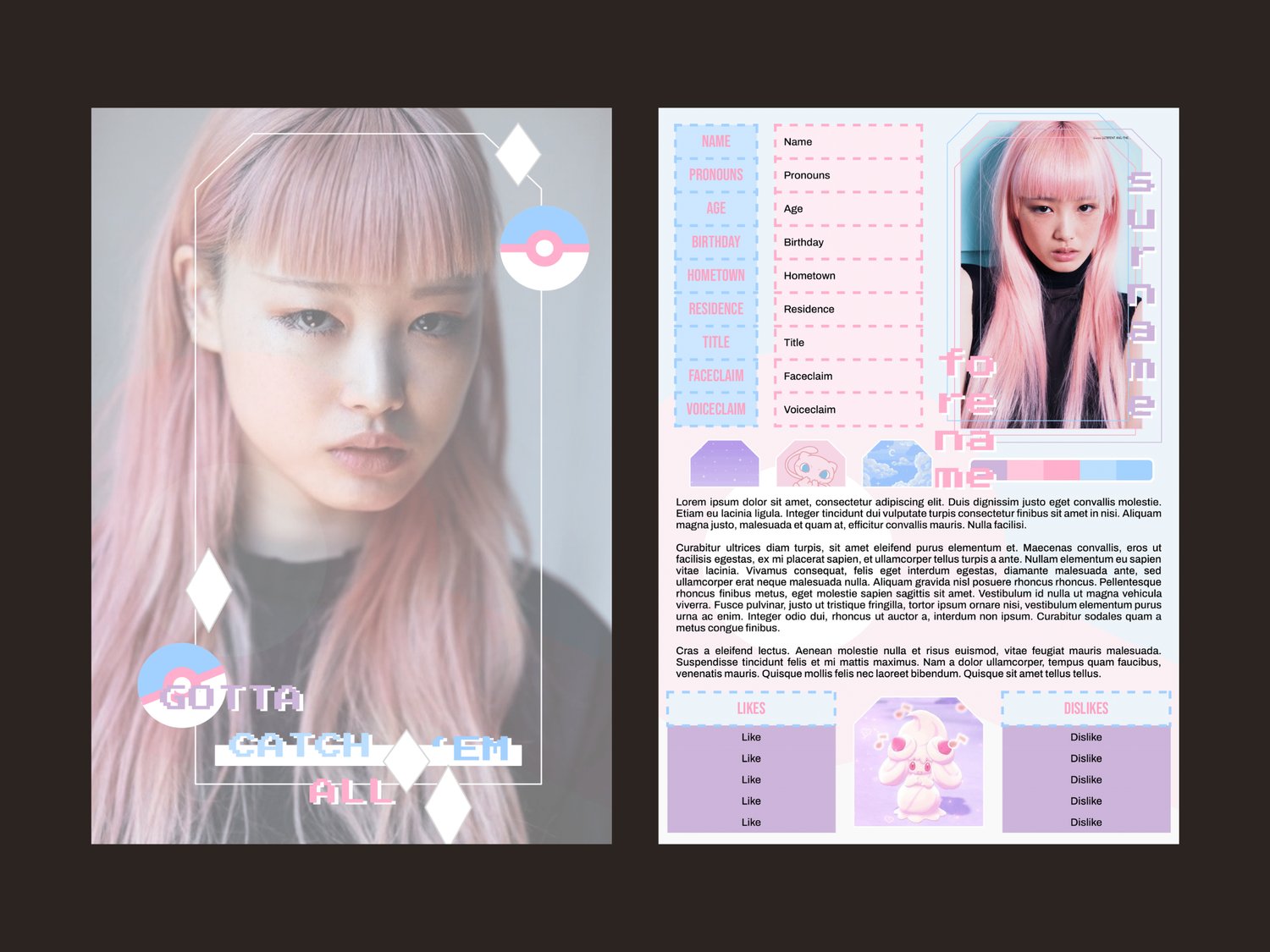
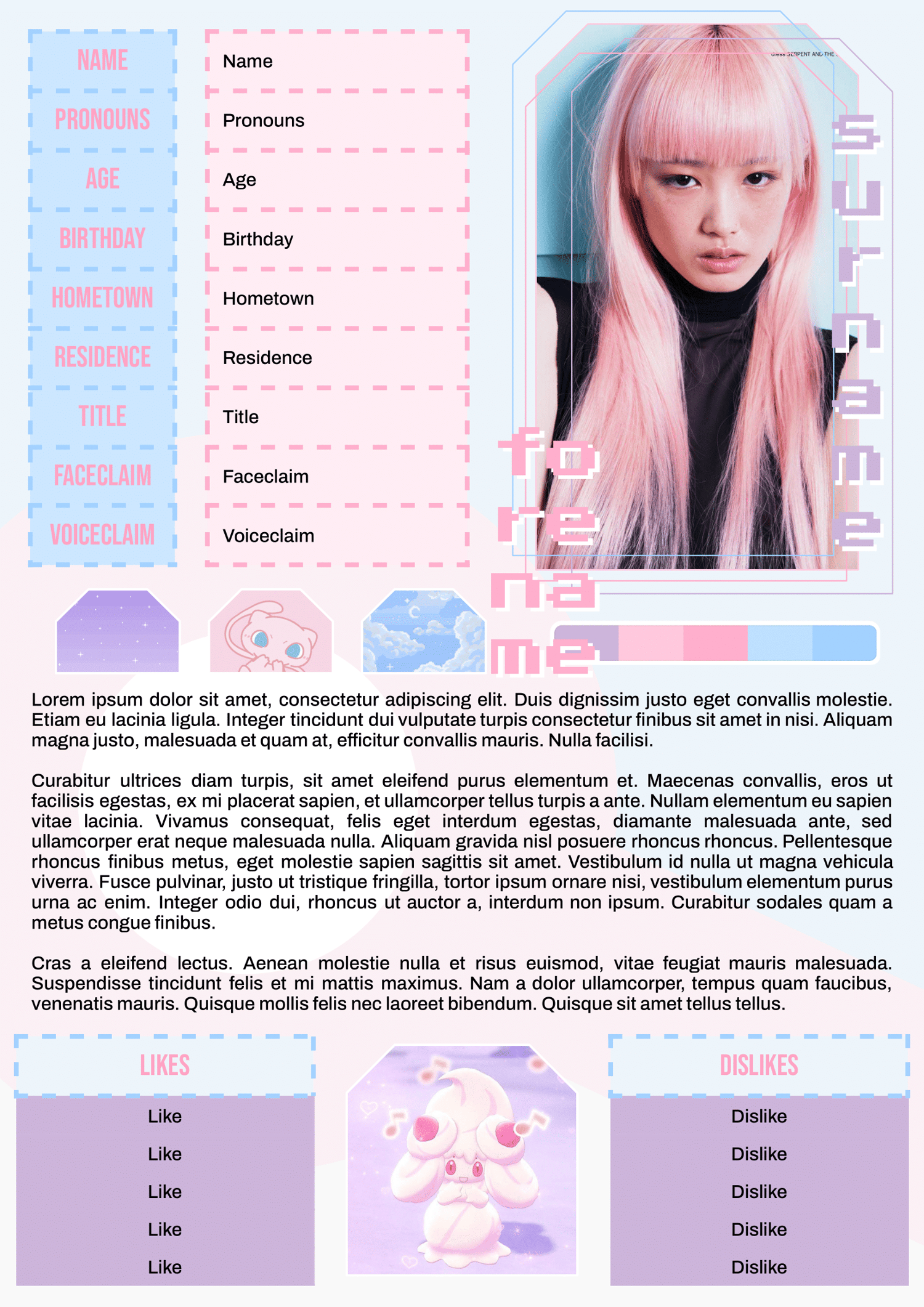
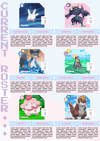
This is a five-page Google Doc template designed for a single muse from the Pokémon world. Whee!!! Let the fun pastels be the inspiration that carries you to your very own championship! If you want to catch 'em all, you better start with a great character foundation!
Complexity Level: A pretty solid medium, I'd say. Maybe one day I'll be capable of not making every image from a drawing shape!
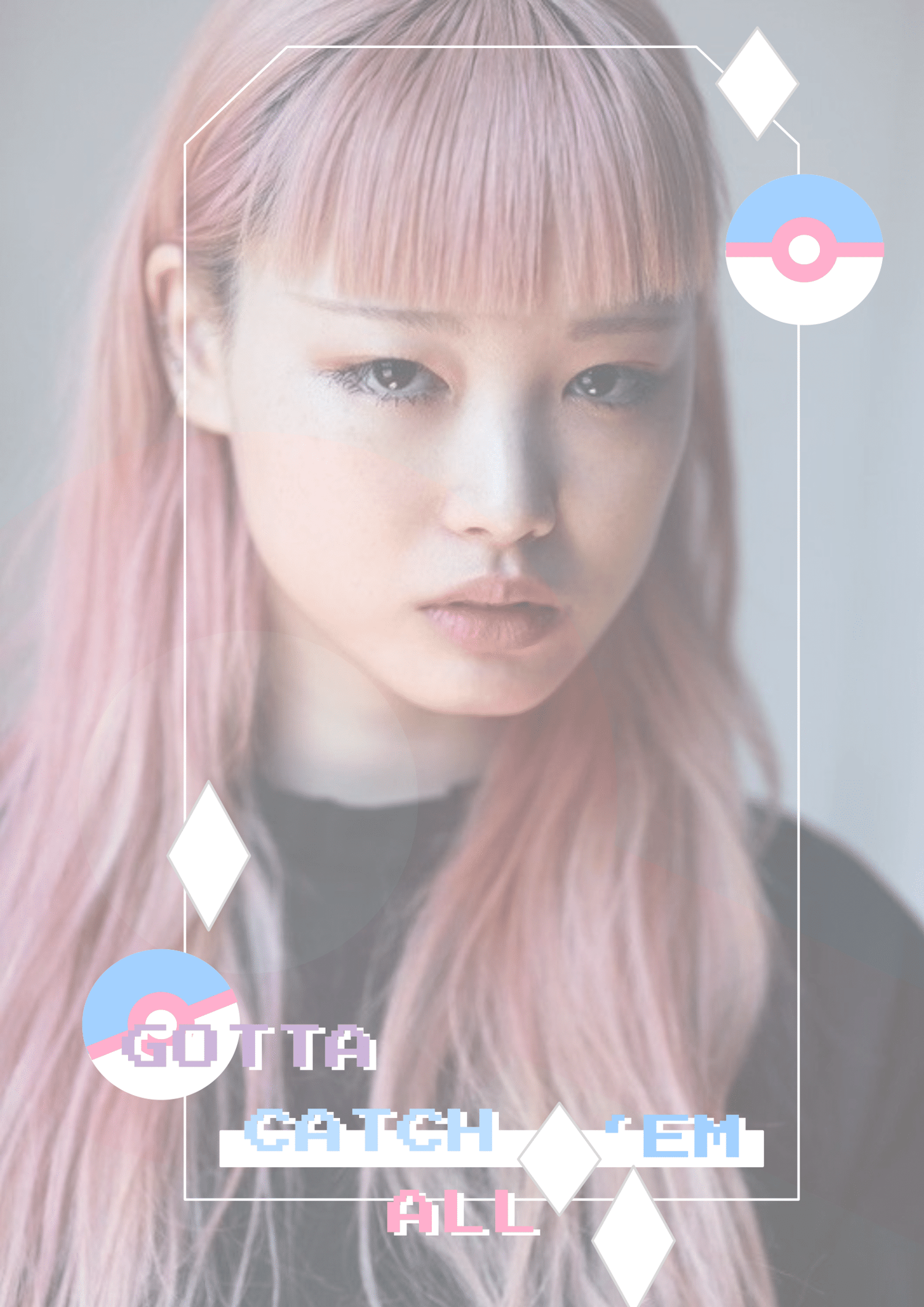
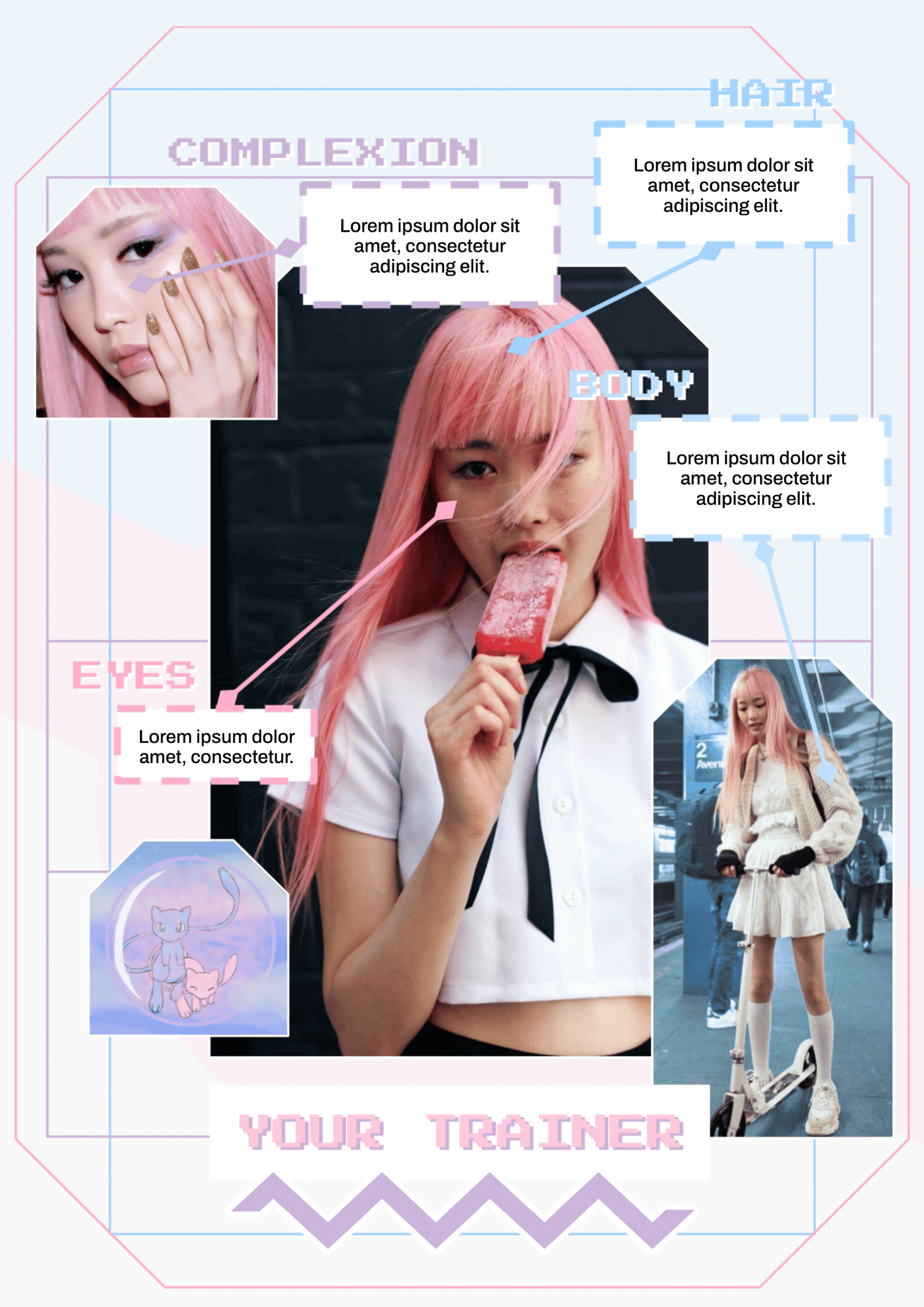
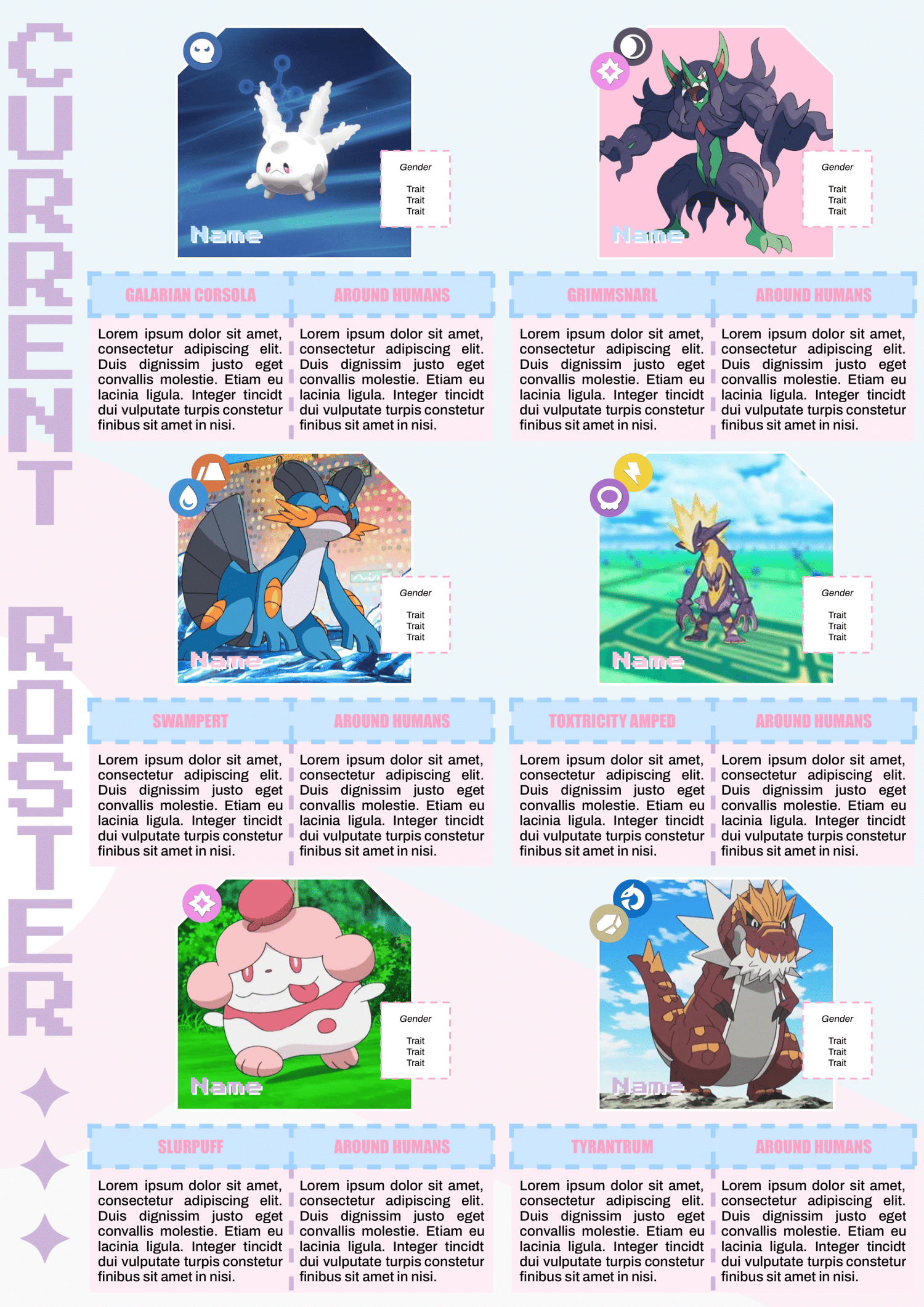
Page Order: Cover, basics/personality, appearance, backstory, and roster.
TIPS ON MAKING IT YOUR OWN:
- For full editing capabilities, you will need to access this template on a computer. Templates are viewable on mobile if you toggle the "Print Layout" option (likely to be found in the top-right menu). I made this one vertical specifically because I think many people made their own document from a computer and then look at others' from a phone... so it's a bit easier on the eyes from a mobile, perhaps. Or at least I hope so!
- Text, colors, and layout elements can be adjusted to fit your needs. Nonetheless, do not remove the linked emoji [✵] and credit link [template by kaleidoscope docs ✵] that direct to my Tumblr.
- In my work, visuals are often added as Google "Drawings". If you click on an image, you can tell if it's a regular photo or a Drawing because a Drawing has a little bar pop up across the bottom of the selection that has an "✎ Edit " button in the bottom left. Drawings are completely editable (even more so than images!) once you open the Drawings Editing Window. You either click that "✎ Edit" button or double-click the image (when you already have the image selected). I recommend the button because sometimes that double-tap glitches. Nonetheless, either of these actions will open the Drawing Editing Window. This will allow you to replace photos and change colors of shapes like you would normally.
- Often times, I put the Drawings or backgrounds in headers because then they aren't in your way when editing text. (This makes the text easier to edit in mobile apps, although Drawings themselves can only be edited on desktops/laptops.) To access the header, double-tap at the top of the page first. Then click on the background Drawing once, which will allow you to then open Drawing for editing!
- Avoid copy-pasting images directly into the document, as this may disrupt the formatting. Always use the "Replace Image" function instead.
- Be mindful of text limits and the sizes of text boxes, as exceeding what is already in the template can disrupt the formatting.
- The "Backstory" page is formatted in a way that will allow you to use more pages without any formatting issues. The text will simply continue on in a two-column manner and push the last page back. You may choose to add decorative foreground images to these pages, but that is up to your discretion. Not having images in the master template was the smoothest way to ensure your backstory length could continue on however long without ruining any formatting.
YOU WILL RECEIVE:
- A PDF with a link to the template's Google Doc.
- This includes instructions on how to make your own copy and protect it properly.
- A PDF with usage instructions and troubleshooting support options.
NOTES:
- The faceclaim in the example is Fernanda Ly.
- The type logos are from the amazing AdeptCharon on DeviantArt.