

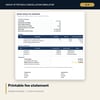
Group Attrition, Cancellation & Deposit Schedule Simulator: Group Block Attrition and Cancellation Fee Calculator
Full description
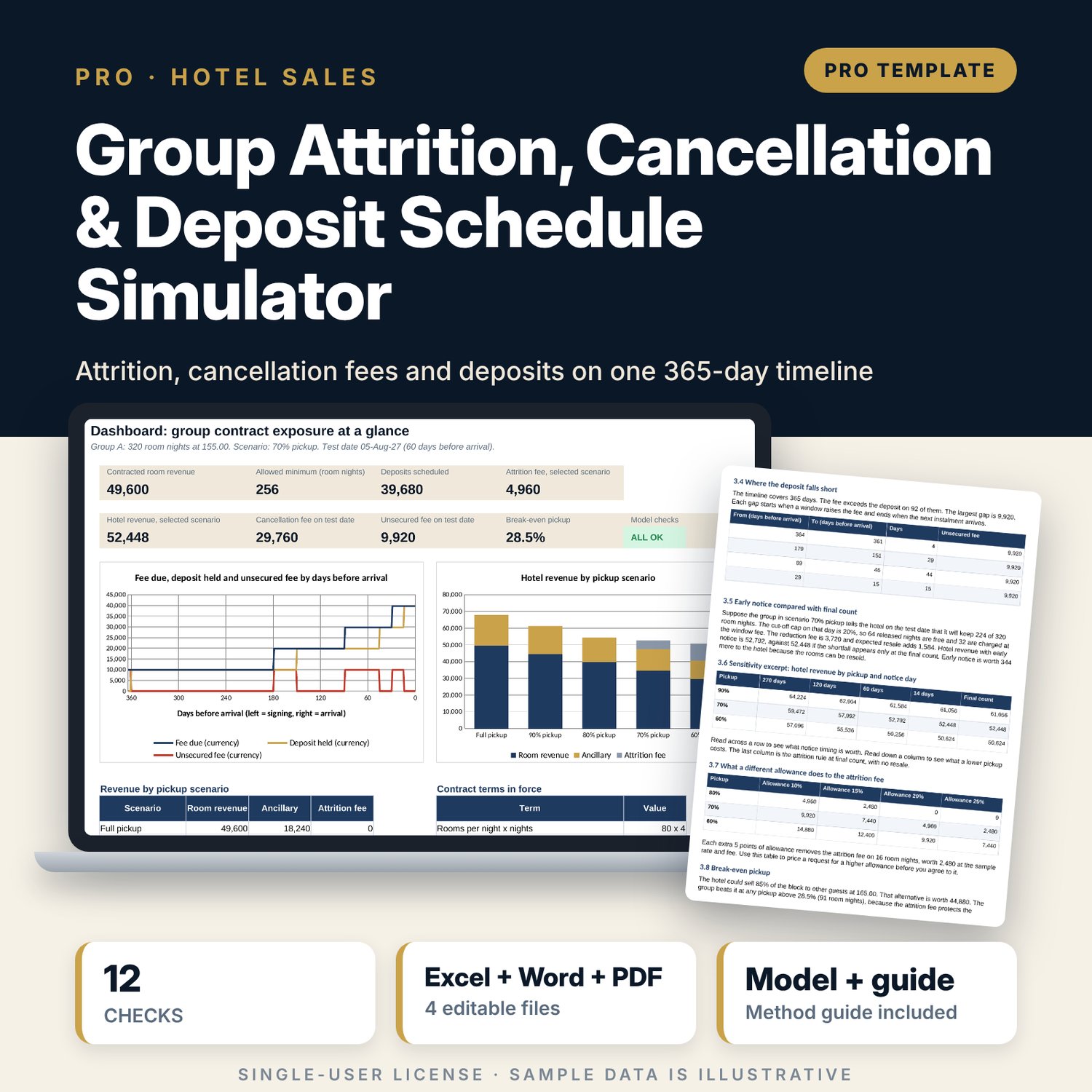
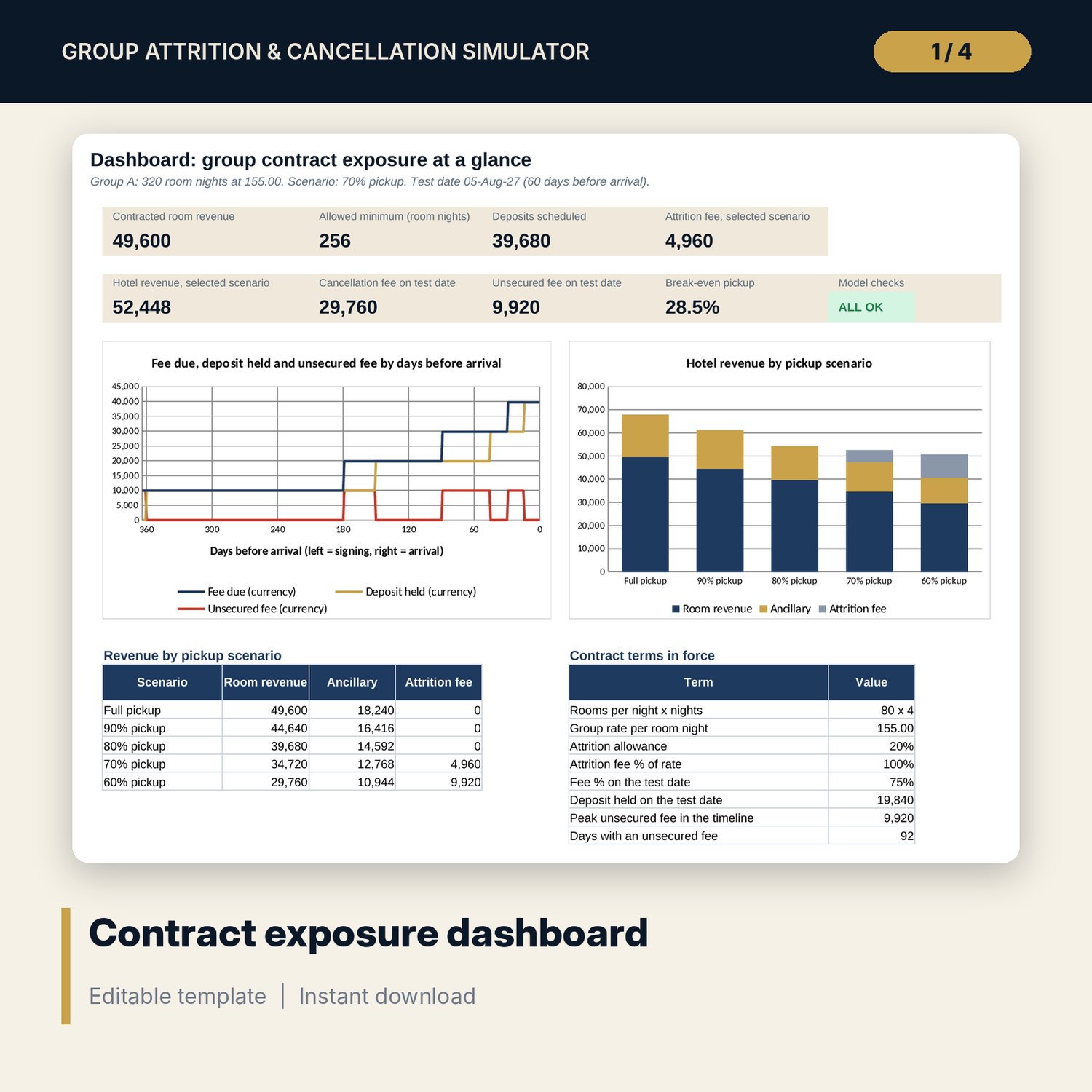
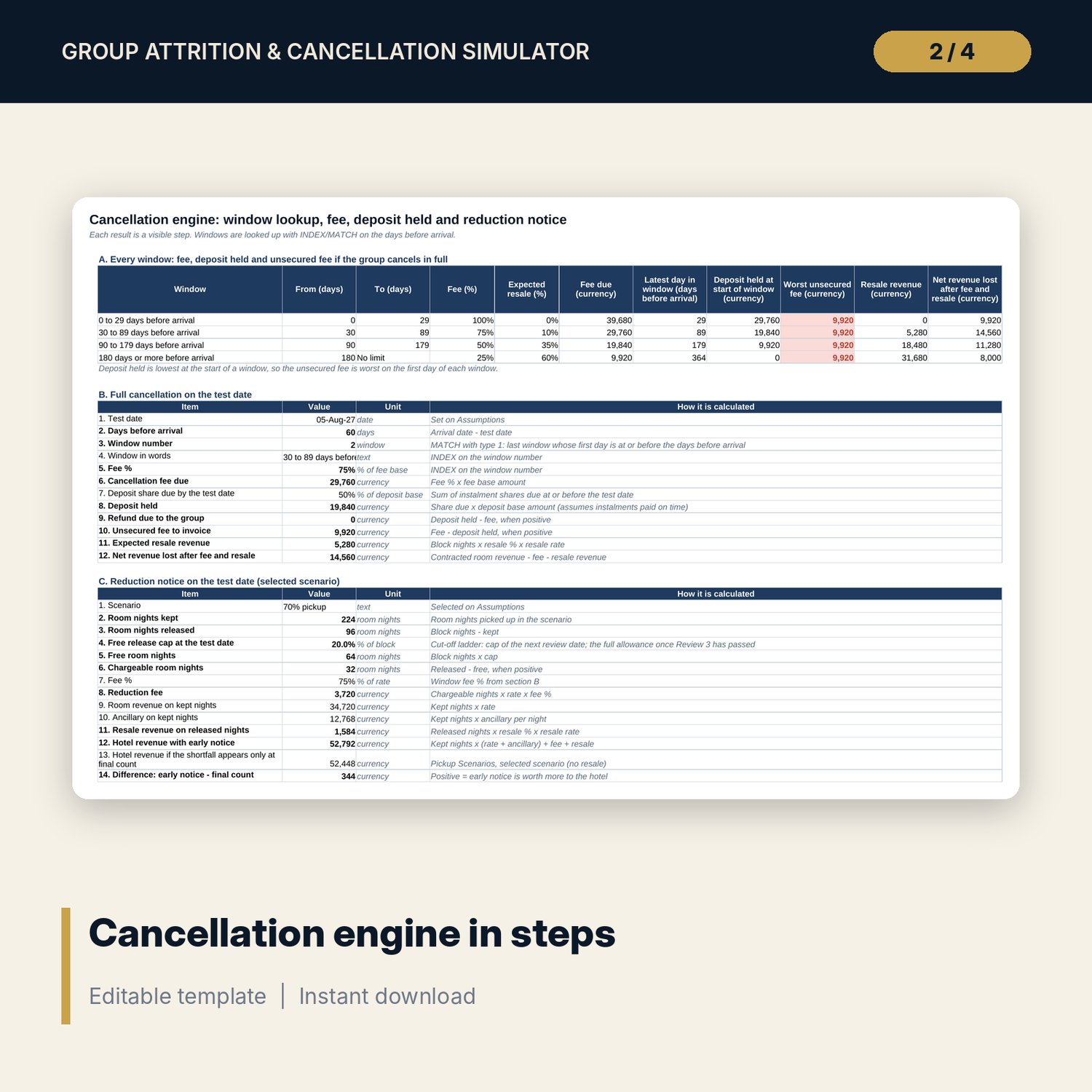
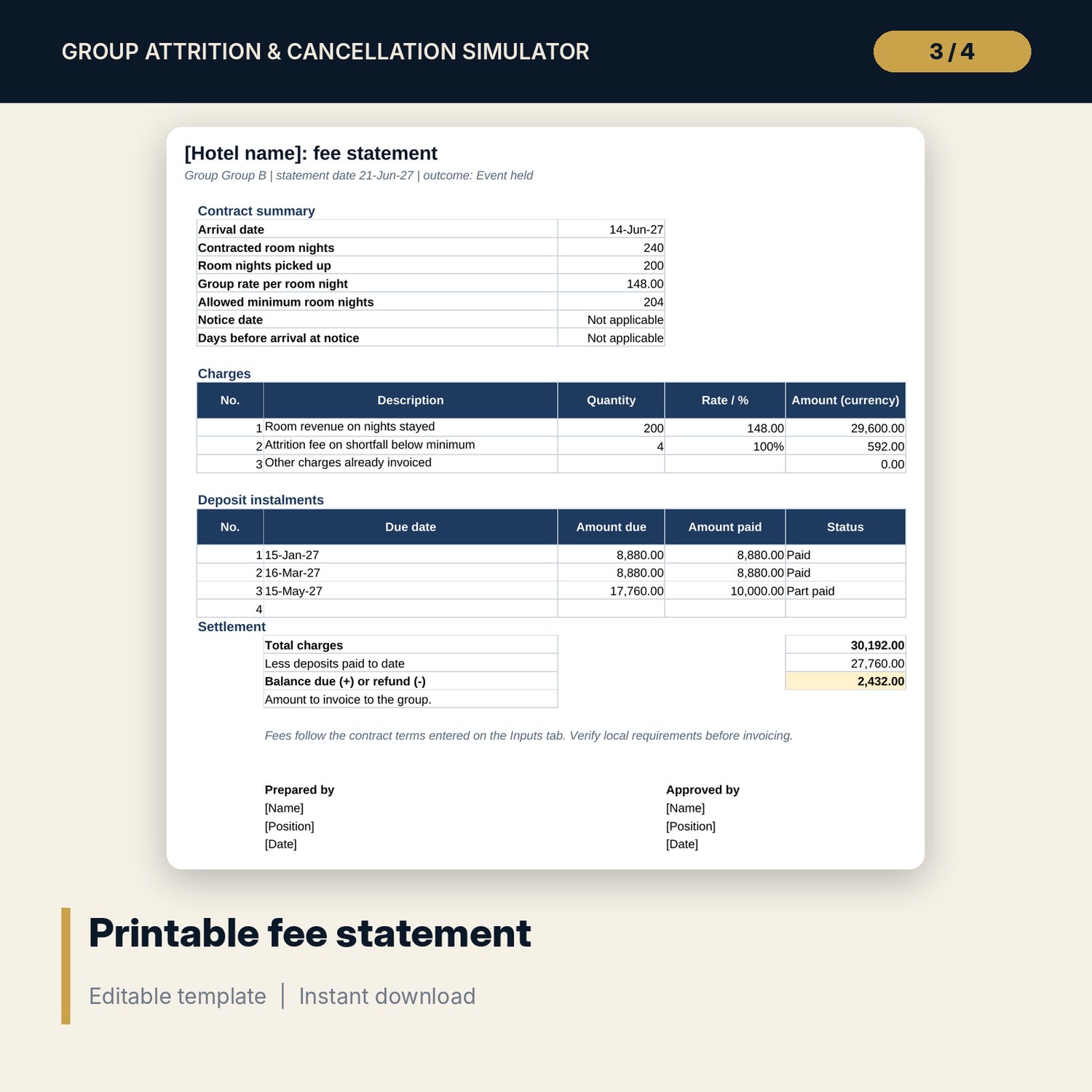
For group sales managers, revenue managers and directors of sales in hotels who negotiate room blocks and need to know what each contract clause costs. Enter the block, the attrition allowance, the cumulative cut-off review dates, four cancellation windows and four deposit instalments. The workbook calculates the attrition fee at five pickup levels, the cancellation fee by day with an INDEX/MATCH window lookup, the deposit held against the fee on each of 365 days from signing, the unsecured fee, hotel revenue after resale, a break-even pickup and two sensitivity grids. A companion calculator settles one real contract and prints a fee statement. A 9-page guide explains each clause, works through the sample contract and lists negotiation points.
What is inside
- Group_Attrition_Simulator.xlsx: 10 tabs, 4,341 formulas, 2 native charts, 8 data validation rules
- Assumptions and Contract Terms: block, rate, dates, attrition allowance, a 3-step cut-off ladder, 4 cancellation windows, 4 deposit instalments
- Pickup Scenarios: 5 pickup levels, attrition fee, revenue, balance due, selected scenario and break-even pickup
- Cancellation Engine: window table, full cancellation on a test date and a reduction notice, each in visible steps
- Exposure Timeline: 365 daily rows with fee due, deposit held, refund, unsecured fee and net loss after resale
- Sensitivity: 2 grids of closed-form formulas (revenue by pickup and notice day, attrition fee by pickup and allowance)
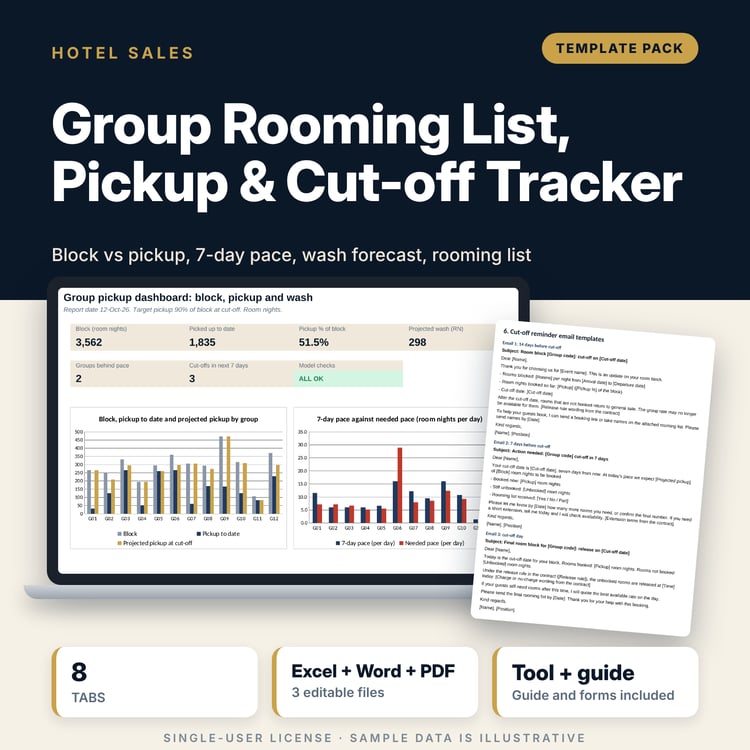
- Dashboard with 8 tiles, a check tile and 2 charts; Checks tab with 12 checks; Method tab with 12 documented calculations
- Group_Attrition_Simulator_Single_Contract_Calculator.xlsx: 3 tabs, 168 formulas, 7 checks; inputs, fee result and a printable fee statement
- Group_Attrition_Simulator_Guide.docx and PDF copy: 9 pages with clause explanations, worked example, negotiation table, mistakes, checklist and glossary
- README.txt and LICENSE-and-Terms.txt
How it works
- Enter the block, rate, dates and attrition allowance on Assumptions, then your clauses on Contract Terms.
- Read Pickup Scenarios for the attrition fee and revenue at five pickup levels.
- Set a test date and read Cancellation Engine and Exposure Timeline for the fee, the deposit held and the unsecured fee.
- Use Sensitivity and Dashboard to compare terms, and confirm that Checks shows ALL OK.
- Settle a real contract with the Single Contract Calculator and print the fee statement.
Details
- Format: 2 .xlsx workbooks, 1 .docx guide and its PDF copy (4 files), English
- Software: Excel 2016 or later, or LibreOffice Calc 7 or later
- No macros, no external links, no data tables, no array formulas
- Instant digital download
Good to know
- Sample data is illustrative. Replace it with your own figures.
- Fees, percentages, windows and deposit rules are editable inputs and examples. They are not legal advice. Verify local requirements and ask your adviser about enforceability.
- Resale of released rooms is your estimate. Set it to 0% to see the worst case.
- Single-user license. Do not redistribute.
FAQ
What is the difference between attrition and cancellation in the workbook?
Attrition is the shortfall below the allowed minimum, found at the final count. Cancellation is a full cancellation before arrival, charged by window. A release told to the hotel before arrival uses the cut-off ladder and the window fee.
Can I change the number of windows or instalments?
The workbook has 4 windows and 4 instalments. Set a share to 0% or repeat a fee % to use fewer. The checks keep the tables in order.
Does it work for a block that changes by night?
It models the same rooms every night. For a shaped block, enter the total room nights as rooms per night x nights and check the peak night by hand.
What does the unsecured fee show?
It shows the part of the cancellation fee that is larger than the deposit you hold on that day, so you can move an instalment earlier before you sign.
Do I need macros or add-ins?
No. Every result is a standard worksheet formula, including the sensitivity grids.